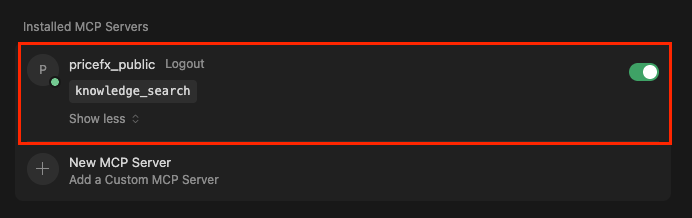
This page explains how to integrate the Knowledge Base Tool with Claude using an MCP Server configured public connection (without authorization). It outlines the essential setup steps required to establish a seamless, direct connection.
Requirements
-
Cursor subscription
-
Cursor Pro Plan
Pricefx MCP Server
The Pricefx MCP Server is available using the following URL:
https://mcp.pricefx.com/mcp
Create Connection
-
Open Cursor.
-
Go to Settings… > Cursor Settings.
-
Go to MCP & Tools.
-
Click Add Custom MCP.
-
Replace the default
mcp.jsonfile with the following code:JSON{ "mcpServers": { "pricefx_public": { "autoApprove": [], "disabled": false, "timeout": 60, "type": "sse", "url": "https://mcp.pricefx.com/mcp" } } } -
Save changes.
-
Verify that the MCP Server is connected.