
The History of Runs screen provides a consolidated view of all Data Upload and Data Download executions in the partition. It allows Data Management users to review upload or download activity, validate successful processing, identify errors, and navigate directly to detailed run information.
Starting with version 1.92.0, the system creates a separate record in History of Runs for every upload execution, including uploads that reuse a previously uploaded file. Previously, reusing a file from Select from recent uploaded overwrote the original record. Now each execution is tracked independently, so History of Runs shows a complete list of all Data Upload attempts.
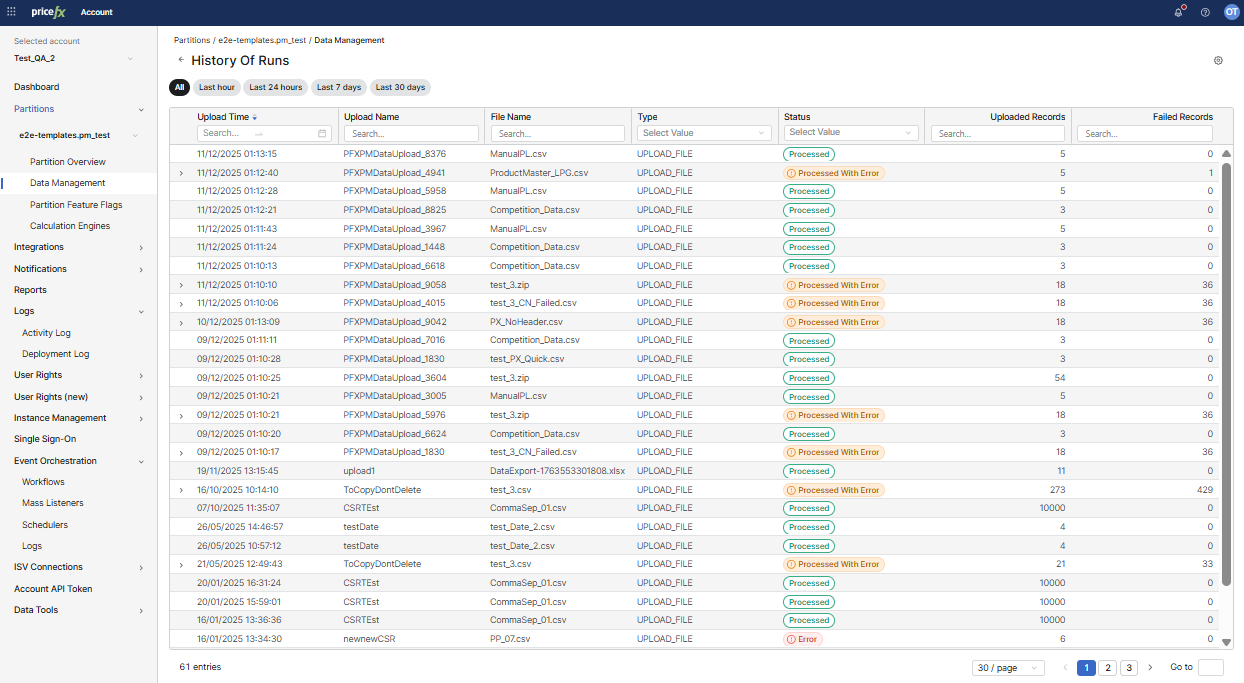
Accessing History of Runs
You can open History of Runs in two ways:
From Data Management Overview – for global overview
-
Go to Account > Partitions > {PartitionName} > Data Management > Data Uploads or Data Downloads tab.
-
In the widget above the table, click the Total Uploads / Total Downloads, In progress, Successful, With Error, or Failed status.
The page opens with the status filter applied based on the selected status.
From Upload Row Menu – for particular job
-
Go to Account > Partitions > {PartitionName} > Data Management > Data Uploads tab.
-
For any upload, open the 3-dot menu.
-
Select History of Runs.
This opens the list of all executions of that upload definition.
From Data Download Row Menu – for particular job
-
Go to Account > Partitions > {PartitionName} > Data Management > Data Downloads.
-
In the Data Downloads table, open the 3-dot menu for a download.
-
Select History of Runs.
This opens the list of all executions of the selected download definition.
History of Runs Overview
The History of Runs table displays one row per execution. The displayed columns differ slightly depending on whether the execution belongs to a Data Upload or a Data Download. You can filter, sort, and search across all fields.
Data Upload Columns
Upload Time – Timestamp when the system initiated the upload run.
Upload Name – The upload definition that executed (for example PFXPMDataUpload_8376).
File Name – The name of the file processed in the upload run.
Type – Upload type (automated or manual).
Status – Processing result (Processing, Uploading, Processed, Processed With Error, Validation Failed, Error, Canceled)
Uploading means the file is still being transferred and the run has not finished. In the status widget above the table it is counted under In progress, together with Processing.
Uploaded Records – Number of records successfully processed.
Failed Records – Number of records that the system could not process.
Note: When you reuse a file from Select from recent uploaded, the system creates a new row in the History of Runs table with its own Upload Time, Status, and record counts. The same File Name may therefore appear in multiple rows, each representing a separate upload execution.
Data Download Columns
For Data Downloads, the History of Runs table shows one row per download execution.
Columns specific to Data Download runs include:
Download Time – Timestamp when the download execution was started.
File Name – The name of the generated download file.
Type – Download type (automated or manual).
Status – Execution result: Downloading, Processed, Error, or Canceled.
Downloading means the file is still being generated and the run has not finished. In the status widget above the table it is counted under In progress.
Downloaded Records – Number of records included in the generated download file.
Run Details
For uploads with warnings or errors, you can expand the record to view additional information (row-level errors): Click the right-arrow to expand failed records information.
You can export and download failed records to the CSV.