
This section is for Configuration Engineers setting up AI Optimization. Calculation engines are needed to perform specific calculations for various optimization use cases. If you are setting up some optimization use case, the corresponding calculation engine can be requested here.
You can request activation/modification of a calculation engine while providing the engine and resources limits. This feature gives Pricing Scientists and Configuration Engineers more flexibility, as they can activate the engine or change its parameters without contacting Pricefx Support. For more details, see Engines.
To access this section, you need the Partition Calculation Engines - edit permission.

Calculation Engines table
Displays all engines configured in the current partition. The following columns are available:
-
Engines – The name of the calculation engine (e.g., Copilot).
-
Status – The current status of the engine request:
-
PROCESSING– The request was approved and the backend is still applying the change (creating/updating/deleting the engine). -
PROCESSED– The request finished successfully. The engine has been created/updated/deleted as requested, -
FAILED– The request finished with an error. -
TIME_OUT– The request didn’t finish within the time limit. True timeouts are distinguished from other failures, and accompanied by an Error Message column entry.
-
The requester receives an email notification when the Copilot engine request fails or times out.
-
DELETION_REQUESTED– The request is in the process of deleting the engine. -
Workflow Status – The approval workflow state:
-
PENDING-
Request was created and is waiting for approver(s) to take action. While in this state, the requester can typically still Edit or Delete the request (unless it’s already moving through a change/delete flow).
-
-
APPROVED-
All required approvers have approved the request. This triggers the actual backend operation (create / change resources / delete engine).
In this phase, the engine’s Status will usually be PROCESSING and later change to PROCESSED, FAILED or TIME_OUT.
-
-
REJECTED-
At least one approver rejected the request
-
No technical changes are applied to the engine; the requester needs to submit a new request if they still want the change.
-
-
-
Reason – The request reason entered when submitting the request.
-
Error Message – Displays details if a request fails in case of
FAILEDorTIME_OUTstates (e.g., Copilot request processing time-outed).
Use the search fields under each column header to quickly filter records.
When the engine is being modified (and approval workflow is pending), the two options – Edit and Delete – are not available.
Request New Calculation Engine / Request Changes to Existing One
Steps:
-
Go to Partitions > your partition > Calculation Engines.
-
Click Request New Engine at top right.
-
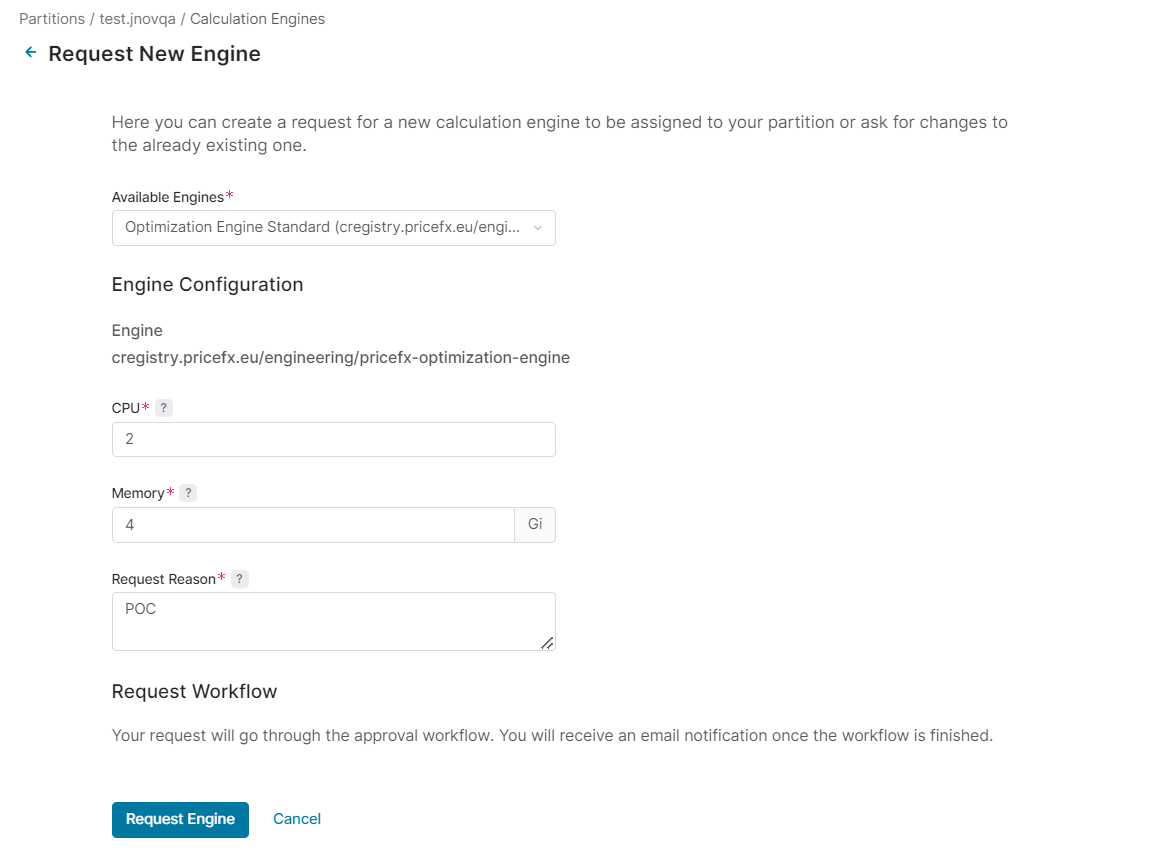
Fill in the following fields:
-
In Available Engines select one of these values: Optimization Engine Standard, Python Engine Datascience Standard, Python Engine Neural Standard, Copilot. For details see Engines.
To request Copilot, the following versions of Accelerators must be deployed on the partition:
Sales Insights 1.13.0 and later
Customer Insights 1.11.0 and later
Actionable Insights 1.4.0 and later -
In Engine Configuration enter the desired number of CPUs and memory size.
Preset values which should cover the basic functioning are: CPU 2, memory 4Gi for all types of engines.
For "heavy duty engines" you can go up to: CPU 16, memory 24Gi. -
In Request Reason fill in why you need a new calculation engine or changes to an existing one, so that the approval person has more of a background information.
-
-
When you are done, click Request Engine.
-
An approval workflow (created and assigned to this process in the Workflows section) is triggered.
If something goes wrong:
-
You’ll get an email if the request fails or times out.
-
You can check Status and Error Message in the Calculation Engines table for the concrete reason and next steps (e.g., merge conflict).