
The Data Downloads tab in Data Management provides an interface for users to create, manage, and monitor both manual and automated data downloads.
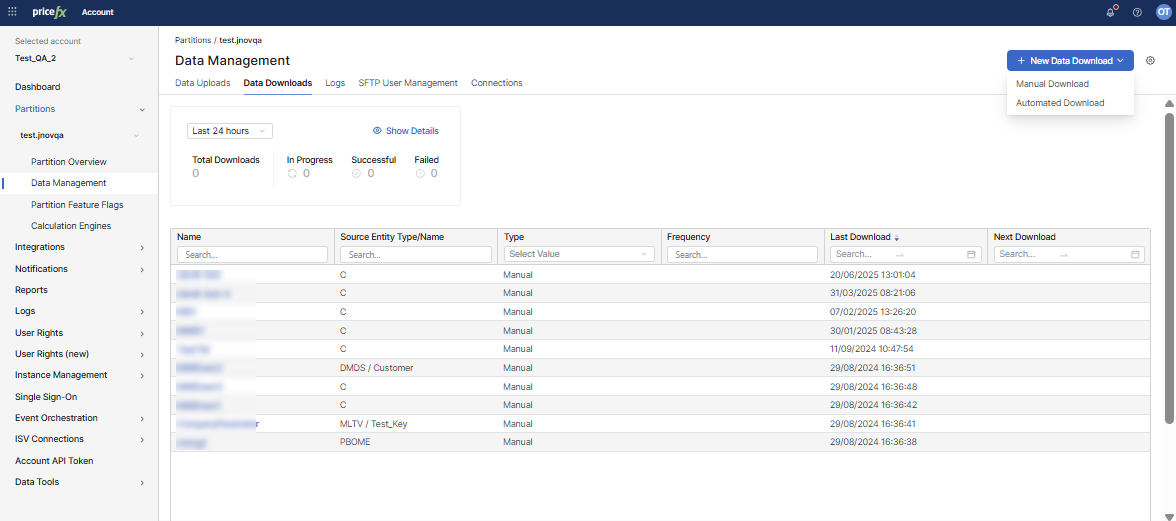
Create Data Download
The +New Data Download button allows you to create a new Data Download job.
You can now choose between:
-
Manual Download – a job that only runs when triggered manually. For details on creating a manual download job, see the How to Download Data from Partition how-to article.
-
Automated Download – a scheduler-based job that automatically generates downloadable files at defined intervals. For details on creating a automated download job, see the How to Create Automated Data Download how-to article.
Table
Columns
-
Name: Lists the names of the various data download jobs. Each entry corresponds to a specific download task. Click the name to open the Available Files dialog - a table with a list of files created by the given download job.
-
Entity Type/Name: Shows the type and name of the entity associated with each download job. The entity type displays the type code of the table (e.g., P, CX), while the name provides the name of the specific table.
-
Type: Identifies whether the job is a Manual or Automated download.
-
ID: Displays the unique identifier for the download job. This ID corresponds to the folder name in the SFTP structure, allowing you to navigate to the correct directory on the SFTP server.
-
Frequency (Automated only): Provides the schedule (e.g., Daily, Weekly, Monthly).
-
Number of SFTP Users: This column indicates the number of SFTP users who have access to download the respective data. This helps track and manage user permissions.
-
Created at: This column provides the timestamp for when each download job was created, helping users keep track of the timeline of their data management tasks.
-
Created by: This column lists the email addresses of the users who created each download job. It helps in identifying the responsible parties for each task.
-
Last Download: This column indicates when the data was last downloaded, providing a log of the most recent activity for each download job.
-
Next Download (Automated only): Displays the next scheduled run.
Actions (3-dot menu)
The 3-dots menu located to the right of each download job name provides quick access to several actions that can be performed on the desired download.
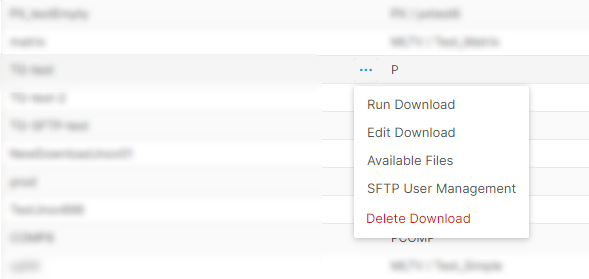
Available options
-
Run Download: Triggers the corresponding Data Download job immediately. After the job is finished, the link is provided within the Notifications.
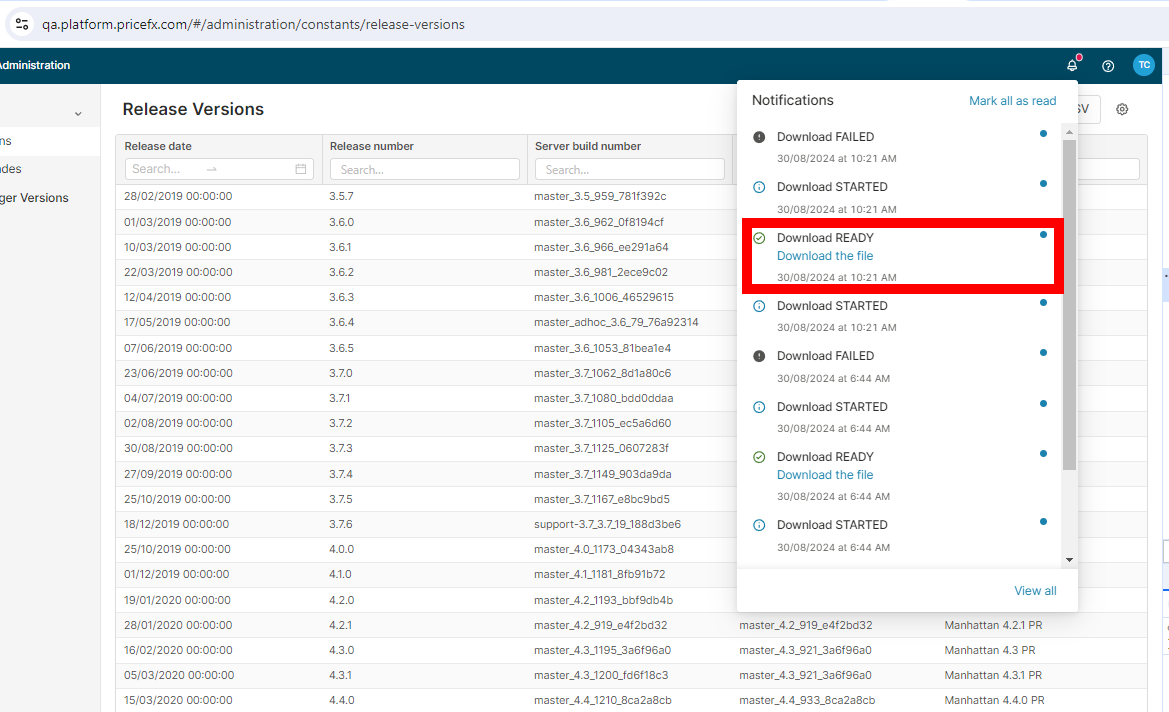
Download READY - link -
Edit Download: Opens Edit Data Download, where you can modify the parameters of the download job, such as name, fields, filters, or destination. Editing uses tabs rather than the step-by-step wizard that creating a download uses: each step of the creation flow appears as its own tab and you can open them in any order.
Which tabs appear depends on the download type:
-
A manual download shows General, Fields, Filter, and Destination. The advanced options, including the batch size, are a collapsible panel inside the Destination tab.
-
An automated download shows General, Data Mapping, Filter, Scheduling, and Advanced Options.
Save applies the changes made on every tab at once, not only the tab you are looking at, because all tabs belong to a single form. If you switch tabs with unsaved changes, PlatformManager asks you to confirm and saves them before moving. A manual download also offers Export to CSV here, and Cancel discards the changes.
Some fields are locked once a download exists. Entity Type and Entity Name cannot be changed in any edit, because the field mapping and filters are built on them. For an automated download the Name is locked as well, while a manual download keeps its name editable. The ID field is shown and is not editable.
For what each tab contains, see the How to Download Data from Partition how-to article.
-
-
Available Files: Opens a table with a list of files created by the given download job. You can view all files that have been created and are available for download. Click the file name to download the file, without needing to run the download job again.
-
SFTP User Management: This option directs you to a overview page where you can create, edit, or delete SFTP users that have access to the files generated by the download job. See the SFTP User Management section below.
-
Delete Download: This option permanently deletes the selected download job and removes all associated files. A confirmation dialog will be shown.
If the Data Download is referenced in a workflow or a scheduler, a dependency check will prevent its deletion. You will receive a notification if the workflow cannot be deleted.
Table Functionalities
-
Search and Filter: Each column features a search bar at the top, allowing users to quickly filter and find specific data download jobs based on name, entity type, creation date, creator, and last download date.
-
Sorting: Clicking on the column headers allows you to sort the entries based on that column's data (e.g., alphabetically by name, chronologically by creation date).
SFTP User Management
The SFTP User Management within the Data Management is designed to manage the Secure File Transfer Protocol (SFTP) user accounts associated with specific data downloads. This is needed when the PlatformManager option as Download destination has been selected when creating the Data Download.
Required permission: Partition Data Management - edit
Header
-
SFTP User Management (ID): The title of the screen includes the unique ID of the specific Download in brackets. This ID corresponds to the folder name in the SFTP directory structure.
Buttons
-
Add User: Allows you to create a new SFTP user account. Clicking this button opens the “Add User” / “Edit User” dialog. See the Add User / Edit User section below.
Overview and Functionalities
-
SFTP Server Details:
-
Address: Displays the server address where the SFTP users will connect to access the files.
-
Port: The port number used for the SFTP connection.
-
-
User List:
-
Username: Lists the usernames of all SFTP accounts associated with the current partition.
-
-
Actions (3-Dots Menu):
-
Edit: Opens the Add User / Edit User dialog that allows you to change the SFTP user settings. See the Add User / Edit User section below.
-
Delete: Removes the corresponding SFTP user account. A confirmation dialog will be shown.
-
“Add User” / “Edit User”
The Edit User dialog within the SFTP User Management page is designed for administrators to configure and manage the details of individual SFTP user accounts. This interface allows for specifying authentication methods, managing SSH keys, and setting up email notifications for file uploads. Below is a detailed overview of the fields and options available in the Edit User dialog.
Fields and Options:
-
Name: Displays the username of the SFTP account. The name typically contains the partition name. This field is pre-filled and cannot be edited.
-
Password: Here you can set, or reset the password for the SFTP user. The password must meet specific security criteria.
Note: The Password field can be left empty if the user is authenticated via SSH key instead.
-
Fingerprint: Lists the SSH public keys associated with the user. Each key is identified by its fingerprint and a label.
-
Add SSH Key button: Allows you to add a new SSH public key for the user. This key will be used for password-less authentication to the SFTP server enhancing security.
-
Other Notification Emails: Email addresses that will receive notification when a Data Download job is completed. Multiple emails can be added by clicking the Add another email button.