
In this section you can see a list of partitions for the selected customer account coming from Salesfx. The list includes the Environment column which groups partitions by their purpose (for example PROD, QA, DEV, UAT). The value is synchronized from Salesfx. When the value changes in Salesfx, PlatformManager also writes it to the partition. This applies to partitions in status Created that run Pricefx 17.1 or later. PlatformManager writes only the values PROD, STAGING, UAT, QA, DEV, DEMO and INTERNAL. Other values stay in PlatformManager.
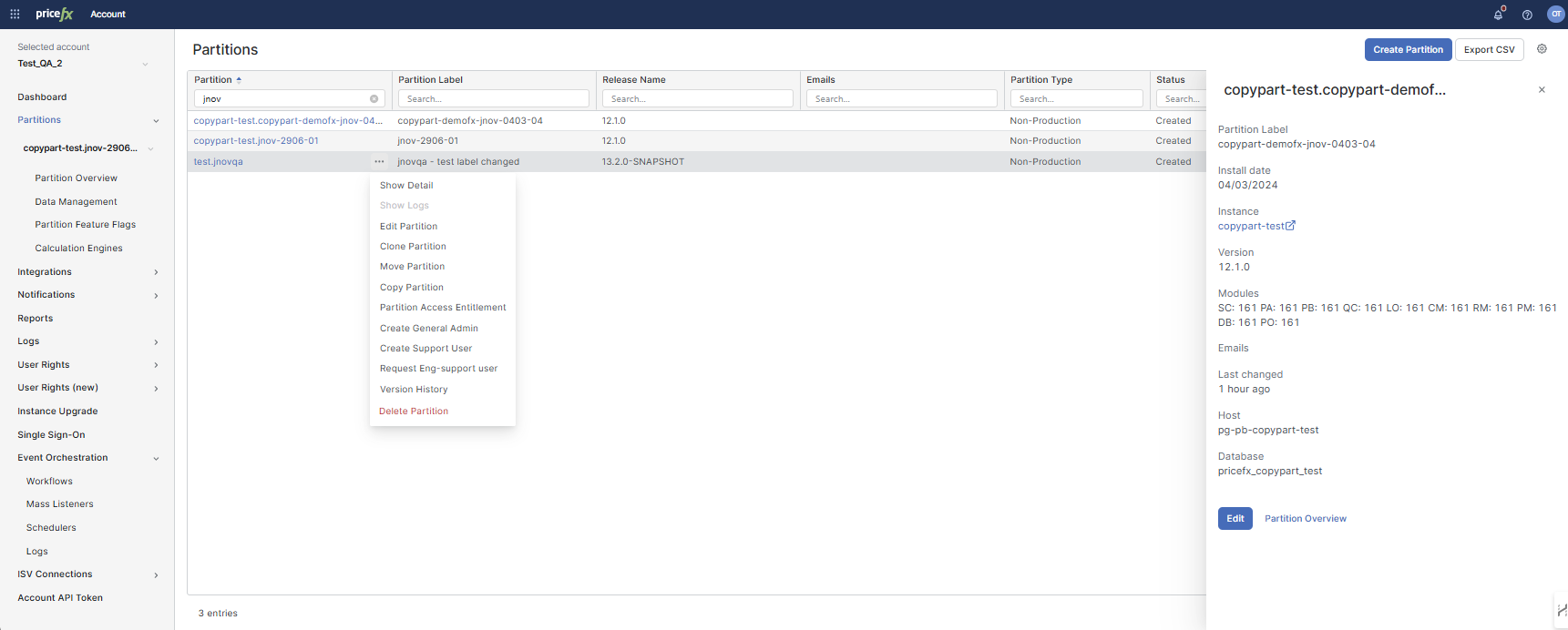
Partition Actions
You can access the following actions via the three-dot row menu (provided you have the corresponding permissions):
|
Action |
Description |
|---|---|
|
Show Detail |
Opens a panel on the right with partition details. |
|
Show Logs |
Opens a Grafana panel with detailed activity log entries for the selected partition.
|
|
Show Monitoring Dashboard |
Opens external link to the Grafana Monitoring Dashboard for the selected partition. This allows users to quickly access monitoring data such as instance health, cluster performance, and related metrics.
Not all clusters have Grafana dashboards available. If a dashboard is not available for the selected partition, no monitoring data will be displayed. |
|
Edit Partition |
Allows you to modify partition attributes like label, module licenses, and number of admin licenses. |
|
Clone Partition |
Creates a clone of the selected partition. Must be handled by Pricefx Support. |
|
Move Partition |
Moves the partition to a compatible instance (same version, database type, etc.). Only possible via Support. |
|
Copy Partition |
Copies the partition to a compatible instance. Same constraints as cloning/moving. |
|
Partition Access Entitlement |
|
|
Create General Admin |
Grants yourself General Admin access. You can set an expiry date.
|
|
Create Support User |
Creates a user at the Pricefx partition with the Investigate for support role. This user account has to have an expiration date defined. |
|
Request Eng-support User |
Visible only to members of the “PFX_Product_Engineering” group (id: |
|
Remote login as Eng-support user |
Visible only if there is an Eng-support user created for the user (see the option above). Allows the user to connect to a partition remotely. The user is assigned either the All Roles business role, or, if it was not present at the partition, the General admin user role. |
|
Remote login as pricefx-support |
If you are member of Support, you can log to the Pricefx partition from here. |
|
Remote login as root |
If you are entitled, you can log in as root to the Pricefx partition from here. |
|
Version History |
Shows a table with used Pricefx versions and dates of upgrade. (Versions are stored since May 2024, no historical data is provided.) It is available only to users with the account permission |
|
Delete Partition |
Deletes a partition completely (if the partition is non-production, is in Created status and you have the corresponding permission whose assignment is subject to approval workflow).
|
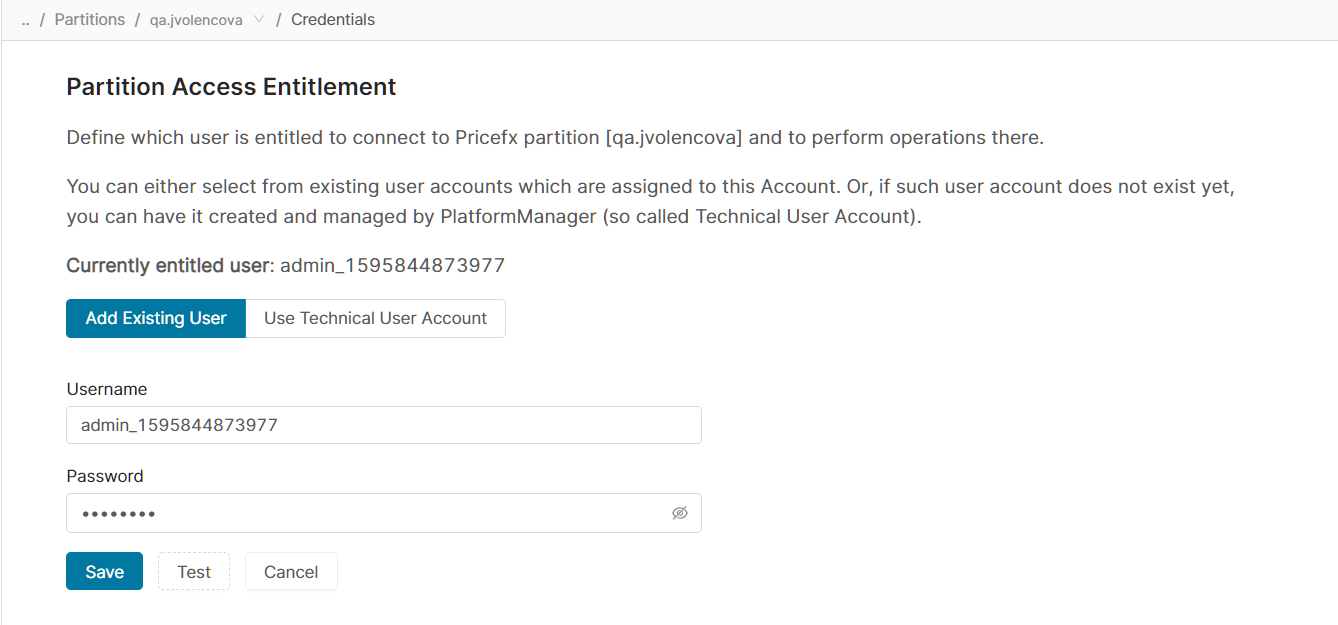
Access to a partition is ultimately controlled at the partition: in Configuration there are two options Disable Pricefx support login and Disable Platform login which can cut off any users from PlatformManager logging into the partition. This restriction includes Technical User Accounts, Support users and regular user accounts, as well as the possibility to create a new General Admin or Support user for the partition.
Required Partition User Roles
PlatformManager calls the partition as the entitled user, or as the user who authorized the OAuth client. Several PlatformManager features need specific user roles on the partition. If the user lacks a required user role, the feature fails only when you use it.
When PlatformManager Checks the User Roles
PlatformManager checks the user roles after each of these actions in the Partition Access Entitlement dialog:
-
Entitled User tab with Add Existing User selected: Save or Test
-
OAuth Clients tab: Log in & authorize
-
OAuth Clients tab: Test on a registered client
The check does not run when you open the dialog. The check never blocks the action. PlatformManager saves the credentials or registers the client even if user roles are missing.
The check does not apply to Use Technical User Account.
Check Results
|
Result |
After Test |
After Save |
|---|---|---|
|
User roles are missing |
The warning Not all PlatformManager features will work, with a table of the columns Feature and Missing roles |
The dialog closes and shows Credentials saved, but not all PlatformManager features will work. Use Test to see the missing roles. |
|
All required user roles are present |
This user has every role PlatformManager needs on this partition. |
The dialog closes and shows Credentials were saved. |
|
PlatformManager cannot read the user roles from the partition |
The warning Permissions could not be verified |
The dialog closes and shows Credentials saved, but the partition permissions could not be verified. |
Log in & authorize and Test on the OAuth Clients tab show the same result as the After Test column.
The Missing roles column shows each user role with its label and its code, for example Manage Model in Module Category (MODULECATEGORY_MO_MANAGER).
Required User Roles per Feature
The Feature column of the warning uses the feature names below. The Missing roles column lists every required user role that the user does not have.
|
Feature |
Required user roles |
|---|---|
|
Accelerator deployments |
|
|
Loading table metadata |
|
|
Data downloads |
|
|
Advanced properties |
Data Integration (DATAINTEGRATION) |
|
Package results |
|
|
AI agent generation |
Manage Model in Module Category (MODULECATEGORY_MO_MANAGER) |
|
Terms of use |
Data Integration (DATAINTEGRATION) |
-
PlatformManager checks a user role only if its module is active on the partition.
-
The check compares user roles by code. The General Admin (ADMIN) user role does not replace the user roles in the table.
-
Data uploads and data validation need only a successful login. They are not in the table.
Action Buttons (at top right)
|
Button |
Description |
|---|---|
|
Create Partition |
Allows you to create a new Pricefx partition. For details see How to Create Partition (available also as a video). |
|
Export CSV |
Allows you to download the list of partitions in the CSV format. |