
This section consists of:
The tabs you see depend on your permission for the instance:
-
Integration Instance - Read: General, Monitoring and File Retention, all read-only.
-
Integration Instance - Edit: also Runtime Properties, Application Properties, Management and Update. You can change the settings on General and Monitoring.
-
Integration Instance - Admin: also Tags and Archive Query.
General
Shows the instance name, type (DEV, QA, PROD,...), instance server and partition name.
You can also define/modify Expiration Date. After this date, the IM will be deleted. One week before the instance is deleted, you will be notified by email and if needed, you can change the date here.
Advanced Settings
The Advanced settings block below the instance form holds options that affect how the integration runs. PlatformManager applies each option on its own.
Image shows which IntegrationManager image the instance runs: the standard managed image, or a custom image. A custom image lets the integration use extra dependencies added to its pom.xml.
|
Current image |
Action |
Effect |
|---|---|---|
|
Standard |
Convert to custom image |
Builds the custom image. The instance restarts when the build finishes, which can take a couple of minutes. |
|
Custom |
Rebuild image |
Builds the custom image again from the project repository. The instance restarts when the build finishes. |
|
Custom |
Revert to standard image |
Rebuilds the instance on the standard image and restarts it. What the custom image added, such as extra dependencies, is removed. |
-
Each action asks for confirmation.
-
While a build runs, the setting shows its progress and the actions are unavailable. Leaving the page does not stop the build.
-
If the build fails, the image status shows Broken. Rebuild the image, or revert to the standard image.
-
The actions are unavailable while an upgrade of the instance is open.
-
Changing the image requires the Integration Instance - Edit permission. With Integration Instance - Read, the setting is read-only.
Runtime Properties
Shows the IM instance properties. You can also create and deploy your own property here. For provisioned IM instances, these properties can also be added directly in Git.
It is strongly recommended not to store the properties values in plain text. For provisioned IM instances you can use the Encrypted button to encrypt the value.
Application Properties
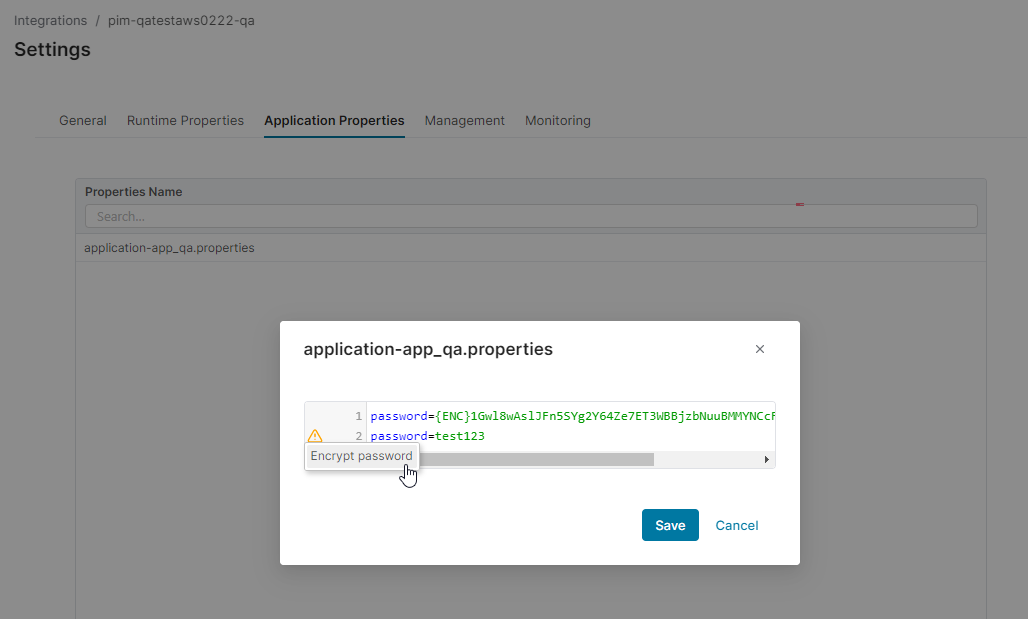
Shows application properties files for each environment in the selected cloud provider IM instance. You can view and edit the contents of the file – in the row menu there is the View/Edit option.
In addition, you can encrypt the password – by using the context option in the application properties file window. The encryption is done one time for each password. For encrypted passwords the encrypt option is not shown.
Management
Allows you to change the IM instance password, define instance management URL and user name.
Monitoring
Allows you to set up monitoring for:
-
IM instance – whether it is running or not.
-
Records processing (via ELK data) – whether it runs correctly.
In both cases, you can define one or more email addresses where to send notifications.
Update
Allows you to select the IM version to upgrade to.
To make the process of IM update smoother and quicker, you can use Update Assistant to guide you through the process.
It is currently available only to selected users as a pilot version. For details see How to Upgrade IM using Update Assistant.
Administrators can restrict what versions are available in this drop-down menu (in Administration > IntegrationManager Versions).
Tags
Allows you to add your own tags which can be used in ELK searches or in monitoring.
Tags are then visible in the Integration Overview. They are also in the log when the route is used: integration.tags.
This tab is available only for for provisioned IM instances.
File Retention
The File Retention tab shows the file retention rules that run on the SFTP of this IntegrationManager instance. The tab is read-only for every user.
The tab shows whether File Retention is enabled and the Keep Archives (in days) value. A table lists each directory with Action, Directory, Max File Age, Last Run, Next Run, # Files and File Size [MB].
Pricefx manages the rules in Integration Archives, which requires the global permission Integration Archives - edit.
Default retention policy
Pricefx turns on archiving of the root folder for every newly provisioned IntegrationManager instance. The same defaults apply to every instance type, including DEV, QA and PROD.
|
Setting |
Default |
What it controls |
|---|---|---|
|
Max File Age |
14 days |
How long a processed file stays in its SFTP directory before IntegrationManager archives or deletes it. |
|
Keep Archives (in days) |
30 days |
How long IntegrationManager keeps an archived file before it deletes the file permanently. |
Pricefx applies this policy to every IntegrationManager instance. A new instance gets these values automatically. Pricefx is applying the policy to instances created earlier as well. To see the values your instance uses, open the File Retention tab.
Available File Retention Options
You change these options in the File Retention drawer of Integration Archives.
File Retention: Toggle the switch to enable or disable file retention. File retention must be enabled for any settings below to take effect.
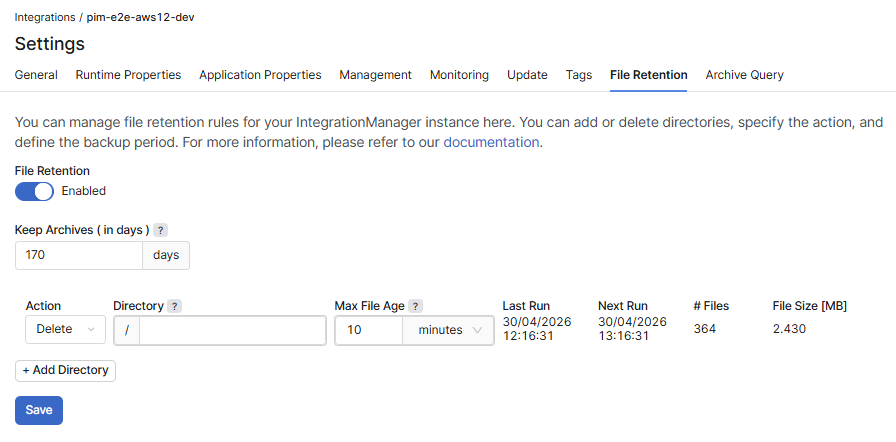
Keep Archives (in days)
Defines how long archived data should be retained, in days.
-
Default value: 30 days.
Note: Customers with longer retention requirements may need to coordinate internally or via support.
Action
-
A new column at the beginning of the row allows you to specify how processed files in the directory are handled. Options include:
-
Archive – Archive processed files from this directory.
-
Delete – Delete processed files from this SFTP directory without archiving.
Directory
-
Path to the folder where the file retention action will be applied. A fixed prefix
/is automatically added to the beginning of the field. You can specify the directory to be archived; leaving only/means all directories in the root are archived. -
For new instances, the root directory
/is set to Archive by default. -
You can manage multiple directories by clicking + Add Directory.
Current limitation is 50 000 files per backup (due to performance reasons).
Max File Age
Defines the maximum time a file is kept after its last access, before IntegrationManager archives or deletes the file. For new instances, this is set to a default of 14 days for the root folder.
Archive Query
Allows you to retrieve archived files. To get relevant data from the archive you need to specify a query:
-
To specify which files should be returned by the query, set the following:
-
File Name Query Mode – Select one of these options:
-
GLOB – Stands for the glob search syntax.
-
REGEX – Stands for regular expression syntax.
-
-
File Name Pattern – Depending on the selected mode, enter either a glob search phrase or a regular expression.
-
-
To further reduce the list of returned files, specify what content the files must contain:
-
Content Query Mode – Select one of these options:
-
EXACT – Stands for exact match.
-
REGEX – Stands for regular expression syntax.
-
-
Content Query – Depending on the selected mode, enter either an phrase to look for or a regular expression.
-
-
Date Interval – Specifies time range to limit the results.
When finished with the query setup, click Search. When the search is completed, you are shown a list of files matching the criteria. Based on the results and their size, you can decide whether to adjust the query or proceed to downloading the data.
Too simple queries can lead to downloading large amounts of data which negatively impacts further performance of this section.
Refine your query in advance, so that you download only relevant data.
There is a limit on the number of returned files (1000) and size of the ZIP file to download (500MB); if you exceed it, you are notified by a popup message.
How Archived Files Are Stored
The File Name Pattern is matched against the path of the file inside the archive, so it helps to know how archiving lays files out and names them.
-
An archived file is kept under an
.archivefolder inside the directory it came from, in a year and month folder. A file archived from filearea/DMDS in August 2026 has a path of the form./home/customer/filearea/DMDS/.archive/2026/08/<file>. -
Archiving appends a timestamp to the file name, before the extension, in the form
__yyyyMMdd_HHmmss. A file processed as test_3.zip is archived as test_3__20260810_010846.zip.
Because of that timestamp, a pattern written for the name the file arrived with does not match the archived copy. Match a stable part of the name instead, for example **/test_3*.zip.
Reading the Results
File Results lists every matching file with its full path inside the archive and its size, so you can judge the size of the download before taking it. Download .zip then downloads the matched set as a single archive.
A Date Interval may span several days; the results include the matching files from each day in the range.
Sample Queries
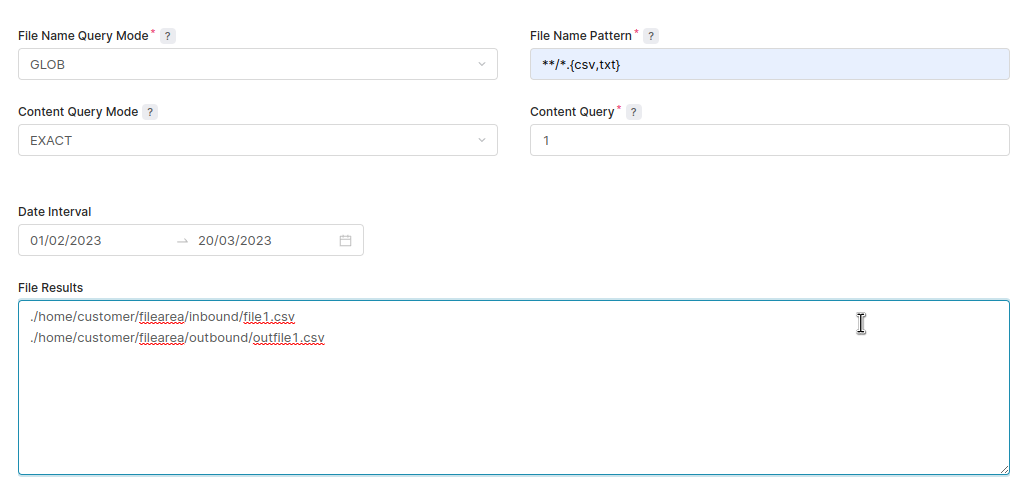
Search for all CSV and TXT files containing the number 1 from within a specified time range.
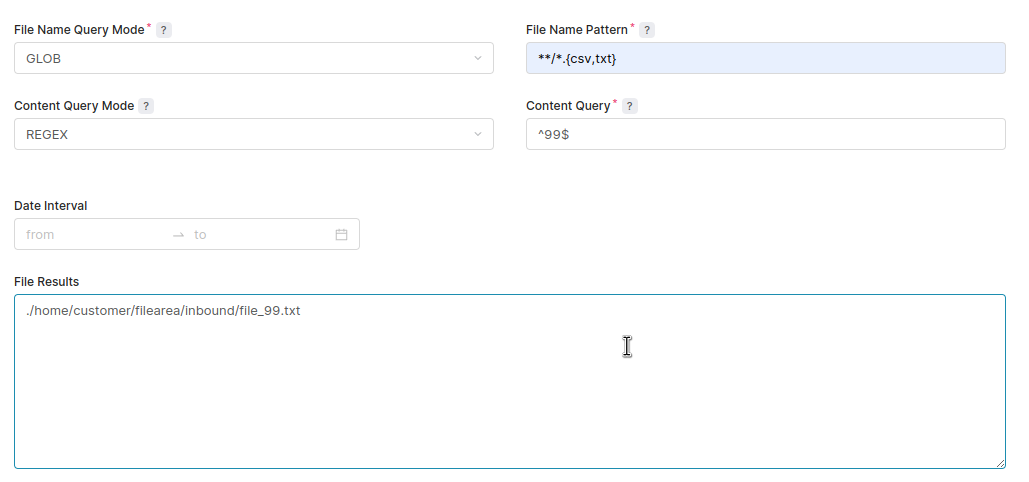
Search for all CSV and TXT files containing "99" in their content (using a regular expression).
Search for all CSV and TXT files in the "outbound" folder.
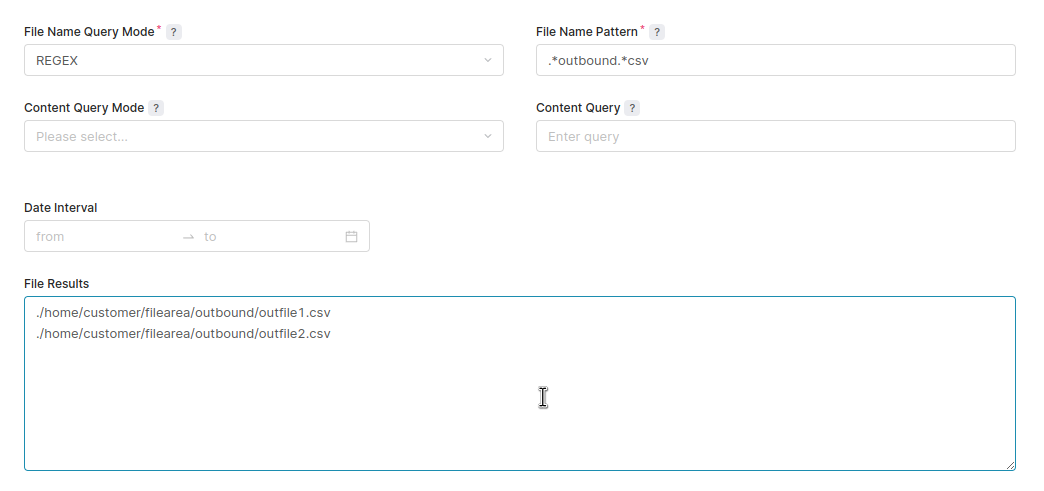
The same queries as text, so you can copy a pattern rather than retype it from an image:
|
Goal |
File Name Query Mode |
File Name Pattern |
Content query |
|---|---|---|---|
|
Every archived file in any folder, within a date range |
GLOB |
|
Leave empty |
|
Only ZIP files, in any folder |
GLOB |
|
Leave empty |
|
Files whose content contains an exact phrase |
GLOB |
|
Mode EXACT, and the phrase in Content Query |
Content Query Mode and Content Query are required as a pair: fill in both, or leave both empty. A content query narrows the files already matched by the name pattern, so it can only reduce the result set, never widen it.