
This section shows all mappers configured for the selected IM instance.
-
Instance Repository tab shows already deployed mappers.
-
Workspace tab shows new or locally edited mappers that have not been deployed yet.
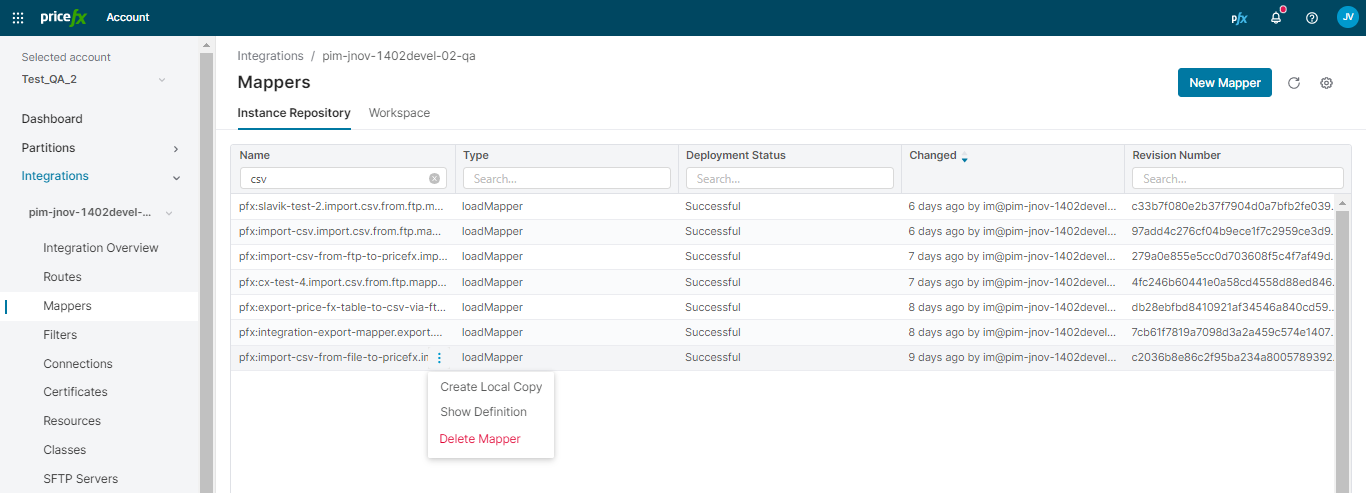
Working with mappers:
-
To see how a mapper is defined, click the row option Show Definition in the Instance Repository tab. The definition is read-only.
The definition can be viewed also for failed mappers, so that the user can see the code and troubleshoot it. -
To change a mapper, create a local copy, edit it in the Workspace and deploy it.
When you edit and deploy a mapper, PlatformManager keeps its converter chains, validators, and row predicates. You cannot edit a predicate in PlatformManager.
For more information regarding the converters you can use in the mappers, see Advanced Field Editor.
When you create a new mapper, you also have the option to import its XML definition (so that you do not have to set it up manually).
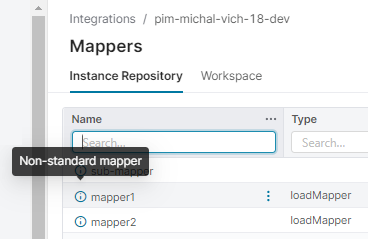
The standard case is that there is just one mapper in the definition file. But it is also possible to switch to the legacy mode and allow having multiple mappers in the file (by setting the field isStandard to false). These so called non-standard mappers cannot be edited by users at all (no local copy, delete or modify) as they are not compatible with PlatformManager UI.
Non-standard mappers are marked with an info icon, so that their status is immediately visible.
Edit Mapper Dialog
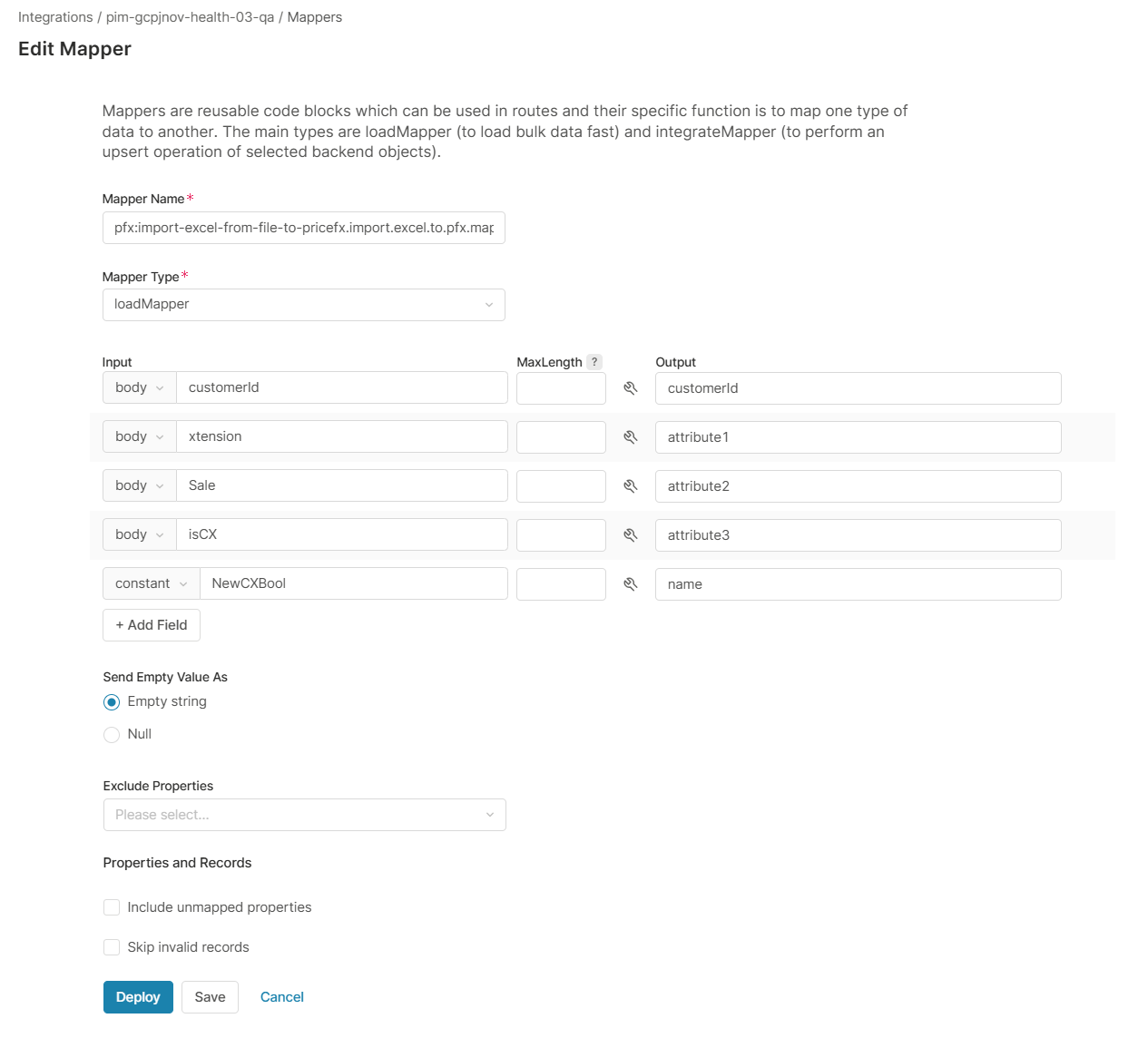
For general mapper setup, see the IntegrationManager documentation.
Here, you have these additional options:
-
For loadMapper you can:
-
Send empty values as either an empty string ("") or as NULL.
-
Define which properties should be excluded.
-
Allow the possibility to include unmapped properties (then no mapping is needed and you can save an empty mapper).
-
Skip invalid records.
-
-
For integrateMapper you can:
-
Include NULLs.
-
-
For loadMapper and integrateMapper you can set Invalid records. It decides what happens to a record that fails a validator with severity error. The options are IM default, Fail the batch, and Skip the record. IM default uses the setting of the IntegrationManager instance. When you select Fail the batch or Skip the record, the Skip invalid records option is hidden.
In export mappers, the row order can be changed by drag & drop.
Conversion and Validation
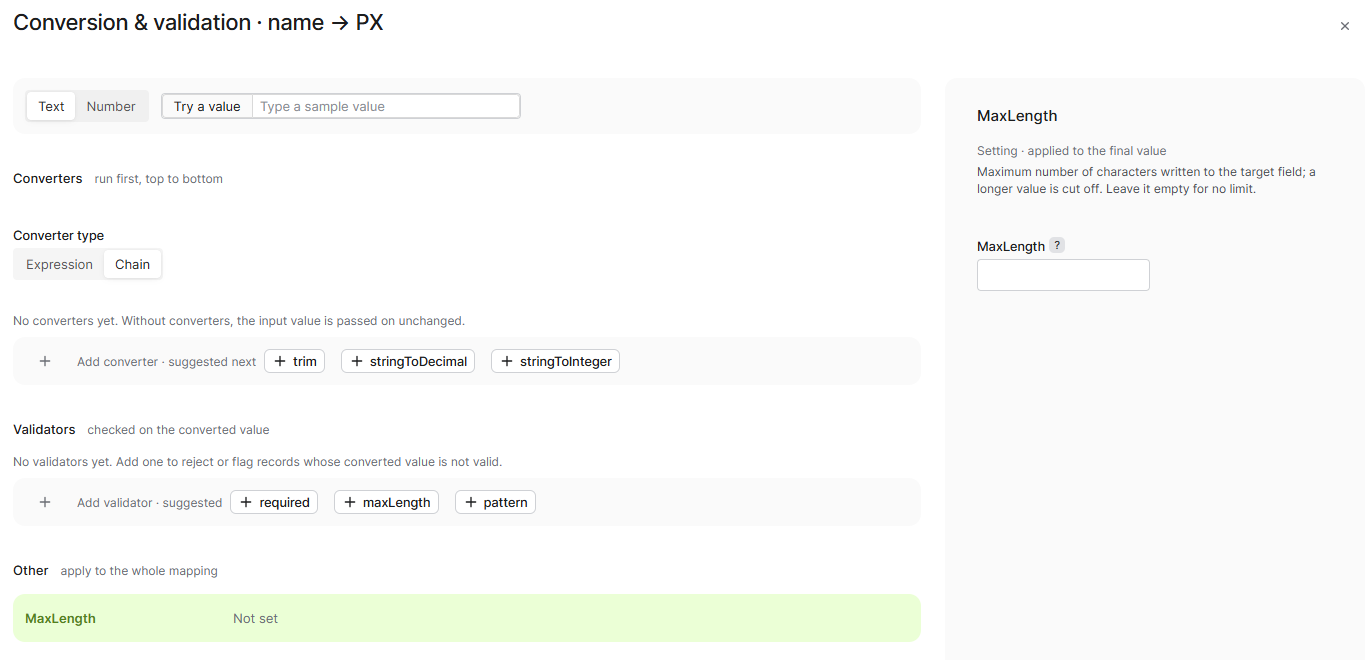
To convert or validate the value of a mapper row, click the wrench icon of the row. The Conversion & validation dialog opens for that row.
-
Converter type – Expression applies one converter expression. Chain applies a list of converters from top to bottom. The first converter gets the raw value. A row has either an expression or a chain, so applying one removes the other.
-
Validators – Check the converted value, for example with required, pattern, min, max, minLength, maxLength, or enum. Each validator has its arguments, a Severity (error or warn), and an optional Message.
-
Try a value – Shows how a sample value passes through the converters and validators of the row.
-
Other – Settings for the final value of the row, for example the maximum number of characters.
Click Apply to keep the changes. The mapper row shows its converters and validators as tags.
Converter chains, validators, and Invalid records need IntegrationManager 8.2.0 or later. On an instance with an older version, PlatformManager hides these options. A mapper that already contains them shows them read-only. You cannot save or deploy such a mapper until you remove them or upgrade IntegrationManager.
For the available converters and validators and how IntegrationManager applies them, see the IntegrationManager documentation.