
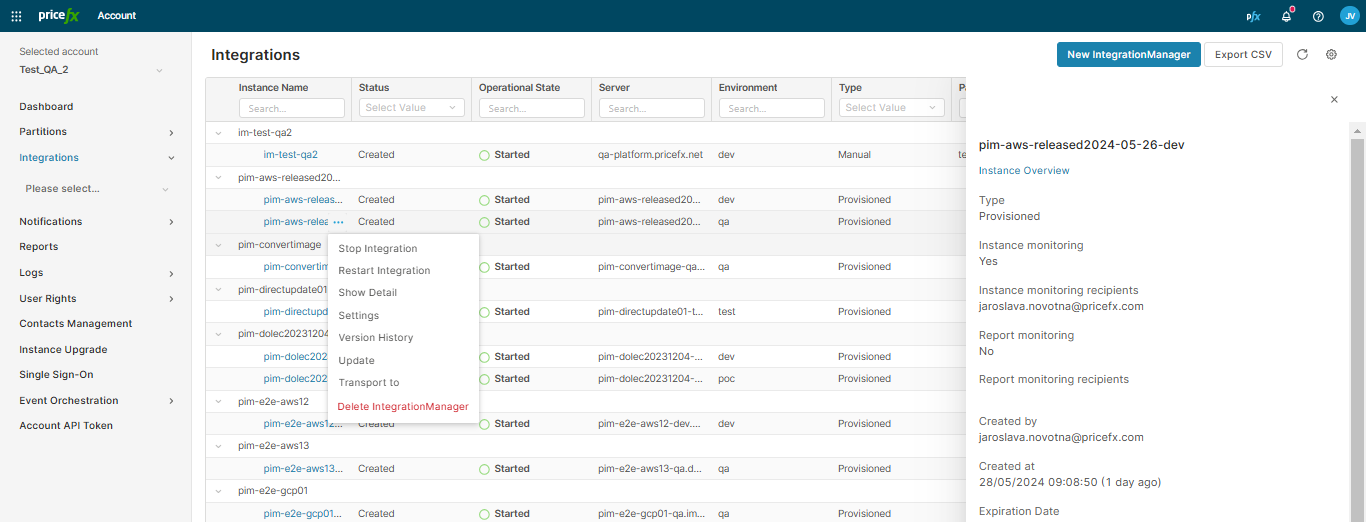
In the integrations table, environments group together (e.g., DEV, QA, PROD) and act as one instance. You can expand the group to manage the environments individually.
To manage the table view, use the standard table options or apply Collapse All / Expand All for the table rows. Save your preferred view using Preferences.
Top Level Options
-
New IntegrationManager – You can either connect an existing IM instance ("manual IM") or create a new one ("provisioned IM").
-
Export CSV – Allows you to download the list of integrations in the CSV format.
Group Level Options
-
Permissions – Allows you to manage access to a Git repository where the integration code is stored. You can add here PlatformManager users and grant them user access to Git with the Developer role.
-
To do this, you need the Integration - GIT Manager permission.
-
All actions are recorded in the Activity Log.
-
This functionality is available only for cloud provider IM instances.
-
⚠️ Assignable users must meet all of the following conditions:
-
they are invited to the project
-
they have active status
-
they are not already included in the integration project
Only users matching these criteria appear in the list of assignable users.
-
Edit – Allows you to add a new environment and/or modify existing instance resources (processor, memory, storage). After changing the resources, restart of all affected environments of the instance might be required. You can also update here the integration architecture information (ERP/CRM system to integrate with, integration direction, used technology etc.) and see who made the last change. For options description see How to Create IM Instance.
Individual Instance Options
Manual (i.e., non-provisioned) IntegrationManager instances cannot by started, stopped, or restarted within the PlatformManager user interface.
-
Start and stop the provisioned IM instance (if you have the Integration Instance - edit permission).
-
Restart the provisioned IM instance created with the cloud provider (if you have the Integration Instance - edit permission).
-
Show detail – Opens a panel with summary information about the IM instance. It also provides links to server log and Git log.
-
Settings – Opens the IM instance Settings.
-
Version History – Shows a table with used IM versions and dates of upgrade. (Versions are stored since May 2024; no historical data is provided.) It is available only to users with the account permission Integration Instance - Edit or Integration Instance - Admin.
-
Update – Redirects you to the Settings > Update section where you can select IM version to upgrade to.
-
Transport to – Allows you to transport code between environments, e.g. from DEV to QA or from QA to PROD.
-
Delete the selected IM instance (if you have the Integration Instance - edit permission). When an IM instance is deleted, the user who initiated the deletion is notified in the Notifications center (and by an email if it was the last IM instance in the given Git repository).
-
Force delete an IM instance which is in an inconsistent state (originated during creation or decommissioning and so there is no point in keeping the instance). This option is available only to users with the global Permissions power user permission.
For options related to a specific IM instance, see Integration Overview and Integrations Menu.
To work with the table, in addition to all the standard table options you can also use Collapse All / Expand All for the table rows. Once you apply one of these options, you can save the view using Preferences.
Operational State
The Operational State column in the Integrations table shows the progress of lifecycle operations on provisioned IM instances. When you trigger an operation, its state moves from a requested state through one or more in-progress states to a final state — completed or failed. When an operation fails, the corresponding failure state with the error detail is displayed.
|
Operation |
Operational State Progression |
Failed State |
|---|---|---|
|
New IM instance |
Environment requested → Environment creation in progress → Awaiting IM startup message → Started |
Environment failed to start / Project failed to initialize |
|
Start |
Start requested → Awaiting IM startup message → Started |
Start failed |
|
Stop |
Stop requested → Stopping → Stopped |
Stop failed |
|
Restart |
Restart requested → Restarting → Started |
Restart failed |
|
Upgrade (change version) |
Requested update → Change version requested → Awaiting IM startup message → Started |
Update failed |
|
Custom image build and deployment |
Building custom image → Deploying custom image → Started |
Build custom image failed |
|
Delete |
Shutdown initiated → Shutdown in progress → Shutdown finalizing → Shutdown completed |
Shutdown failed |
If the request itself cannot be submitted, the state shows the corresponding request failure, for example Request stop failed. An operation is marked as failed also when it stops making progress: a temporary infrastructure issue that persists for more than 5 minutes, or no progress at all for 30 minutes, ends the operation with the corresponding failed state.
Automated Stop and Start
PlatformManager can automatically stop connected IntegrationManager instances when the corresponding Core instance (cluster) goes offline, preventing the integrations from sending data to unavailable partitions.
When a cluster is manually hibernated or scheduled to shut down, the system checks the Manage Connected Integrations setting.
-
This option is selected by default.
-
When enabled, connected IntegrationManager instances stop automatically. For scheduled cluster shutdowns, the stop sequence triggers 10 minutes before the scheduled downtime.
-
Monitoring alerts are temporarily disabled before the stop sequence initiates to prevent email spam regarding the unavailability.
-
When the cluster wakes up, the connected IntegrationManager instances automatically restart and monitoring is restored to its original state.
-
If you unselect the option, the connected IntegrationManager instances remain running when the cluster hibernates.
Note: The automated management of connected integrations is controlled by the cluster-availability-im-management feature flag.
GitLab Maintenance Window
IntegrationManager instances store their code and configuration in GitLab. When an administrator defines a GitLab maintenance window, PlatformManager disables every action in the Integrations table that writes to GitLab for the duration of the window: New IntegrationManager, Start Integration, Stop Integration, Restart Integration, Settings, Update, Transport to, Resolve merge request, and Delete IntegrationManager. Each disabled action shows the tooltip "Unavailable during GitLab maintenance."
Viewing the table, opening instance details, Version History, and Export CSV stay available.
A notice at the top of the Integrations section states that GitLab is in maintenance and until when. A second notice appears 24 hours before a planned window starts. The IntegrationManager instances keep running for the whole window. When the window ends, the disabled actions become available again and the notice disappears, without reloading the page.
For the window settings and the permission needed to define one, see GitLab Maintenance.