
Before you start, make sure you have an active private connection to the Pricefx MCP Server. Use the get_data_source_fields private tool in Claude to retrieve the fields available in a Data Source.
-
Open your browser and launch Claude.
-
Click the + icon.
-
Go to Connectors.
-
Verify that your private connection is enabled.
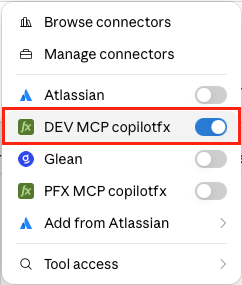
Connectors menu with the private Pricefx MCP Server connection enabled. -
Enter the following prompt in the message input field.
List of all fields in Data Source 'Product' in a table.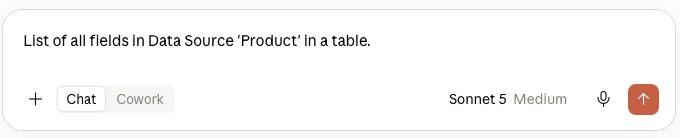
Claude message input containing the prompt for retrieving Data Source fields. -
Click the Send message

-
If Claude asks for permission to use the
get_data_source_fieldstool, click Allow.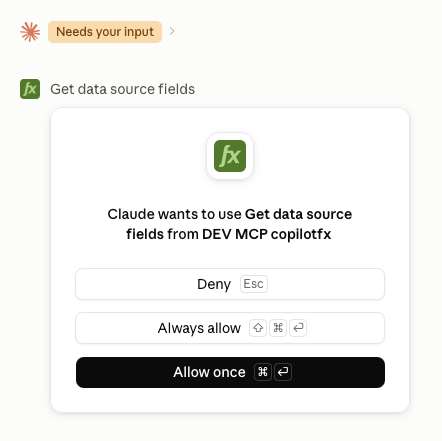
Claude permission dialog requesting access to the get_data_source_fieldstool. -
The
get_data_source_fieldstool returns the fields available in the selected Data Source.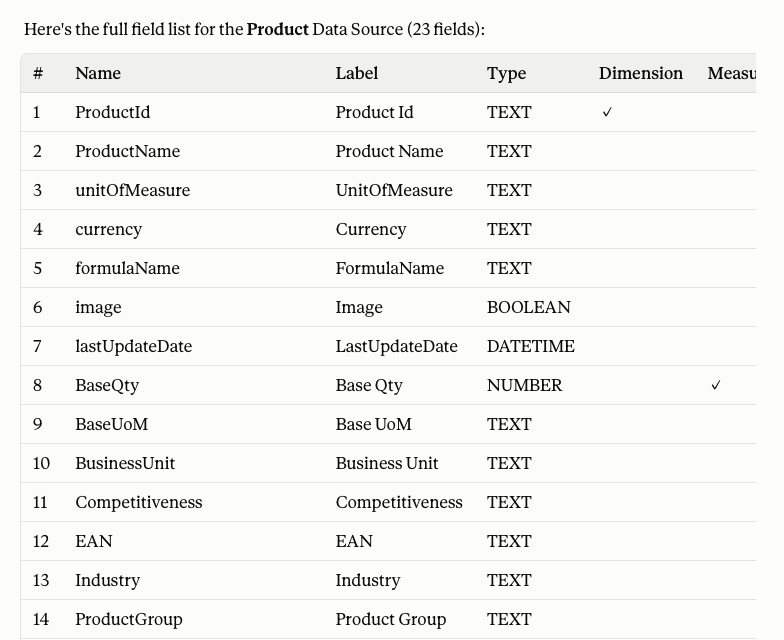
Claude response showing the fields returned by the get_data_source_fieldstool.