
Before you start, make sure you have an active private connection to the Pricefx MCP Server. Use the Generate Agents Tools in Claude to create, update, and deploy Pricefx Agents.
-
Open your browser and launch Claude.
-
Click the + icon.
-
Go to Connectors.
-
Verify that your private connection is enabled.
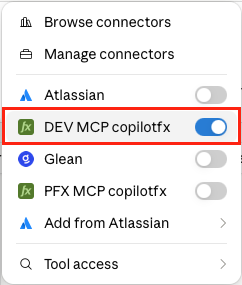
Connectors menu with the private Pricefx MCP Server connection enabled. -
Enter the following prompt in the message input field.
Create a Margin Leakage Detection Agent
Continuously Identify transactions and quote lines across Denso Corp's global business where realized margin is below statistically expected thresholds. Flag high-risk deals, customers, products, and geographies for expedited review and remediation.
Analyze daily transaction-level margin data, quote lines, SKU/product data, sales regions/countries, customer segmentation, and discount records.
Apply daily outlier box plot analysis and statistical dispersion measures (standard deviation, z-score) to detect anomalies in margins by product, channel, and region.
Flag transactions and quotes where margin falls below modeled benchmarks (including outliers below interquartile ranges and whiskers) for each business segment.
Surface actionable margin leakage risks to guide prioritization of review and corrective actions for deals, segments, or areas with statistically significant margin shortfalls.
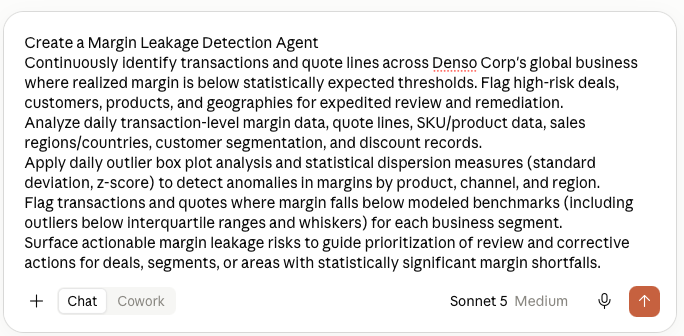
Claude message input containing the Generate Agent JSON prompt. -
Click Send message

-
If Claude asks for permission to use the
generate_agent_jsontool, click Allow.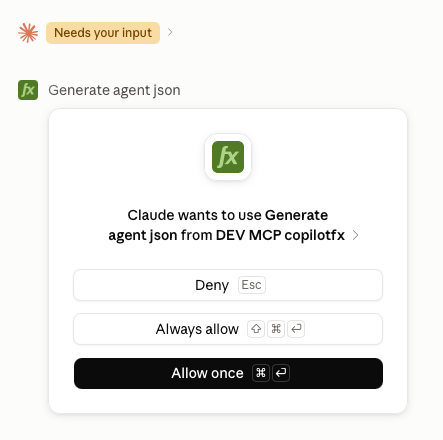
Claude permission dialog requesting access to the Generate Agent JSON tool. -
Review the generated Agent JSON and verify that it contains the expected configuration.
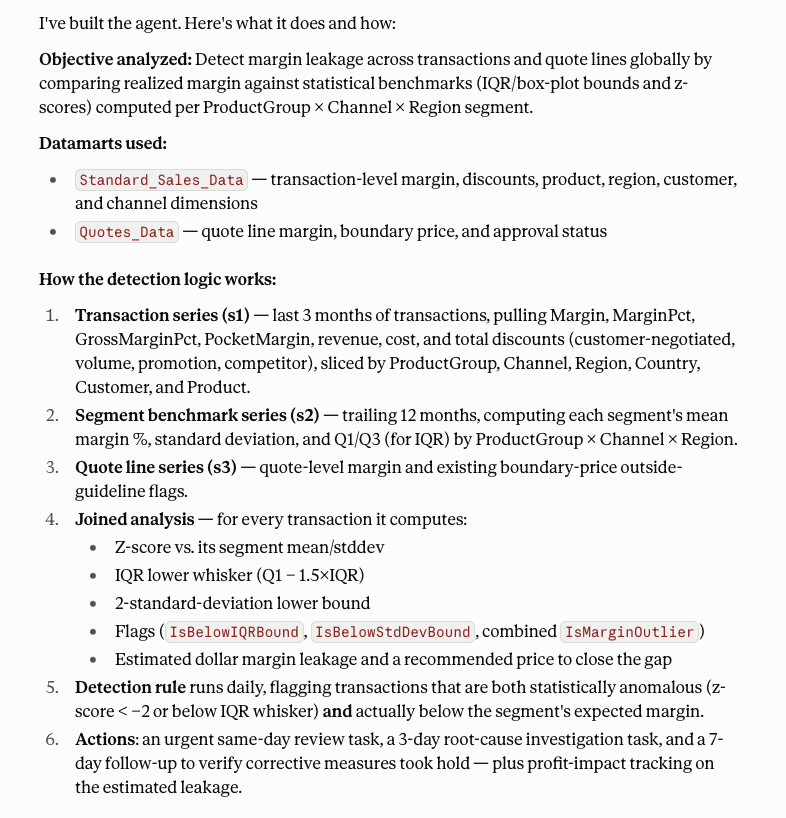
Claude response showing the generated Agent JSON. -
Enter a prompt to deploy the Agent.
If you need to modify the Agent configuration, use the
update_agent_jsontool before deploying the Agent. -
If Claude asks for permission to use the
deploy_agenttool, click Allow.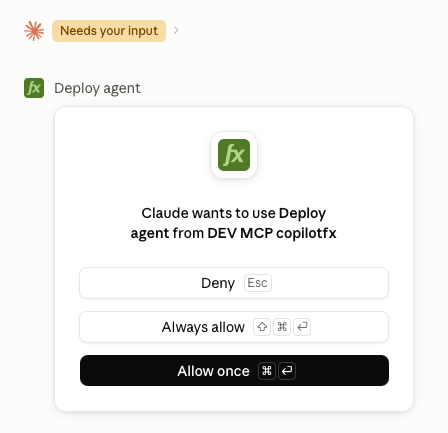
Claude permission dialog requesting access to the Deploy Agent tool. -
The
deploy_agenttool deploys the Agent and returns the deployment result.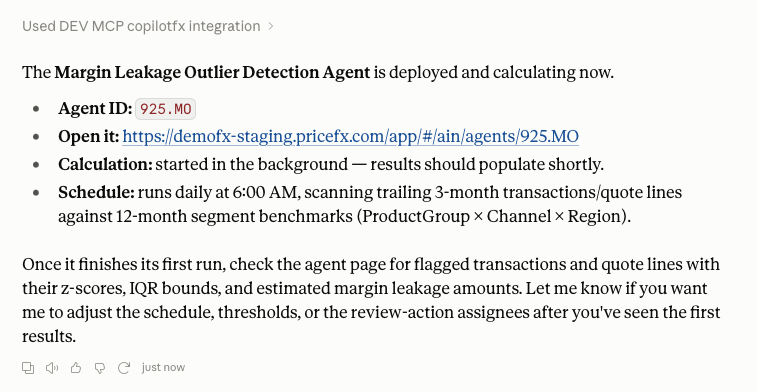
Claude response showing the Agent deployment result.