
|
Aim of this article |
Explains how to create a new IntegrationManager instance ("provisioned IM") from PlatformManager. |
|---|---|
|
Related sections |
|
|
Required permissions |
Integration - Allow create/delete Once you submit a new IM instance, you are automatically assigned also the Integration - Git Manager permission which is useful for managing users in Git. |
Steps:
-
Go to Account > Integrations.
-
Click the New IntegrationManager button at top right.
-
Fill in the required fields:
Since IntegrationManager 2.2.2, the creation is done in Kubernetes.
-
Server Type: Choose Create New Instance.
-
Version – Select from available IM versions. (In Administration, you can restrict the list of IM versions which show in this drop-down menu. You can also decide whether the version would run on old hardware or new one (new form)):
-
When creating a new IM instance, the version selected here applies to all environments.
-
When editing an existing IM instance, the version selected here applies only to the newly added environment.
-
-
Integration Name (required) – It follows this pattern: pim-<account> which is enforced by the form: the prefix is filled in automatically, you only need to enter the account name (only lower case letters and numbers are allowed; minimum length is 3 characters, maximum is 34 characters). The integration name must be unique. It is not possible to reuse the name of an integration that existed and was deleted.
⚠️ Creating an IntegrationManager instance within the same group using a different cloud provider is not allowed. -
Cloud Provider (required) – Allows you to select hosting infrastructure from those currently supported.
-
Region (required) – Select from available options (which depend on selected cloud provider). The value should match the location where your data runs. Currently supported region: eu.
-
Environment (required) – Options are: prod, staging, uat, qa, dev, demo, internal. These are the same values as the partition Environment field, written in lower case. You can define more environments after you click the button under the table. There is no limit to the number of environments, but at least one must be present. For each environment an IM instance is created. If editing an existing environment, it must also conform to one of the defined CPU/Memory tiers.
-
CPU/Memory (required) – Allows you to select the processing power and memory size for your environment.
Choose the value carefully please. Requesting the highest value without valid reasons may result in additional charge by Pricefx. You can no longer select CPU/Memory values independently. All environments (new or updated) must use one of the available tiers. If a non-tiered options is selected, it is marked red as custom.
Instead of selecting CPU and Memory separately, choose one of the predefined tiers:-
500m / 4Gi(default) -
1Gi / 8Gi -
2Gi / 16Gi
-
-
Storage (required) – Allows you to select the storage size for your environment.
instanceDefaultOptions.
Instance resources are editable later, if needed.
-
Expiration (optional) – Sets a date after which the instance will be deleted. If needed, the date can be later modified in Settings. Editing this value is not allowed. Use Update Assistant to update the value.
-
Version – Shows a version of the environment. For details on behavior, see the description of the Version field above. Editing this value is not allowed. Use Update Assistant to update the value.
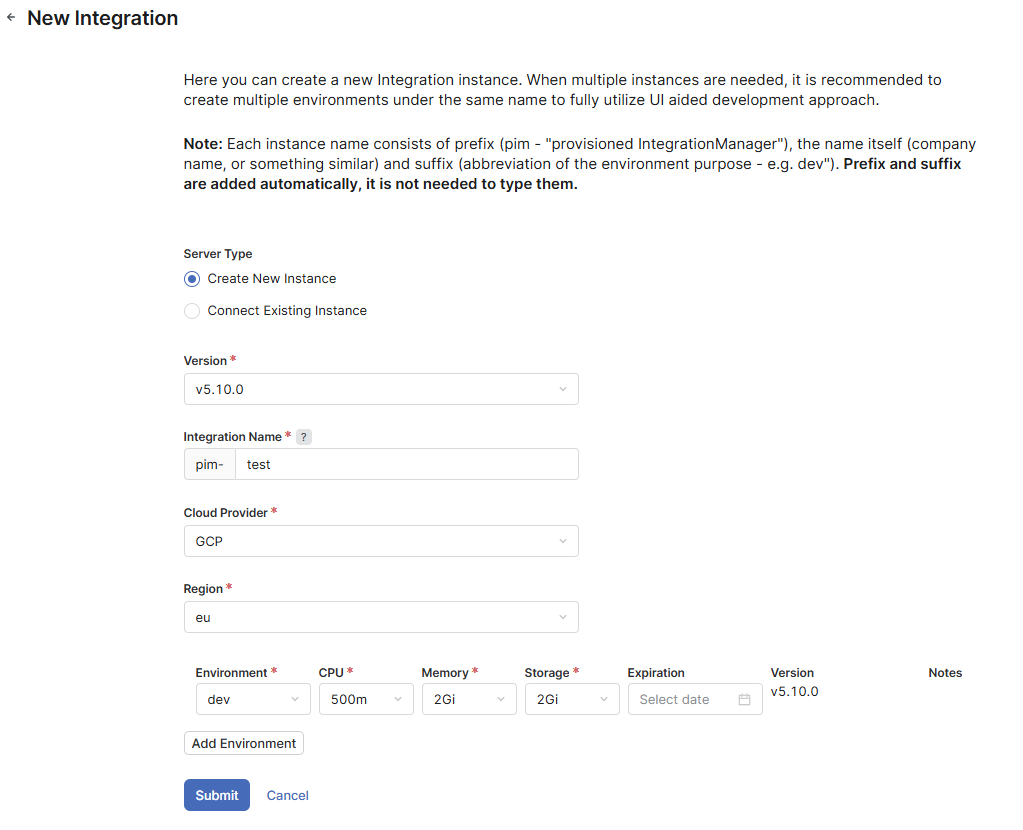
-
When editing an existing instance, you can open the Update Assistant by clicking the arrow-up icon:

Update Assistant -
Integration Architecture Information section: Fill in which ERP/CRM system to integrate with, integration direction (inbound, outbound etc.), used technology (Camel, Groovy, Java) and the expected usage of Integration templates. This information is synced on the account level with Salesfx.
-
-
Submit: When you submit the request, the instance creation starts. It may take a while. Once it is ready, you will be notified by email.
For IntegrationManager up to version 2.1.5, you have the following options to define a new IM environment:
Integration Name – It follows this pattern: pim-<account>-<environment> which is enforced by the form: the prefix and suffix are filled in automatically, you only need to enter the account name (only lower case letters and numbers are allowed; minimum length is 3 characters, maximum 20).
Integration Type – Options are: dev, qa, prod, sim, staging, test, uat, poc.
The SFTP connection is created automatically with the IM instance and users are informed about it by email (containing host, port, username and password information).
Infrastructure capacity for new IMs is monitored on ongoing basis. If the account is about to run out of space for new IMs, there is a notification displayed. Any requests for new IMs are kept in the pending state and they get processed as soon as more space is acquired.
In addition, there is a limit on how many IMs it is possible to create for a particular account. This limit is set by Pricefx administrators in Administration. If you need more IM instances, you need to contact Pricefx Support via helpdesk.