
This feature allows a user to convert a one-time AI Agents onboarding deployment into a reusable Integration as a Service (IaaS) setup. The conversion reuses Accelerators deployed during onboarding and creates automated data uploads for ongoing integration.
Prerequisites
-
AI Agents onboarding process is completed successfully.
-
All required onboarding workflow steps show status Completed.
-
The prospect process has Integration Setup set to Not started.
-
You must have the global permission:
Prospect Onboarding - can view prospect onboarding overview
Navigation
Administration > Prospect Onboarding > AI Agents prospect process
See the reference documentation: AI Agents Prospect Process
The Setup Integration action is available only when all of the following conditions are met:
-
Integration Setup = Not started
-
All previous onboarding steps are completed
-
The onboarding process status is Done
Create Automated Data Upload
Step 1: Start integration setup
-
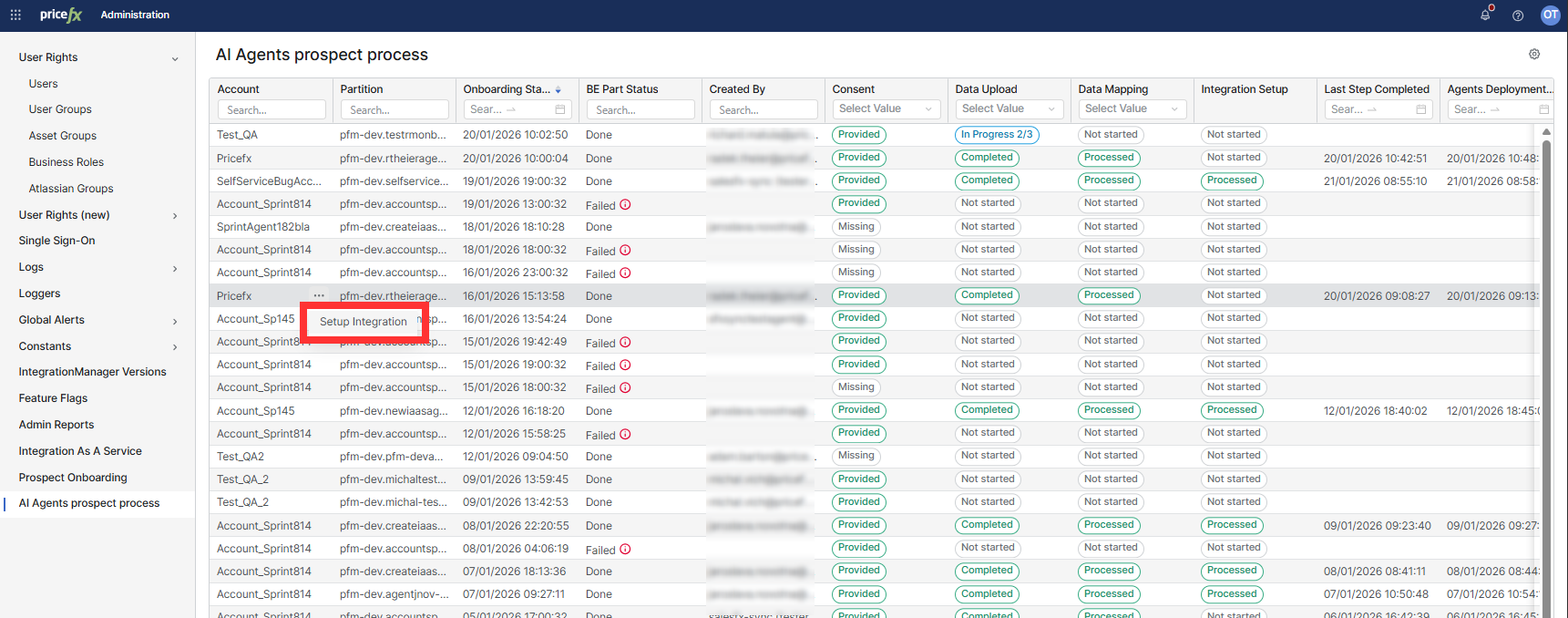
Open Administration > Prospect Onboarding > AI Agents prospect process.
-
Locate the relevant Onboarding workflow you want to create the Data Upload from.
-
Select Setup Integration from the row actions.
Step 2: Select integration user
In the Setup Integration dialog, select the user under which the integration runs. By default, the system selects the user who deployed the accelerators. Optionally, select a different user from the list.
After Confirmation
After you confirm the setup, the system performs the following actions automatically:
-
Creates an Integration as a Service configuration.
-
Creates automated Data Uploads for:
-
Products
-
Customers
-
Transactions
-
Quotes (for Salesforce onboarding when the Quote data setup accelerator is installed)
-
-
Uses data mappers delivered with the deployed Accelerator.
-
Updates Integration Setup status to Processed.
-
Sends an email notification with SFTP credentials to the selected integration user.
Resulting Data Uploads
After setup completion:
-
Automated Data Uploads appear in Data Management > Data Uploads.
-
Uploads run according to the predefined configuration from the Accelerator.
-
Uploaded files are visible in History of Runs with status Processed.