
Aim of This Article
Explains how to create an Automated Data Upload that reads a table from Databricks. Each run loads a full snapshot of the table into the selected Pricefx entity.
Related sections: How to Create Automated Data Upload (file-based uploads), How to Create Databricks Connection.
Prerequisites
-
The
use-automated-loadsanduse-databricks-sourcefeature flags are enabled for the account. -
The account's IaaS configuration uses IntegrationManager 8.2.0 or newer. Runs fail on older versions.
-
A Databricks connection exists on the partition. See How to Create Databricks Connection.
-
You have the
Partition Data Management – editpermission.
Step 1: General
-
Go to Account > Partitions > {PartitionName} > Data Management > Data Uploads.
-
Click New Data Upload > Automated Upload.
-
Enter a Name.
-
In Data source, select Databricks.
-
In Destination Of Upload, select the Entity Type. If the Entity Name field appears, select the table.
-
Click Next.
Step 2: Data Source
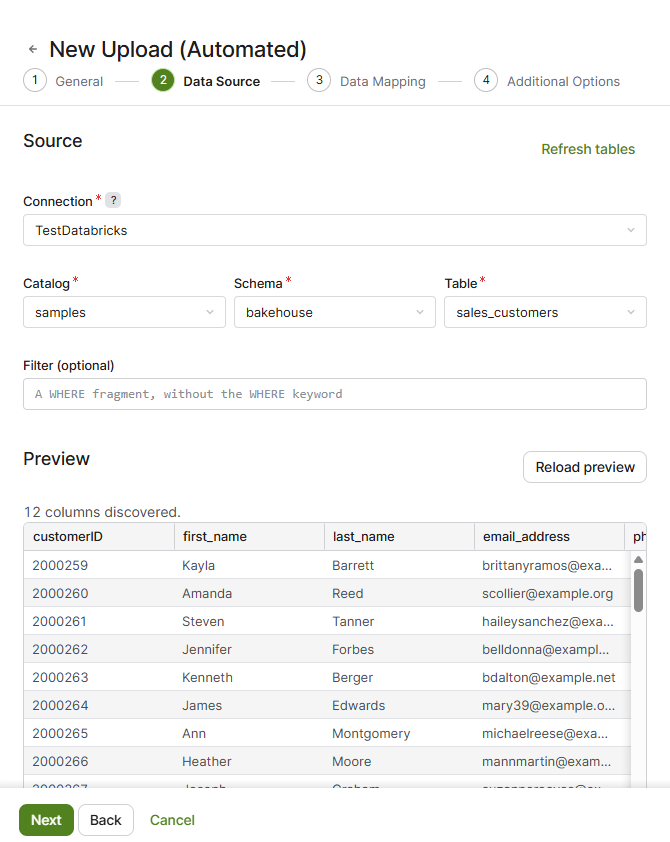
-
Select the Connection. Only this partition's Databricks connections are listed.
-
Select the Catalog, Schema, and Table. Each list is enabled after you select the previous one.
-
For a large schema, the table list fills in gradually. Type into Table to search.
-
If a schema has more tables than the list can hold, a message says that some tables are missing from the list and from search. Select a smaller schema.
-
If a table is missing, click Refresh tables.
-
-
Review the Preview. It shows the first rows of the table and the number of discovered columns. If the SQL warehouse is stopped, the first preview can take several minutes while the warehouse starts.
-
Leave Filter (optional) empty. See the note below.
-
Click Next.
Note: After you type a filter, Apply filter or Enter applies it to the preview. In the current version, a Databricks upload with a filter does not run: every run is refused. Load the whole table and filter later, or point the upload at a filtered view in Databricks.
Columns with Databricks types that Pricefx cannot store (ARRAY, MAP, STRUCT, BINARY, VARIANT) are mapped as text. The page lists them in an info message.
Step 3: Data Mapping
Map the table columns to Pricefx fields the same way as for a file upload. See How to Create Automated Data Upload, Step 3.
Databricks types map to Pricefx types as follows:
|
Databricks |
Pricefx |
|---|---|
|
|
Text |
|
|
Integer |
|
|
Number |
|
|
Boolean |
|
|
Date |
|
|
Date and time |
Step 4: Additional Options
The options are the same as for a file upload, with these differences:
-
Upload Schedule: a Databricks upload always runs at regular intervals. There is no option to run when a file appears.
-
File Archiving: not available, because there are no files.
Step 5: Create
Click Create. The upload appears in the Data Uploads list with type Databricks Table. No SFTP user is created.
Running and Monitoring
-
Run Now in the row menu starts a run immediately. You cannot start a run while another run of the same upload is in progress.
-
History Of Runs shows each run. The Source column shows
catalog.schema.table. -
If a scheduled run cannot start (for example, the connection was changed or the feature was disabled), the run is skipped and you get a notification.
-
If a run fails, the status details start with a failure code:
|
Code |
What to check |
|---|---|
|
|
The client ID and secret on the connection. |
|
|
The SQL warehouse is running. |
|
|
The service principal has |
|
|
A mapped column was removed or renamed in Databricks. Update the mapping. |
|
|
The table history in Databricks is available (it may have been vacuumed). |
|
|
The table still exists and can be queried. |
|
|
The data matches the target entity and mapping. |
Editing an Upload
You can change the filter, mapping, schedule, and advanced options. You cannot change the name, connection, catalog, schema, or table; create a new upload instead.
Create A Copy, SFTP User Management, Archived Files, and Send file are not available for Databricks uploads.