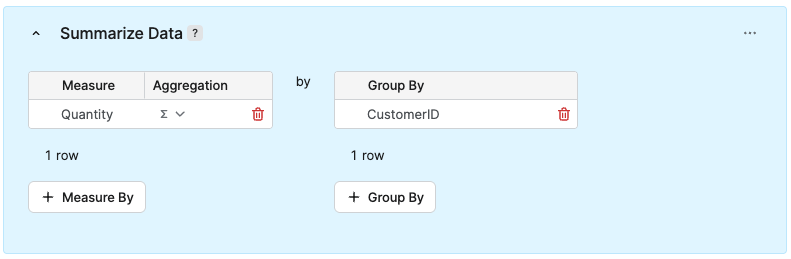
You can summarize data in your query by using the Measure and Group By options.
Measure
The available aggregation types depend on the field type (numeric or text).
-
Numeric Fields
-
∑ Sum
-
Ø Average
-
-
Text Fields
-
# Count
-
# Count Distinct
-
{ } Function
-
Group By
You can group data by a field you select.
Following the steps from How to Create a Query. Here are the steps to summarize data in a query.
-
In the Summarize Data section:
-
Click Measure By.
-
Select the Measure from the drop-down menu.
-
Click Group By.
-
Select the field for grouping.
-
Click Save.
-
-
In the Save Query menu:
-
Enter a Label.
Title used for display and translations.
-
Enter a Name.
-
In the Save to Folder section, select the folder where the query will be saved.
-
Click Save.
-
When you return to the Query List screen, the query will be saved in the selected folder.
Example
Summary on Quantity Grouped by Customer Id
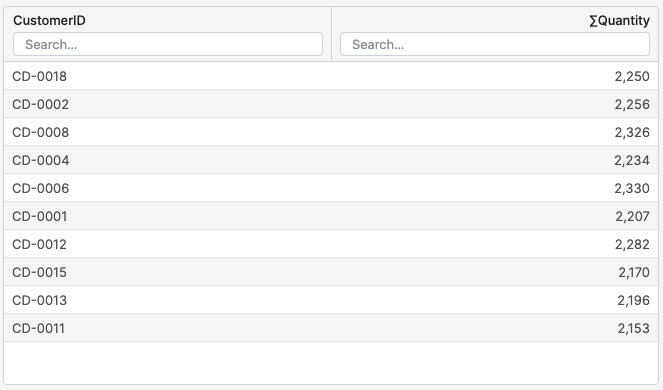
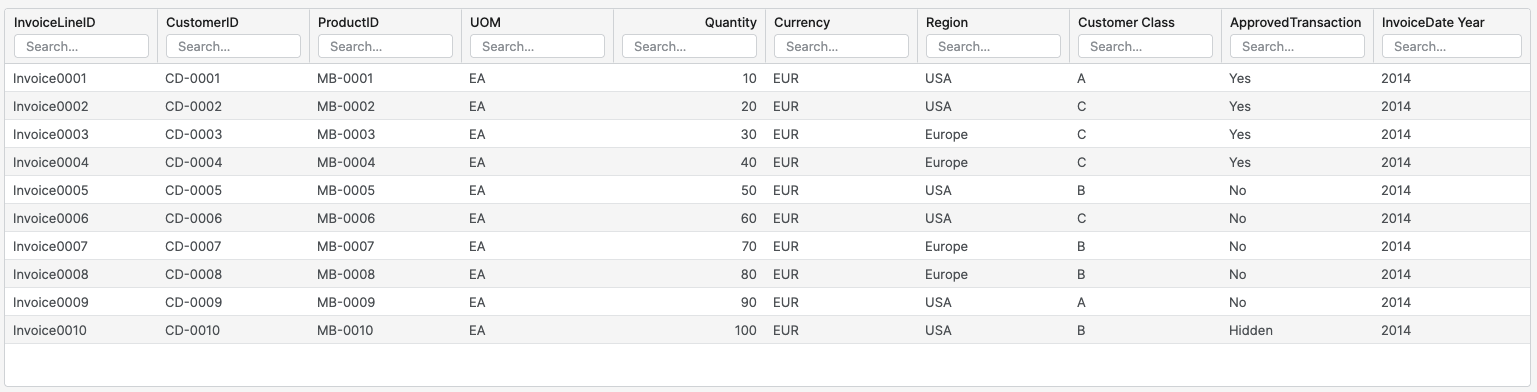
The following example shows summarized data. Measure is applied on Quantity, aggregated by Sum. Data is grouped by Customer Id.
Not Summarized
Shows an example of the initial, non-summarized dataset.
Summarized
Shows an example of what the summarized data would look like after applying the steps.