
This page explains how to build and control queries using reusable blocks, how to select the source, insert and reorder blocks, and how their visual order determines the execution order.
Source Definition
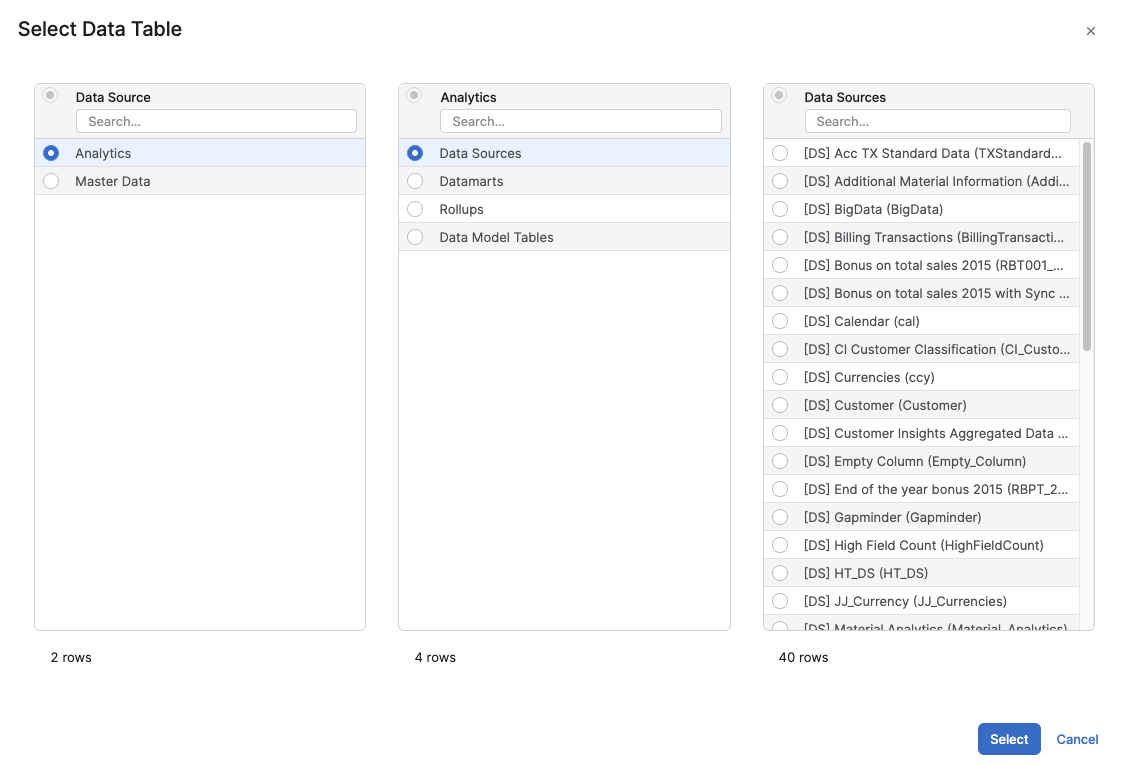
Once you select the Source from the drop-down menu, the following block types appear.
-
Join Data
-
Filter Data
-
Row Limit
-
Sort Data
-
Summarize Data
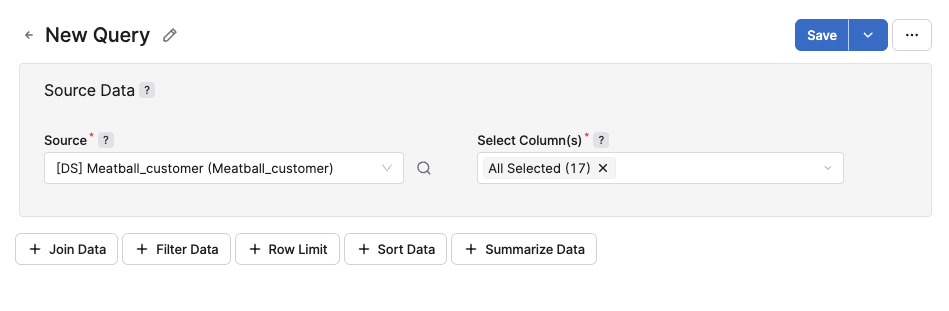
If you click the 
Blocks
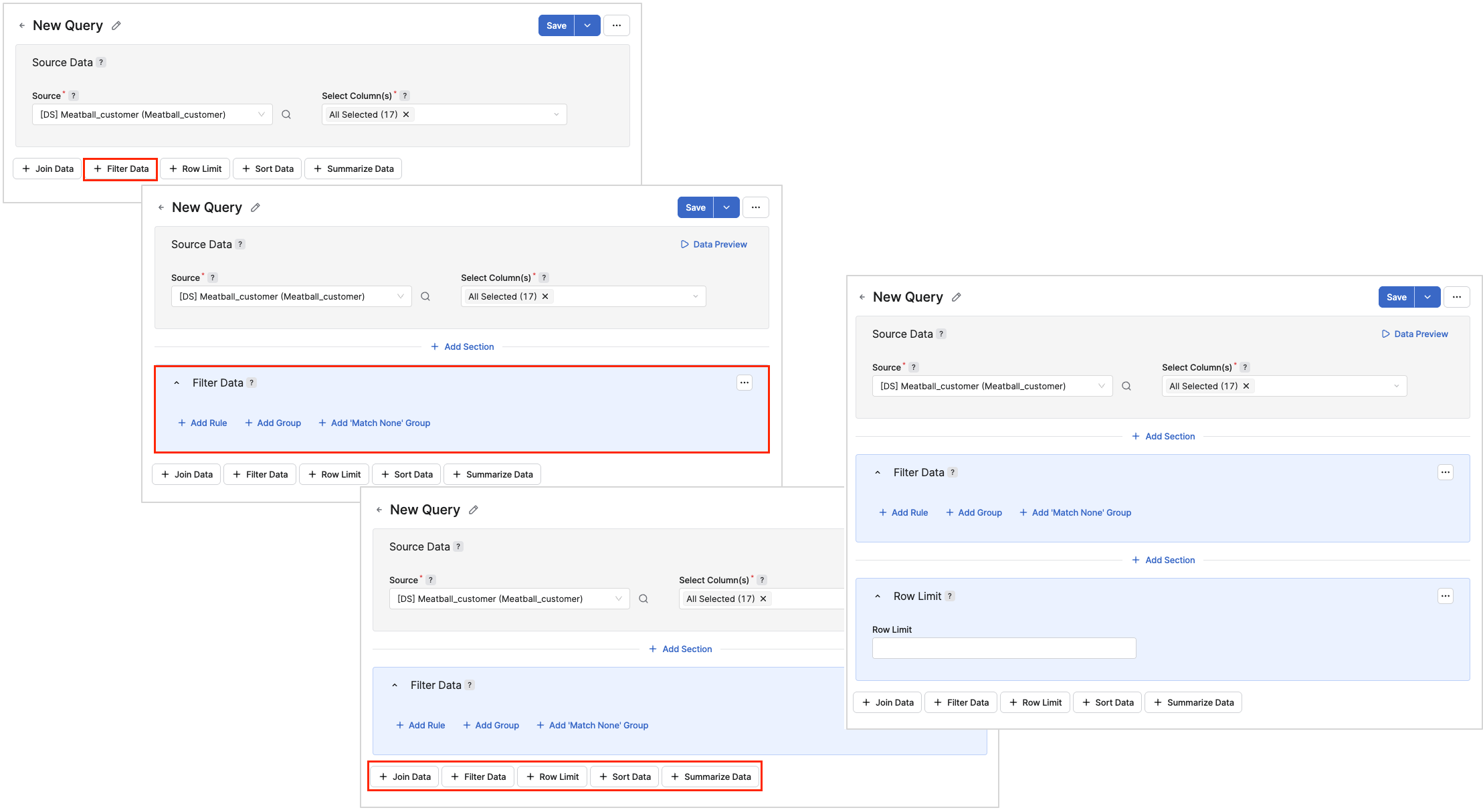
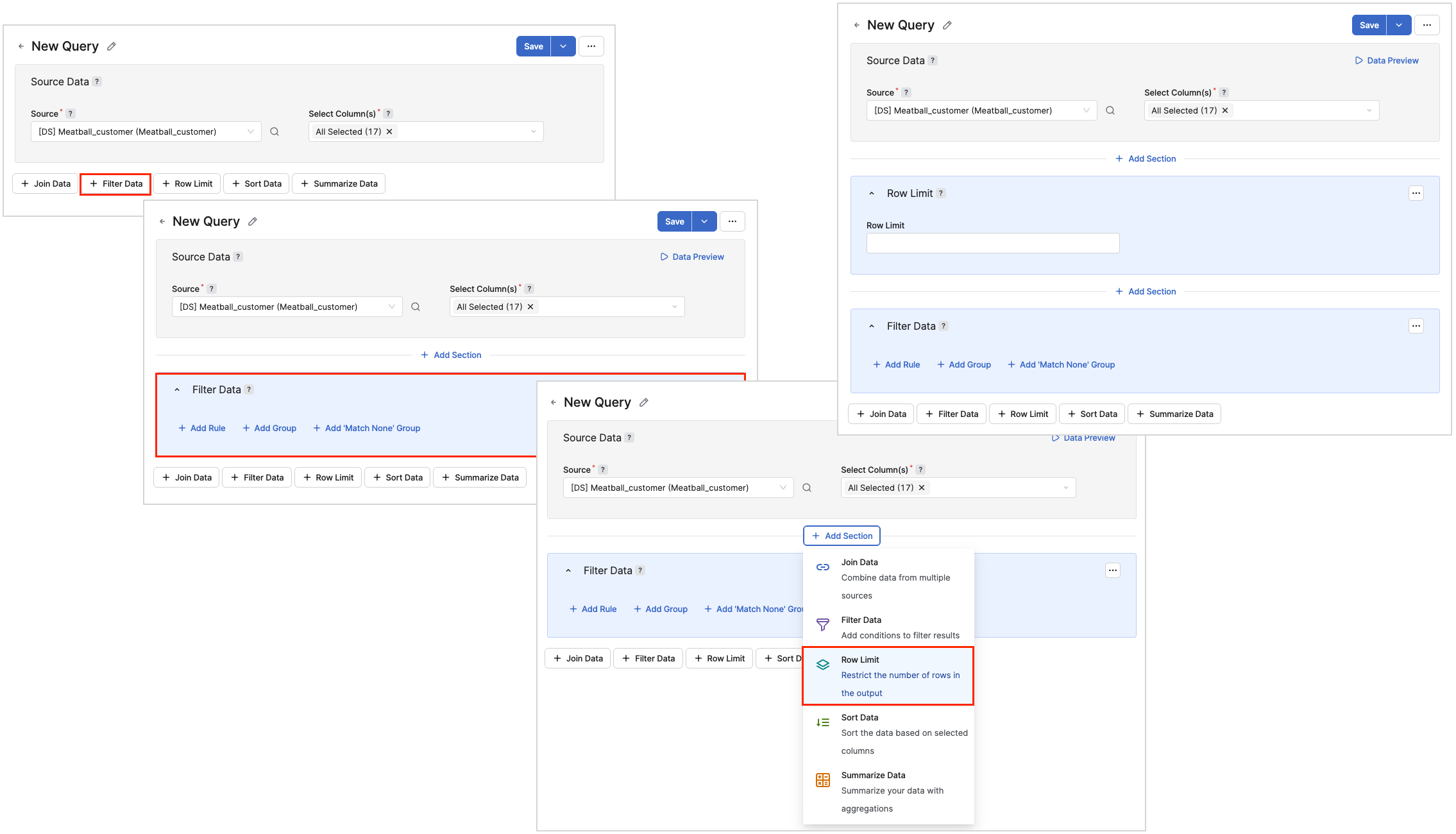
Each block type is a separate section that can be inserted anywhere in the query flow, not only appended at the end. The execution order matches the visual order of blocks in the Query Definition editor. Moving or inserting a block changes when it is applied in the pipeline. The Add Section control is displayed between existing sections, allowing users to insert new blocks between them instead of rebuilding from the bottom.
Behavior
-
Sort Data – Sort Data is an independent block. You can insert it anywhere after Source. The data passed to later blocks is already sorted at that point.
-
Row Limit – Row Limit is an independent block. You can insert it anywhere. Later blocks (for example Sort) work only with the limited result set.
It is the best practice to put Row Limit usually at the end and Sort Data typically after Filter Data or Summarize Data.
Expression Editor in Measures
When you configure the Summarize Data block, you can define custom Measures using the Expression Editor instead of relying only on the standard aggregation options. The Expression Editor lets you combine columns produced by earlier blocks (Source, Join Data, Filter Data) with aggregation functions such as SUM, MIN, MAX, and AVG, as well as safe-division helpers such as SAFEDIV(), to build a calculated Measure directly in the Query Definition.
To add or edit a Measure expression:
-
Open the Summarize Data block.
-
Click Measure By.
-
Click Add Item.
-
In the Expression Editor build the expression using the available fields, functions, and operators.
-
Click OK.
-
Click Save.
Save the query to persist the change.
The expression you define is evaluated per group according to the Group By columns configured in the same block, and the resulting value behaves like any other Measure in later blocks (for example, it can be sorted, filtered through an aggregation filter, or limited by Row Limit).
Not every expression supported elsewhere in Analytics is available for aggregation filters. See the List of Not Supported Expressions).
Validation & Error Handling
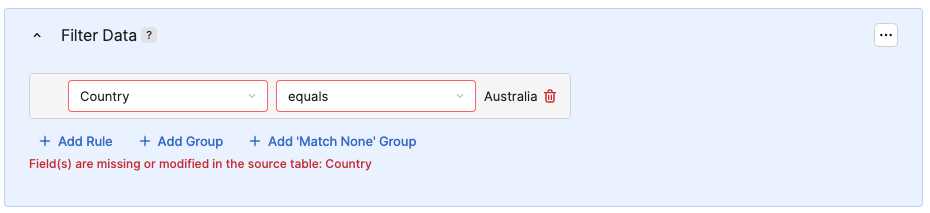
Certain combinations (e.g. a filter that references columns not yet created) are considered invalid block order. The application marks the invalid block(s) and explains what is wrong (e.g. missing fields from a previous stage). You cannot save or run a query until the invalid order is fixed.
Unsupported Stages
A Query Definition can contain stages that were created outside the visual editor (for example, through the QueryAPI directly) using a stage kind that the Query Definition editor does not know how to render, such as addColumns or selectColumns. Such a query is still valid and can be executed, but the editor opens it in read-only mode instead of blocking it as an error. When this happens, a warning banner appears at the top of the Query Definition editor:
This query contains an unsupported stage and is read-only. You cannot save changes or use Data Preview. Use Result Preview to run the complete query.
Each unsupported stage is displayed as its own collapsible section, labeled Unsupported Stage (kind: {stageKind}), where {stageKind} identifies the type of stage that could not be rendered (for example, addColumns or selectColumns). Expanding the section shows the underlying stage definition as read-only JSON, so you can inspect what the stage does even though you cannot edit it in the visual editor.
While a query is in this read-only mode, you cannot save changes to it or use Data Preview. Use Result Preview instead to run the complete query, including the unsupported stages, and verify the output.
Supported blocks that appear before or after an unsupported stage (for example Source Data or Summarize Data) remain visible and behave normally. Only the unsupported stage itself is shown as a read-only, collapsed section.
Result Preview
Note that the Result Preview always reflects the current visual block order. Inserting or moving a block automatically updates the preview once the query is rerun, so users can iteratively test changes. If the query contains one or more unsupported stages, Result Preview is the only way to run the complete query end to end, since Data Preview and Save are unavailable while any unsupported stage is present.