
The Code Quality – Rule Sets section allows PlatformManager power users to define and maintain reusable rule sets for Groovy code quality checks.
These rule sets are used by PlatformManager services (for example, partition Partition Overview | Code Analysis feature) to validate configuration code against internal guidelines and best practices.
Location and Permissions
Path in UI:
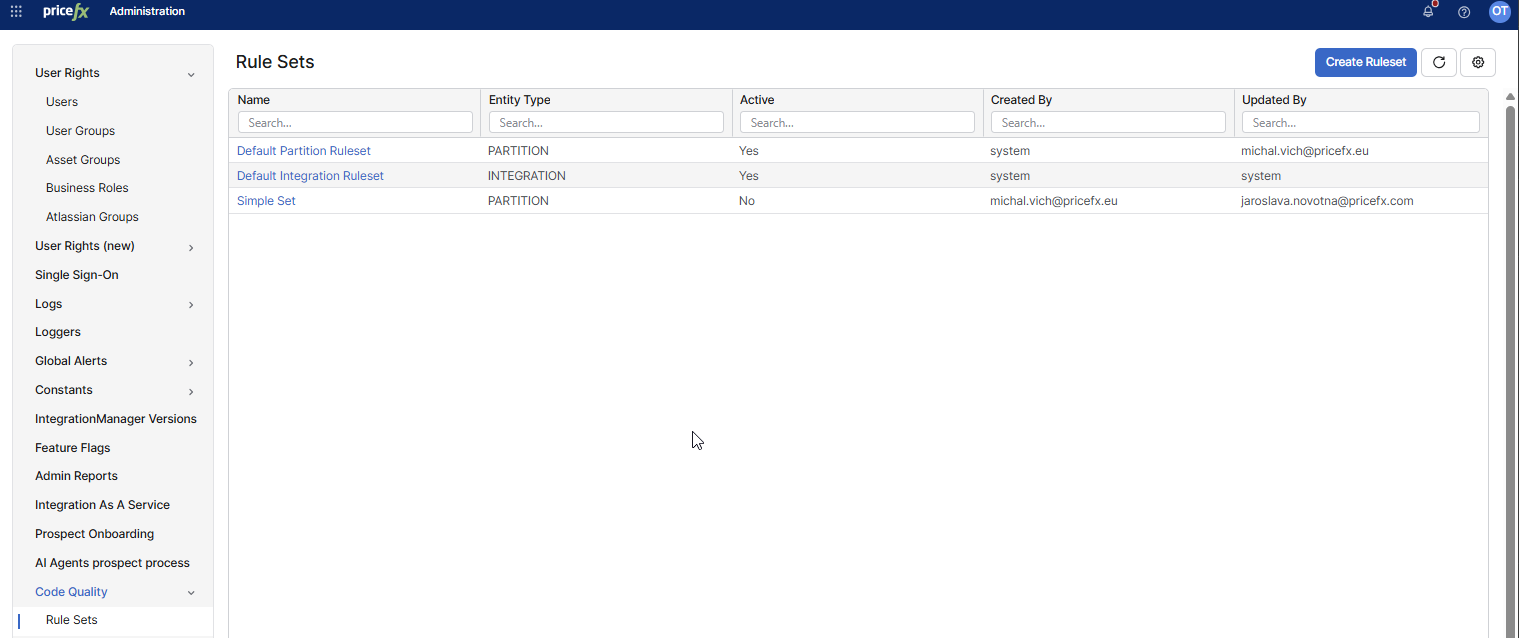
PlatformManager > Administration > Code Quality > Rule Sets
-
Required global permission:
permission.power.user(Power user)
Only power users can access the Code Quality menu and manage rule sets. -
Visibility rules:
-
Power users:
-
See Code Quality in the left sidebar under Administration.
-
Can open Rule Sets and manage entries.
-
-
Regular users (without
permission.power.user):-
Do not see Code Quality in the Administration menu.
-
Direct navigation to
/administration/code-quality/rule-setsis blocked (access denied).
-
-
Rule Sets Overview
On the Rule Sets page, PlatformManager displays a table of all existing rule sets.
Table columns
The table includes the following columns:
-
Name – Name of the rule set.
-
Entity Type – Target entity type:
-
Partition -
Integration
-
-
Active – Indicates whether the rule set is currently active and used by code analysis.
-
Created By – User who created the rule set.
-
Updated By – User who last updated the rule set.
The table is:
-
Sortable on all columns.
-
Filterable on all columns.
-
Refreshable via the Refresh button in the page header (reloads data from the backend).
Creating a Rule Set
To create a new rule set:
-
Navigate to Administration > Code Quality > Rule Sets.
-
Click Create Ruleset in the page header.
-
In the Create Ruleset dialog, fill in:
-
Name – Required. Enter a meaningful name, for example
Partition Coding Standards. -
Entity Type – Required. Select:
-
Partition – for rules used when analyzing partition configuration code.
-
Integration – for rules used when analyzing integration-related code.
-
-
Content – Required.
Provide the rule definition content. The exact format depends on the code quality engine (for example, a Codenarc ruleset). -
Active – Optional toggle. Turn on to activate the rule set immediately after creation.
-
-
Click Create.
Validation
-
If you submit the form without Name, Entity Type, or Content, validation errors are displayed and the rule set is not created.
-
When the rule set is created successfully:
-
The dialog closes.
-
A success notification appears.
-
A new row is added to the table with:
-
Correct Name
-
Selected Entity Type
-
Active = Yes/No (according to the toggle)
-
Correct Created By value
-
-
Editing a Rule Set
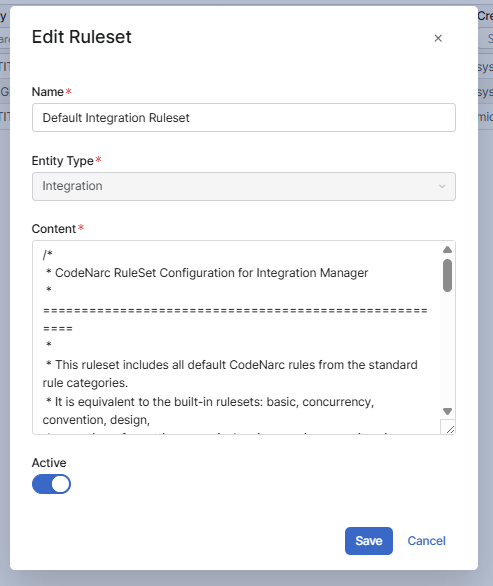
To edit an existing rule set:
-
On the Rule Sets page, open the edit dialog in one of the following ways:
-
Click the Name of the rule set, or
-
Open the row three-dot menu (⋯) and select Edit.
-
-
In the Edit Ruleset dialog:
-
Entity Type is read-only and cannot be changed after creation.
-
You can update:
-
Name
-
Content
-
Active (on/off)
-
-
-
Click Save.
After saving:
-
The dialog closes.
-
A success notification appears.
-
The table is updated with the new values (Name, Active, Updated By, etc.).
Deleting a Rule Set
Active rule sets cannot be deleted directly. To prevent accidental removal of rule sets currently in use by code analysis, deletion requires deactivation first.
Steps
-
In the Rule Sets table, open the three-dot menu for the selected rule set.
-
If the rule set is active:
-
The Delete (deactivate first) action is displayed but disabled.
-
-
Deactivate the rule set:
-
Open Edit, toggle Active off, and Save.
-
The Active column changes to No.
-
-
Open the three-dot menu again.
-
The Delete action is now enabled.
-
-
Click Delete.
-
Confirm the action in the dialog:
-
Message: “Are you sure you want to delete ruleset {name}?”
-
-
After confirmation:
-
The rule set is removed from the table.
-
A success notification confirms the deletion.
-