
In this section, you can define flows based on events generated by partition actions (e.g. completing Price List calculation), by IM instance or by PM. Then you can react to these events by triggering selected logics or calculation flows on a partition or, in the case of integrations, you can trigger a route (of the type direct). This functionality is meant for system integrators to allow them to trigger real time and sequenced processing.
The flows are built using event listeners. These can trigger a process (Calculation Field Set, Calculation Flow, Data Load etc.), a calculation logic on a partition, a direct route for IMs or another workflow. The listeners can be grouped in a multi-step workflow. Event payload can be used in the triggered calculation logic. The action (which generates events) can also be scheduled for a specific time or frequency.
Examples of use:
-
Trigger a Data Load to save prices to a price history table after an LPG recalculation.
-
Trigger emails or other notifications when certain data or types of data are received.
-
Integrate a data file into Product Master, trigger truncation, trigger Data Load to to Product Data Source, trigger update to add new products to LPGs automatically or update a Company Parameter and send a notification that new products were added and need attention.
-
All of the above can also be done using an IM route which calls REST API and runs any required operation.
For more details see the general Partition Overview | Event Configurator and How to Create Event Workflow .
To see this section, you need to have the Partition Event Orchestration - use permission.
This section consists of two parts:
Workflows
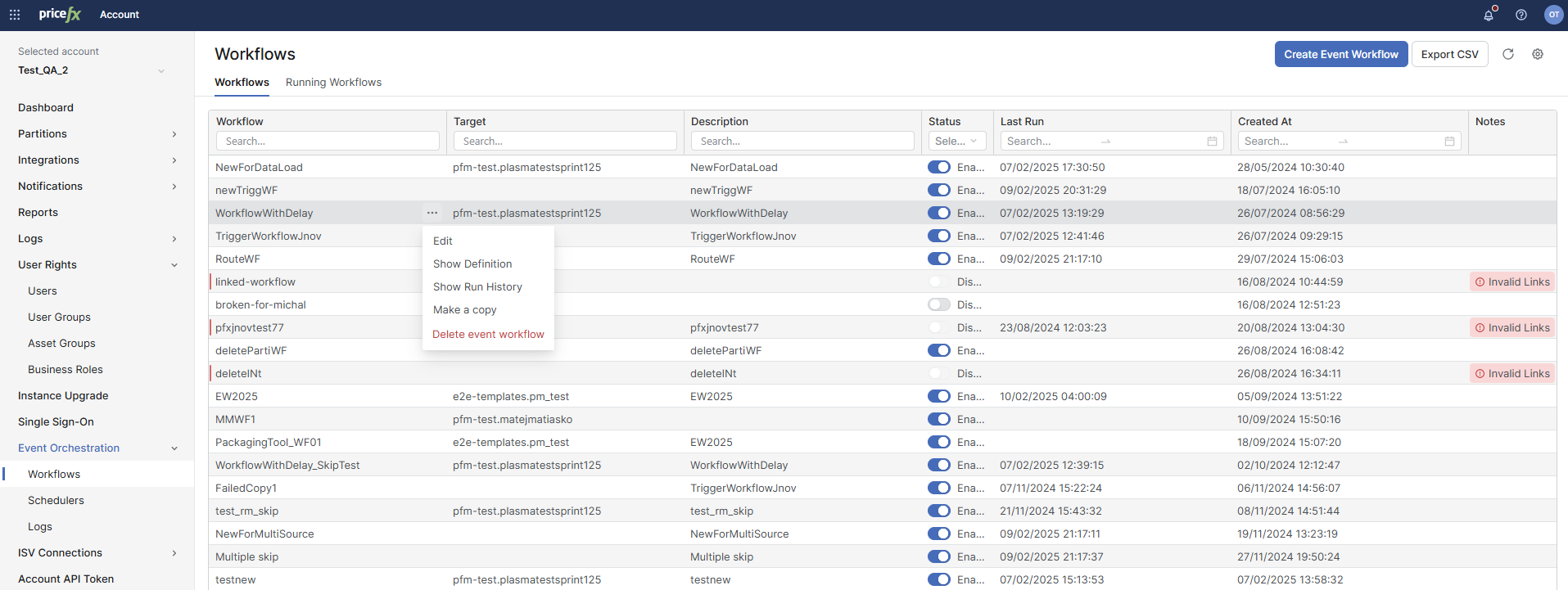
Shows a list of existing workflows and their basic details. From this screen, you can create a new event workflow, or download the Workflows table in the CSV format (via the Export CSV button). In the row menu (the three-dots menu) you have the options to edit or delete the workflow.
Difference Between Event Workflows and Mass Listeners
The main difference between Event Workflows and Mass Listeners is in their processing approach and purpose:
|
|
Event Workflow |
Mass Listener |
|---|---|---|
|
Process |
Processes long-running workflow with multiple steps |
Processes a high volume one-time action |
|
State |
Stateful (workflow statuses) |
Stateless (triggers actions without handling a status) |
|
Use Case |
Multi-step workflows |
Fast bulk event processing, typically items () |
|
Batching |
Not optimized for batching |
Optimized for batching events |
|
Example |
Approval workflow |
LPG items recalculation |
Workflows Table
|
Column |
Description |
|---|---|
|
Workflow |
Displays the name of each event workflow. You can search for workflows by entering text in the search box above the column. |
|
Target |
Shows the source name of the single-source workflow type. The field is empty for the multi-source workflow type. |
|
Description |
Provides a brief description of the workflow's purpose or function. You can search within this column for specific workflow descriptions. |
|
Status |
Indicates whether the workflow is currently Enabled or Disabled. You can toggle the status by switching the button on or off. |
|
Last Run |
Shows the date and time when the workflow was last executed. Users can search by date to find recent or older workflow runs. |
|
Created At |
Displays the date and time when the workflow was initially created. |
|
Notes |
Highlights any issues or warnings associated with the workflow. Workflows and listeners affected by the deletion of source partitions or integrations are automatically disabled and the Invalid Links warning is displayed. |
|
Created By |
This field is hidden by default. Click the cog-wheel in the top-right corner > Fields Visibility in the Table and make the desired field visible. 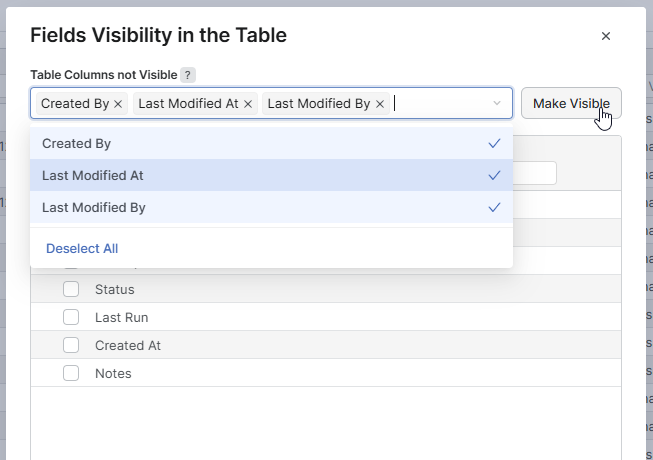
|
|
Last Modified At |
This field is hidden by default. Click the cog-wheel in the top-right corner > Fields Visibility in the Table and make the desired field visible. |
|
Last Modified By |
This field is hidden by default. Click the cog-wheel in the top-right corner > Fields Visibility in the Table and make the desired field visible. |
Workflows Three-Dots menu
For each workflow, additional actions can be accessed by selecting the three-dots menu ("...") on the right side of the workflow row.
The following actions are available:
-
Edit: Opens the Edit Event Workflow dialog, allowing you to modify the workflow's settings and details.
These changes will take effect on the next run of the Workflow. Workflows that are already running will keep their original configuration.
-
Show Definition: Opens the details of the Workflow, or Scheduler in read-only mode. In this mode, all toggles and fields are read-only, and there are no editing options. Instead of Save and Cancel buttons, a Back button is displayed. Users with edit permission (
event_orchestration.edit) can see both options (Edit and Show Definition), while users with read-only permission (event_orchestration.read) can only see the Show Definition option. For a workflow, the screen has three tabs: Definition, Diagram and JSON. See the Show Definition Tabs section below. For a scheduler, the screen shows the scheduler form in read-only mode, without tabs. -
Show Run History: Switches to the Logs table, where the
entityType.keyword : "value" AND entityId : valuequery is searched to review a history of all executions of the specified workflow. -
Make a Copy: Opens the Create a Copy dialog. Allows you to create a duplicate of the selected workflow with a new name (adds the "(copy)" suffix to the original name by default). You can enable or disable the copied workflow and replace sources/targets or other entities used within the workflow. The original source is displayed alongside the new source field, which can be modified as needed, the same for original target and new target for the multi-source workflow type. To finalize, click Create.
-
Delete Event Workflow: Opens the Delete event workflow dialog that allows you to permanently delete the workflow from the system after clicking the Delete button.
If the workflow is referenced in another workflow or scheduler, a dependency check will prevent its deletion. You will receive a notification if the workflow cannot be deleted.
Show Definition Tabs
The Show Definition screen presents the workflow in three tabs. All three tabs are read-only. The event_orchestration.read permission is sufficient to open them. The tabs apply to event workflows. A scheduler opens as a read-only form, and a mass listener has no Show Definition option.
Definition
Shows the workflow form: its general settings and each listener with its sources and actions. This is the content described in the Show Definition item above.
Diagram
Shows the whole workflow as a flow chart, so you can read the sources and actions of all listeners without opening each listener. PlatformManager marks this tab as an experimental feature. Its layout and behavior can still change.
Each step is a numbered lane. In a lane, the event sources sit on the left and the actions they trigger on the right. The diagram labels the nodes as follows:
|
Node |
Label |
|---|---|
|
Event source |
Event Source, followed by the number of filters when the source has any, for example |
|
Skip event |
Skip event |
|
Action |
The Action Type and the triggered object. |
|
Fallback action |
Fallback |
When the workflow has no listeners, the tab shows the message This workflow has no listeners.
Select a node to open the Node Properties panel. The fields depend on the selected node:
|
Field |
Shown for |
Description |
|---|---|---|
|
Node label |
Every node |
The label of the selected node. |
|
Source |
Event source |
The source name and the source type. |
|
Filter condition |
Event source |
The filter expression. Shown only when the source has a filter. |
|
Destination |
Action |
The partition or integration instance the action runs on, and its type. |
|
Target |
Action |
The Action Type and the triggered object. |
|
Fallback |
Action |
The fallback action, the number of attempts and the timeout. Shown only when the action has a fallback. |
When the target of an action no longer exists, the panel marks it No longer exists.
To change the size of the diagram, use the zoom buttons above the canvas. The current zoom level appears next to them. The Show fallback flows switch is on by default. Turn it off to hide the fallback branches. The legend above the canvas marks the flow types: Normal, Fallback and Skipped.
JSON
Shows the complete workflow definition in the JSON format, with line numbers. The definition contains the workflow attributes and the steps with their triggers and actions. Click Copy to copy the definition to the clipboard.
Running Workflows
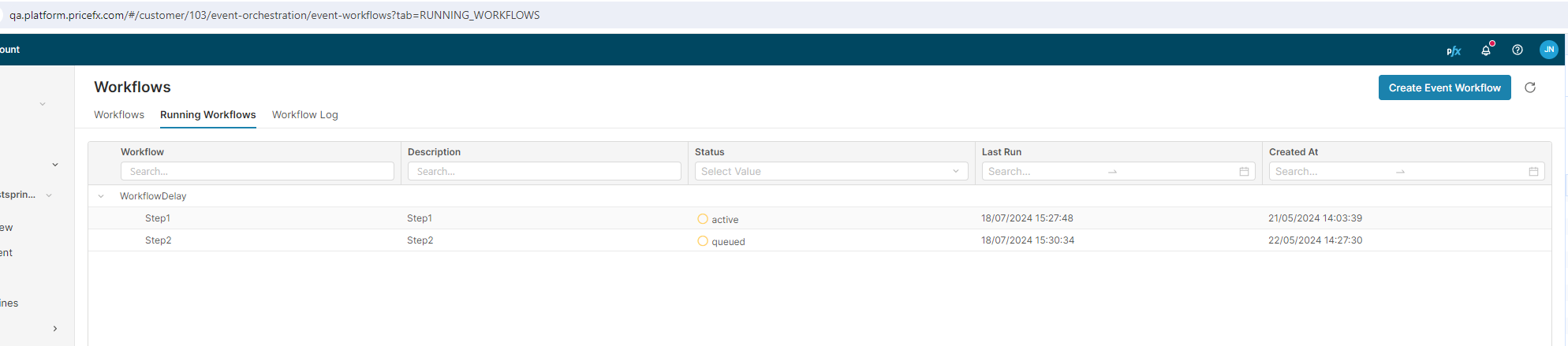
Shows a list of currently running workflows and detailed information about each, including its description, status, last run date/time, and creation date/time. In the row menu you have the options to manually stop the workflow or restart it from the last executed step (useful in case of a stuck workflow).
|
Column |
Description |
|---|---|
|
Workflow |
Lists all the workflows that are currently running. You can use the search box to filter specific workflows by name. In parentheses, you can find the Target information – where the workflow is running (a partition or an IntegrationManager instance). |
|
Description |
Provides a brief description of each running workflow. |
|
Status |
Allows users to filter workflows based on their current status using a drop-down menu. Displays the status of each listener (step) – active, queued, or executed. |
|
Last Run |
Shows the date and time when the workflow was last executed. Users can filter workflows by specific run dates using the search box. |
|
Created At |
Displays the date and time when the workflow was initially created. A search box is available to filter workflows by their creation date. |
Event Routing When Multiple Workflows Await the Same Event
When an event arrives and more than one running workflow is waiting for the same event type with the same filter, only one workflow receives the event. The other workflows remain at their current step and continue waiting until another matching event arrives.
Since PlatformManager 1.95.0, every such case is logged as a warning so that you can identify the conflict. The log entry names the workflow which received the event and lists the workflows which are still waiting for it, including their ids and step names:
Event {clusterName=pfm-test, partition=demo, eventType=PADATALOAD_COMPLETED} was awaited by 2 running workflows.
Received by: 'Workflow A' (id 12, step 'Step 2').
Still waiting for this event: ['Workflow B' (id 34, step 'Step 2')]
To find these entries in the logs, search for the message text was awaited by.
To prevent workflows from competing for the same event, define the event filters so that each event matches only one workflow, or combine the steps into a single workflow.