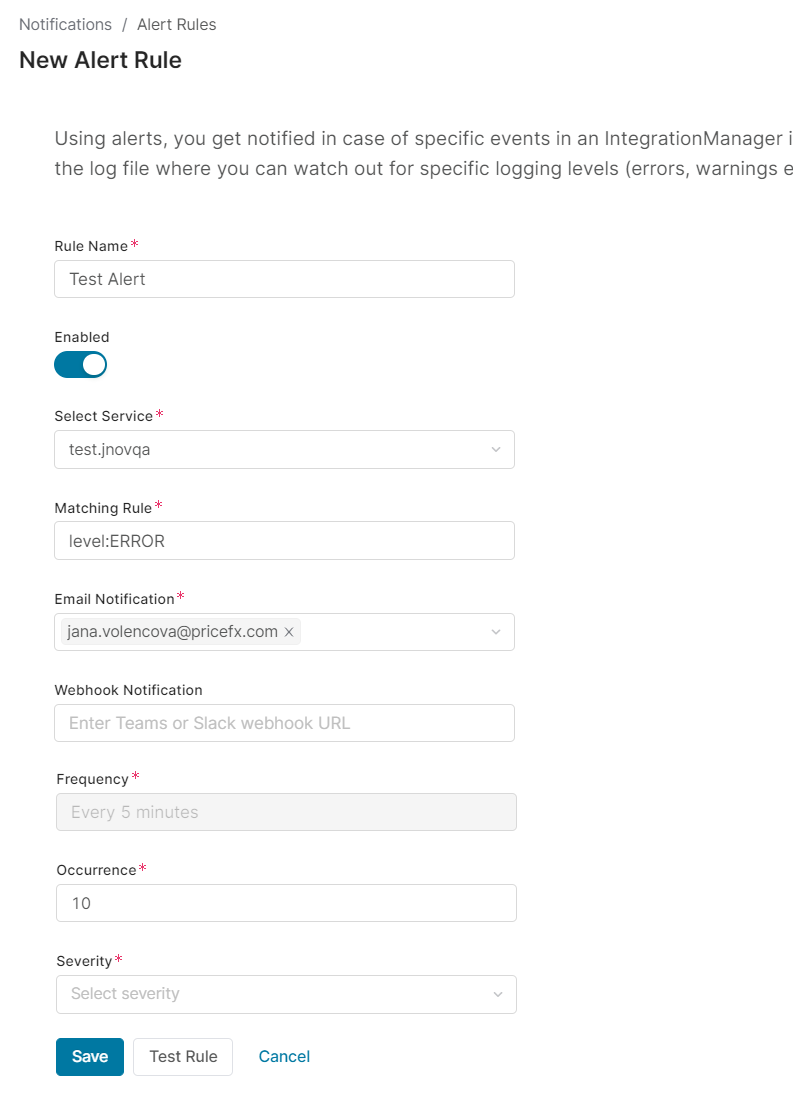
|
Aim of this article |
This section explains how to set up advanced alerts that scan logs for specific logging levels (e.g., errors, warnings) and notify specified recipients about matching events. |
|---|---|
|
Related sections |
Account Notifications (Reference Manual) |
|
Required permissions |
Alerts - edit
|
To create a new alert:
-
Go to Account > Notifications > Alert Rules.
-
Click New Rule.
-
Fill in the following fields:
-
Rule Name – Enter a unique name of the rule.
-
Enabled – Allows you to turn on and off the rule.
-
Select Service – Select either IM instance or partition or Accelerator whose log file should be monitored.
Accelerator can be selected only from the Global Alerts section.
-
Matching Rule – Define what logging level from the log file should trigger the alert.
To trigger an alert for lines with the status ERROR
level:ERRORTo trigger an alert for any line in the log
level:* -
Email Notifications: Enter the email addresses of recipients who should receive notifications. Each email includes the following details:
-
Identification of the account and the monitored partition or integration
-
Total number of alert occurrences
-
Alert reason – explains why the alert was triggered
-
A "More information" link that redirects to the corresponding log entry in the Integration Overview > Log History screen in PlatformManager
-
A JSON file (as an email attachment) containing the first five records that triggered the alert
-
-
Webhook Notification – Enter MS Teams or Slack webhook URL, so that you receive the notification in one of these channels. For details see How to Get Webhook URL.
-
Frequency – Currently, the alert is executed every 5 minutes and this value cannot be changed.
-
Occurrence – Allows you to specify after how many occurrences of the given logging level the alert should be triggered.
-
Severity – Allows you to decide on the criticality of the alert. Select from: Critical, High, Medium or Low.
-
-
Save the rule.