
Use Instance Availability Notifications to inform stakeholders when selected lifecycle events occur for one or more instances. PlatformManager sends email notifications to all configured recipients when the instance is hibernated, woken up, or when its downtime schedule changes.
This article explains how to configure, edit, and overwrite notification settings for single or multiple instances.
Prerequisites
To configure notifications, you need the following permission:
-
Instance Availability Management
To view the Instances overview, you also need:
-
Instance List – read
Supported Notification Events
PlatformManager sends notifications when any of the following events occur:
-
The instance is hibernated
-
The instance is woken up
-
The downtime schedule is created
-
The downtime schedule is changed
-
The downtime schedule is removed
Notifications are sent to every email address configured in the Instances Notifications Settings dialog.
Configuring Notifications
1. Open the Instances overview
-
Navigate to Overview > Instances or Account > Instance Management > Instance Availability.
-
Select one or more instances using the checkbox in the Name column.
2. Open Notification Settings
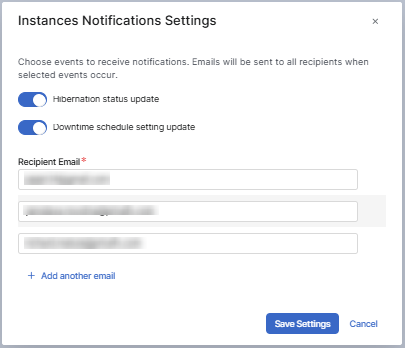
In the footer toolbar, click Notification Settings button to open the Instances Notifications Settings dialog.
3. Enable Events
In the dialog, enable one or both options:
-
Hibernation status update
Sends a notification when the instance enters or leaves hibernation. -
Downtime schedule setting update
Sends a notification when a downtime schedule is created, modified, or removed.
4. Add Recipient Emails
-
Enter an email address in Recipient Email.
-
To add more addresses, select Add another email and enter each additional address.
5. Save the Configuration
Select Save Settings.
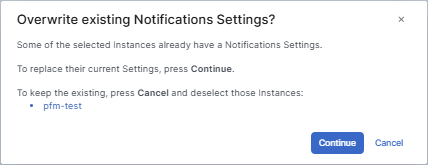
If you configured multiple instances that have different existing notification settings, PlatformManager displays an overwrite confirmation dialog.

When notifications are enabled for an instance, PlatformManager displays a notification icon in the Status column of the Instances table.
This icon indicates that at least one notification event is configured.
PlatformManager sends simple, standardized email messages when the configured events occur. Examples include:
-
Instance <name> is hibernated.
-
Instance <name> is woken up.
-
Instance <name> downtime schedule was created.
-
Instance <name> downtime schedule was changed.
-
Instance <name> downtime schedule was removed.
Email content may vary slightly based on system configuration.
Overwrite Existing Notification Settings
When multiple instances have different notification configurations:
-
PlatformManager displays the Overwrite existing Notification Settings? dialog.
-
Review the information message.
-
Select Continue to apply the new configuration to all selected instances.
-
Select Cancel to keep existing configurations.
PlatformManager replaces previous recipient lists and event selections for all selected instances.
See Also
• Instance Availability – manage instance lifecycle actions like hibernation, scheduling, and wake-up.
• Instances Overview – a reference docs: instance attributes, table columns, and available instance management actions.