
Date Range
Select the preferred Data Range. This option is required. The following options are available:
-
Last 12 full months (Default Option)
-
Last year + running year
-
Last 24 full months
-
Last 2 years + running year
-
Last 36 full months
The Data Range option allows you to select specific periods for which data will be aggregated. The selected range is applied up to the latest transaction found in scope. If the latest transaction date is not the last day of a month, the scope for periods such as L12M, L24M, etc. will be counted from the end of the previous month backward (for example, L12M is counted from the end of the previous month back 12 months).
Ranks
Select the Customer and Product Ranks. This option is required.
Defining the number of ranks that will be used to create buckets of revenue. For example, with 5 ranks, each bucket will correspond to 20% of revenue for the last 12 months. Rank 1 will correspond to the largest products/customers.
Default Options
|
Type |
Period |
Number of Ranks |
|---|---|---|
|
Customer |
L12M |
10 |
|
Product |
L12M |
10 |
Configuration allows for setting the number of ranks. Settings are stored within the dashboard's general configuration area and power the logic of rank-based analyses.
If there are no transactions in the last 12 months for a given rank bucket, the dashboard can display an additional rank +1 bucket. This behavior is expected and results from how rank buckets are calculated from L12M revenue.
Product Hierarchy
Select the order of the Product Hierarchy. This option is not required.
You can use a combination of fields defined either in the Transactions Datamart or in the Product Data Source. Based on your selection, relevant information will be displayed in the Product Hierarchy filters and in the Product Hierarchy charts.
The Product Hierarchy input must contain at least one hierarchy field other than Product Id, as the Id fields are automatically removed because they represent the lowest level of granularity.
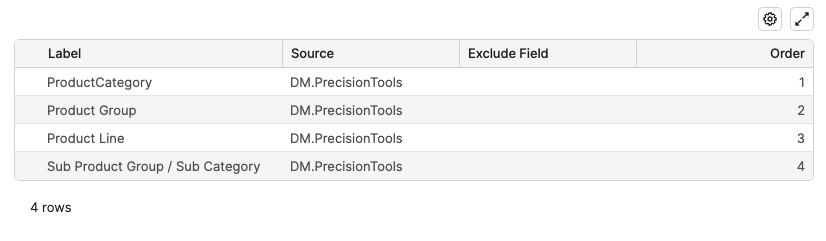
Product Data Source attributes are prioritized over Transactions Datamart attributes, placing Product Data Source attributes at the top to minimize the risk of inconsistencies, such as differing values for the same product or category. When duplicate fields are present, the attribute positioned higher in the order takes precedence, for example, if ProductGroup (Product Data Source) is at position #1 and ProductGroup (Transaction Datamart) at position #2, the system will select ProductGroup (Product Data Source) and ignore ProductGroup (Transaction Datamart).
Defining the Product Hierarchy that will be available as filter and/or to aggregate data. Please refine the levels to consider (exclude some if needed) and define the order of the fields from broad (Order 1) to detailed. Product by itself is not included here as it is considered as the lowest level already.
Customer Hierarchy
Select the order of the Customer Hierarchy. This option is not required.
You can use a combination of fields defined either in the Transactions Datamart or in the Customer Data Source. Based on your selection, relevant information will be displayed in the Customer Hierarchy filters and in the Customer Hierarchy charts.
The combined Customer Hierarchy input must contain at least one hierarchy field other than Customer Id, as the Id fields are automatically removed because they represent the lowest level of granularity.
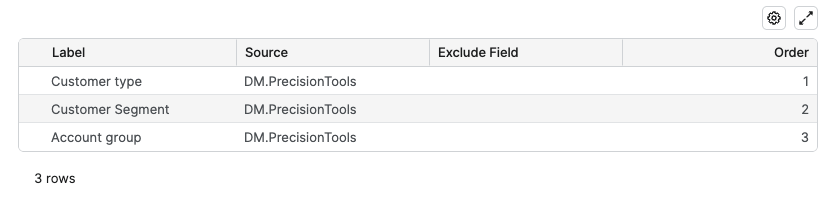
Customer Data Source attributes are prioritized over Transactions Datamart attributes, placing Customer Data Source attributes at the top to minimize the risk of inconsistencies, such as differing values for the same product or category. When duplicate fields are present, the attribute positioned higher in the order takes precedence, for example, if CustomerGroup (Customer Data Source) is at position #1 and CustomerGroup (Transaction Datamart) at position #2, the system will select CustomerGroup (Customer Data Source) and ignore CustomerGroup (Transaction Datamart).
Defining the Customer Hierarchy that will be available as filter and/or to aggregate data. Please refine the levels to consider (exclude some if needed) and define the order of the fields from broad (Order 1) to detailed. Customer by itself is not included here as it is considered as the lowest level already.
Health Score
The Health Score is a key metric to assess trends, computed for the last 12 months. It is possible to define the portion of the revenue trend and profit trend that is used. Adjust the Health Score if needed. This option is required.
Health Score - Share of Revenue and Profit
Controls how much Revenue trend versus Profit trend contribute to the final Health Score used across Insights Dashboards.
Default Values
-
Default value – 0.5 (Equal weight for revenue and profit).
-
Minimum – 0 (Health Score entirely driven by Revenue trend).
-
Maximum – 1 (Health Score entirely driven by Profit trend).

Health Score Definition (Default Options)
|
Health Score |
Change % |
Order |
|---|---|---|
|
100 |
20 |
1 |
|
80 |
10 |
2 |
|
60 |
2 |
3 |
|
50 |
0 |
4 |
|
40 |
-2 |
5 |
|
20 |
-10 |
6 |
|
0 |
-99 |
7 |
Interpolate intermediate values – If checked, intermediate values will be defined between each threshold defined above so the Health Score will be having all values between those levels.
This option is checked by default.
Health Score Thresholds
Adjust the Health Score Thresholds if needed. This option is not required.
Default Values
-
Low Performing – 20
-
High Performing – 80
Defining the threshold for low performing ❌ health score and good performance ✅ health score. Middle range defined between the thresholds doesn’t get a specific icon.

Minimum and Maximum for Margin % Gauge
Adjust the Minimum and Maximum for Margin % Gauge if needed. This option is not required.
Default Values
-
Minimum – 10
-
Maximum – 75

Defining the % value corresponding to the minimum on the gauge and maximum value. E.g. 10 for the minimum means the gauge will be empty up to 10% margin rate.
Minimum and Maximum for Price Realization Gauge
Adjust the Minimum and Maximum for Price Realization Gauge if needed. This option is required.
Default Values
-
Minimum – 50
-
Maximum – 100

Defining the % value corresponding to the minimum on the gauge and maximum value. E.g. 10 for the minimum means the gauge will be empty up to 10% margin rate.
Trends Thresholds
Adjust the Trends Thresholds if needed. This option is required.
Default Values
-
Down – -0.05
-
Up – 0.05

Defining the threshold for decreasing trend ▼, stable ▷ and increasing trend ▲.