
Transactions
-
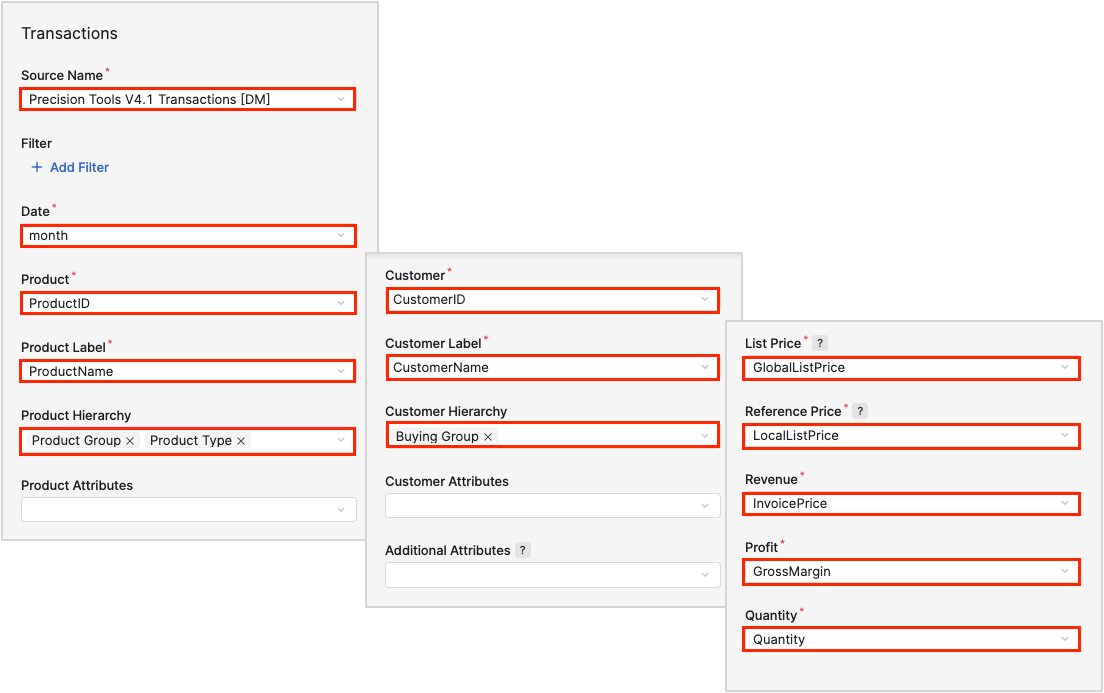
In the Source Name section (Required):
-
Select the Transactions Datamart.
For more information see Mandatory Data (Insights Dashboards).
-
-
In the Date section (Required):
-
Select from the provided options:
-
Date -
month
-
-
-
In the Product section (Required):
-
Select the
ProductIdfrom the Transactions Datamart.
ProductIdis as an example. The name of the field may differ based on your Transactions Datamart, but the field should contain information about the Product Id.
-
-
In the Product Label section (Required):
-
Select the
ProductNamefrom the Transactions Datamart.
ProductNameis as an example. The name of the field may differ based on your Transactions Datamart, but the field should contain information about the product name.
-
-
In the Product Hierarchy section (Optional):
-
Select the field (or multiple fields) from the Transactions Datamart that will be mapped as Product Hierarchy attribute.
-
-
In the Product Attributes section (Optional):
-
Select the field (or multiple fields) from the Transactions Datamart that will be mapped as Product Attributes attribute.
-
-
In the Customer section (Required):
-
Select the
CustomerIdfrom the Transactions Datamart.
CustomerIdis as an example. The name of the field may differ based on your Transactions Datamart, but the field should contain information about the Customer Id.
-
-
In the Customer Label section (Required):
-
Select the
CustomerNamefrom the Transactions Datamart.
CustomerNameis as an example. The name of the field may differ based on your Transactions Datamart, but the field should contain information about the customer name.
-
-
In the Customer Hierarchy section (Optional):
-
Select the field from the Transactions Datamart that will be mapped as Customer Hierarchy attribute.
-
-
In the Customer Attributes section (Optional):
-
Select the field (or multiple fields) from the Transactions Datamart that will be mapped as Customer Attributes attribute.
-
-
In the Additional Attributes section (Optional):
-
Select the field (or multiple fields) from the Transactions Datamart that will be mapped as Additional Attributes.
-
-
In the List Price section (Required):
-
Select the
GlobalListPricefrom the Transactions Datamart.
GlobalListPriceis an example. The name of the field may differ based on your Transactions Datamart, but the field should contain information about the list price. This field is used for computing discounts. Should be an extended field.
-
-
In the Reference Price section (Required):
-
Select the
LocalListPricefrom the Transactions Datamart.
LocalListPriceis an example. The name of the field may differ based on your Transactions Datamart, but the field should contain information about the reference price. This field is used for computing the Price Realization. Should be an extended field. For more information see Reference Price Extended (Insights Dashboards).
-
-
In the Revenue section (Required):
-
Select the
InvoicePricefrom the Transactions Datamart.
InvoicePriceis as an example. The name of the field may differ based on your Transactions Datamart, but the field should contain information about revenue.
-
-
In the Profit section (Required):
-
Select the
GrossMarginfrom the Transactions Datamart.
GrossMarginis as an example. The name of the field may differ based on your Transactions Datamart, but the field should contain information about profit.
-
-
In the Quantity section (Required):
-
Select the
Quantityfrom the Transactions Datamart.
Quantityis as an example. The name of the field may differ based on your Transactions Datamart, but the field should contain information about quantity.
-
-
Click Apply Settings.
Insights Dashboards Configuration model ignores records with nulls in required fields (Product, Customer, Revenue, Profit, Quantity).
Example
The definition (enabling) of Product and Customer Data Source is entirely optional and depends on your data structure. If the relevant information, such as ProductId, CustomerId, ProductName, CustomerName, and other related data is available in the Transactions Datamart, you may skip defining these tabs.
Products
-
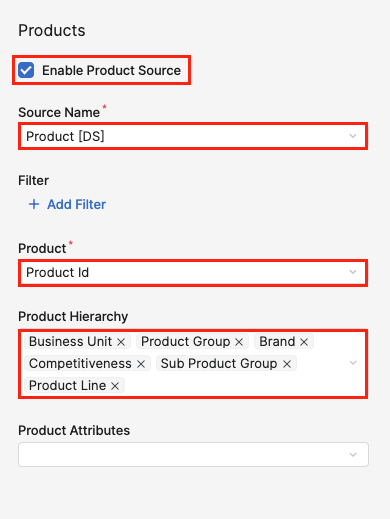
Check the Enable Product Source option.
-
In the Source Name section (Required):
-
Select the Product Data Source.
-
-
In the Product section (Required):
-
Select the
ProductId.
ProductIdis as an example. The name of the field may differ based on your Product Data Source, but the field should contain information about the Product Id.
-
-
In the Product Hierarchy section (Optional):
-
Select the field (or multiple fields) from the Product Data Source that will be mapped as Product Hierarchy attribute.
-
-
In the Product Attributes section (Optional):
-
Select the field (or multiple fields) from the Product Data Source that will be mapped as Product Attributes attribute.
-
-
Click Apply Settings.
Example
Customers
-
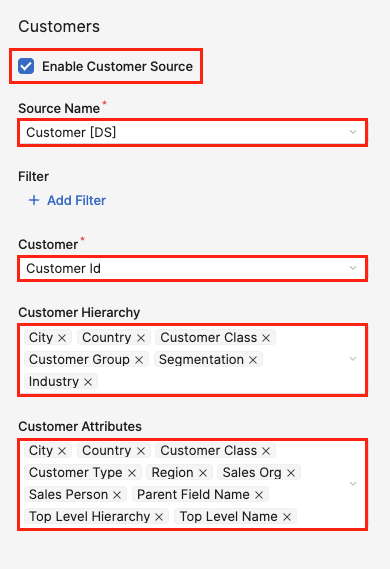
Check the Enable Customer Source option.
-
In the Source Name section (Required):
-
Select the Customers Data Source.
-
-
In the Customer section (Required):
-
Select the
CustomerId.
CustomerIdis as an example. The name of the field may differ based on your Customer Data Source, but the field should contain information about the Customer Id.
-
-
In the Customer Hierarchy section (Optional):
-
Select the field (or multiple fields) from the Customer Data Source that will be mapped as Customer Hierarchy attribute.
-
-
In the Customer Attributes section (Optional):
-
Select the field (or multiple fields) from the Customer Data Source that will be mapped as Customer Attributes attribute.
-
-
Click Apply Settings.
Example
Note that attributes configured in Products and Customers can appear in dashboard selectors even if the corresponding fields are not included in the serving Datamart Tables. There is a known limitation for the Product/Customer attribute dashboard filters. For more information see Limitations (Insights Dashboards) | Filter Attributes Outside Datamart Tables Scope.