
From Pricefx Insights Dashboards 1.1.0, the auto-migration feature reads existing Sales Insights and Customer Insights configuration and pre-populates the Insights Dashboards configuration wizard. This reduces manual re-entry when you transition from the Sales Insights or Customer Insights to Insights Dashboards.
When auto-migration runs, it pre-populates the following configuration areas:
-
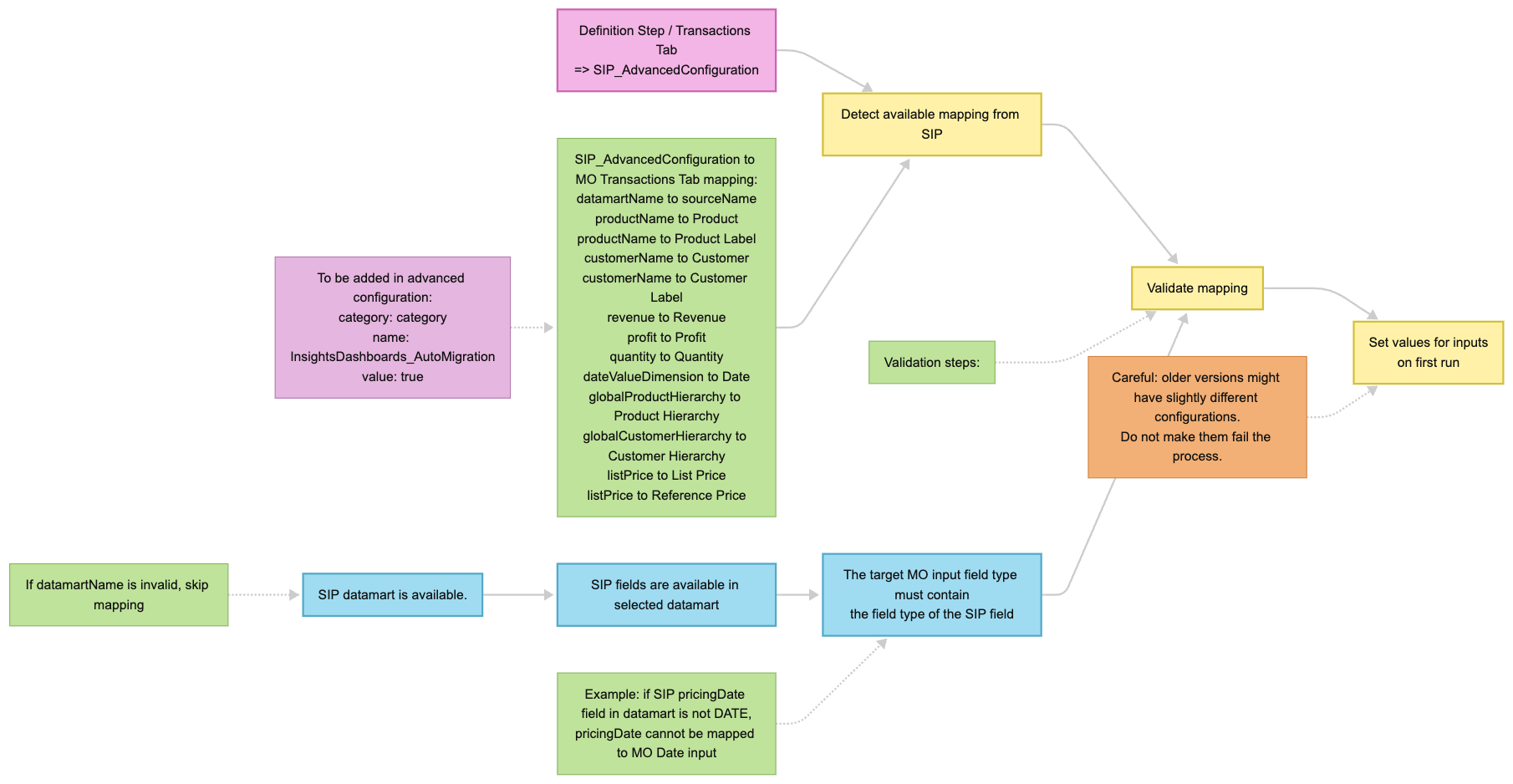
Transactions Tab – Source Name, Datamart Name, and field mappings (Product, Product Label, Customer, Customer Label, Revenue, Profit, Quantity, Date, Product Hierarchy, Customer Hierarchy, List Price, Reference Price).
-
General Tab – Revenue/Profit Share slider, Health Score Definition matrix, Health Score Thresholds slider, and Trends Thresholds slider.

-
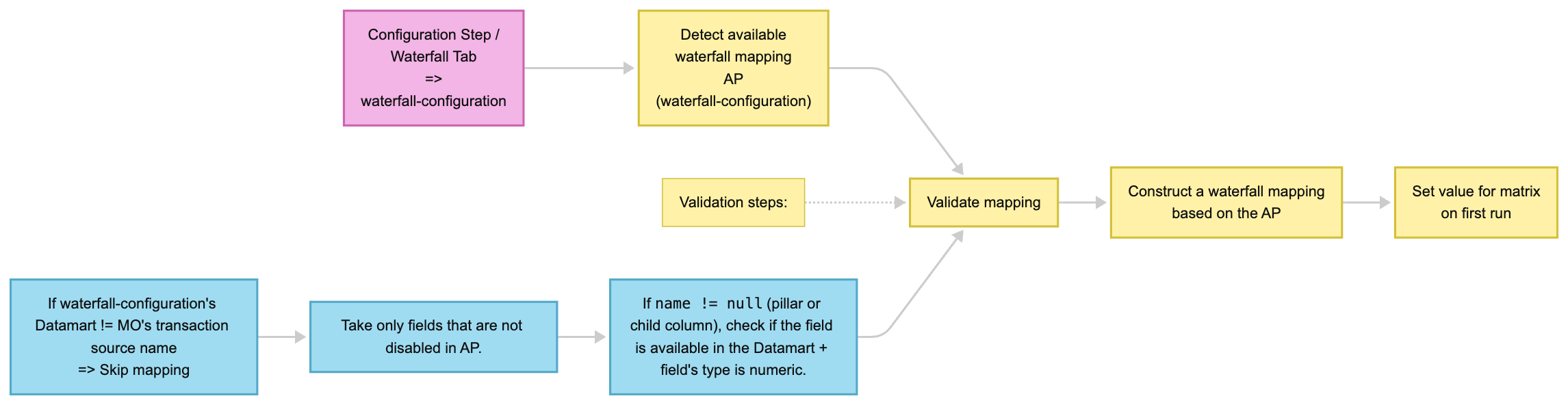
Waterfall Tab – Waterfall input matrix derived from the existing waterfall configuration.
Auto-migration runs only on the first calculation of a configuration object (Model Object). If the configuration lookup table already exists, meaning the Model Object has been calculated before, pre-population is skipped and your saved inputs are used instead.
Prerequisites
-
You have administrator access to the Pricefx partition.
-
Insights Dashboards 1.1.0 or later is installed.
-
At least one of the following exists in the partition:
-
Sales Insights Advanced Configuration Option (
SIP_AdvancedConfiguration) -
Customer Insights Company Parameter (
PFXTemplate_CustomerInsights_Configuration) -
Waterfall Configuration Advanced Configuration Option (
waterfall-configuration)
-
-
You have not yet calculated the target Insights Dashboards configuration object (Model Object). If the Model Object has already been calculated, auto-migration does not run.
Enable Auto-Migration
The InsightsDashboards_AutoMigration Advanced Configuration Option controls whether auto-migration runs. How this option is set depends on whether you are performing a fresh installation or updating an existing deployment:
-
Fresh installation – The
InsightsDashboards_AutoMigrationAdvanced Configuration Option is deployed automatically and set totrue. No manual action is required. -
Update – The Advanced Configuration Option is not added automatically. You must add it manually and set it to
truebefore creating or opening an Insights Dashboards configuration.
To add the option manually after an update:
-
Go to Administration > Configuration > System Configuration > Advanced Configuration Options.
-
Click Add.
To create
InsightsDashboards_AutoMigrationoption. -
In the Add Option dialog:
-
Set Name to InsightsDashboards_AutoMigration.
-
Set Type to TEXT.
-
Set Value to true.
-
Click Add.
-
If InsightsDashboards_AutoMigration is absent or set to any value other than true, auto-migration does not run. All configurator inputs use coded defaults and no informational message appears in the Configuration Information table.
If you want to disable auto-migration, you do not need to remove or change the Advanced Configuration Option on a fresh installation. Set the Value to false to prevent auto-migration from running.
Create or Open an Insights Dashboards Configuration
-
Go to Company Processes > Insights Configuration.
-
Click Create New Insights Configuration.
-
Complete the Definition Step as required.
-
Proceed to the Configuration Step. The system checks for existing Sales Insights, Customer Insights, and waterfall configuration and pre-populates the available tabs automatically.
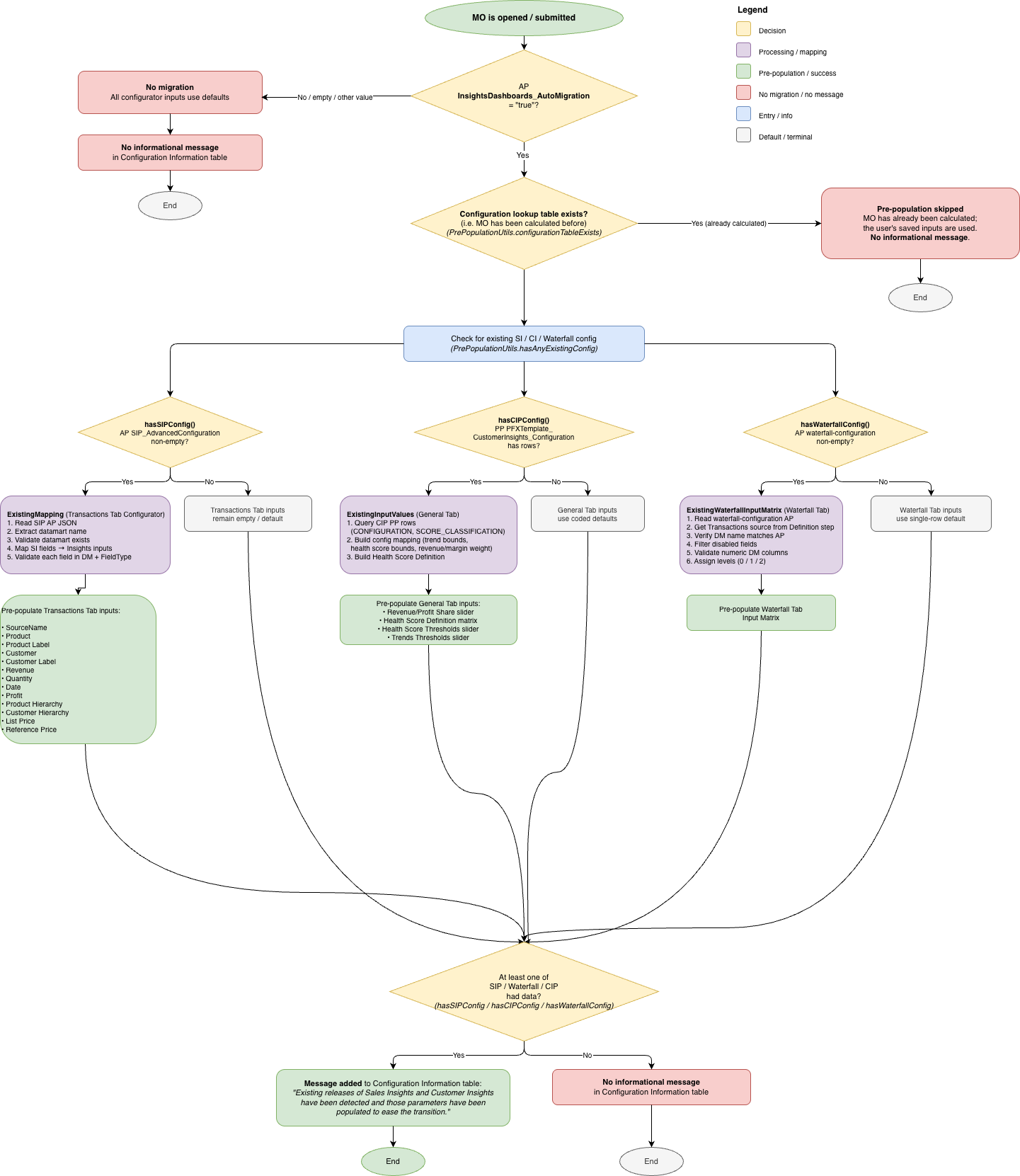
Pre-population occurs when the Model Object is opened or submitted for the first time. The system evaluates InsightsDashboards_AutoMigration, checks whether the configuration lookup table exists, and then reads Sales Insights, Customer Insights, and waterfall sources in parallel.
Verify Pre-Populated Inputs
General Tab
-
In the Configuration Step, click the General Tab.
-
Confirm that the Revenue/Profit Share slider, Health Score Definition matrix, Health Score Thresholds slider, and Trends Thresholds slider reflect values from the existing Customer Insights configuration.
-
Adjust any values that do not match your intended configuration.
Waterfall Tab
-
Click the Waterfall Tab.
-
Review the Waterfall Definition table. The table displays the columns Order, Field, Label, Level, Sum from Previous, and Reverse.
-
Verify the following rules are satisfied for each row:
|
Rule |
Description |
|---|---|
|
Level 1 rows |
Correspond to the increasing and decreasing waterfall elements (pillars). |
|
Level 2 rows |
Are part of the waterfall elements and available as a drilldown. |
|
Calculated field from previous fields |
Must be set to level 0. |
|
Last row |
Must be a level 0 pillar calculated from all previous elements. |
|
Reverse |
Set to true to treat the value as negative. |
-
If any calculated field that derives its value from previous waterfall fields shows a Level value other than 0, click the Level cell for that row and change the value to 0.
-
Click Continue or Save Insights Configuration to save your changes.
A calculated field from previous waterfall fields that is not set to level 0 causes incorrect waterfall aggregation. Correct this before proceeding to the Review step.
Transactions Tab
-
In the Definition Step, navigate back to confirm the Transactions source fields are pre-populated from the Sales Insights Advanced Configuration Option.
-
Verify that the Datamart Name in the Transactions source matches the Datamart referenced in the Sales Insights Advanced Configuration Option (
SIP_AdvancedConfiguration). -
Confirm each mapped field exists in the Datamart and has the correct field type.
Migration Flow Chart
Review the Configuration Information Table
After the first calculation, open the Review step and check the Configuration Information table.
-
If at least one of Sales Insights, Customer Insights, or waterfall configuration had data, the following message appears in the Configuration Information table:
Existing releases of Sales Insights and Customer Insights have been detected and those parameters have been populated to ease the transition. -
If none of the sources had data, no informational message appears.
The Configuration Information table acts as a diagnostic log. It also surfaces warnings about duplicate fields, unextended waterfall fields, and missing data ranges. Review all messages before activating the configuration.
Expected Result
After completing these steps, the Insights Dashboards configuration wizard contains pre-populated values from your existing Sales Insights and Customer Insights setup. The Review Step confirms migration with an informational message in the Configuration Information table. You can then proceed to finalize and activate the configuration.