
When you open a Compensation Plan, an existing one or new, you will see that the document's details are split into several tabs.
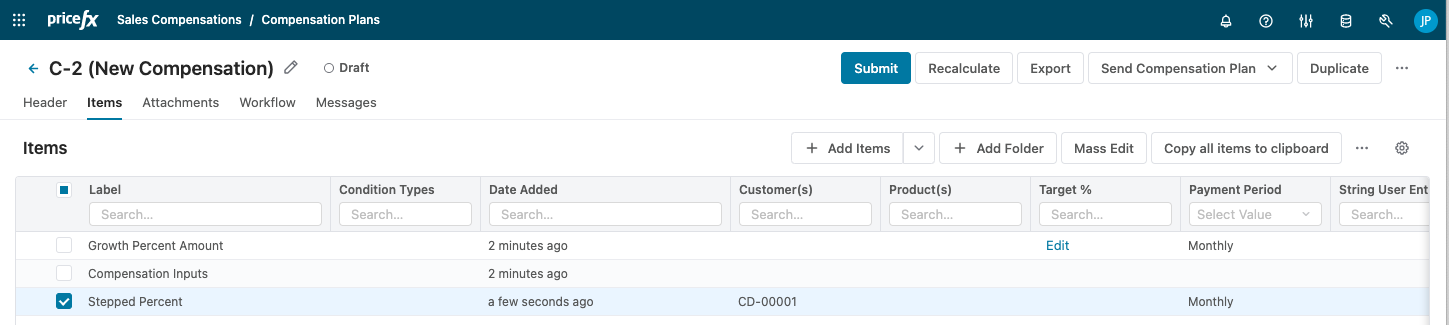
At the very top of the page, you can edit the name of the Compensation Plan. Next to the Compensation Plan's ID and name, the current document and workflow status is displayed.
A custom header displaying the main Compensation Plan attributes and a chart can be configured by admin. Such a header would be displayed on all the Compensation Plan's tabs and is collapsible.
Header
The Header tab summarizes the Compensation Plan header level attributes. Note especially the start and end dates and the calculation date (used when calculating the Plan).
In the Input Parameters section, you select for which customer and products the document is and provide any other inputs determined by the header logic associated with the Compensation Type on which this Compensation Plan is created.
Customers and products selected in the header input parameters will be displayed as placeholders in the Customer/Product inputs on line-item/folder level on the Items tab.
Items
On the Items tab, select the Condition Types to be included in the Compensation Plan. The Condition Types are the basic building blocks of any Compensation Plan.
Line Items Table
Folders
If your Compensation Plan has many items, you can organize them into folders and subfolders.
To create a new folder:
-
Click the Add Folder button.
-
After clicking Browse Items and selecting line items, click Add to New Folder to create a folder that will contain these items.
Input parameter values can then be entered on both root/folder and item level. Parameter values inherited from the parent folder are displayed as a placeholder text in the input field.
Compensation Plan Items
For each item, enter the input parameters' values. Input parameters are defined by the calculation logic associated with the Condition Types.
As you add items to the Plan, you can review Compensation Records already here, in the Compensation Records column.
Mass Edit
When you need to update input parameters for multiple items simultaneously, you can do it using the Mass Edit function. Select the required items (or apply a quick or advanced filter).
Detail & Settings
The collapsible right-hand side panel is divided into three tabs:
-
On the Details tab, there is a summary of the document details. They are set by the system and require no action.
-
Input Parameters can be set up for all items grouped in a folder or just on the item level. Parameter values of individual items inherited from the parent folder are displayed as a placeholder text in the input field.
-
The Calculations tab summarizes the results for the individual line items based on the used calculation logic.
Tips:
-
If there is enough space on the screen and if this functionality is not disabled by admin, the content of all the three tabs is displayed at once side by side and you can adjust the width of the sections. Administrators can also position the panel by default to the bottom of the page instead of the right-hand side and allow you to switch between these two positions. See How to Configure the Details & Settings Panel for details.
-
Table layout changes can be saved as a view preference. See Common Table Actions for information on how to customize the table (filter, sort, auto fit, etc.).
-
The Action buttons allow you to perform operations with the Compensation Plan, such as: Recalculate, Save (when autosave is disabled), Submit or Import items. You can also export and email an approved Compensation Plan. You can send it to another user as an ordinary email attachment or via an electronic signature system for sign-off. For both options an export template must be defined and the e-signature option must be configured by administrator. After sending via an e-signature system, you can check the Signature Status on the Details panel of the Items tab.
Attachments
On this tab you can add and view attached files.
The ability to add or remove attachments depends on the document status and your user roles:
-
The Administer Compensation Plans role can upload and delete attachments in any document status with the exception of Invalidated.
-
The Manage Compensation Plans role can upload attachments in any document status with the exception of Invalidated. It can delete attachments only of documents in the Draft status.
-
Download is possible with any role in any document status.
Notes:
-
If you want to include attachments in the email sent to approvers, verify that the configuration option Disable Attachments is not enabled.
-
If there are many user groups in your partition, loading the list of attachments can be slow because of filtering by user group. This filtering can be disabled to improve performance.
-
The name of the uploaded file cannot include semicolons (;).
-
When you create a new revision or duplicate a Compensation Plan, attachments are by default not carried over. See How to Make a Quote Revision for instructions on how to change this (the procedure is the same for Compensation Plans).
Workflow
Shows all approval steps, their status and all possible approvers.
Workflow History
Shows the history of the workflow actions performed for this Compensation Plan.
Messages
On this tab you can communicate with other users about matters regarding this Compensation Plan.
-
Type a name into the To field. User names will be suggested as you type. A message can have multiple recipients.
-
Type the message text into the Request/Message box. The character limit is 3000.
-
Click the Send icon.
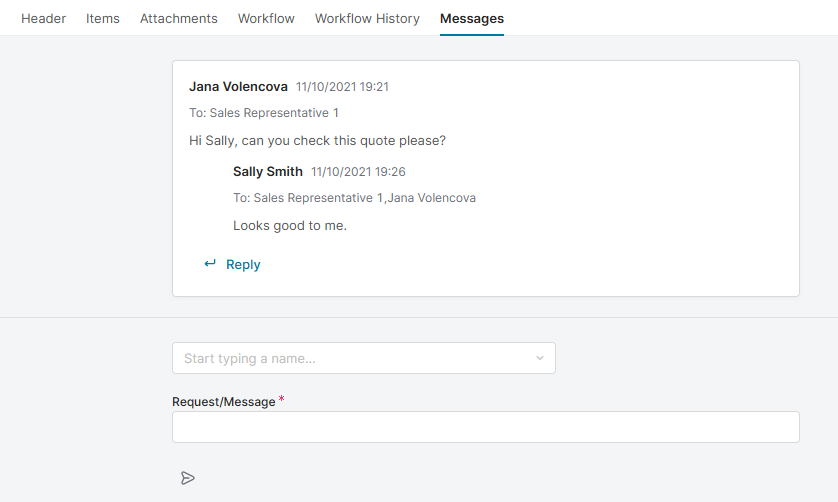
Message recipients will be notified by email and a pop-up message on the screen. When someone responds to your message or sends you a new one, you will receive an email too.
The underlying message templates can be customized; for details see Message Templates.
Activity Log
On this tab you can review the history of the Compensation Plan – events, edits and other information.
The following events are logged:
-
All user-initiated actions (header edits, input edits, adding/deleting items, workflow events, etc.).
-
Import of line items.
-
By default, changes to inputs generated by calculation logic are not displayed. If you want these changes to be logged, you must configure it in the calculation logic (use the setLogActivity method).
-
If the autosave feature is disabled (you save the Compensation Plan manually), all actions made before you save the Compensation Plan are logged. If you decide discard the changes and leave the Compensation Plan without saving it, these unsaved changes are removed from the activity log.
-
Consecutive similar actions are grouped into a single log entry (e.g., import of several line items in a row).
Filters are available to display only log items that you are interested in. The simple filter allows you to filter by user (only users who edited the document are available) and sort from oldest/newest. The advanced filter allows you to filter by:
-
Parent document identifier
-
Created – Filter the log by the date or date range when the event occurred.
-
Data – Full-text search (field names, product names)
-
Last Update Date
-
Entity Identifier – The ID of the header or line item. As these identifiers are not visible in the UI, this option is for advanced users.
-
Entity type – Filter the log by entity type codes (e.g.,
"Entity type" equals "COLI"to see only Compensation Plan line item related activities.). -
Operation type – Filter the log by activity type. Select one of the provided values from the drop-down list (e.g., DUPLICATE to see only line item duplications).
Logging can be disabled completely or only for specified activities. See Activity Log Configuration.
Logs are automatically cleaned up under the following conditions:
-
Only events of UPDATE and UPDATE_INPUT operation type are deleted. Manual overrides are not deleted.
-
Logs are cleaned up if the Compensation Plan is deleted, approved or unchanged for 30 days (configurable using the advanced configuration option
activityLogRetentionIntervalDaysCompensation).
Documents
On this tab you can for quick reference list all the documents that are related to this Compensation Plan. From the Add Document drop-down menu, select a document type and then choose one or more documents from the list.
This tab must be added by administrator in the Compensation Type configuration.