
You can set up Compensation Calculation tasks for (re-)calculation of Compensation Records in the background. A Compensation Record is calculated by a logic associated with its Compensation Condition Type. The compensation logic decides how to calculate Compensation line items as well as the Compensation Records for the given Compensation Condition Type. This is determined on the logic element level by setting the 'Groups' to which the element applies.
Every Compensation Record set has its own Compensation Calculation. The system creates it automatically, with the same label as the set, when Compensation Records are first generated into the set. The system uses this calculation whenever it needs to calculate the records of that set, for example in the Compensation Records Mass Submit action. You can delete this calculation. The next time the set needs it, the system creates a new one with initial settings. Changes you made to the deleted calculation are not kept. For more information, see Calculation Type and Mass Submit.
There are two main ways of determining which Compensation Records are to be calculated by such a task:
-
Using a static filter on the Compensation Record set.
-
Using a so called 'feeder logic' which is a sort of algorithmic filter.
Configure Compensation Calculations
-
Go to Sales Compensation > Calculations.
-
Click Add Calculation.
-
Define a label and decide if the set will be default or accrual.
-
Click Add to save it.
-
On the list page, click on the Calculation’s label to open it for editing.
-
Decide whether to use a static filter (Compensation Records tab) or a feeder logic (Calculation tab).
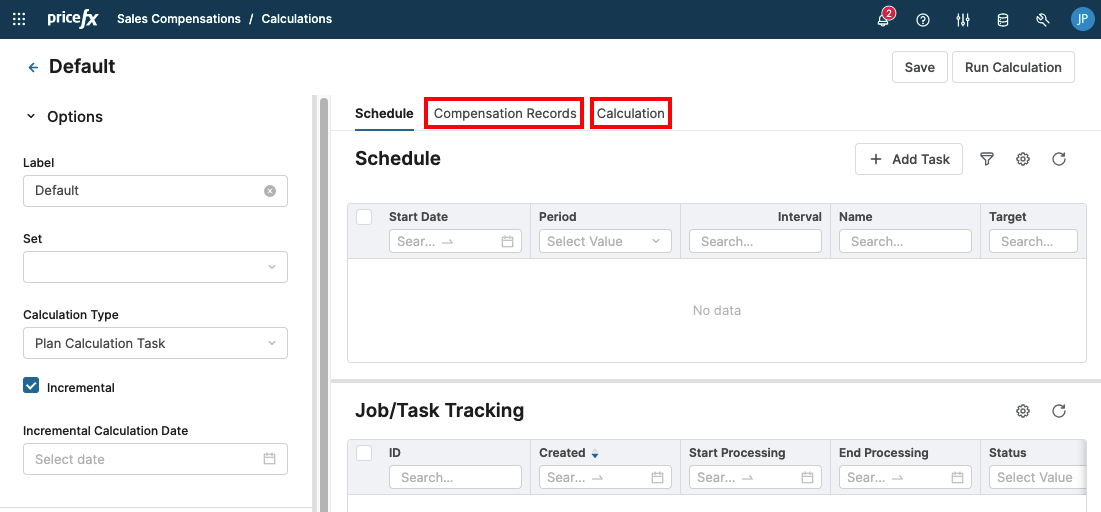
-
When using a static filter, configure it on the Compensation Records tab.
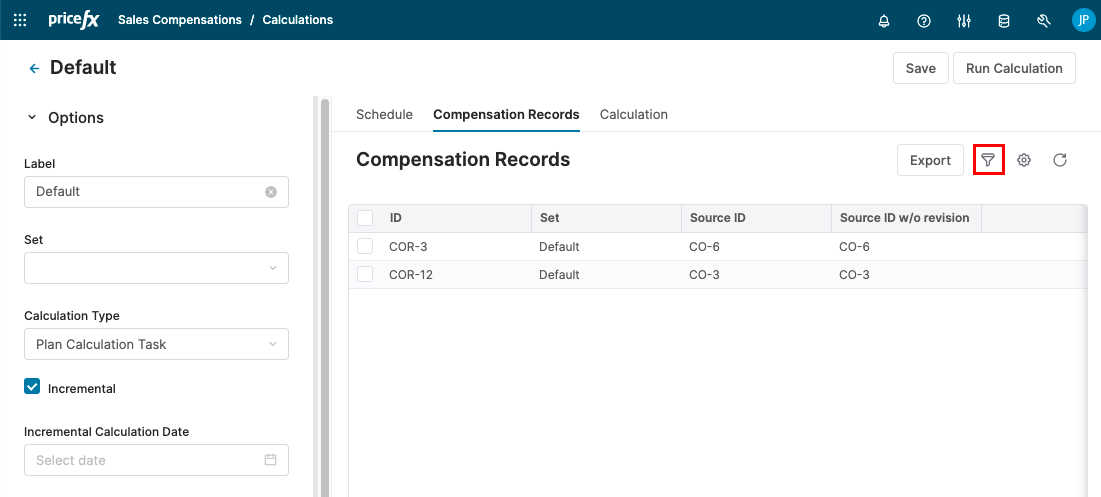
-
When using a feeder logic, set it on the Calculation tab. When a feeder is used, any filter set on the Compensation Records tab is ignored.
A feeder can have inputs just like any other logic, but in this example all the inputs are provided by the logic.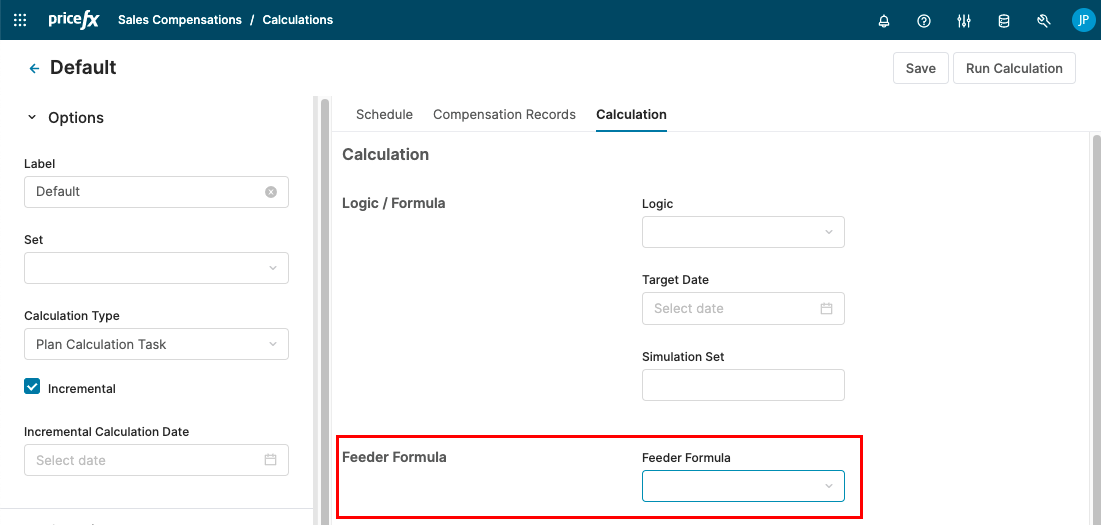
A feeder can be used where a static Compensation Record filter falls short, for example if you want to: parametrize the Compensation Record-selection (using feeder inputs), implement an incremental calculation mechanism, perform multi-step filtering logic (first find relevant Plans, then Compensation Records within those Plans), etc.
The Calculation tab also allows you to specify a 'logic', which would then be used to calculate the Compensation Records (instead of the logic set on the Condition Type). This is an option in advanced simulation scenarios where the Compensation Record calculation logic deviates too much from the regular accruals calculation logic.
Feeders are created under the Generic Logic header – the reason for this is that they do not (always) implement specific Sales Compensation logic and can be used for multiple purposes, not just in Compensation Plans or Analytics calculations. In this case, though, the only application is in a Compensation Record calculation. A feeder that finds all Compensation Records in draft agreements, not re-calculated since a modification was made to those agreement can be implement (see Rebate Calculations for an attached feeder JSON example).
-
-
Save the calculation and run it (click the Run Calculation button) and/or schedule it.
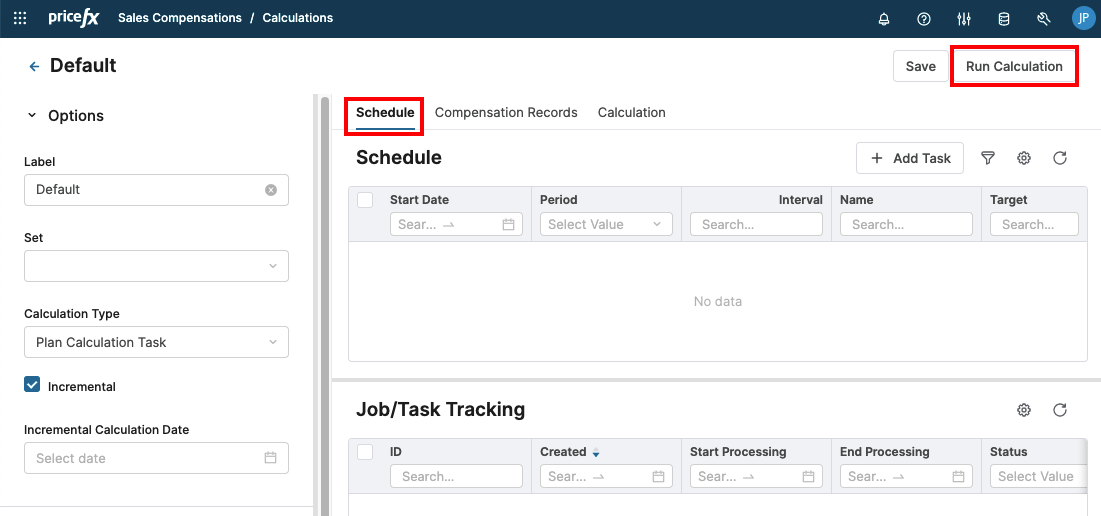
During the calculation, Compensation Records are locked. Administrators can, however, unlock selected Compensation Records on the list page if needed.
When configuring the schedule, among the available options are:-
Time Zone – This option ensures that the calculation job will always run at the selected local time even after switching to/from the daylight saving time. Check the Next Run column to verify that your setting is correct.
The reason for making the setting here is that the Default Timezone option in General Settings sets only the offset from UTC. This offset and the UTC remain the same when your time zone switches to/from the DST. It means that if you set the start time, for example, to 10 AM CET in the winter (UTC+1) then after switching to the DST (UTC+2), your job will run at 9 AM CEST because your offset from the UTC remains +1.
-
Period – Select if the calculation job will run every X minute, hour, day, month or year.
-
Interval – Represents the number of repetitions in the selected period (e.g., if you set Period = day and Interval = 1 and Start Date = 27/11/2015 10:00, the calculation job will run every day at 10:00 AM, starting on 27/11/2015). You can also enter "0" for jobs that you want to run just once.
-
When the scheduled job is run, the name of the user who created the schedule will be displayed in the Created By column in Job/Task Tracking.
Calculation Type and Mass Submit
The Calculation Type field on the Options tab of a Compensation Calculation sets which calculation runs. This also decides which Compensation Records the Mass Submit action submits.
|
Calculation Type |
Calculation that runs |
Records that Mass Submit submits |
Accrual records |
|---|---|---|---|
|
Empty or Record Calculation Task |
Compensation Record calculation |
Only the selected records |
Not generated |
|
Plan Calculation Task |
Plan calculation |
All records in the Compensation Record set that originate from the same line item and pass their workflow |
Generated |
With Plan Calculation Task, Mass Submit can submit more records than you selected.
You cannot clear the Calculation Type field after you set it. To submit only the selected records, set Calculation Type to Record Calculation Task. This value has the same effect as an empty field.
To use a dedicated calculation for Mass Submit, generate the Compensation Records into a separate Compensation Record set. The system creates a separate default calculation for that set.