
This page contains the following topics:
Make the Position of the Details & Settings Panel Flexible
The Detail & Settings panel on the Items tab displays the document’s details, input parameters and calculation results. By default, it is located on the right-hand side of the screen. In the JSON tab definition, you can place the panel to the bottom of the screen and allow users to switch between these two positions.
Parameters added to Items tab configuration
{
      "name": "items",
      "type": "items",
      "parameters": {
        "flexibleLayout": true,
        "defaultPlacement": "bottom"
      },
      "translationKey": "sfdc_quotes_tabs_items"
    },
-
flexibleLayout– Determines whether the user can switch between the panel positions. Accepted values:true,false. -
defaultPlacement– Determines the default position of the panel. Accepted values:right,bottom.
If the JSON definition contains the flexibleLayout parameter, a cogwheel icon with the options Dock to right or Dock to bottom is displayed in the UI allowing users to switch between the positions.
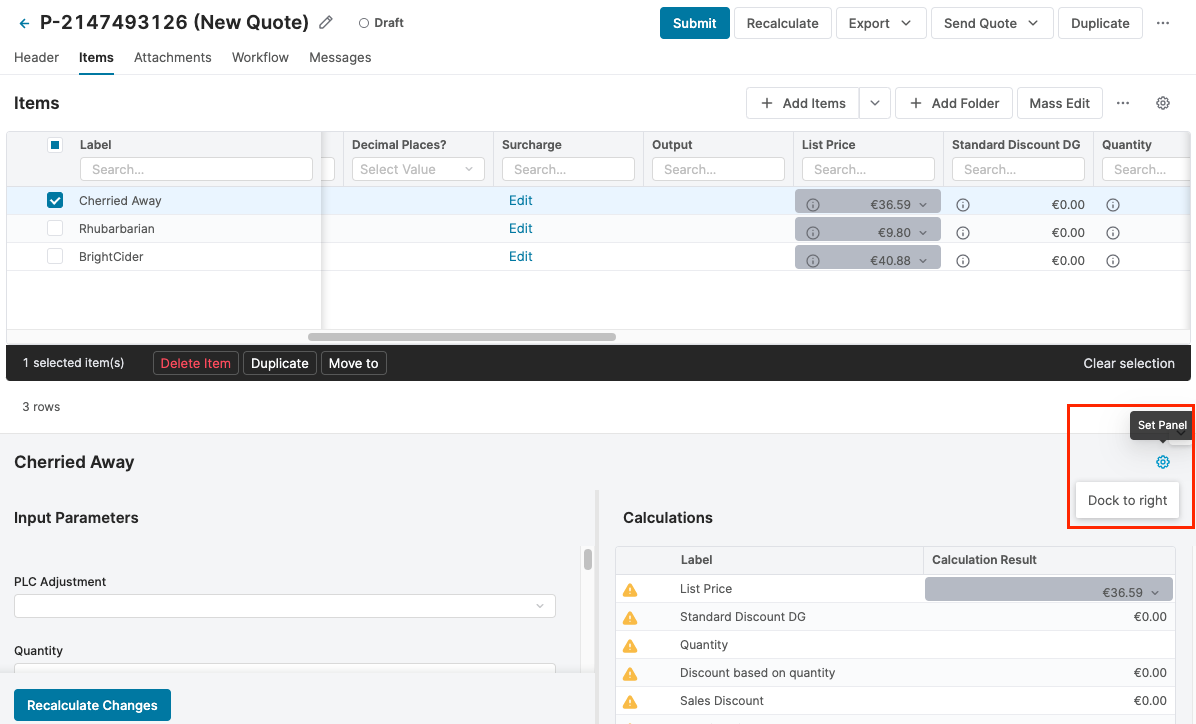
If you only use the defaultPlacement parameter, you set the position of the panel but do not allow users to change it.
If these parameters are not set, the panel is placed on the right-hand side and its position cannot be changed.
This feature is available for Quotes, Rebate Agreements, Compensation Plans (since 9.1), Agreements/Promotions (since 10.0) and Custom Forms (since 11.1).
Hide the Details & Settings Panel
You can completely hide the Details & Settings panel.
Add the hideSiderPanel parameter to the JSON configuration:
{
      "name": "items",
      "type": "items",
      "parameters": {
        "hideSiderPanel": true
      },
This feature is available for Quotes, Rebate Agreements, Compensation Plans (since 9.1), Agreements/Promotions (since 10.0) and Custom Forms (since 11.1).
Disable Displaying All Tabs at Once
By default, if there is enough space on the screen, the content of all the three tabs is displayed at once side by side.
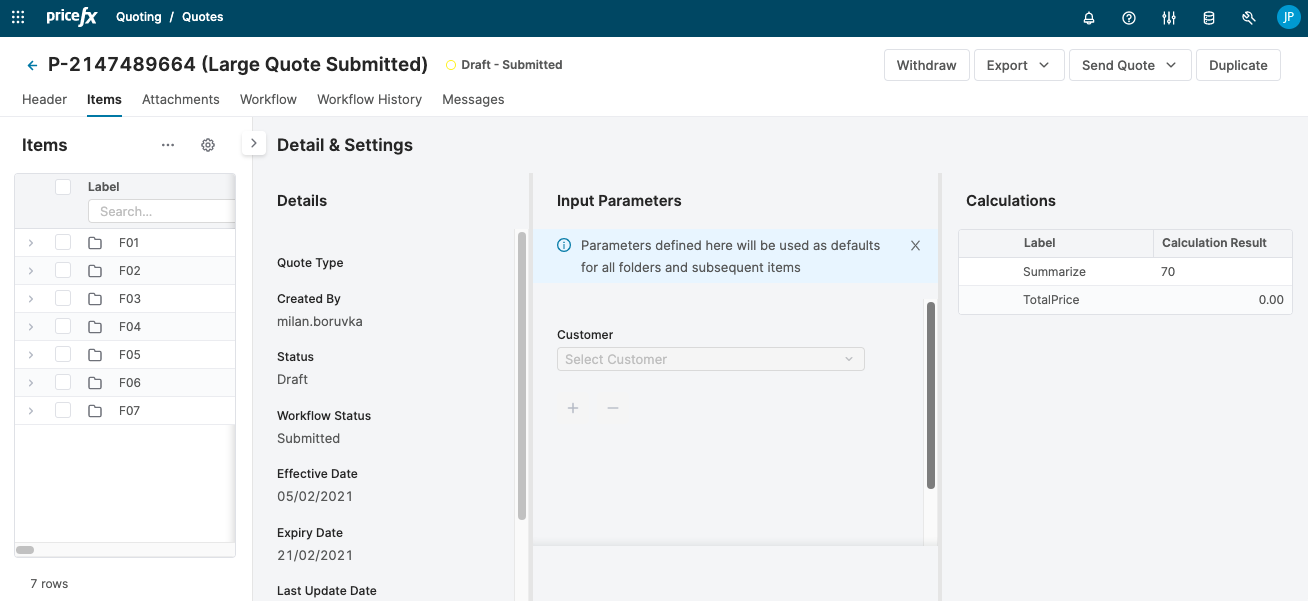
If required, you can disable this behavior in the JSON tab definition. Add the siderAlwaysWithTabs parameter and set it to true:
{
      "name": "items",
      "type": "items",
      "parameters": {
        "flexibleLayout": true,
        "defaultPlacement": "bottom",
        "siderAlwaysWithTabs": true
      },
      "translationKey": "sfdc_quotes_tabs_items"
    },
This feature is available for Quotes, Rebate Agreements, Agreements/Promotions (since 10.0) and Compensation Plans.
Display Outputs Expanded
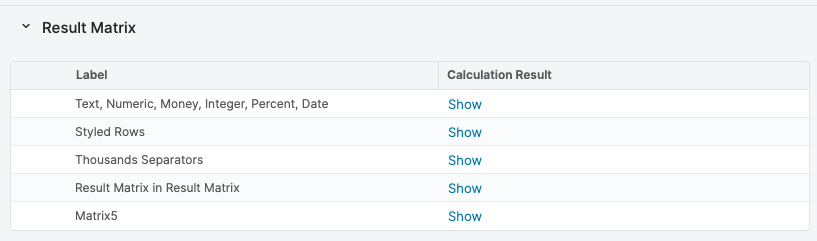
If your document has very few inputs but many outputs including charts and result matrixes, you may prefer to display these outputs directly without the need to click the Show link.
For example, instead of this default display of result matrix output:
You can have the content of the result matrixes always displayed:
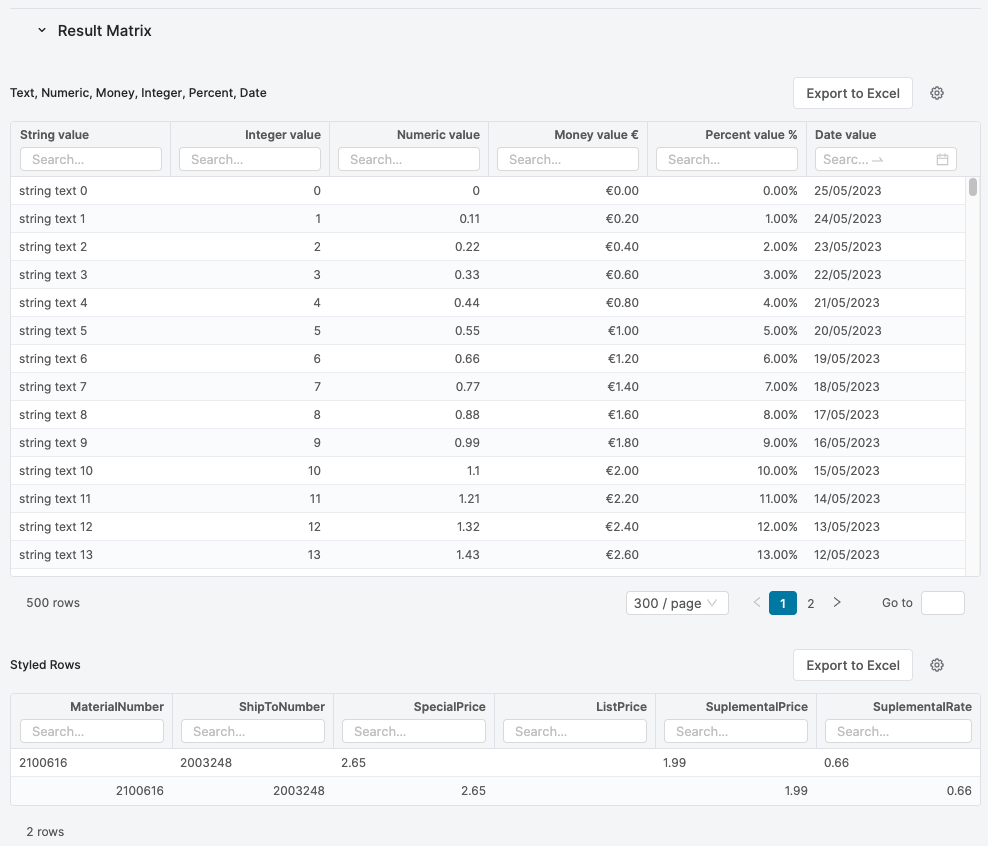
To enable this layout, add the renderOutputsAs parameter to the JSON tab definition and set it to inline. The other possible value is table and it is the default value rendering the classic display with the Show link.
{
      "name": "details",
      "type": "details",
      "parameters": {
        "renderOutputsAs": "inline"
      },
      "translationKey": "dynamicTab_details"
    },
This feature is available for Custom Forms (since 11.0), Quotes, Rebate Agreements, Agreements/Promotions and Compensation Plans (all since 11.1).
Do Not Switch to Calculation Tab After Recalculate
By default, when a document is recalculated, the Calculations tab is automatically displayed and if the Details & Settings panel is collapsed, it gets expanded. Also, all the selected items are deselected. If you want to change this behavior and keep the current view after recalculation, use the following parameters in the JSON tab definition:
-
showOutputsAfterRecalculation– If set to false, the Calculations tab in the Details & Settings panel is not displayed automatically after recalculation. -
expandSiderAfterRecalculation– If set to false, the Details & Settings panel is not expanded after recalculation. -
keepSelectionAfterRecalculation– If set to true, items remain selected after recalculation, for both sync and async calculations.
{
      "name": "items",
      "type": "items",
      "parameters": {
        "showOutputsAfterRecalculation": false,
        "expandSiderAfterRecalculation": false,
        "keepSelectionAfterRecalculation": true
      },
      "translationKey": "sfdc_quotes_tabs_items"
    },
The showOutputsAfterRecalculation and expandSiderAfterRecalculation parameters can be used for the header tab and the items tabs. Both parameters work for the full recalculation and the recalculation of changes.
This feature is available since version 14.0 for Quotes, Rebate Agreements, Agreements/Promotions and Compensation Plans. The
keepSelectionAfterRecalculation parameter is available since version 17.0.