
Save Preferences
The Save Preference option allows you to configure different company dashboards to suit your own requirements and to save them for future use.
This is all accessed from Dashboards > Dashboard Settings.
Customize a Dashboard Layout
All our how-to guides and video tutorials contain screenshots of our demo system. The information you see will differ depending on your organizational configuration and the version of Pricefx software that you are running.
-
Click on Settings (cog icon)
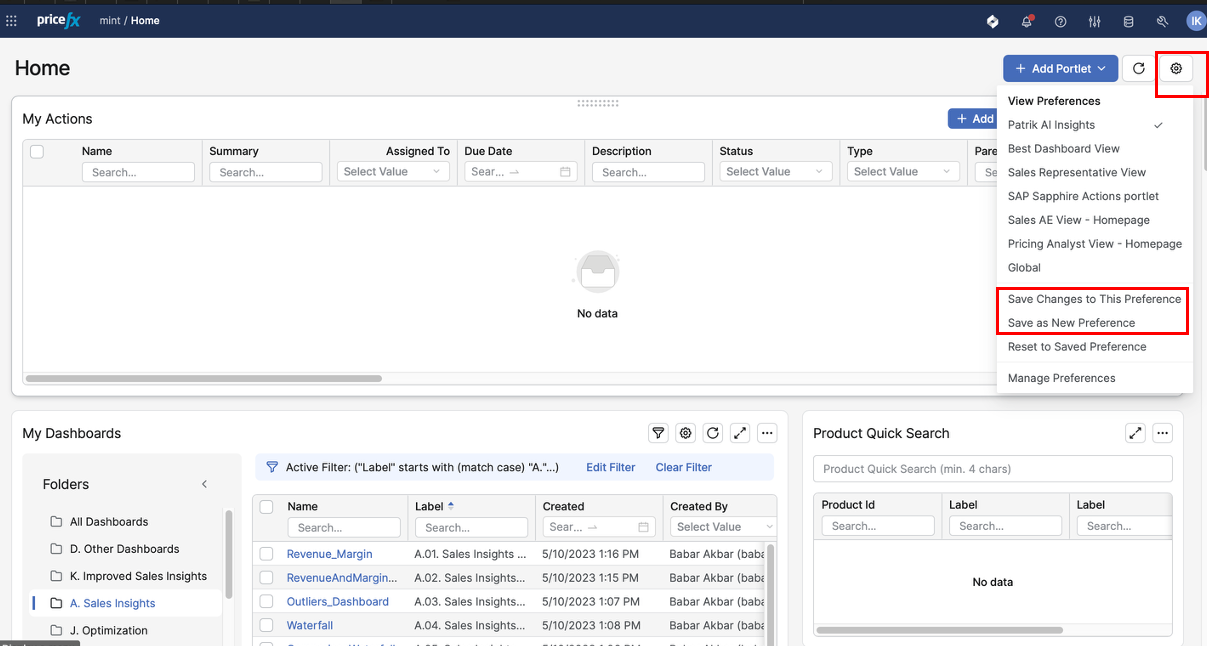
Changes in Preferences
Global Preference - Simple Customization
Since the Paper Plane release (11.0) you can have just one single reference globally for all the portlets. To change your ToDo portlet for My Actions, you can easily add the portlet and save it to your existing or new preference. This will save the position of all portlets and state of all columns, whether they are visible or not. With everything merged into one single preference, you can now customize your view faster and with fewer clicks. See below:
a. Select and add portlet

b. Drag portlet to size and place
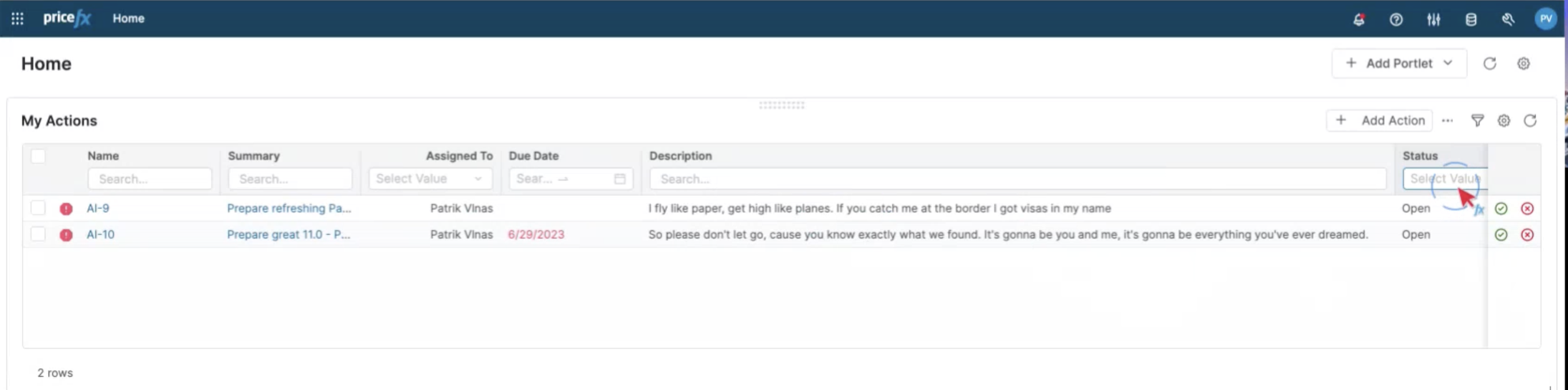
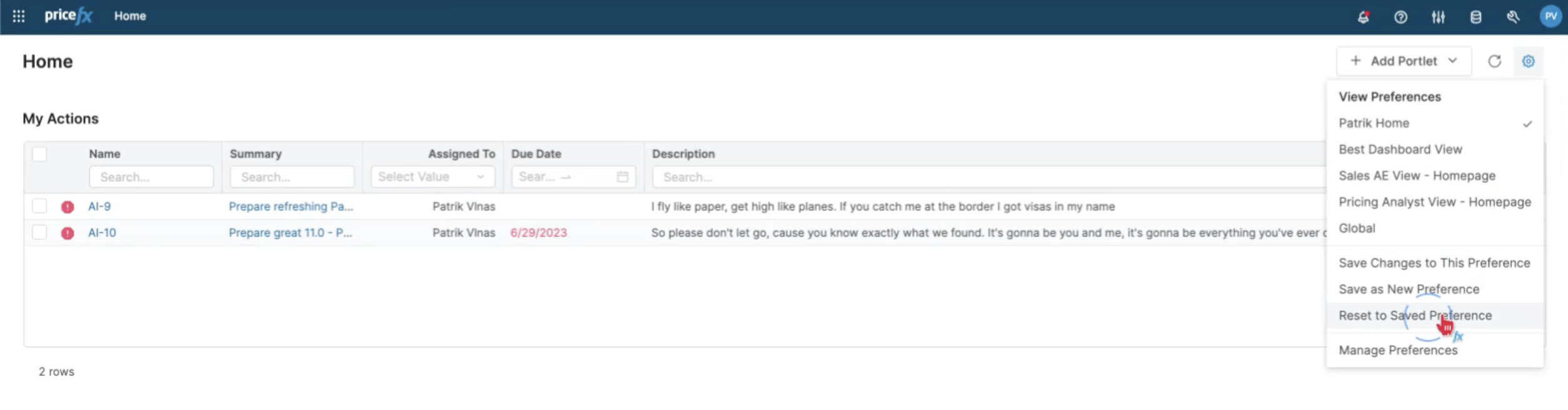
c. Save preference (as new or existing)
-
Select a Dashboard
-
Click on the dashboard to open it.
-
Add portlets. Click on Add Portlet to review existing choices and select those you wish to add.
-
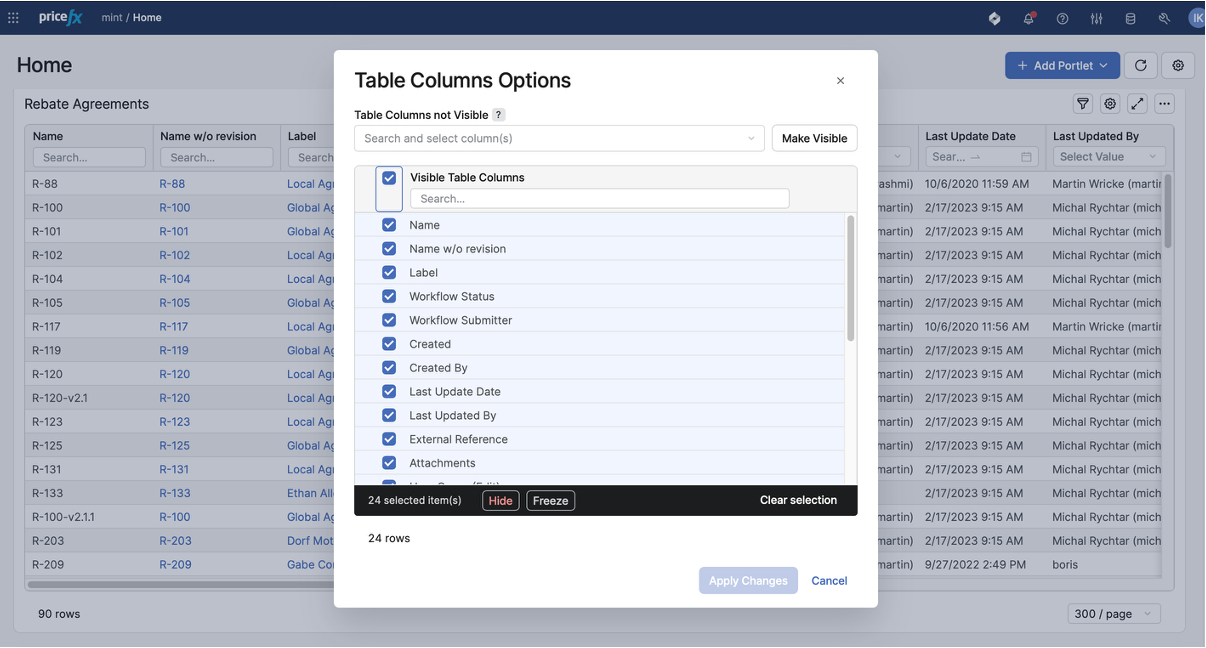
(Optional) to change individual portlets, click on the cog icon inside the portlet. This will allow you to choose what columns to display/hide.
-
Click on Save Changes to this Preference in the main settings menu.
Save as New Preference
Once you have the portlets you’d like to see and have positioned and resized them to your satisfaction, you can save this as a New Preference so that this becomes your default view.
-
Click on the Settings button and
-
Click Save as New Preference option.
-
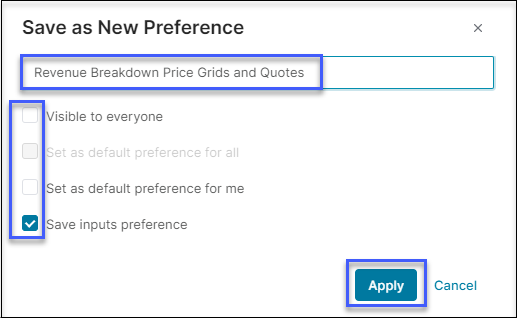
Provide a new name and then decide decide your viewing preferences.
-
(If you have the access rights) Make it visible to everyone in this partition. You can also make it default so it loads automatically when you open this dashboard.
-
Click on Apply.
Delete Display Preferences
-
Click on Settings > Manage Preferences.
-
Clicking on the Delete option to start from scratch.
-
Click on Apply.
Now if you return to the Dashboard you will see the original default displayed. When you click on Settings, your previous default is not longer displayed.
You can also revert to the last preference you had, if for whatever reason, you are not satisfied with your changes. Simply click Revert to Saved Preference in Settings.
See Also
-
How to save preferences in Dashboards - video tutorial