
Creating new Dashboards in Pricefx from scratch requires understanding the existing internal logics linked to standard Dashboards. If you want to customize a new empty Dashboard, you need to create a new logic to link it.
How to Create Logic for a Blank Dashboard
-
Go to the Administration

-
Choose Logics from the list. The system will show a list of existing logics.
Note that modifying these logics will impact the system's internal calculations.
-
Click on the Add Logic icon at the top-right corner of the window.
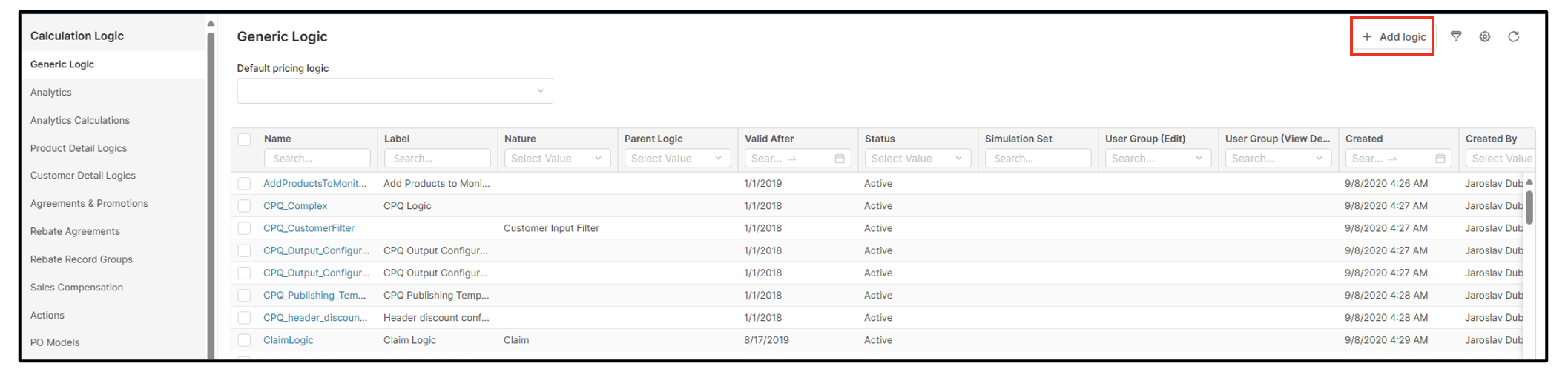
-
Provide a Name and Label for your new logic.
Make sure that Name does not contain any spaces.
-
Choose a Valid Date using the calendar icon, if necessary for specific calculations; otherwise, you can leave it blank.
-
Use the dropdown icon to select the Active option to activate your new logic. Find it under the Status field.
-
Click on the Add blue icon at the bottom after completing all the fields.
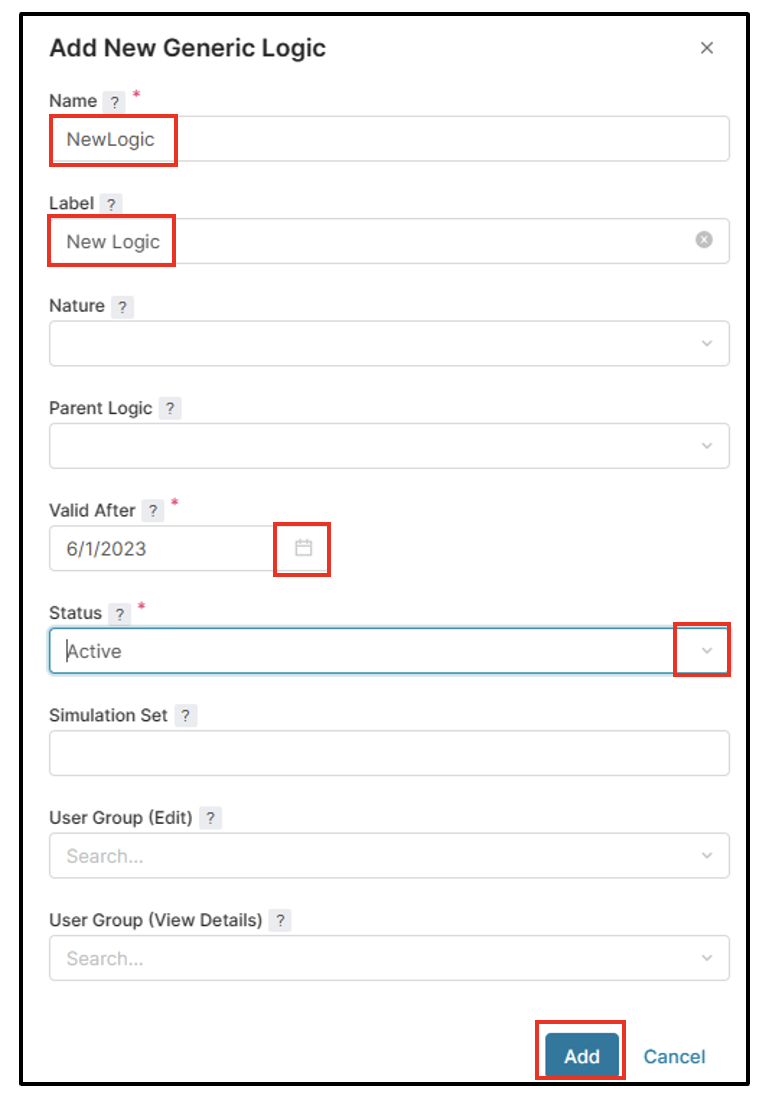
New generic logic
After adding the new logic, a confirmation message will appear at the top of the window. Your new logic will then be listed in the main listing.
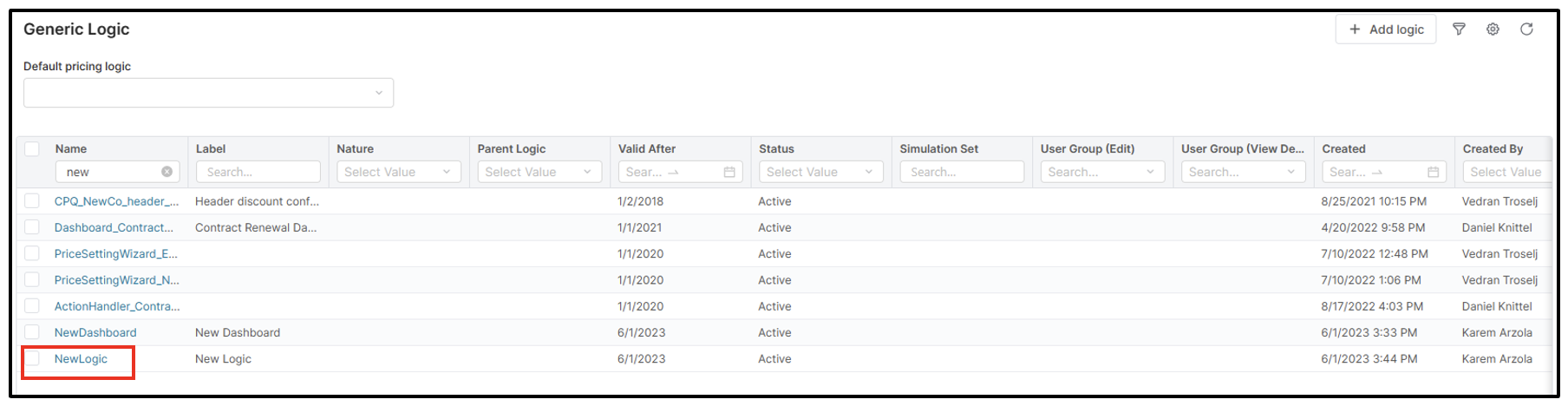
-
Find and click on your new logic to proceed.
-
Click on the Add icon located at the top-right corner of the window in the newly opened window.
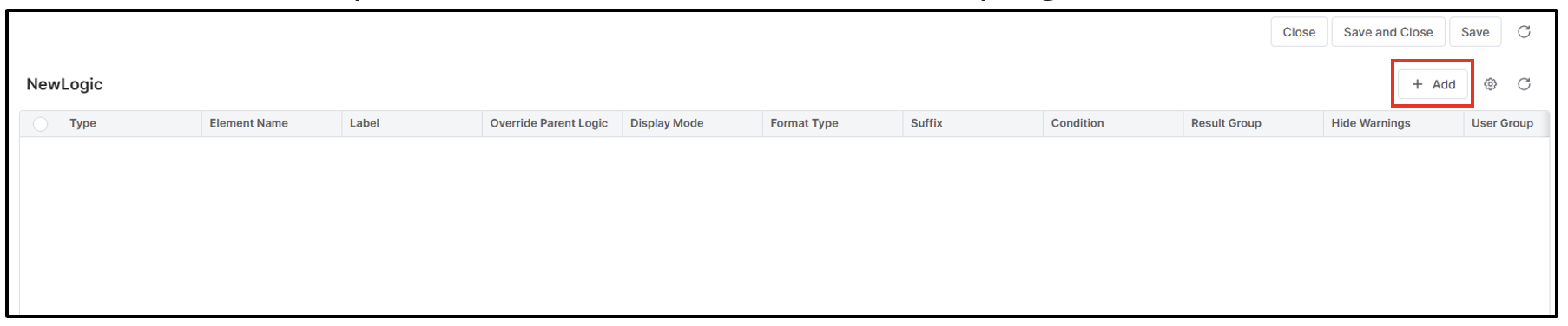
New logic window
9. Click on Type search field to select the logic type from the list.
-
Select the Function option from the list. Recognise it by the curly brackets sign.
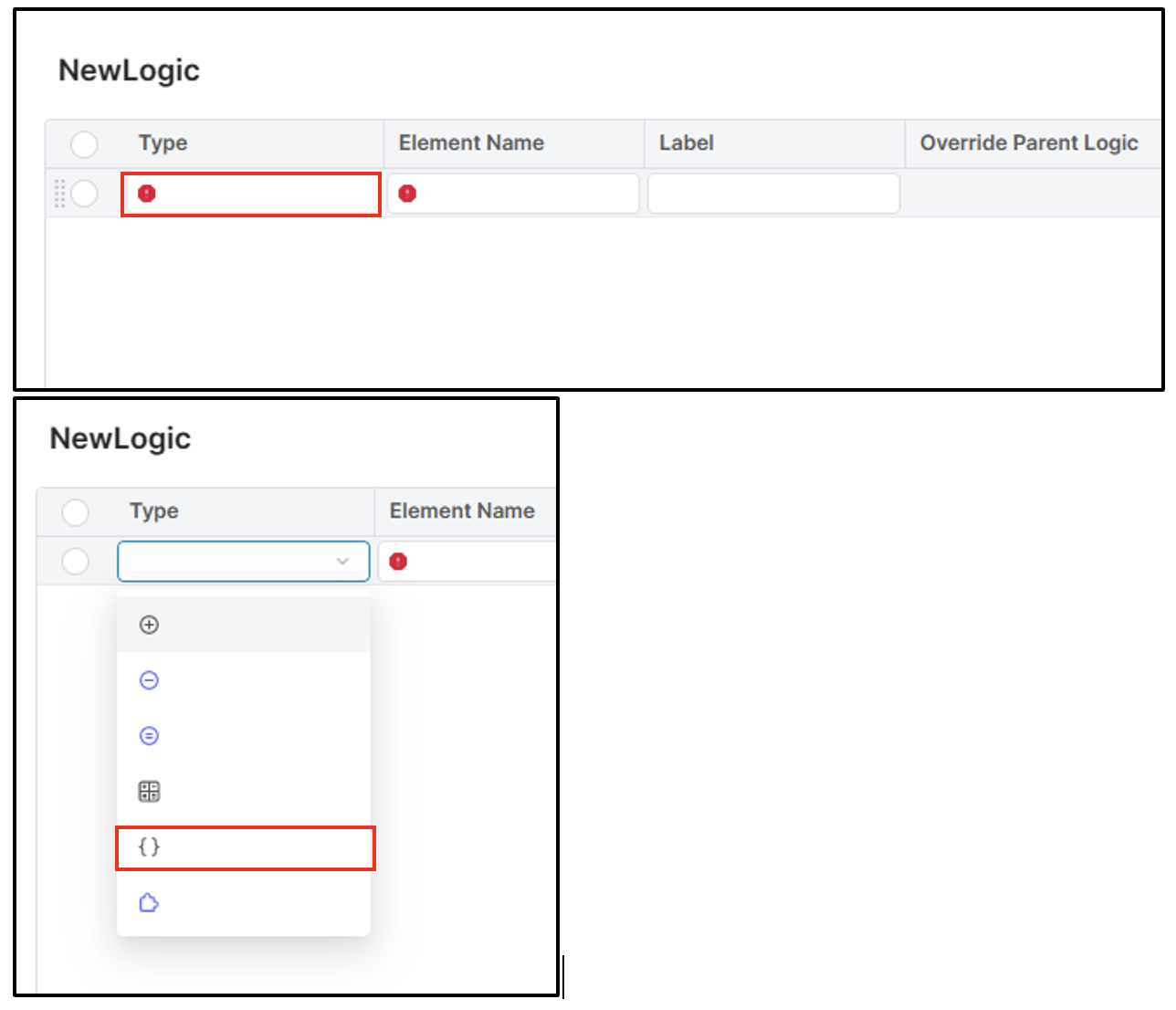
Accessing the logic type
-
Select the logic line item and type the word New in the Element Name search field.
-
Click on line 1 under the Editor tab in the section that opens on the right side of the window.
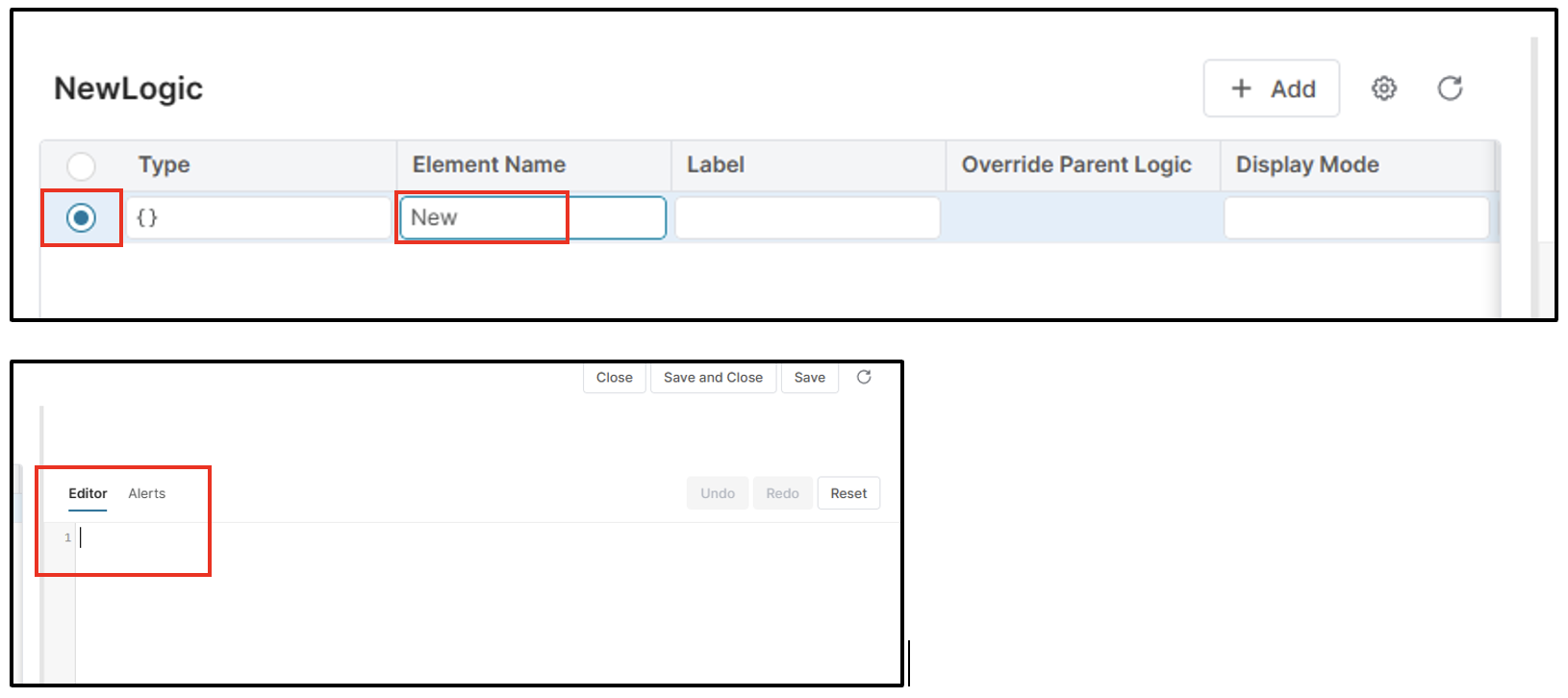
Accessing editor in the logic
-
Type the word return.
-
Click the Save and Close icon on the top-right corner in the middle. Now your new logic is ready to be linked to your blank Dashboard.
See Also