
After you select Profile Settings in your account menu, you have the following options:
General
Shows the user login name, username, email and job title. This information is read only.
Password
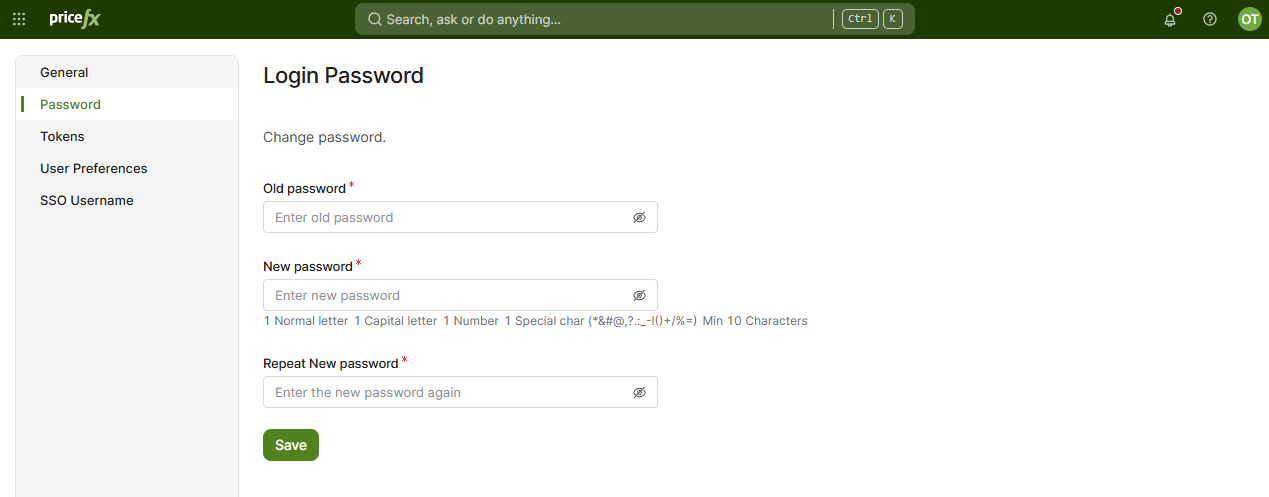
Allows you to change your password.
A new password must contain:
-
At least one lowercase letter (a-z)
-
At least one capital letter (A-Z)
-
At least one number (0-9)
-
At least one of these special characters:
*&#@,?.:_-!()+/%= -
At least 10 characters
Other characters, such as $, ; or ~, do not count as special characters. The password form lists the five requirements and marks each one that the password meets. The same requirements apply when you set a new password from a password reset link.
Password Reset
If you forget the password, contact Pricefx via the Helpdesk and request a password reset. After password reset please follow the same procedure as when logging in for the first time.
Token
Allows you to generate your API token to use when calling the API. The token has to be set in the header: "x-pricefx-generated-token" in the format "login:token" - where login is PlatformManager username (for example name.surname@pricefx.com) and token is value copied after generating.
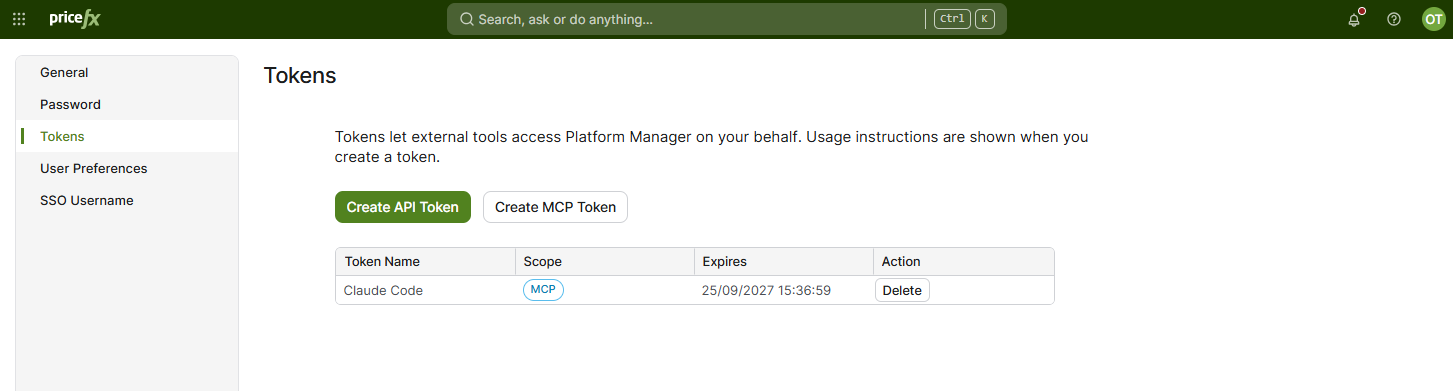
The Tokens section has two buttons:
-
Create API Token – creates a token for the PlatformManager API.
-
Create MCP Token – creates a token for the PlatformManager MCP Server. An MCP token works only with the MCP server. An info icon next to the button marks it as an experimental feature. MCP tools are still in early development, and support for them is limited.
The table lists your tokens with their Token Name, Scope (API or MCP), and Expires date. A token without an expiry date shows Never. To revoke a token, click Delete in its row.
User Preferences
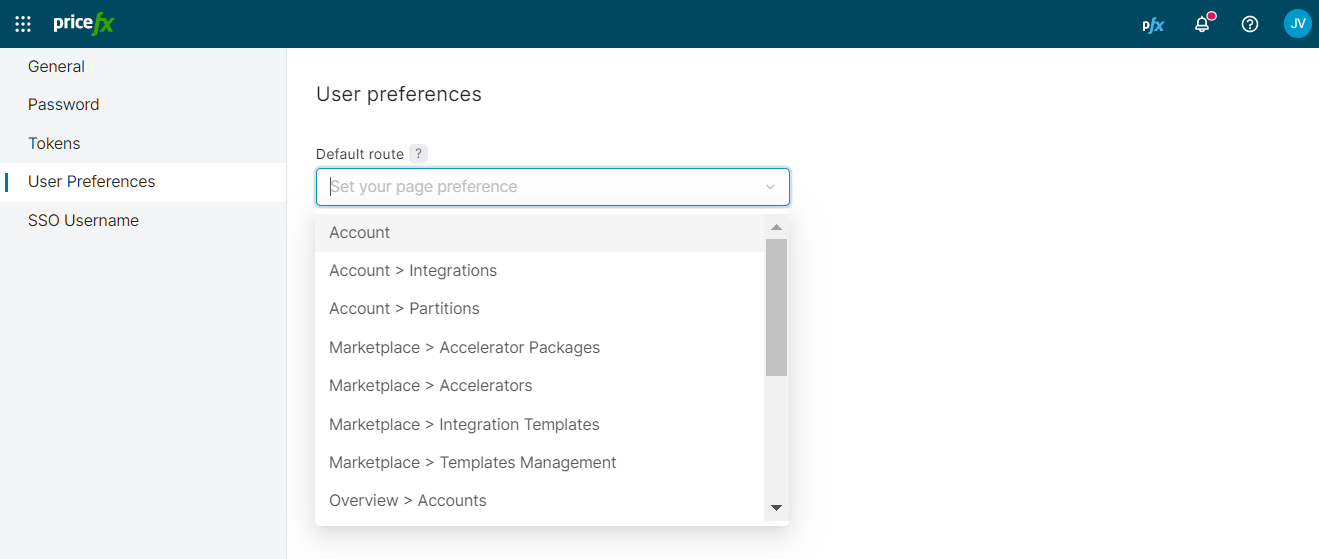
Allows you to make the following setting:
-
Default route – Defines your preferred landing page which opens after you log into PlatformManager.
-
Show all alert options – Allows you to define alerts based on scanning the log file where you can watch out for specific logging levels (errors, warnings etc.).
This option is only for experienced users who are familiar with logging levels and log files structure. Inexpert usage can result in false positives and redundant alerts.
SSO Username
Allows you to set an SSO username which you use with your SSO provider (if you do not use your email address for this purpose). This username is applied when using single sign-on in PlatformManager.
Administrators can also add SSO username for all users – in the Users section in Administration.