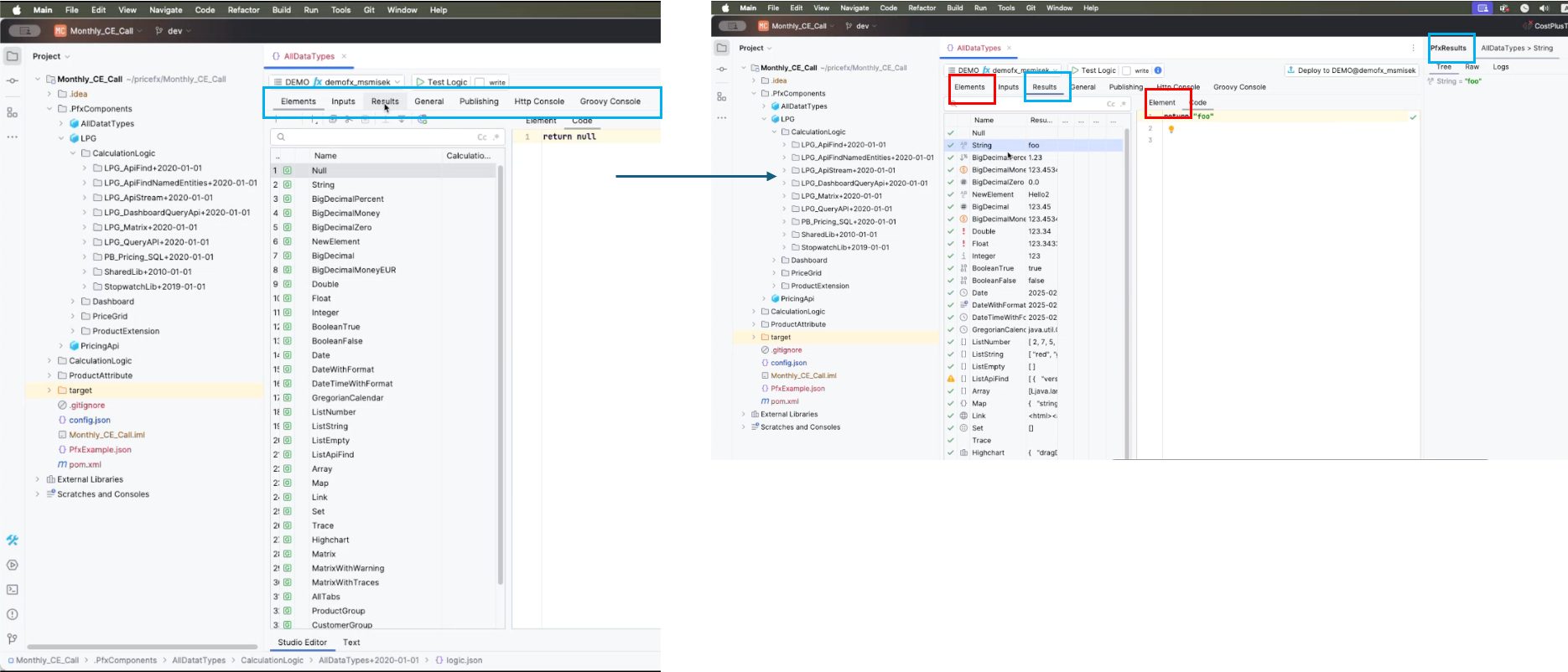
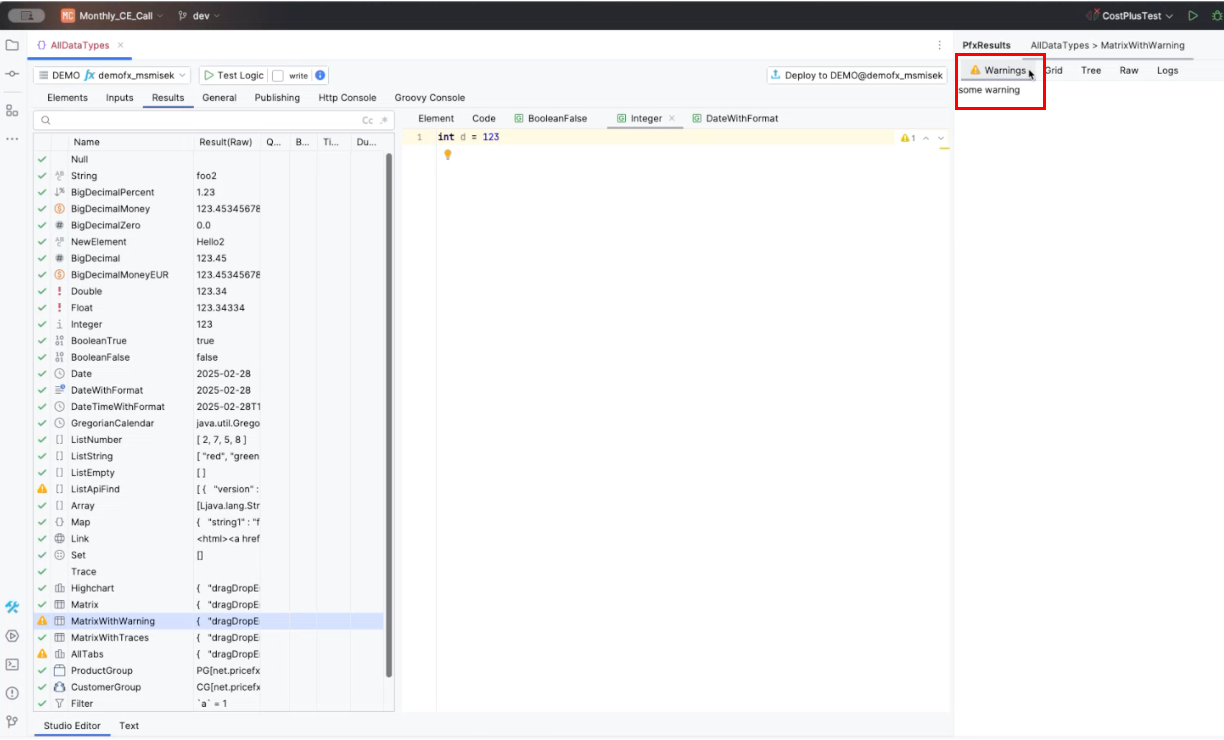
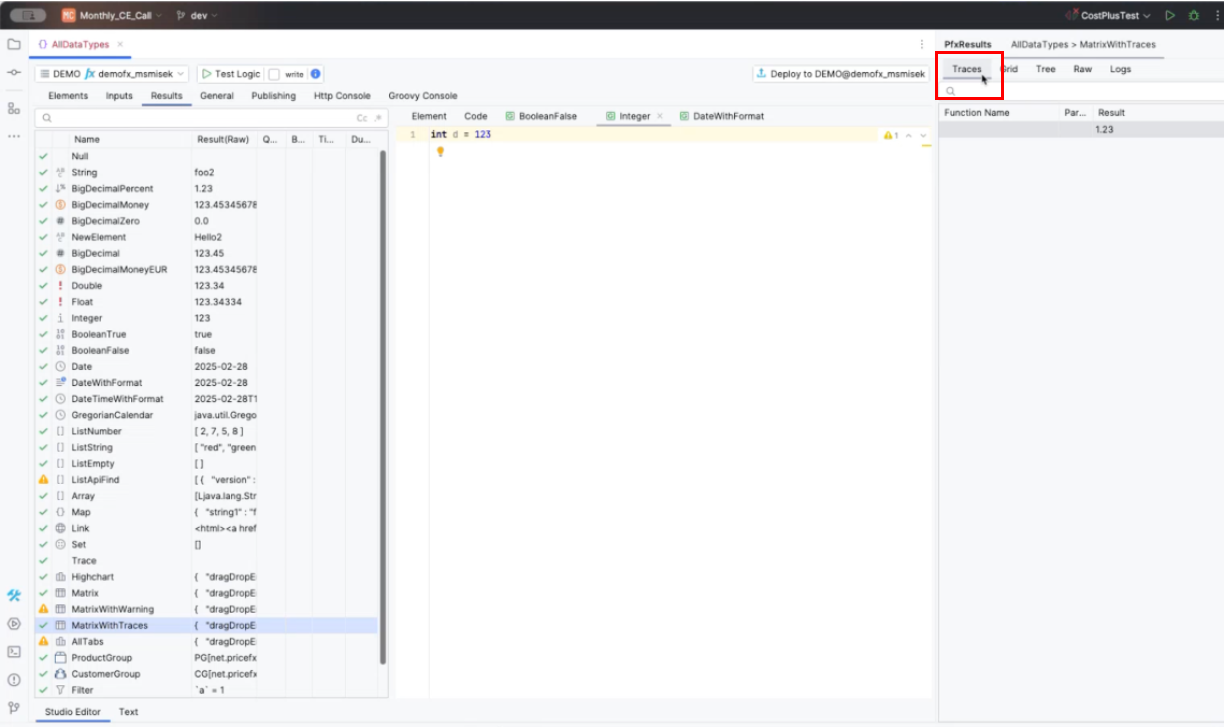
To improve user experience, we made significant changes to the logic editor. The goal was to minimize the need for constant tab switching and to provide a more intuitive workflow.
Key Changes:
Shortcut Improvements: The shortcut for testing logic has been updated to Command/Control + Enter, aligning it with existing shortcuts in the Groovy console.
Windows: Control + Enter
Mac: Command + Enter
Centralized Result Panel: The results panel has been redesigned to be more accessible, allowing users to see Groovy code and results side by side without toggling between tabs.
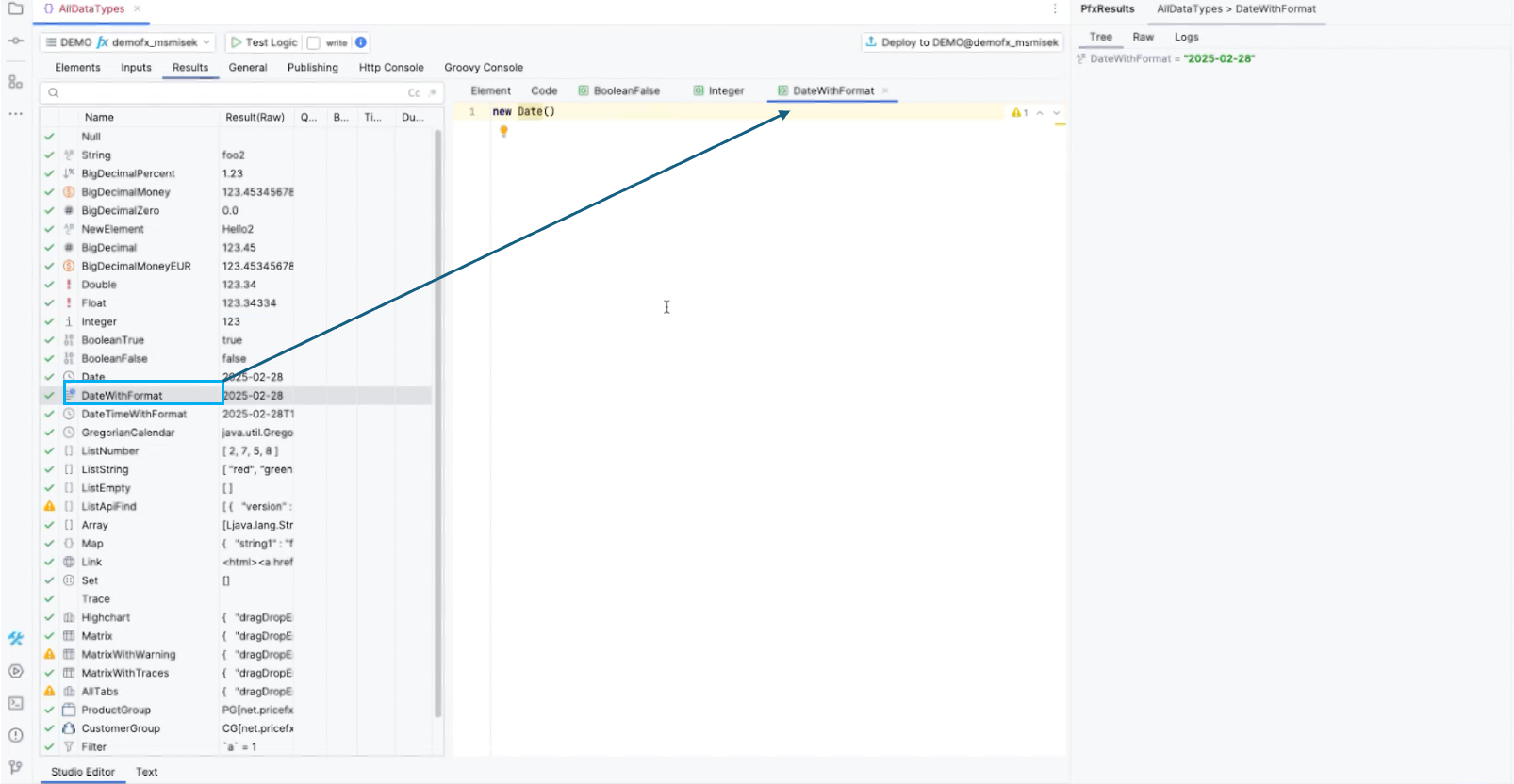
Embedded Element Editors
You can now open multiple elements within the logic editor, facilitating easier comparisons and edits. This feature allows for a more organized workspace, where you can quickly switch between elements without losing context.
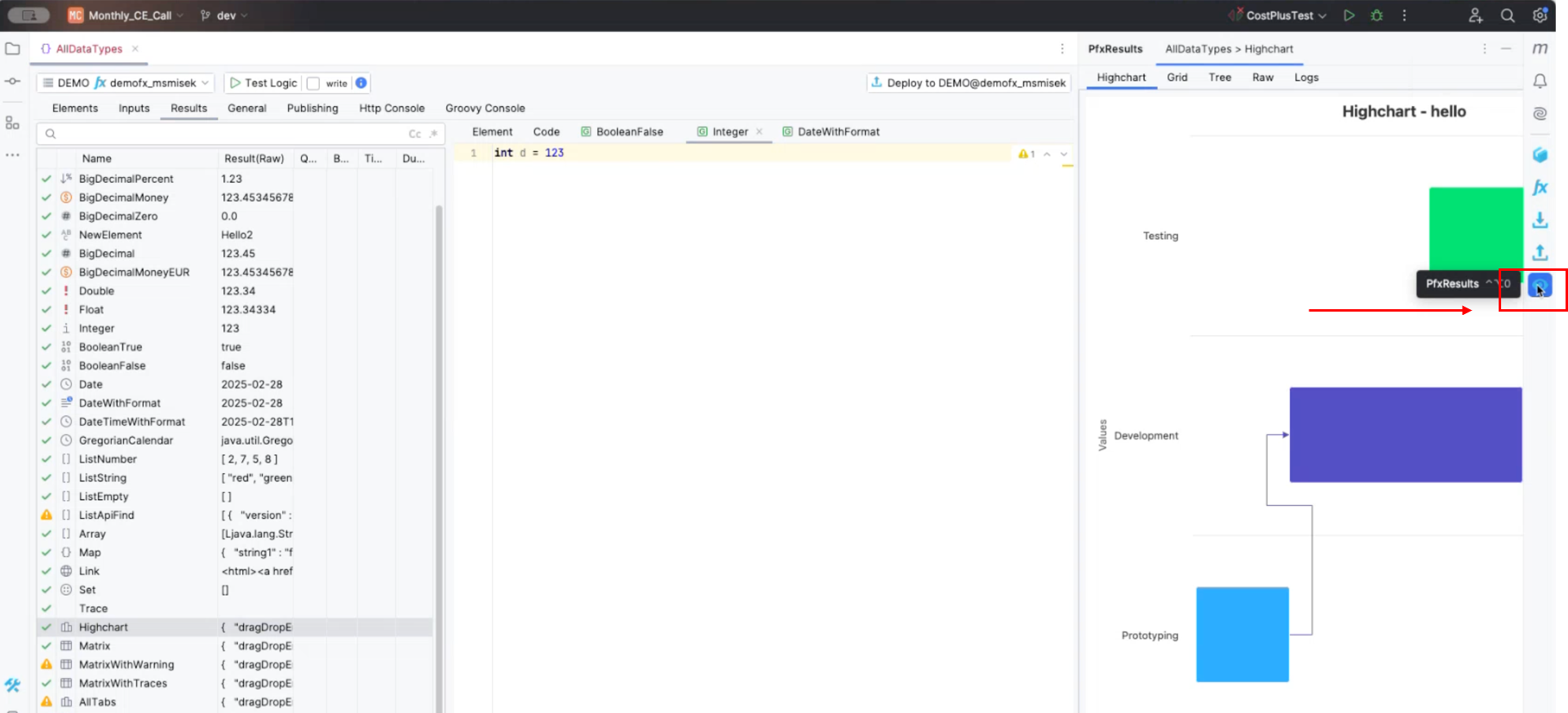
Tool Window Flexibility
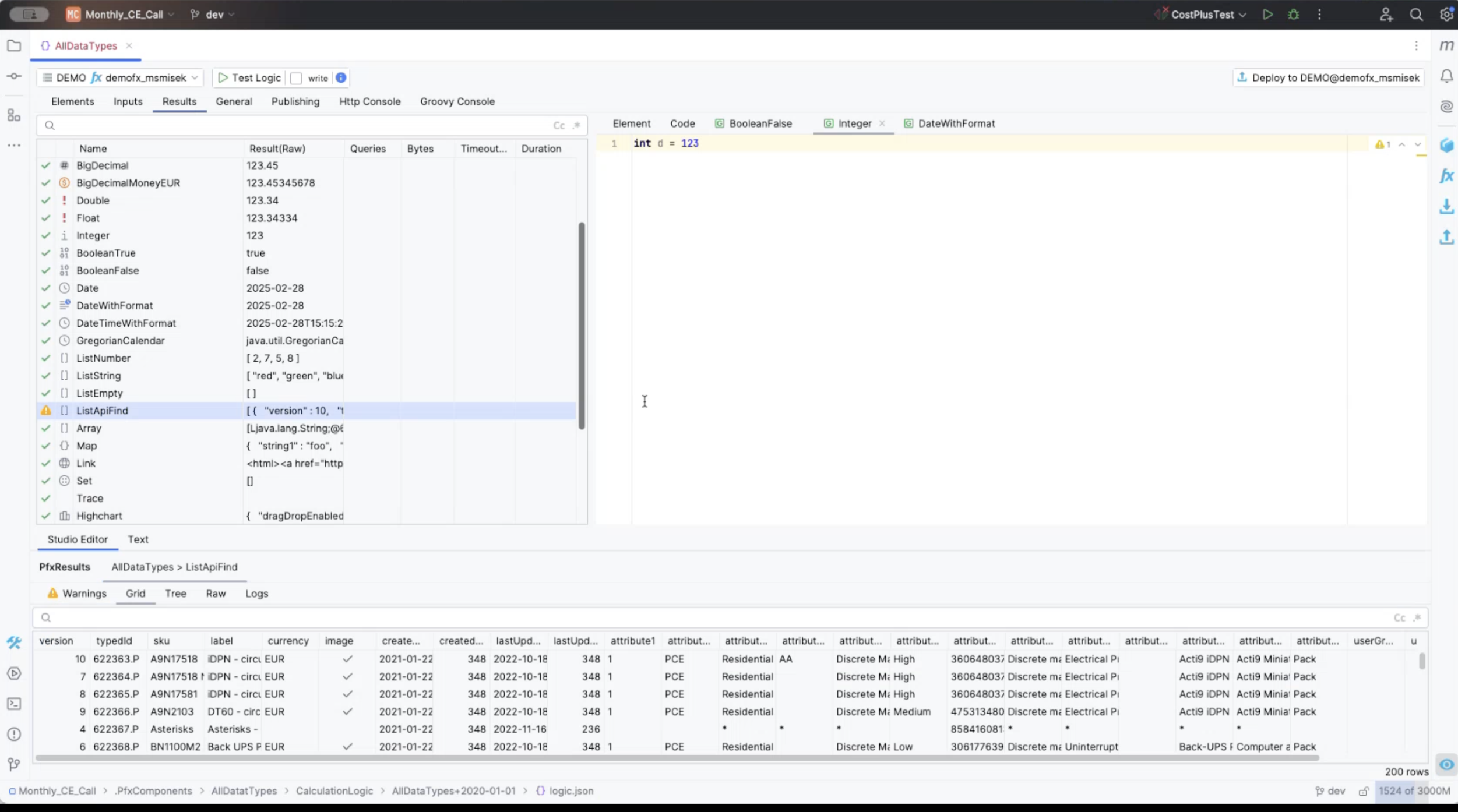
The tool windows can now be rearranged to fit user preferences, whether in a horizontal or vertical layout. This customization enhances the debugging experience, allowing you to tailor your workspace to your needs.
This layout is more efficient in case of debugging or troubleshooting
Tool windows also can be displayed simultaneously by dragging and dropping above or below the divider, giving you even more flexibility in what you can see on your screen. The upper toolbar has been modified to display only essential editors like the Logic JSON Editor and the Groovy Console. Other elements are listed within the main editor panel to declutter the interface.
Multiple Displays
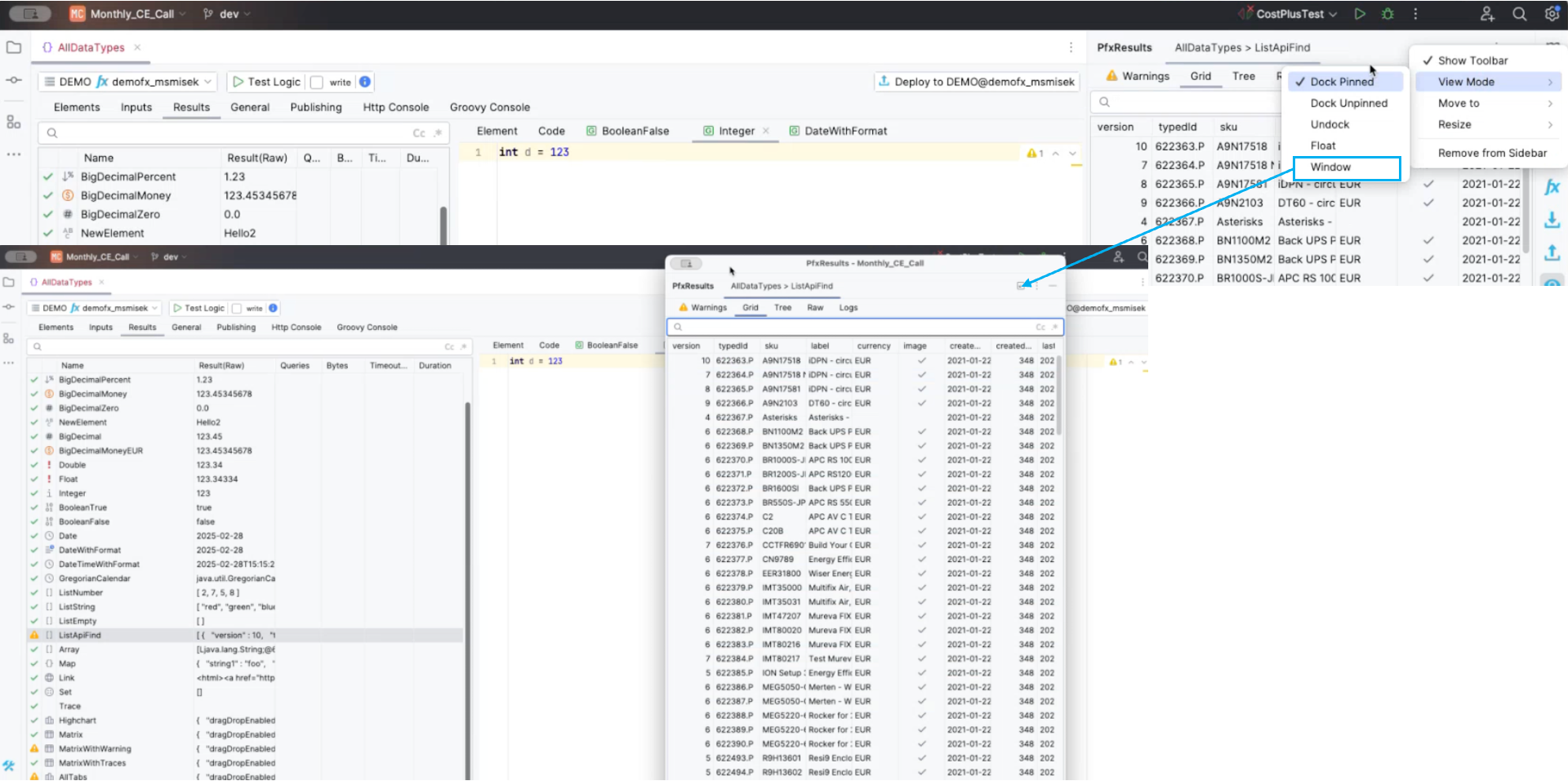
If you prefer multiple screens, you can now have floating windows that allow you to move content from one display to another. To do so, click on the three dots in the upper right corner and from the drop down select view mode → window.
Improved Tab Management
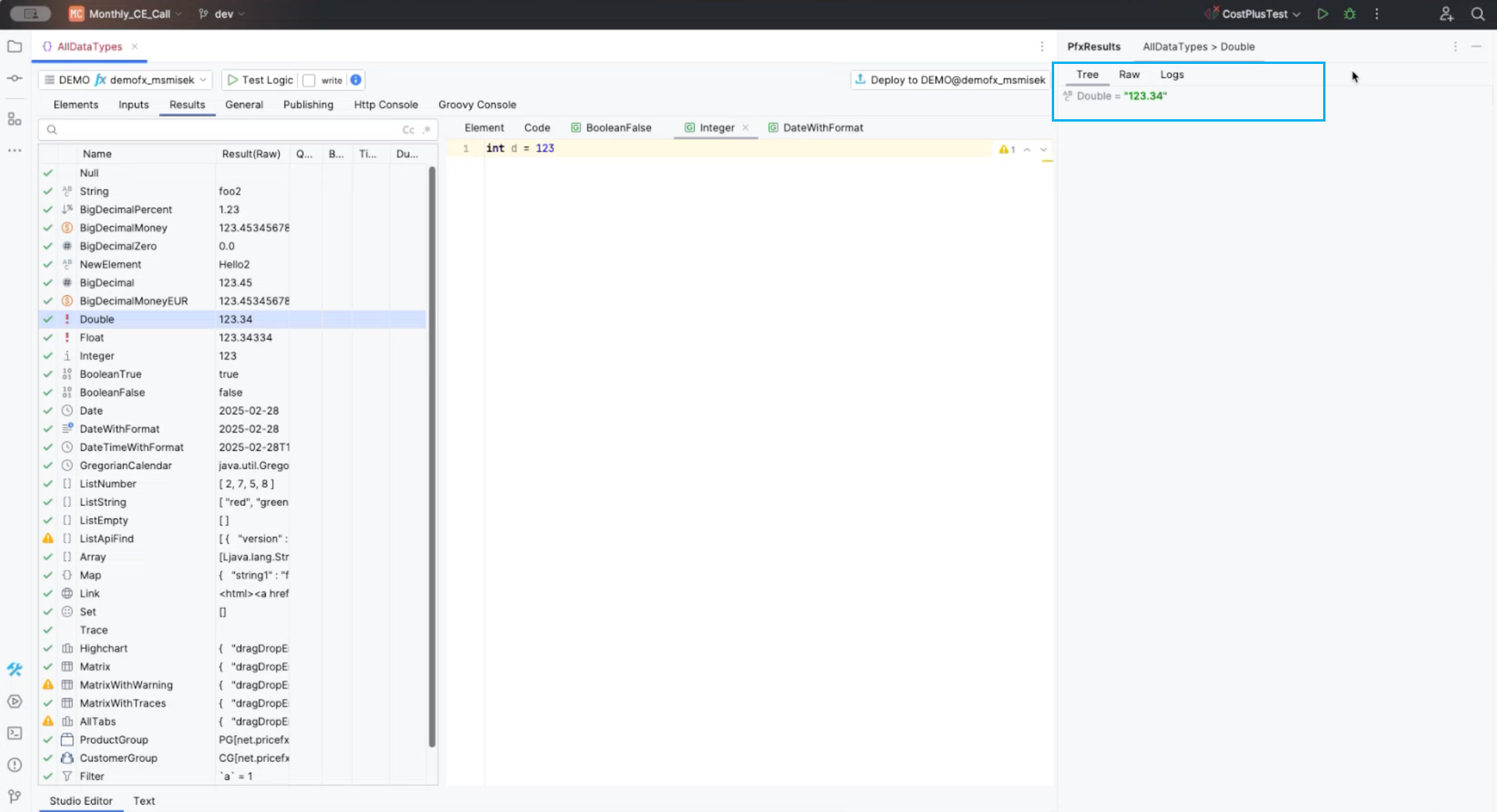
Previously, all tabs were visible, even if not applicable. Now, only relevant tabs are displayed based on the element type being developed, improving clarity and focus. The most significant tabs are prioritized in the order they appear.
In the prior version, all tabs appeared but marked as disabled (in light grey) if not applicable to the selected element.
The Tree tab is selected by default. The number of tabs appearing will be connected to the selected element.
Debugging Highcharts
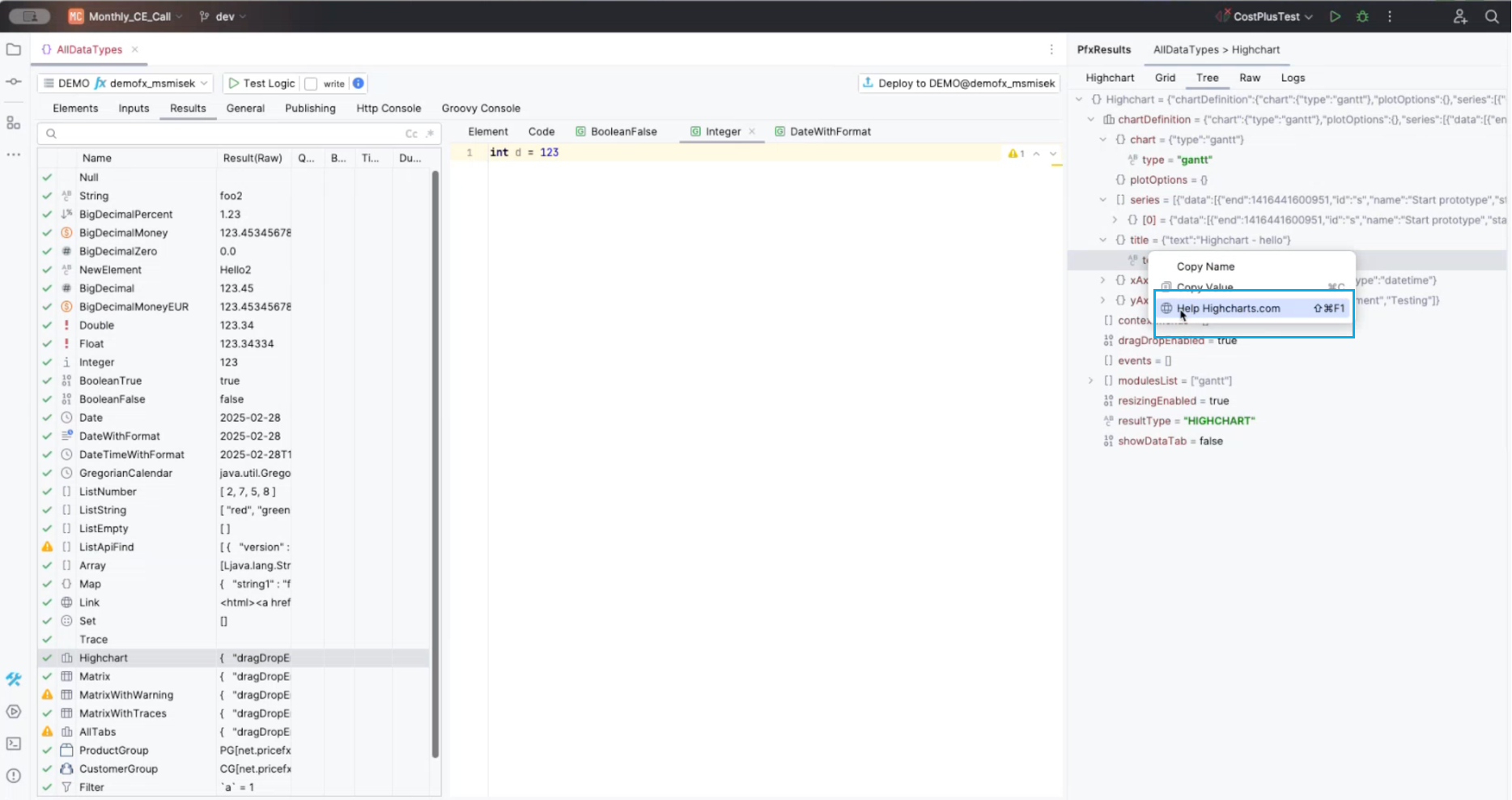
A new debugging functionality is now available for Highcharts. This feature allows users to access specific help sections related to given Highchart fields, making the debugging process more intuitive and efficient.
Raw Tab Redesign
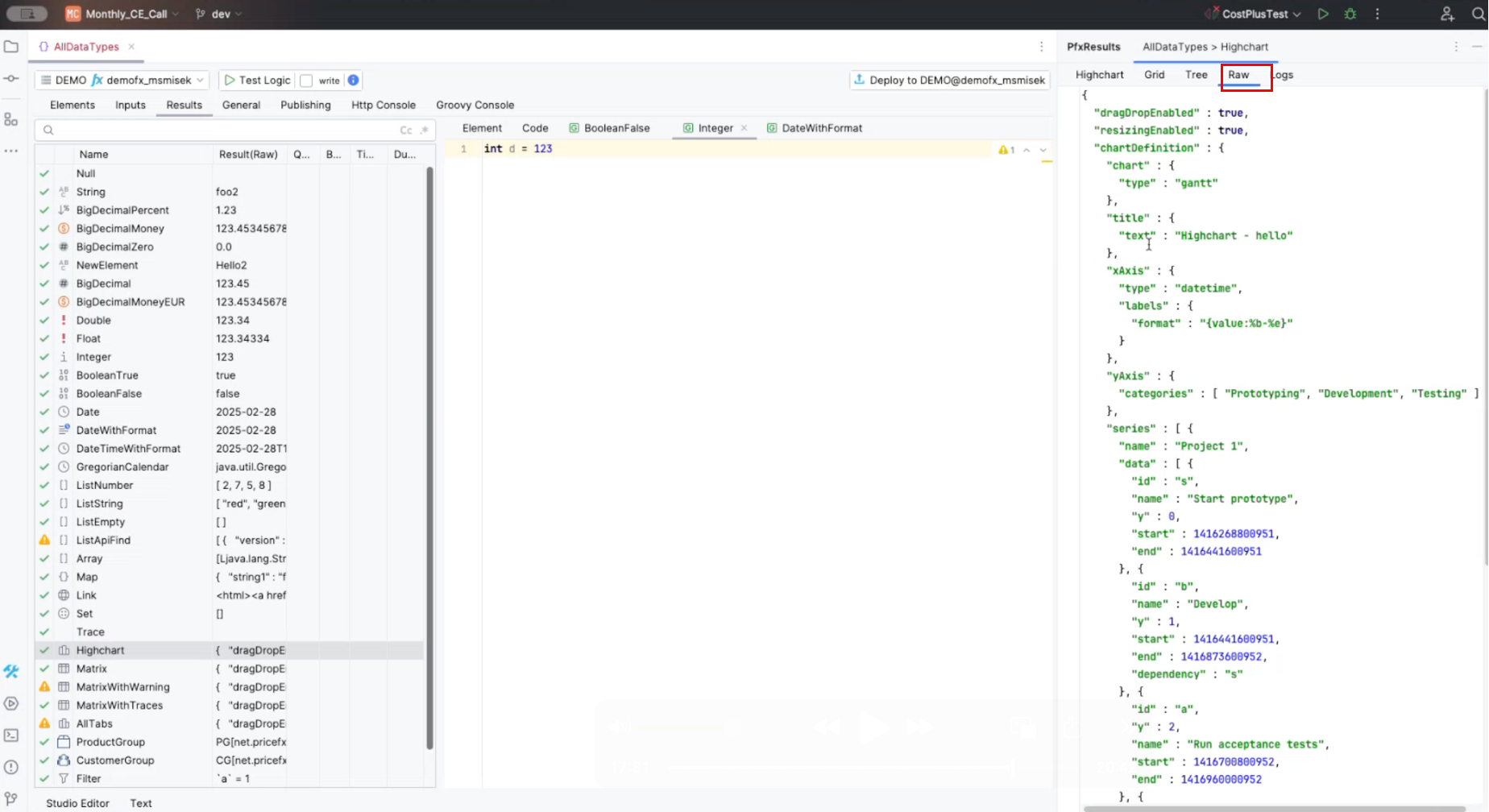
The Raw tab has been redesigned. If the content is in JSON or a map format, it will be automatically formatted as JSON, enhancing readability and usability.
Log Prioritization
Log messages have been improved to provide better visibility of critical issues:
Warnings now appear at the top.
Traces are positioned further to the left for easier access and review.
Shortcuts and Productivity Enhancements
Several new shortcuts have been introduced to streamline development workflow:
Command + Enter (Mac) / Control + Enter (Windows/Linux): Rerun the logic. This works in both the Logic Editor and the Groovy Console. Note that you will need to unregister shortcut for “Split Line” in Settings > Keymap > search Split Line > right click and select Remove from the menu.
Groovy Console Shortcuts
Control + Shift + J (Windows/Linux) / Command + Shift + J (Mac): Open a new Groovy Console instance.
Window Management
Control + Alt + 0: Close the result tool window quickly.
Control + 1: Open/close the project tool window. (The shortcut number may vary depending on the software version and operating system.)
Control + Shift + L (Mac/Windows/Linux): Open the desired logic file without browsing the project tool window.