
Prerequisites And System Requirements
-
Operating system – Linux/Windows/MacOS. Operating system version is limited to those supported by IntelliJ IDEA and Java.
-
IntelliJ IDEA – Note that the latest IDEA version is supported by Studio e.g. 3 weeks after release date, so check which IntelliJ IDEA versions are supported by Studio.
-
JDK – Java 21 is recommended to be downloaded in IntelliJ IDEA.
Install Plugin
To install the Pricefx Studio plugin:
-
Open IntelliJ IDEA.
-
Open Plugins from the Welcome screen.
-
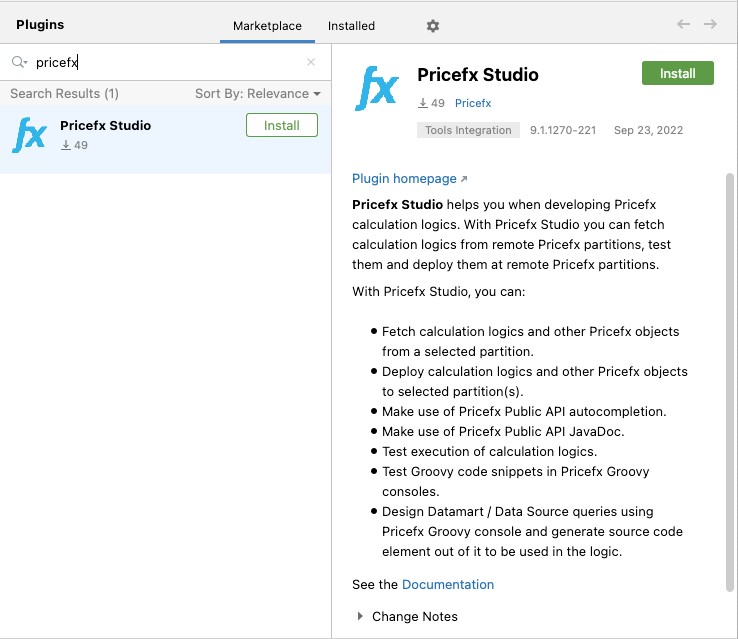
In the list of plugins of JetBrains Marketplace, search for the Pricefx Studio plugin. If you don’t see the plugin, then your IntelliJ IDEA version is not supported.
-
Click Install.
-
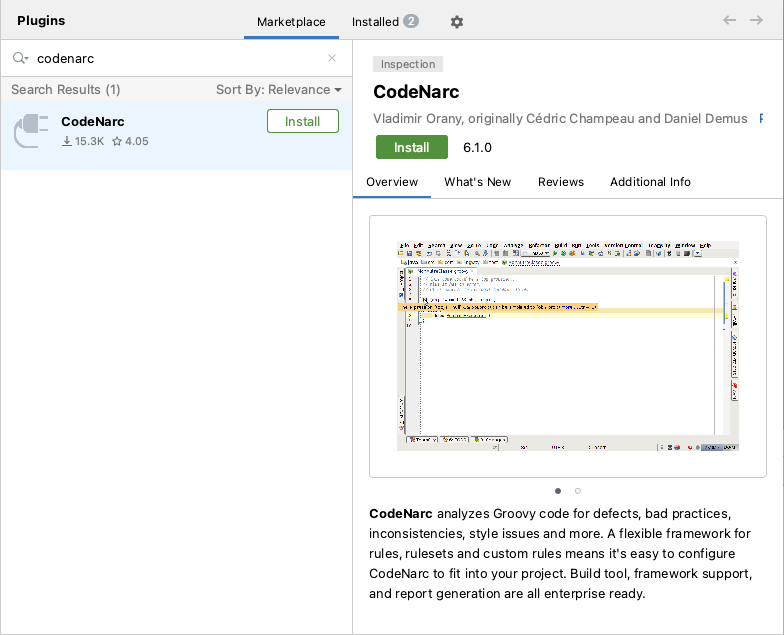
Pricefx Studio plugin uses CodeNarc plugin (for code quality check). In the list of plugins of the JetBrains Marketplace, search for the CodeNarc plugin.
-
Click Install.
-
When the installation is complete, restart IDEA.
-
In case your company requires connection via proxy server, in File > Settings > search “HTTP Proxy” and adjust the settings to reflect the proxy settings in your web browser.
-
Continue to Create New Project.
-
Optional, but recommended if you want to use the shortcuts for test execution of the logics and groovy consoles using (Ctrl + Enter or ⌘ ↵): remove the shortcut assigned to Split line in Settings > Keymap > search for Split line > right click > Remove.
Make sure you continuously upgrade the Studio plugin with the latest release. If you cancel the upgrade dialog when prompted, remember to upgrade Studio later using the option “Check for updates”.
Install EAP Version (Latest Development Version)
In case you need a new functionality that is developed, but not released yet, or, you are a geek and you want to help with beta testing of the new Studio release:
-
Add a custom repository by:
-
Go to Plugins.
-
Click the gear icon.
-
Click Manage Plugin Repositories.
-
Add the following repository URL (Jetbrains Marketplace):
-
https://plugins.jetbrains.com/plugins/pricefx-eap/list
-
-
Click OK.
-
Continue with step 3 in the previous section.
-
If you are not a geek, consider switching back to the release version after a stable version is released.
Remove/Re-install Plugin
When a new version of the plugin is released, IDEA will check during startup and offer you to update the plugin version.
If you need to uninstall an existing Pricefx Studio plugin in order to install an Early Access release, please follow these steps:
-
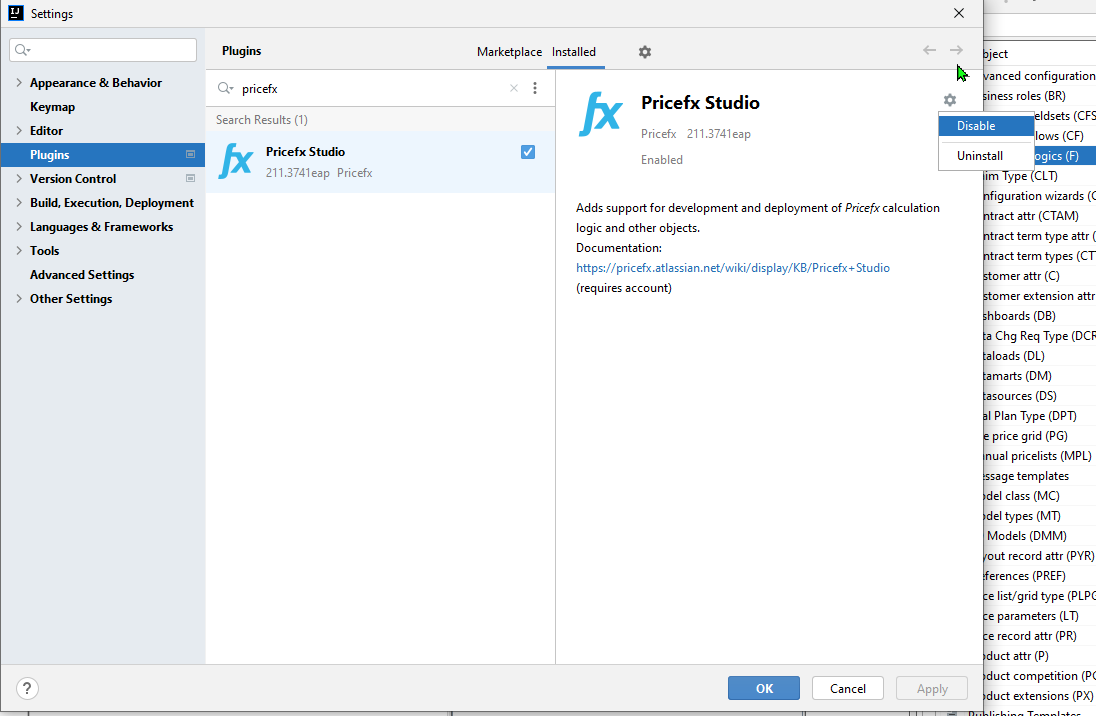
Navigate to File > Settings > Plugins.
-
Find Pricefx Studio and in settings click Uninstall.
-
Restart IntelliJ.
Install Previous Version
If you need to install a previous version of Pricefx Studio, refer to Install Previous Versions (Pricefx Studio).