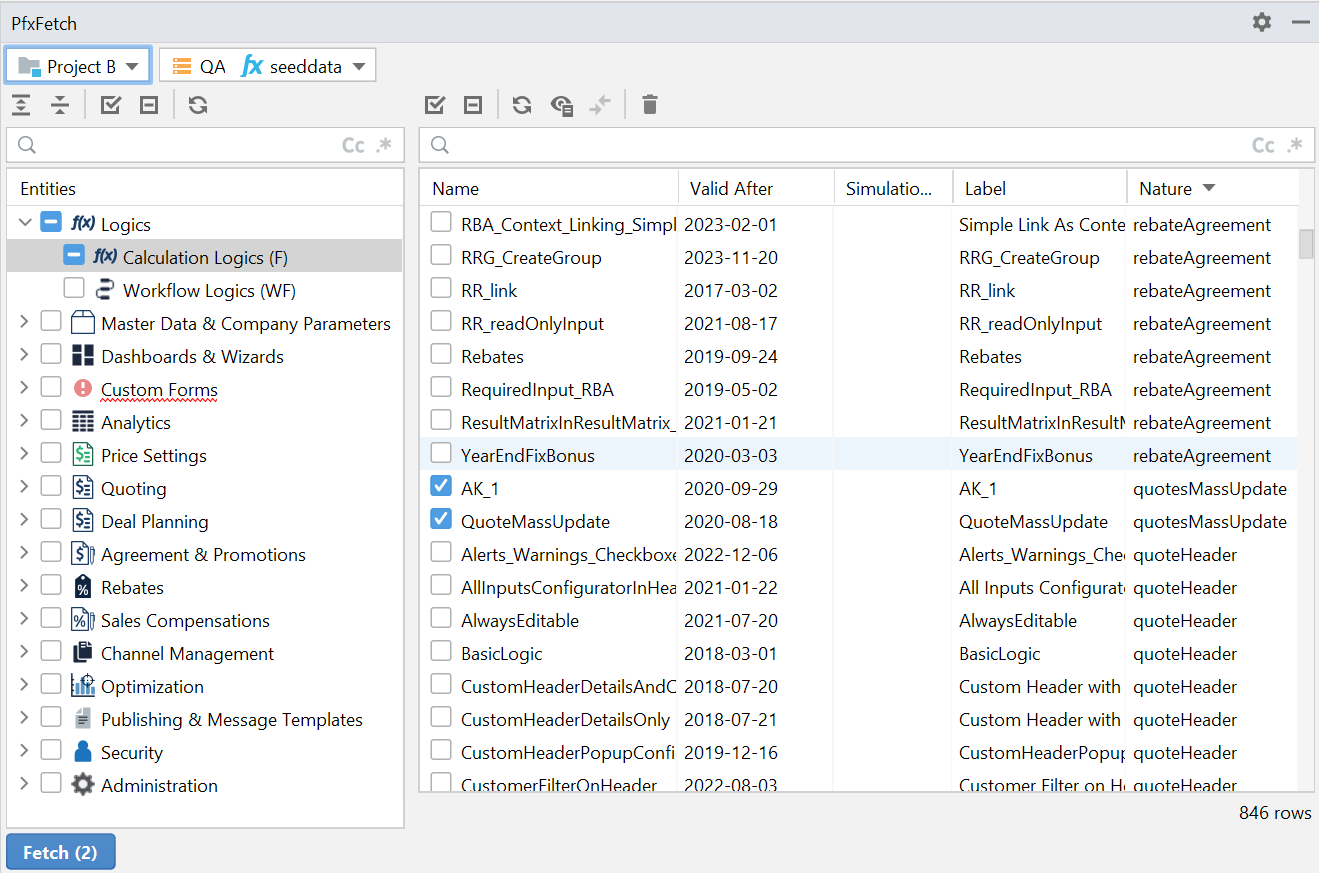
In Pricefx Studio you can work with all types of objects but for this tutorial we will pick logics as a typical example.
First you want to get the logics, so that they are available in Pricefx Studio for editing and testing.
To fetch one or more logics:
-
Go to the Fetch panel. (If you do not see it, enable it in View > Tool Windows.)
-
Select the environment.
-
Select the partition.
-
Select Calculation logics (F) as the type of object. The list of logics will be shown.
-
Select one or more logic to be fetched.
-
Click Fetch.
-
Pricefx Studio will fetch logics and write them to the project. For each logic there is one folder created.
Note: Fetch works with uniqueName of the logic; the folder of the logic is irrelevant.
Working with PfxFetch Panel
You can switch projects and partitions:

For the list of entities you can:
-
:ExpandCollaps: Expand/collapse the entities list in a single click.
-
:SelectUnselect: Select/unselect all visible entities.
-
:Reset: Reset the view to the default state.
For a list of fetched items you can:
-
:SelectUnselect: Select/unselect all visible items.
-
:Reset: Reload calculation logics.
-
:ShowInactive: Show also Inactive and Simulation Only statuses (only for logics and Company Parameters) – By default, only objects with status Active are shown. This button allows you to show also objects with status Inactive or Simulation Only.
-
:Delete: Delete a selected object from the server.