
If you encounter issues while working with the IntelliJ IDEA plugin, please report them. Internal people can report to JIRA in PFAUT project. Partners or customers can raise a ticket to the Support portal. If possible, add a screenshot or attach the IntelliJ IDEA log file to the message. The log file is located at Help > Show Log in Files/Explorer/Finder; idea.log is the current log file.
Why Auto-completion Is Not Working?
Make Sure pom.xml Is Added to Project
If the pom.xml file does not exist in the root folder, right click the root folder and select Pricefx > Create pom.xml. Click Local Maven Project in the popup that appears.
Make Sure Pricefx API Library Is Added to Project (pricefx-studio-sdk or groovy-api)
The pricefx-studio-sdk library must be part of the project, since it contains Pricefx interfaces or classes which are used by IDEA for auto-completion.
-
Open the project in IntelliJ IDEA.
-
Open the Maven tool window and click the Reload button. If you don’t see Maven tool window, right click the root folder and select Pricefx > Generate pom.xml.
-
Click Load Maven Project in the popup that appears.
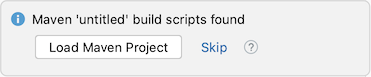
This will add Maven: net.pricefx:pricefx-studio-sdk library in External libraries and auto-completion should work from now. -
Go to File > Invalidate Caches, select Clear file system cache and Local history and Clear VCS Log caches and indexes and click Invalidate and Restart.
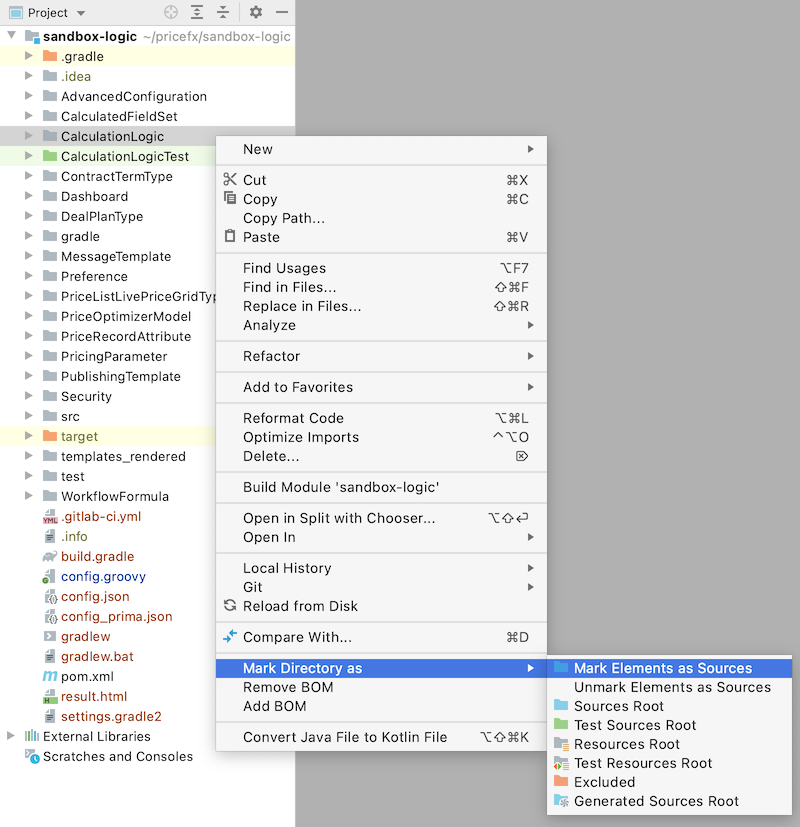
Logic 'elements' Folders Must Be Marked as a 'Source' Folder
Did you mark the logic elements directories as source? To do that, open the Maven tool window and click the Reload button. If you don’t see Maven tool window, right click the root folder and select Pricefx > Generate pom.xml. Click Local Maven Project in the popup that appears.
Auto-Completion Works in General, but Not for Some Classes
If the auto-completion does not work for Filter or if you you have an element called "Filter" in one of your logics, rename it as described in Naming Conventions | ElementNames. Alternatively explicitly add import com.googlecode.genericdao.search.Filter.
Why I can’t see the global partition selector?
If you have adjusted the view settings for the main toolbar, restart IDEA.
Why the ctrl+click in code navigates me to a completely different element?
Make sure the element name is unique within a project, see related article:
Naming Conventions | Unique Element Names Within Projects
How to Ensure Studio Uses the Latest Pricefx API?
Previously, each Studio version was bundled with a certain version of Groovy API. Since version 15.0 this was replaced by Maven package pricefx-studio-sdk. Make sure you are using the latest Studio to have the latest Pricefx API. For details see Upgrade Studio Project Libraries.
Cannot Upgrade Studio
If you have not switched to JetBrains MarketPlace yet, follow these steps: Install Studio | Remove/Reinstall Plugin.
PKIX Path Building Failed: SunCertPathBuilderException
If you get a following exception:
“net.pricefx.restapiclient.PfxClientException: PKIX path building failed: sun.security.provider.certpath.SunCertPathBuilderException: unable to find valid certification path to requested target”
your computer cannot connect to Pricefx backend via SSL.
Troubleshooting steps:
-
Make sure you are using the latest supported IDEA version (as listed in the release notes). This will ensure that the latest certificate store database is used.
-
Go to the Pricefx partition using the web browser. If the browser displays a problem with the certificate, check the error message. If the certificate expired, contact Pricefx Support via helpdesk.
-
If your company requires that a proxy server is used, set up the proxy server also in IDEA. See Install Studio | Install Plugin.
-
If you still cannot connect, your certificate store may be outdated (for older computers). In that case visit the Pricefx partition using the web browser. Export the certificate using the browser and import it to the IDEA certificate store in Preferences > search “Server Certificates”.
-
If you are trying to connect to a partition on your localhost server with SSL enabled, you might need to generate a certificate that includes Subject Alternative Name (SAN) referencing the localhost domain name. An example using openssl:
Bashopenssl req -x509 -nodes -days 365 -newkey rsa:2048 -keyout privatekey.key -out certificate.crt -subj '/CN=localhost' -extensions san -config <(echo '[req]'; echo 'distinguished_name=req'; echo '[san]'; echo 'subjectAltName=DNS:localhost,IP:127.0.0.1')Use that certificate in your Apache config and import it to the keystore of the JVM used to run Idea. It is usually located in the <Idea directory>/jbr/lib/security. Copy the certificate.crt there and run:
Bashkeytool -keystore cacerts -importcert -alias certificate -file certificate.crtIf asked about a password, the default is “changeit”.
Restart Idea/PFX Studio and Apache and you should be able to connect to the localhost server’s partition.
IntelliJ IDEA General Troubleshooting
If IntelliJ IDEA is behaving strangely, the last chance is to remove the project related config files:
-
To invalidate caches, go to File > Invalidate Cache / Restart > Clear file system cache and Local History and Clear VCS Log caches and indexes and confirm Invalidate and Restart.
-
Close IDEA.
-
In the MacOS, delete IDEA config files of the project:
-
Browse to the project folder.
-
Find the .iml file in the project root and delete it.
-
Find the .idea folder in the project root and delete it.
-
-
Reopen the project in IDEA.
Code Reference Info:
https://www.jetbrains.com/help/idea/viewing-reference-information.html
Install Older Version of IntelliJ IDEA
Verify in the Pricefx Studio Release Notes that you use a supported IntelliJ IDEA version.
Note that Pricefx Studio has been known to have some issues with IntelliJ 2021.3, so try installing 2021.2 or another version and see if that fixes the issue.
Older versions of IntelliJ: https://www.jetbrains.com/idea/download/other.html