
You can create an Agent or Agent Action on a specific data point within a chart. The Action or Agent will contain all the context - the chart, data, filters, etc. This capability is available in the Charts.
-
Go to Analytics > Data Analyzer > Select a Chart type.
-
Setup or Load Chart.
-
Click on a desired data point.
-
Select Create Agent Action or Create Agent.
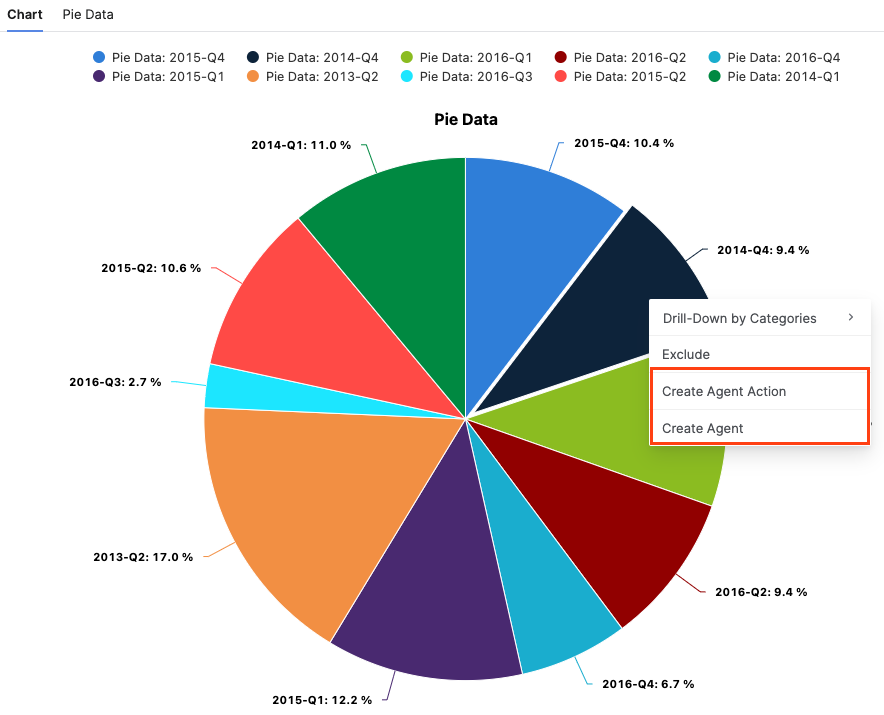
Create Agent Action
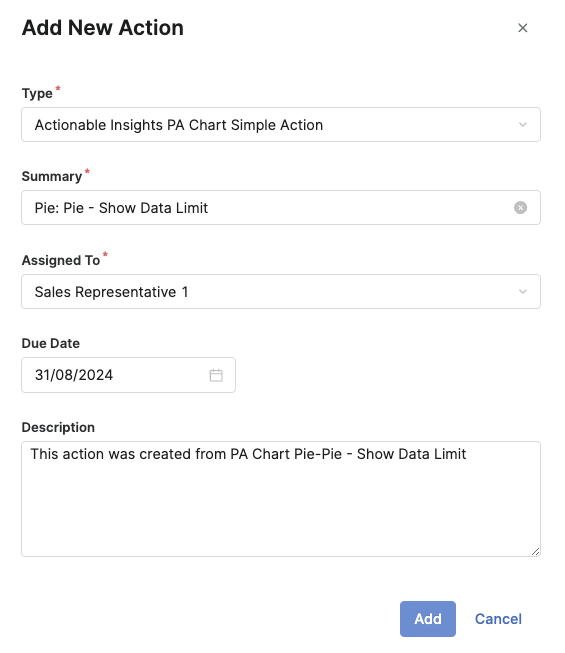
When you click Create Agent Action you are redirected to the Add New Action dialog.
|
Field |
Description |
|---|---|
|
Type |
The Action Type field is pre-filled from a list of items stored in the Action Types table (Configuration > Actions > Action Types). |
|
Summary |
The Summary is pre-filled with Chart Type and Chart Name (Chart Type: Chart Name). |
|
Assigned To |
You must assign an action to the concrete user. |
|
Due Date |
You can select the Due Date from the date picker. |
|
Description |
Description of the requested action. |
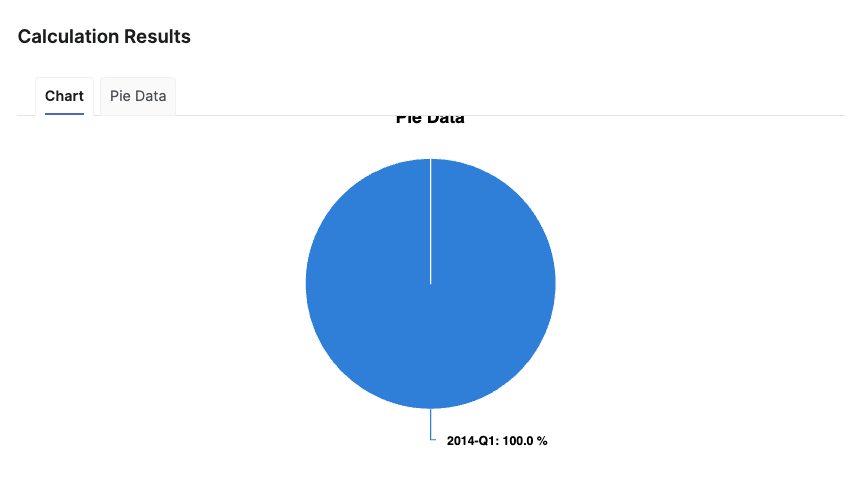
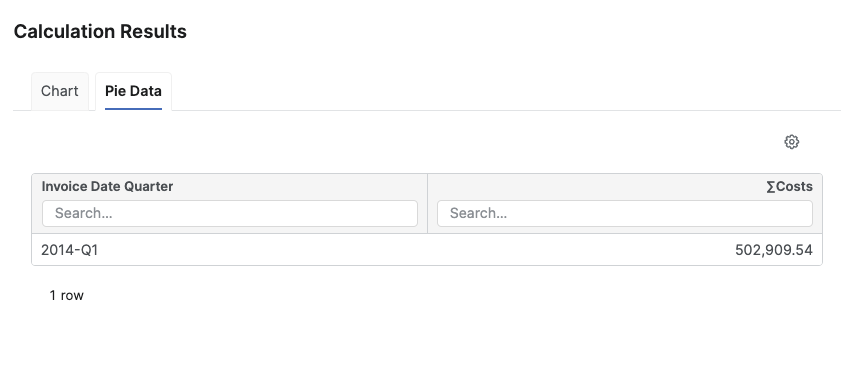
When you click Add the new action is created. In the Description > Calculation Result, you are presented with the Chart and the Data for the particular data point you selected.
Create Agent
When you click Create Agent you are redirected to the Agent configuration wizard. See Configure Deployed Agents (Agents) for details.