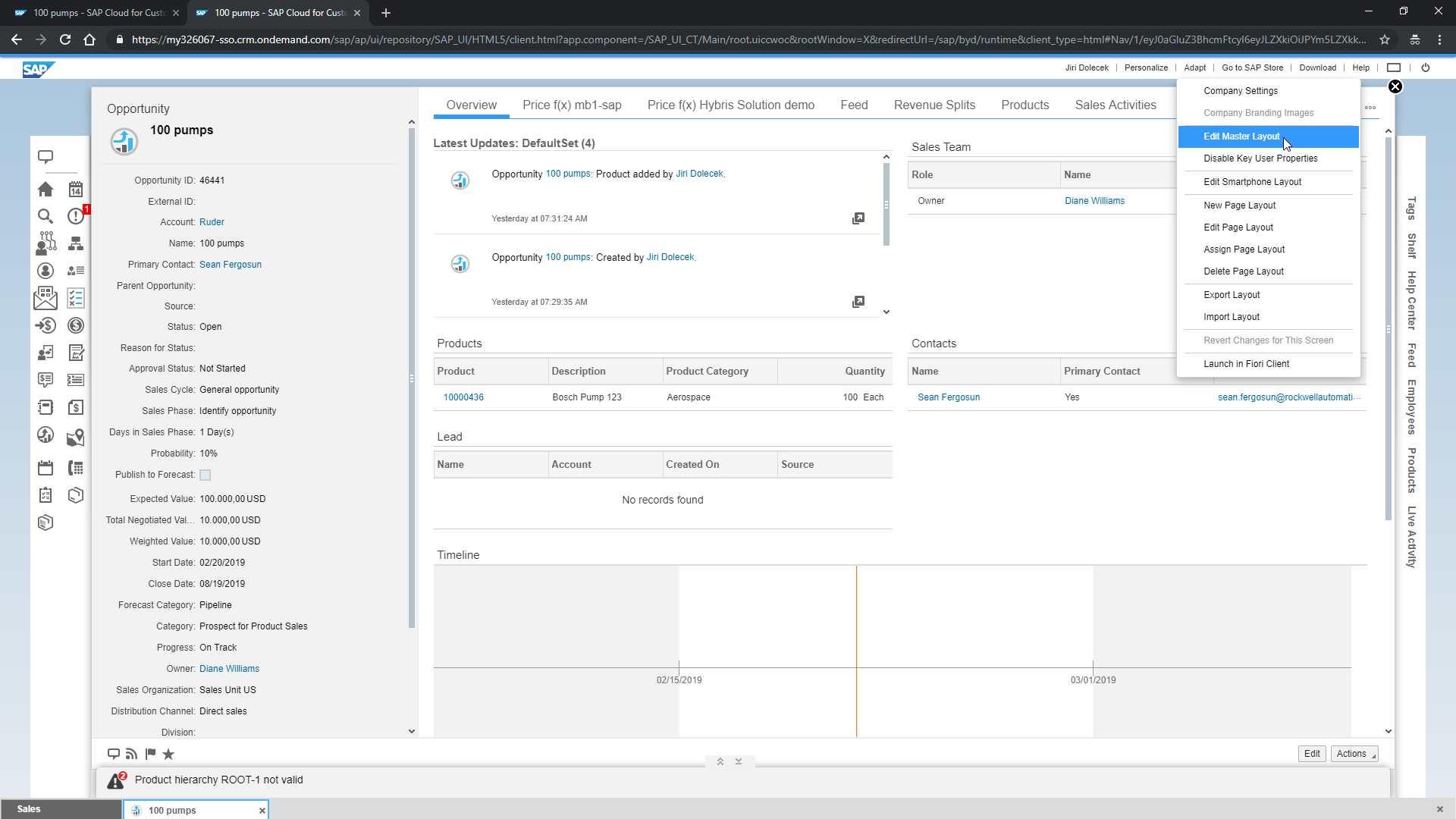
This section describes how to create Pricefx mashup in SAP C4C and place it to the Opportunity page in SAP C4C.
|
|
|
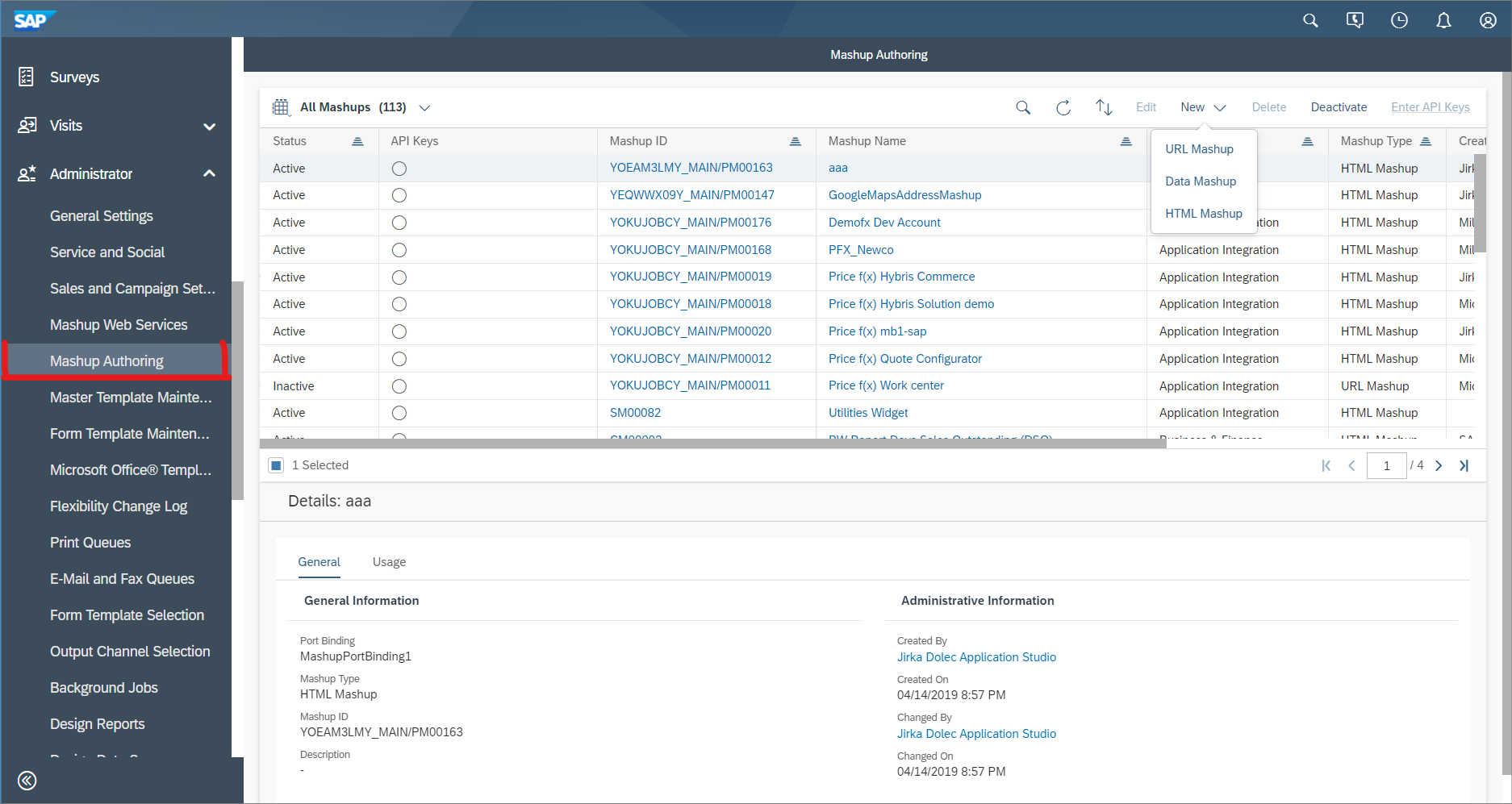
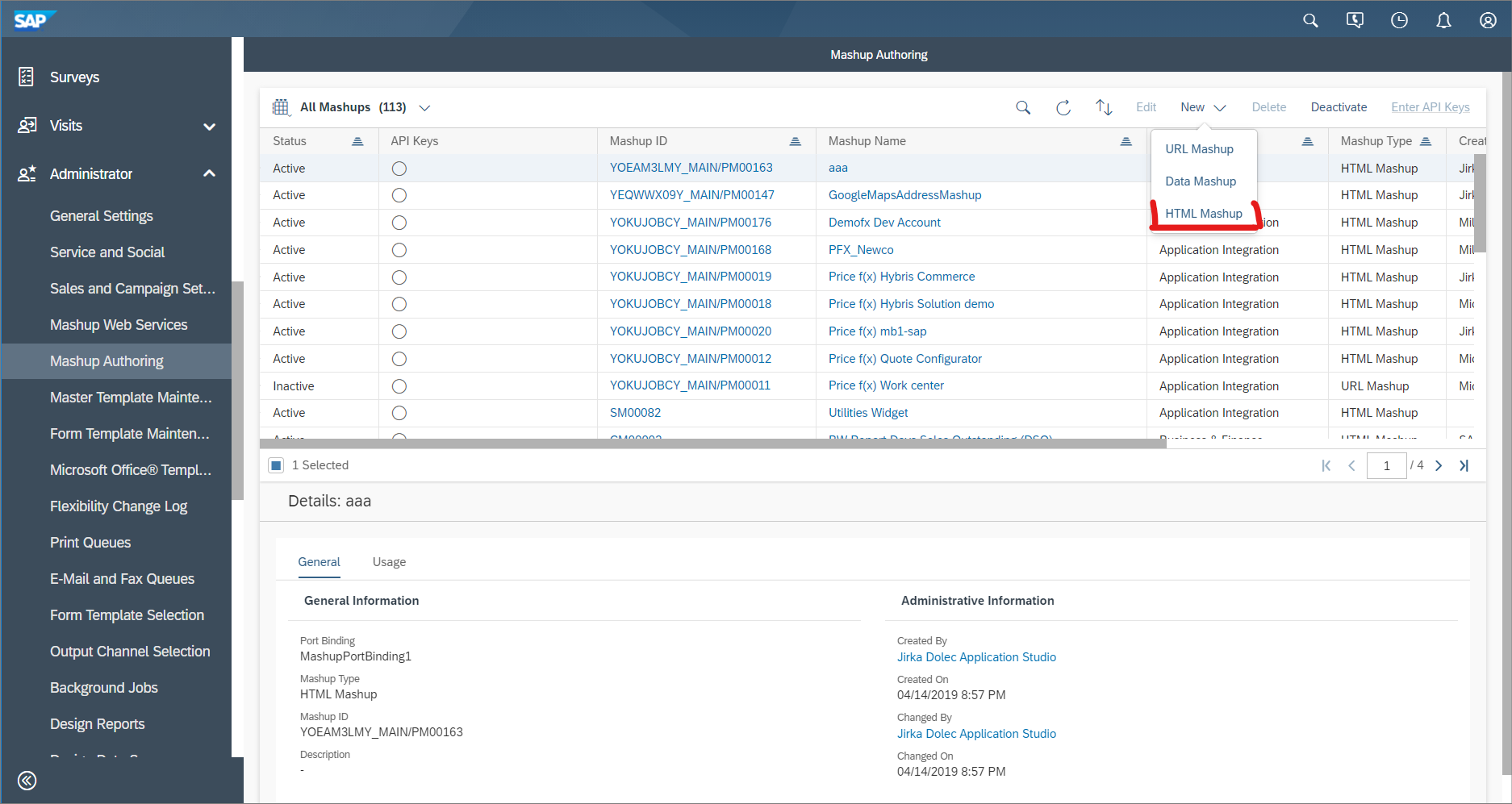
2. Create HTML Mashup. Depending on your user rights, you might need to use SAP Cloud Applications Studio. This error: 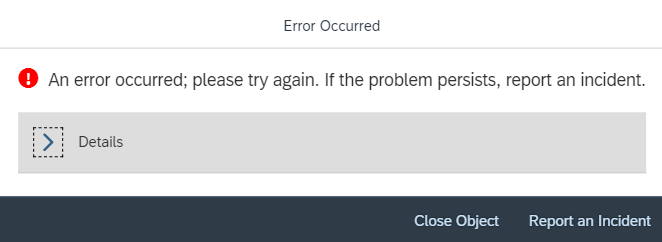
might indicate missing permissions; Studio or a different account might be needed. |
|
|
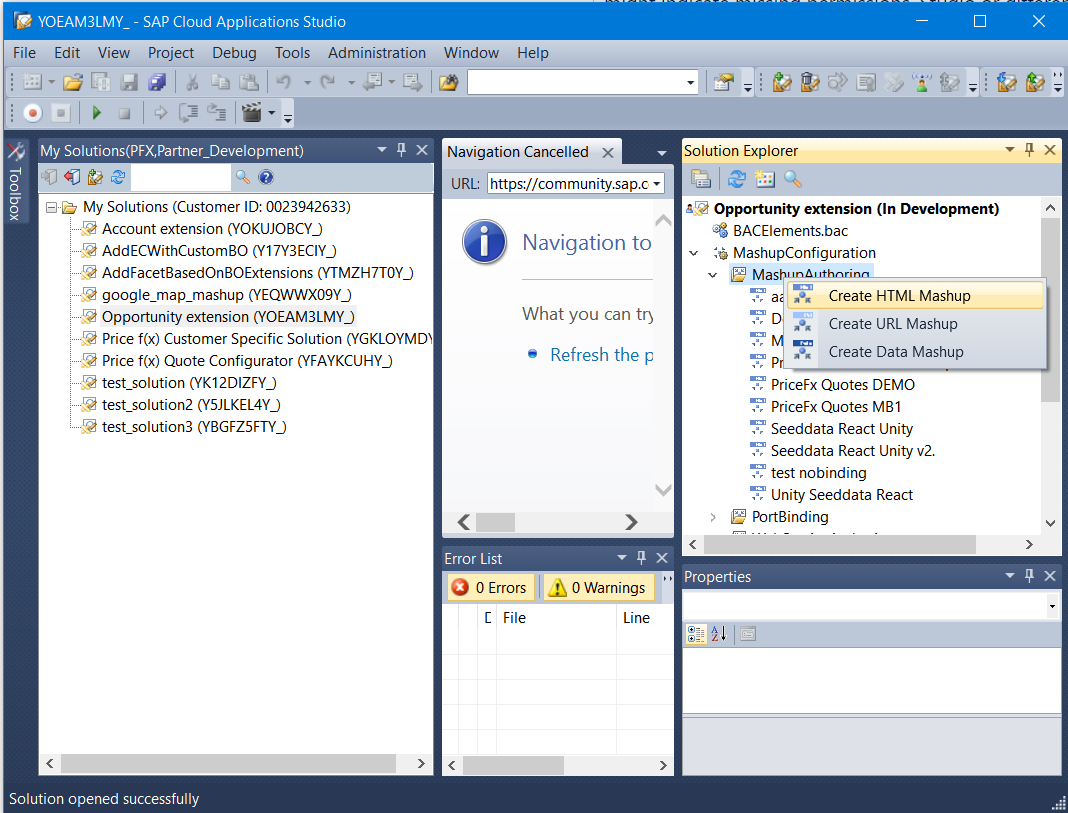
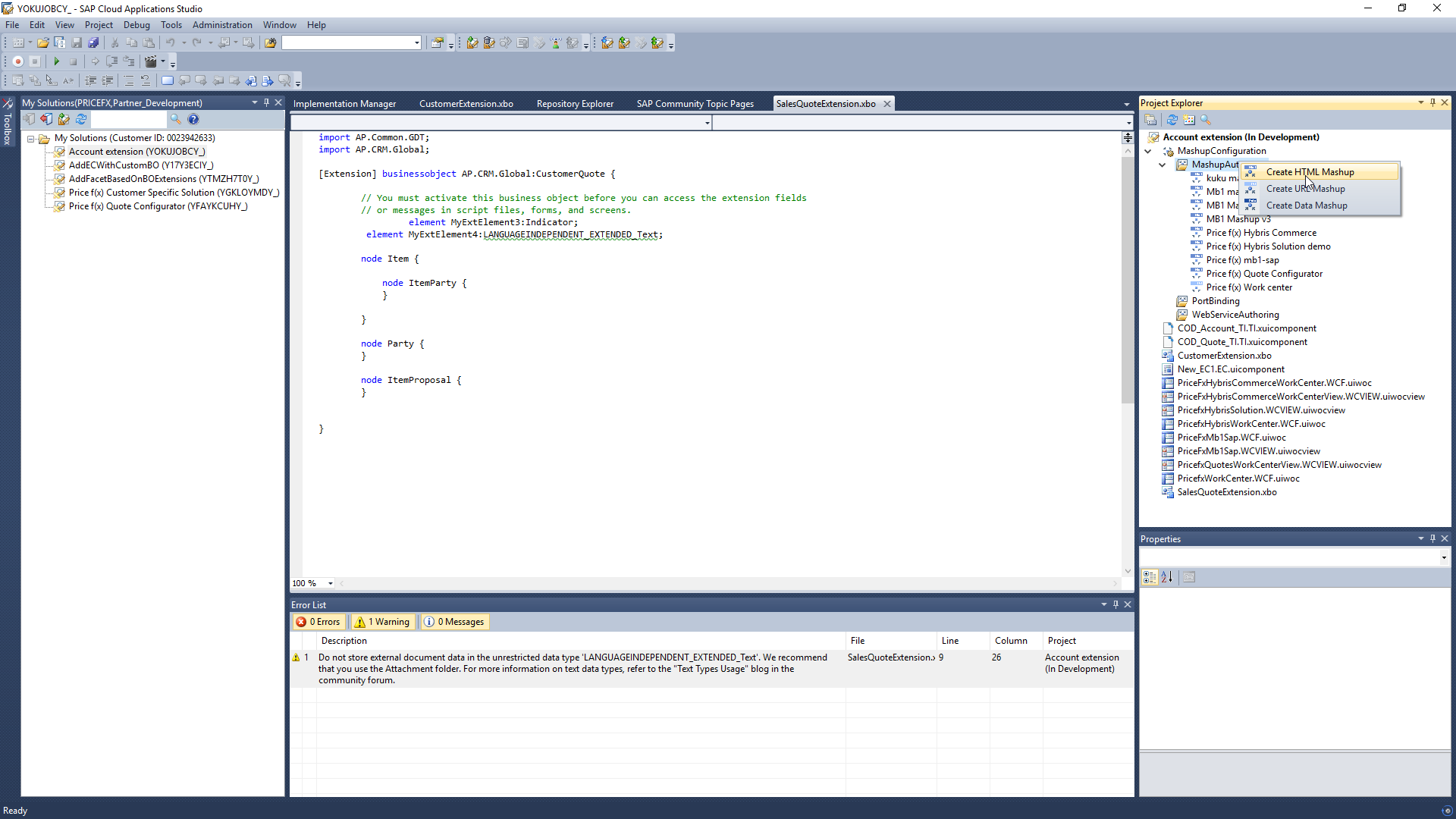
If that is the case, use SAP Cloud Application Studio > right click as shown in the screenshot > Create HTML Mashup. |
|
|
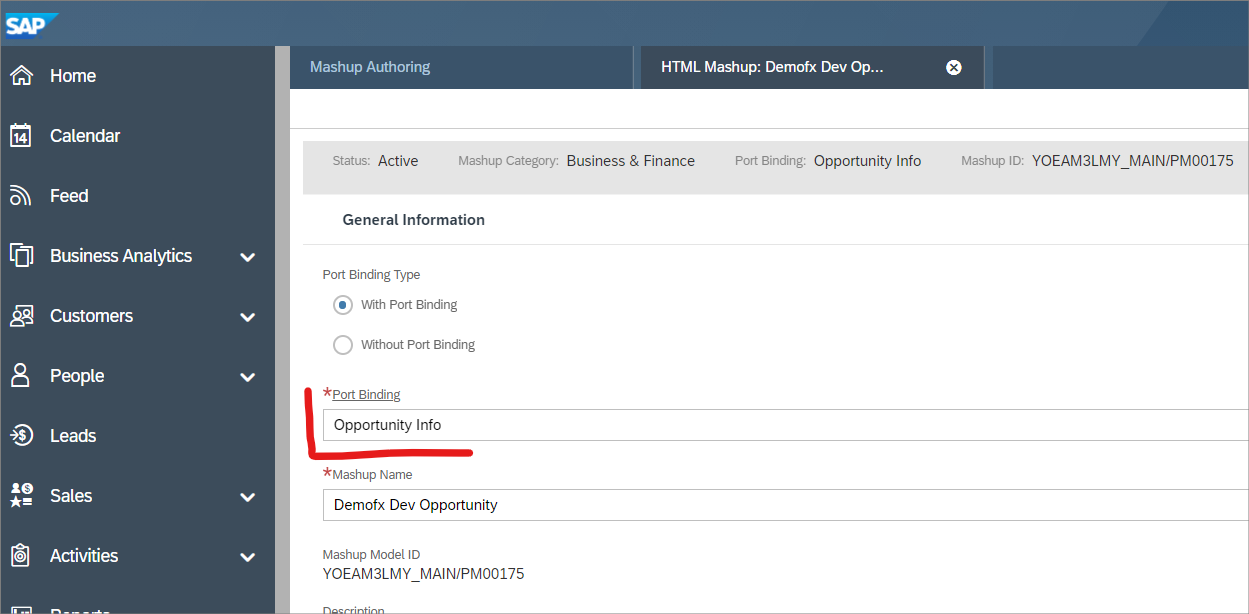
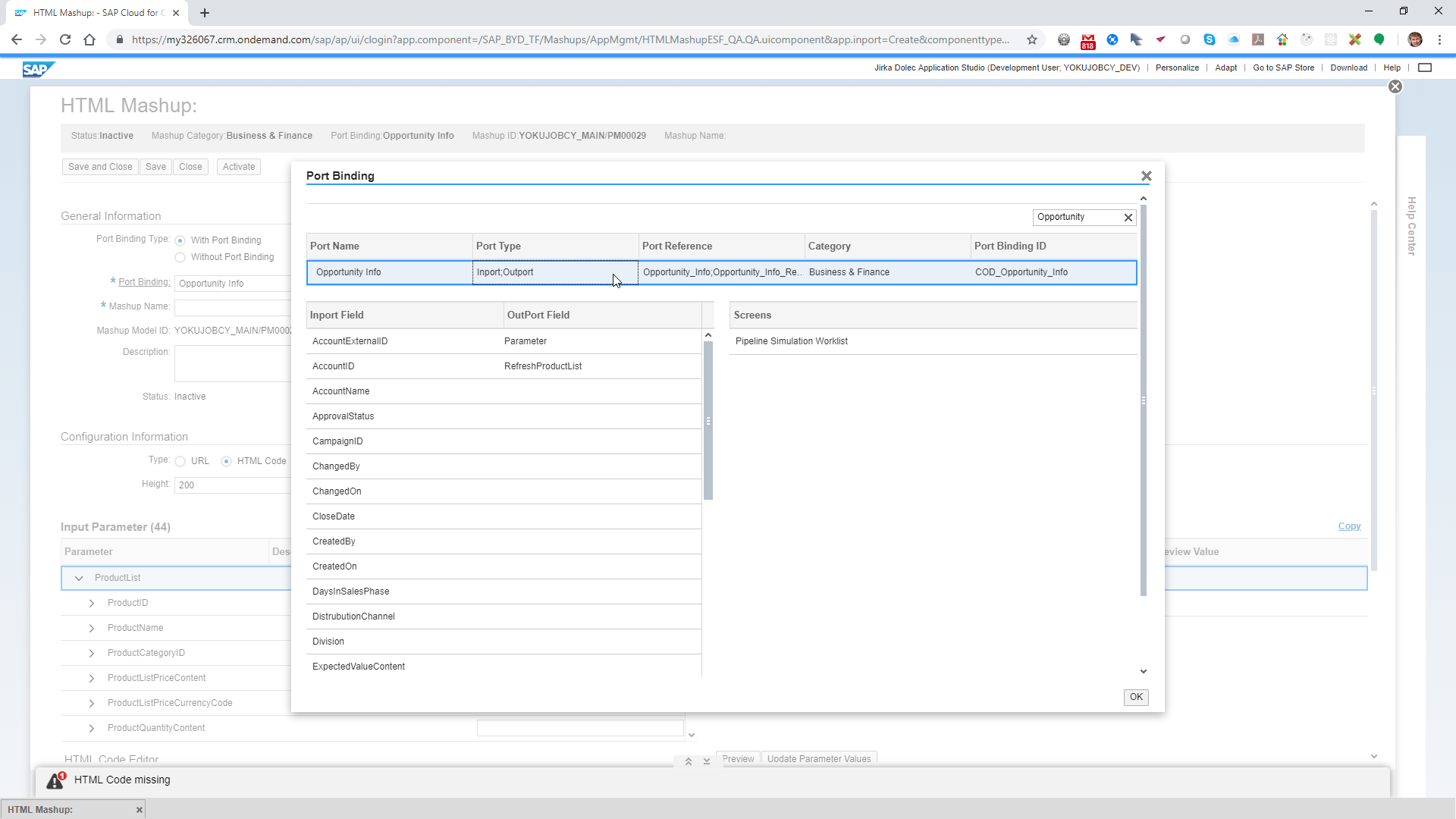
3. Select Port Binding: Opportunity Info. |
|
|
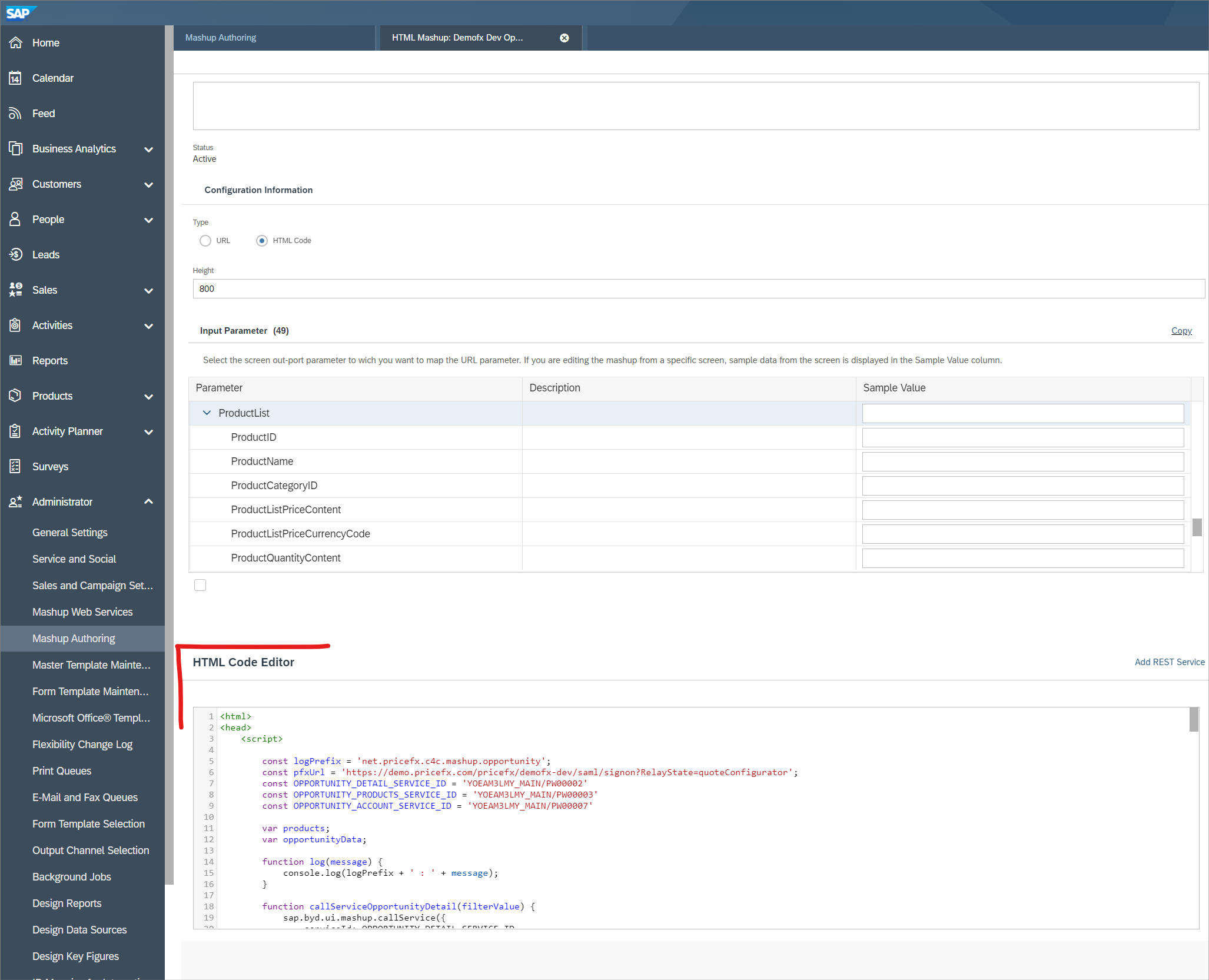
4. Insert the Mashup HTML code into HTML Code Editor. Pricefx will provide the Mashup HTML code to the customer before installation. |
|
|
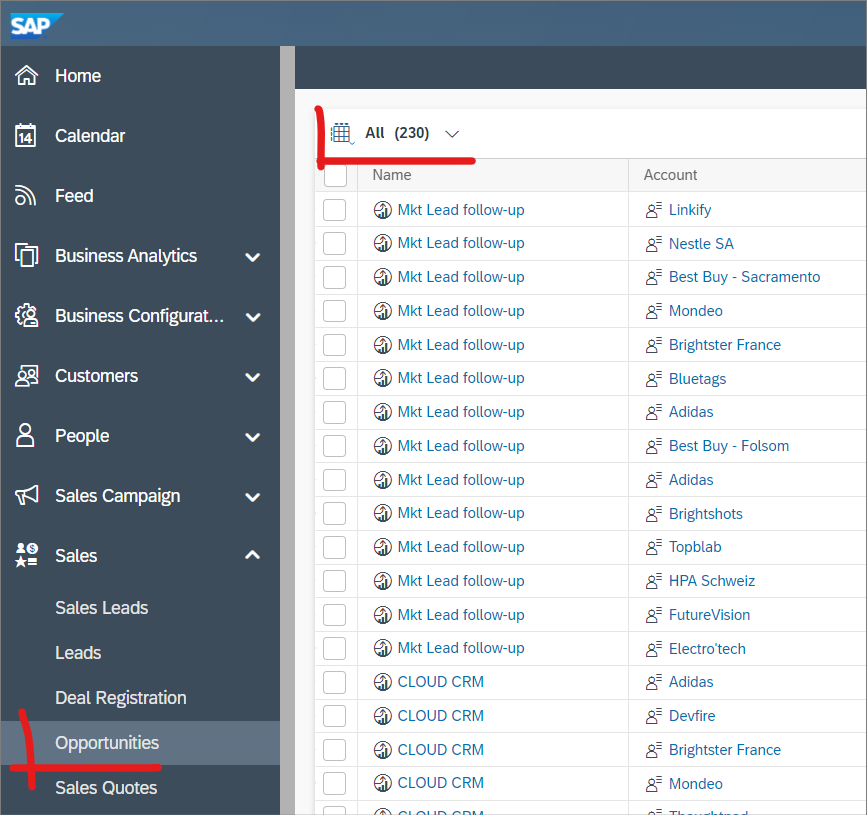
5. Go to Opportunities and select any relevant Opportunity. (The filter might need to be changed.) |
|
|
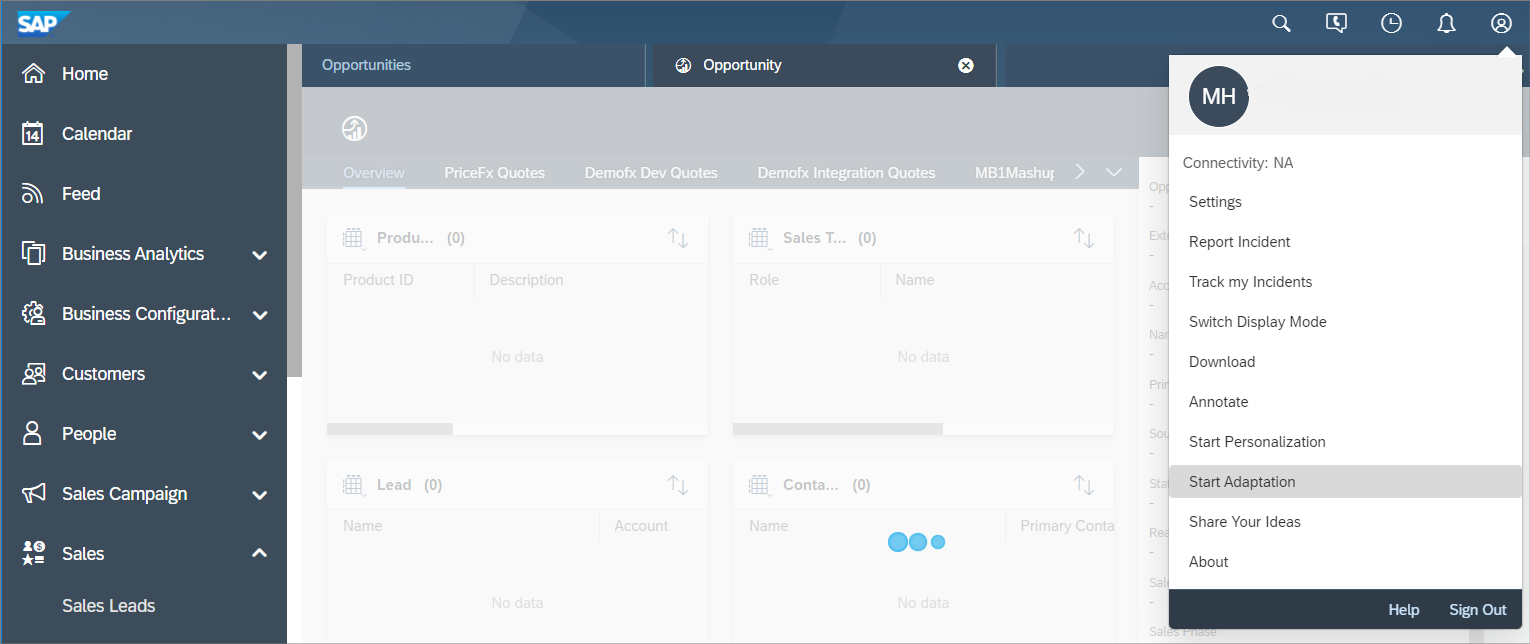
6. Start the Adaptation mode. |
|
|
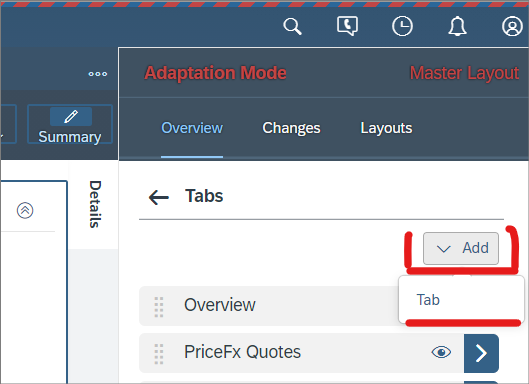
7. Add a new tab. |
|
|
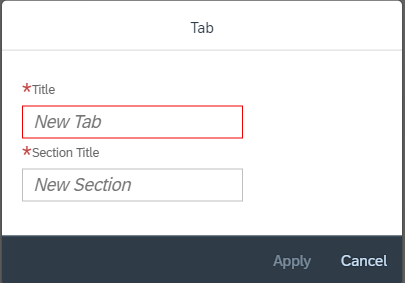
8. Enter name and title of the tab. |
|
|
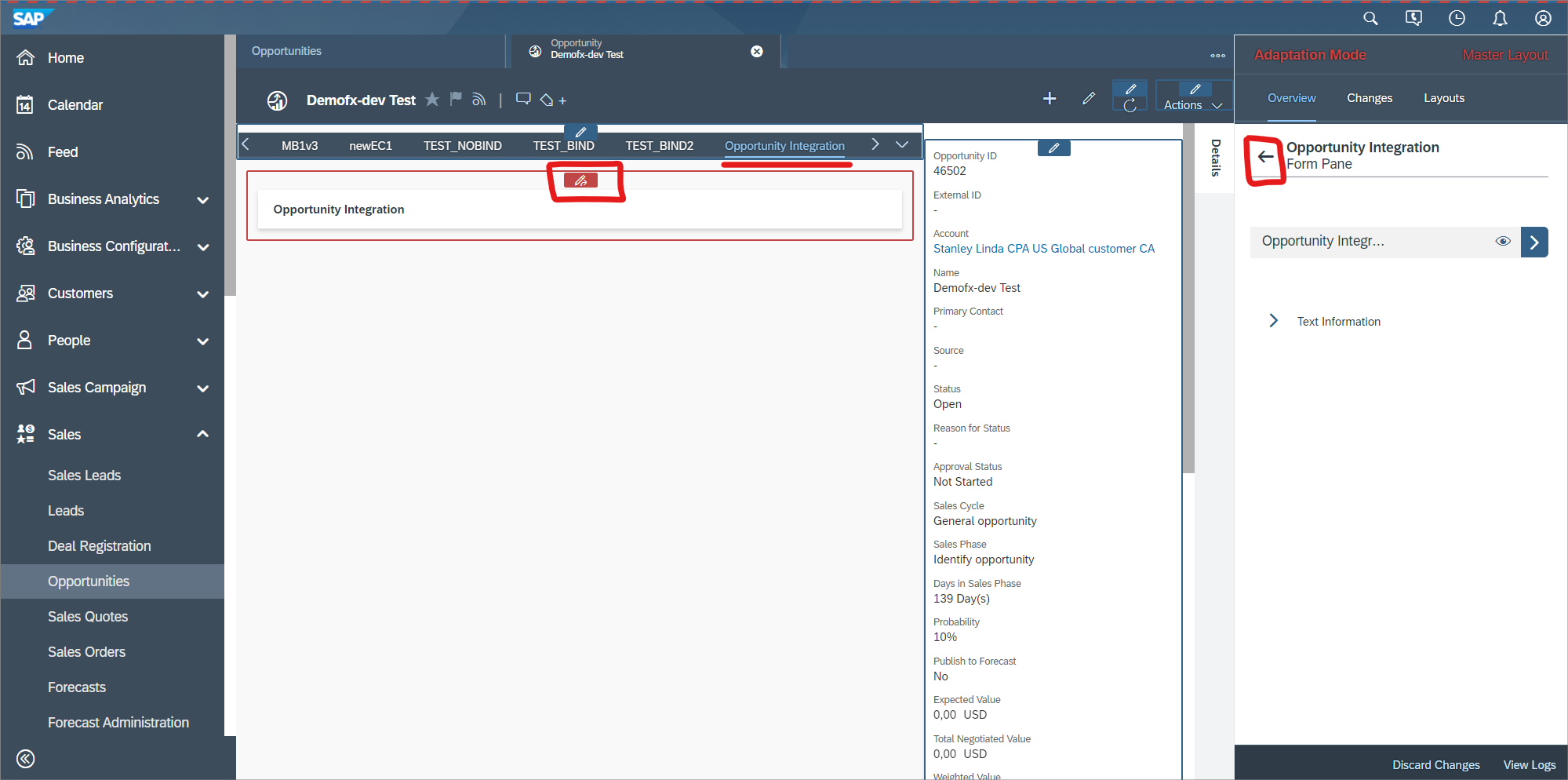
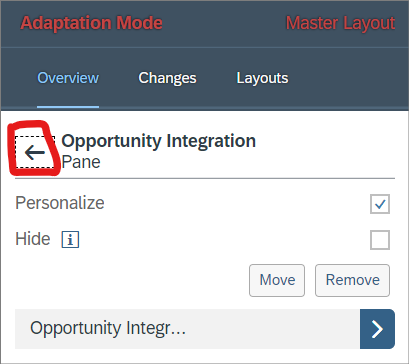
9. Select the newly created tab (Opportunity Integration in this case). Click the Edit icon. Click the back arrow in the menu on the right
|
|
|
10. Once on this level, click the back arrow again. |
|
|
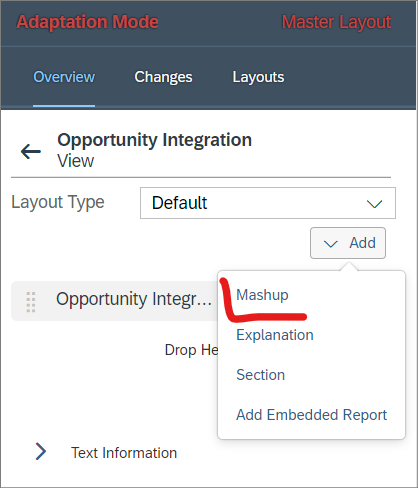
11. Select: Add > Mashup. |
|
|
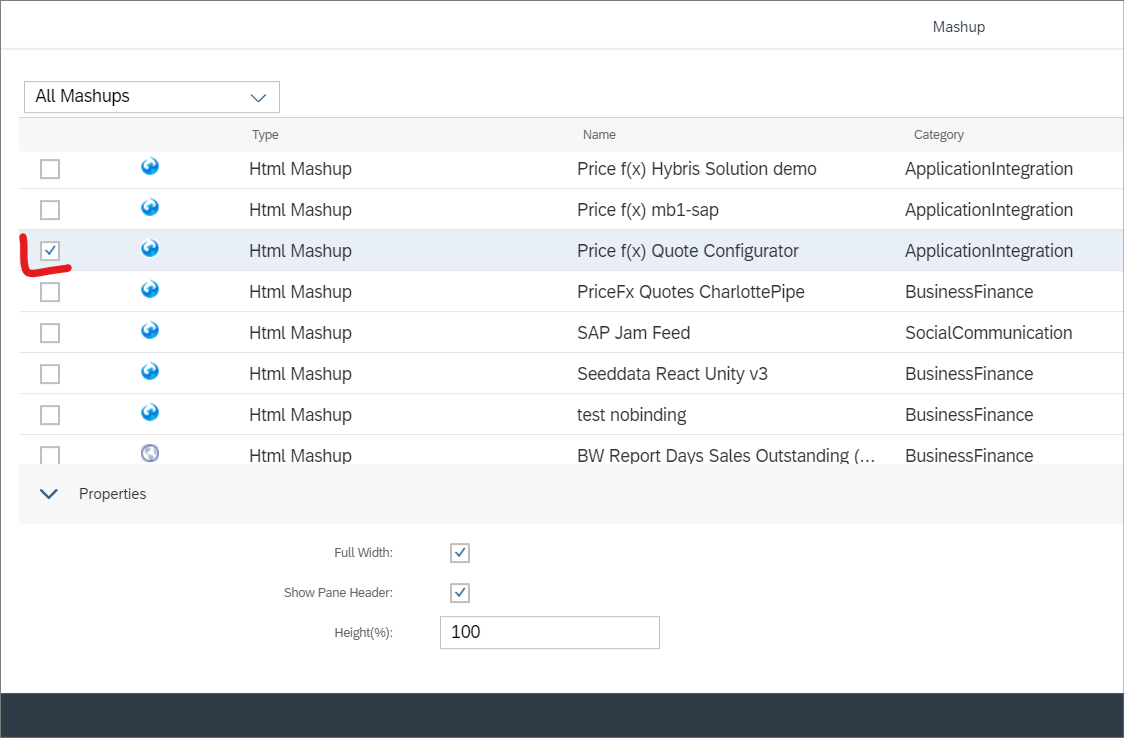
12. Select the desired mashup – check the on the left side (crucial). Check the Full Width option. Enter 100 in the Height field. Click Apply. |
|
|
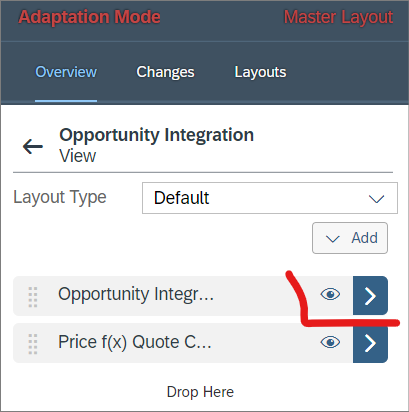
13. Go to the original item. |
|
|
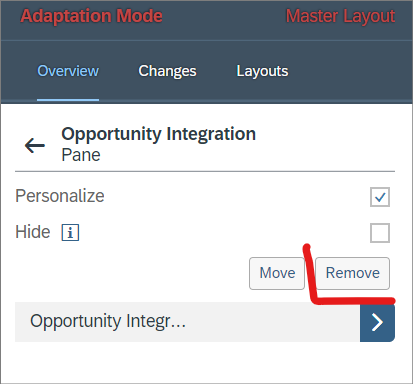
14. Remove it. Sometimes this seems to be deleted but after you click End Adaptation, it appears again. It is fine to check Hide and this item will not be displayed anymore. |
|
|
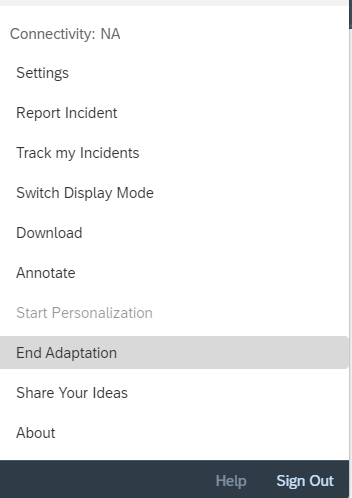
15. End Adaptation.
|
|
|
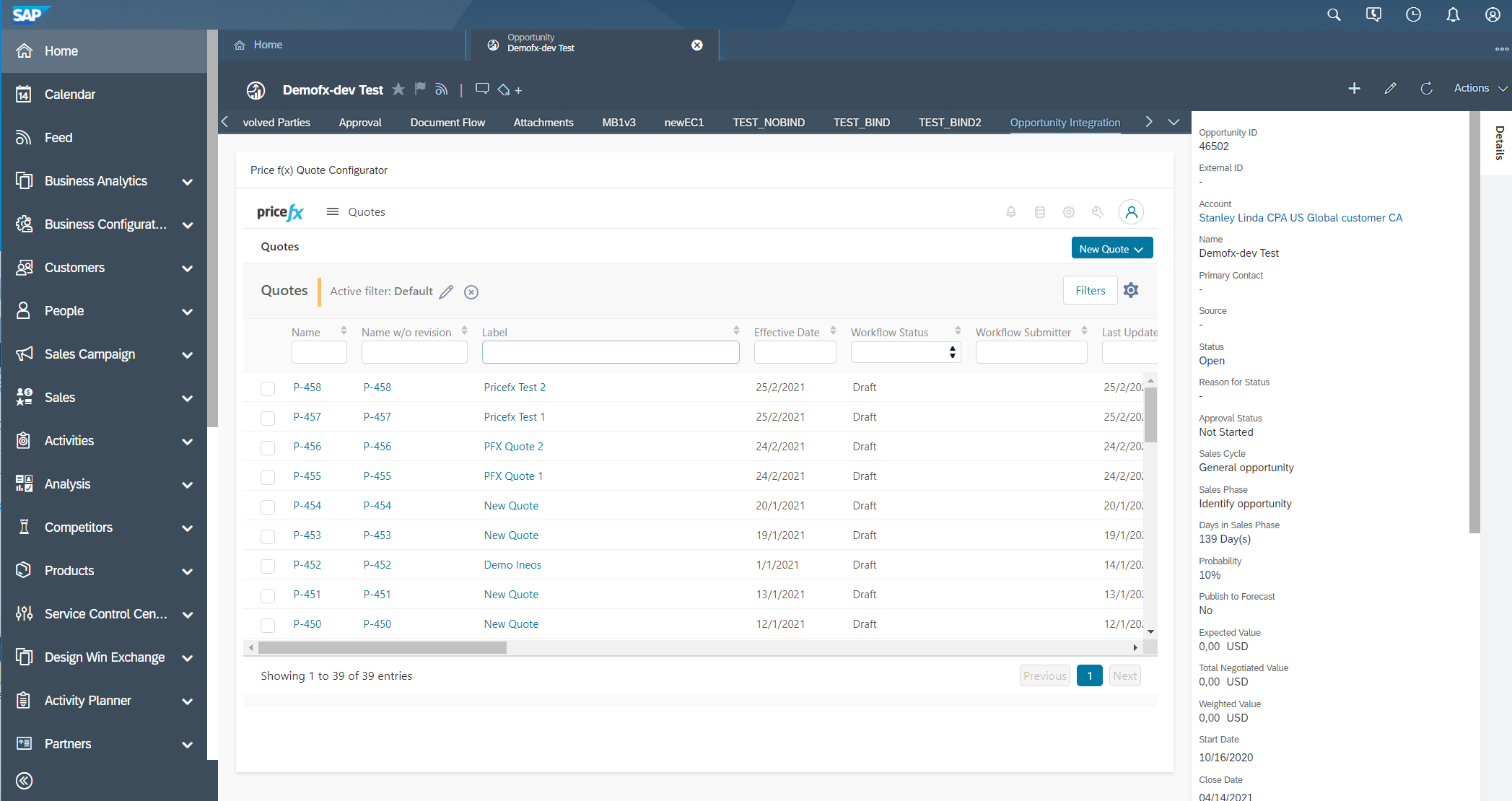
15. You are have a working iFrame of the Pricefx application. |
|
Old Approach (Using Application Studio)
-
Right click MashupAuthoring > Create HTML Mashup.
-
In Port Binding select opportunity.
-
Add HTML code, save and close.
-
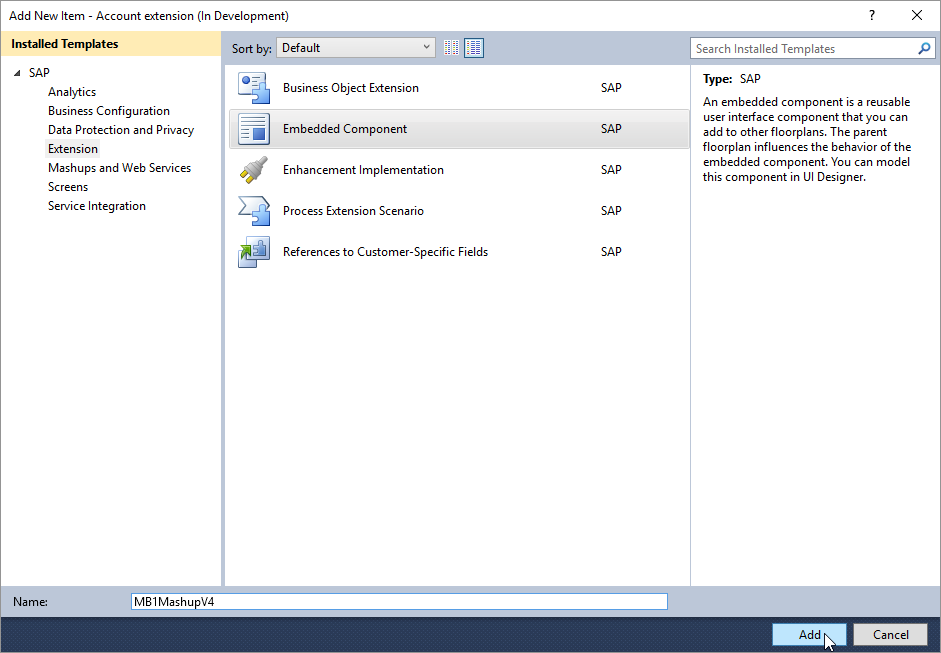
Click Add new item, select Embedded Component and set the name at the bottom of the window.
-
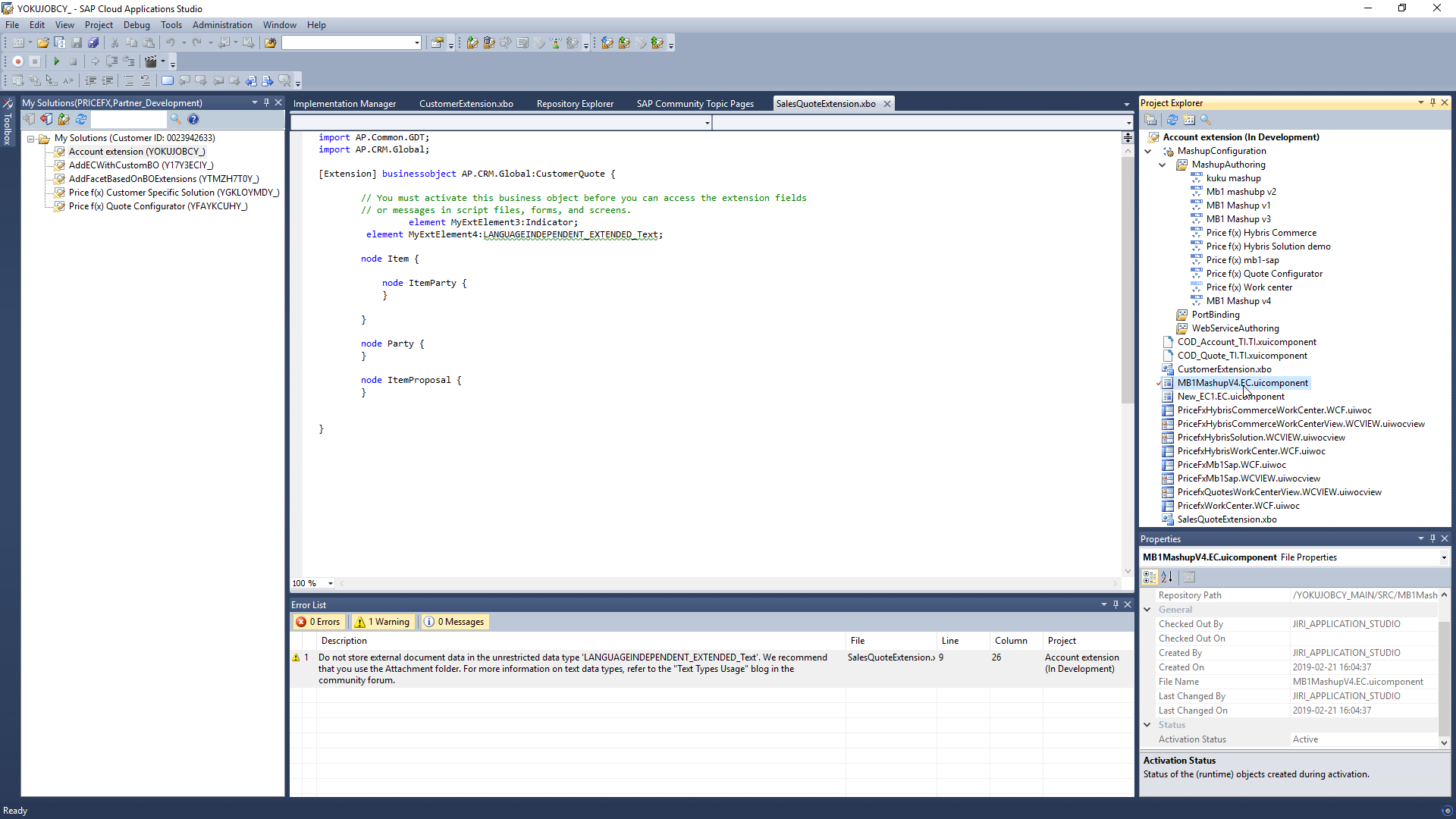
Double click the newly created component to edit it.
-
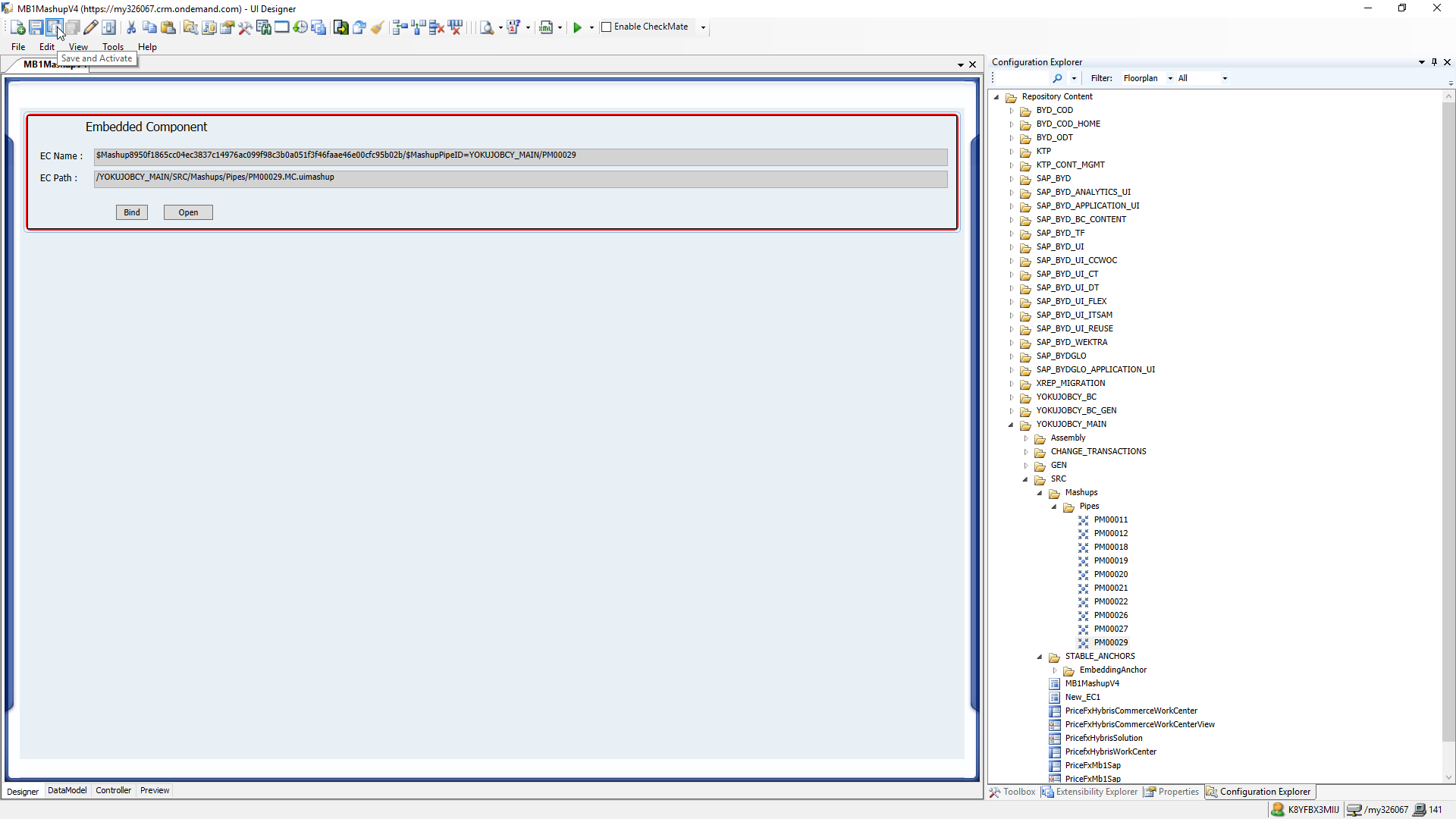
Select the mashup from Configuration Explorer and use drag & drop to move it to the pane.
-
Save and activate the component.
-
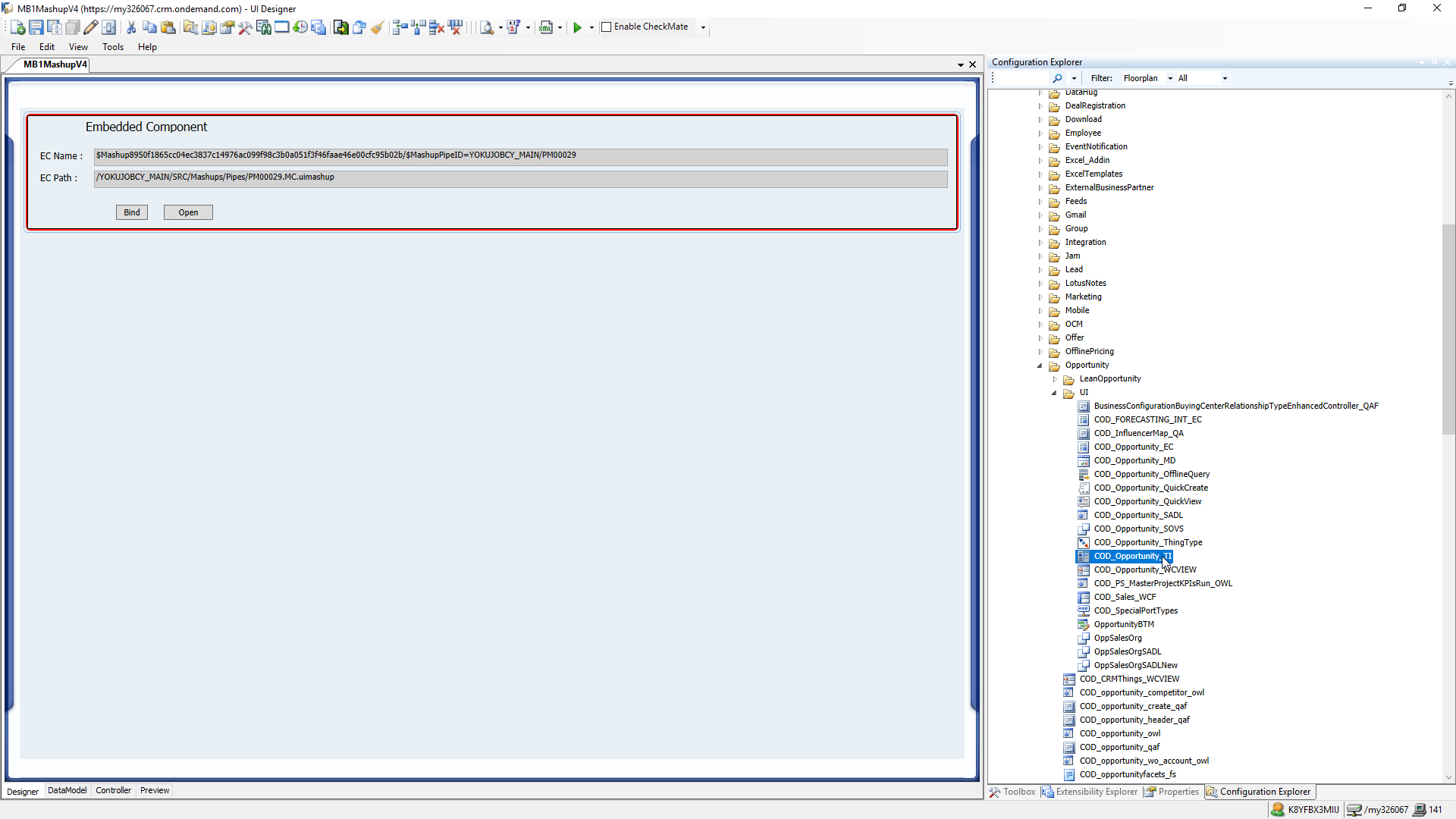
Open Repository Content > BYD_COD > SalesOnDemand > Opportunity > UI > COD_Opportunity_TI.
-
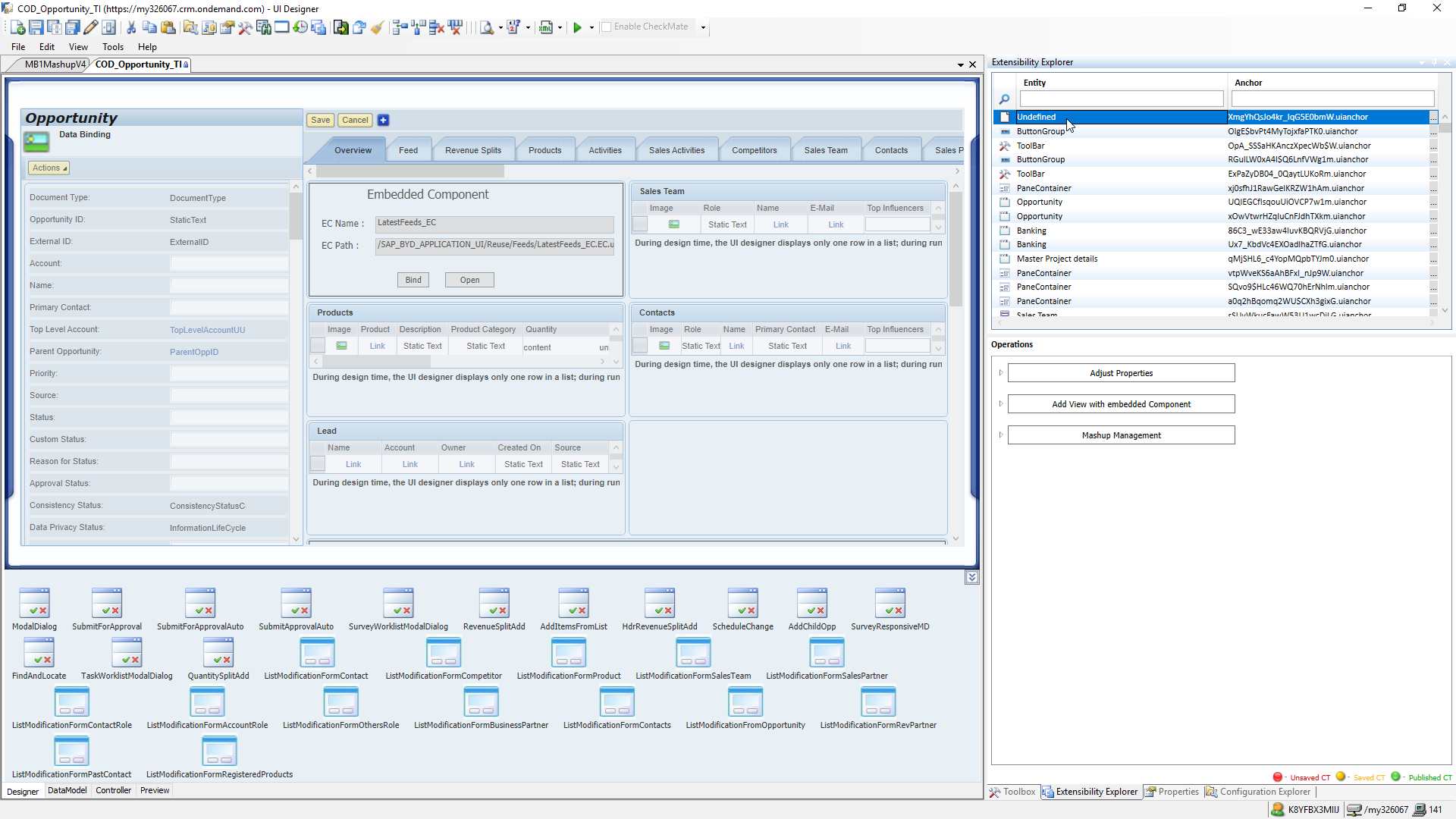
Switch to the Edit mode using the pencil icon.
-
Click the first item in the Extensibility Explorer (Undefined).
-
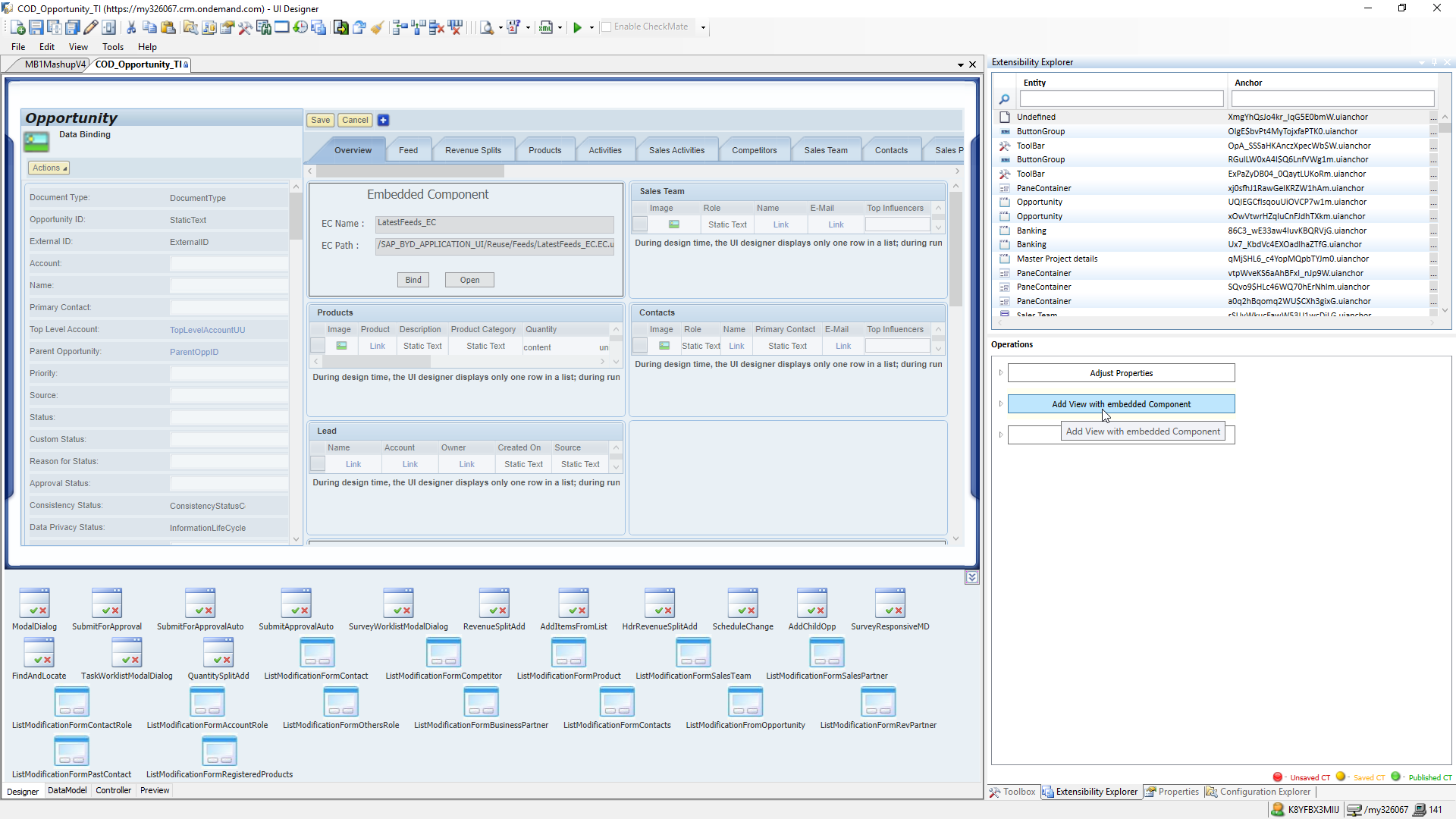
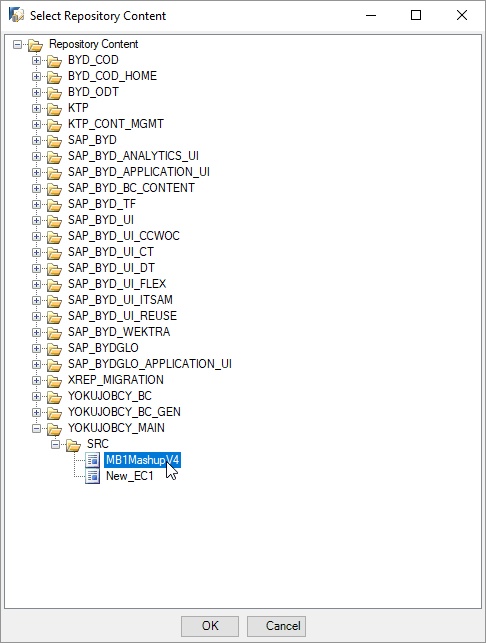
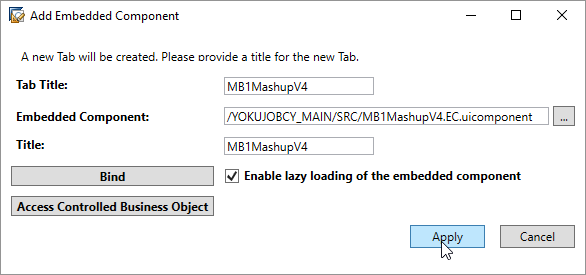
Click the Add View with embedded Component.
-
Set the Tab Title, Embedded Component and Title.
-
Save and activate the COD_Opportunity_TI.
-
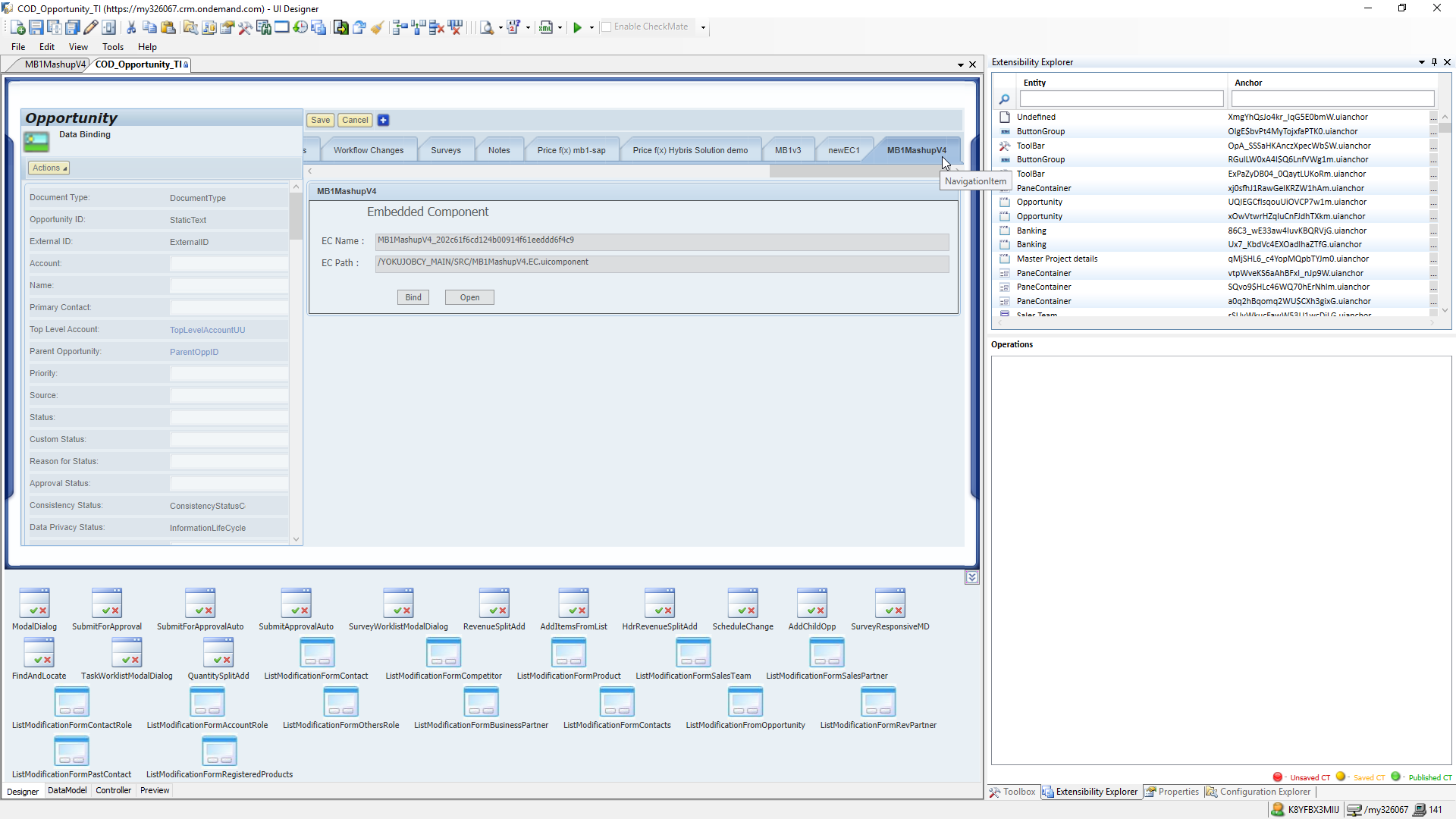
The new tab should appear (refreshing or closing & opening might be needed).
-
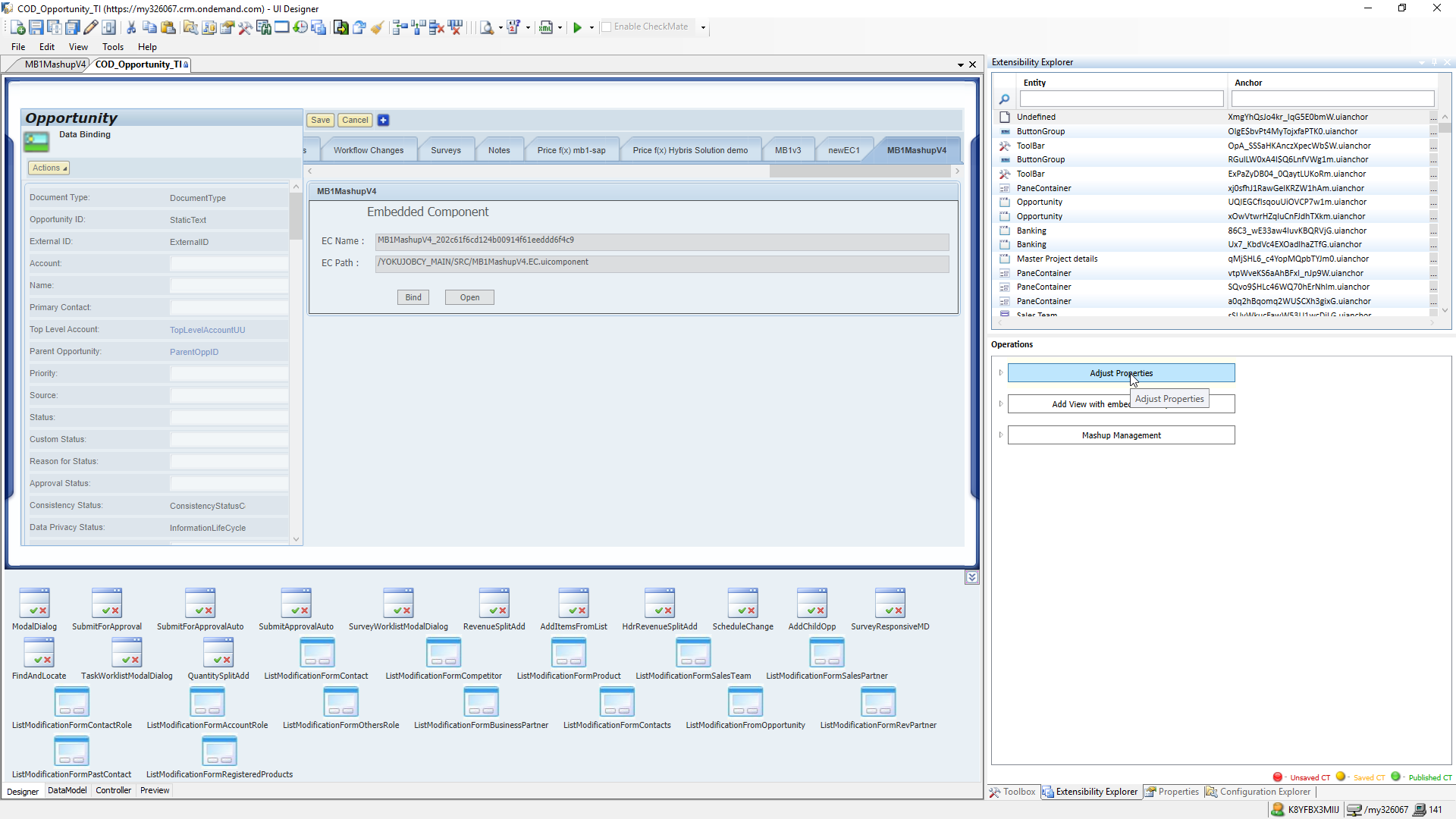
Select Undefined again and Adjust Properties: set enabled = true for the embedded component.
-
Activate all items.
-
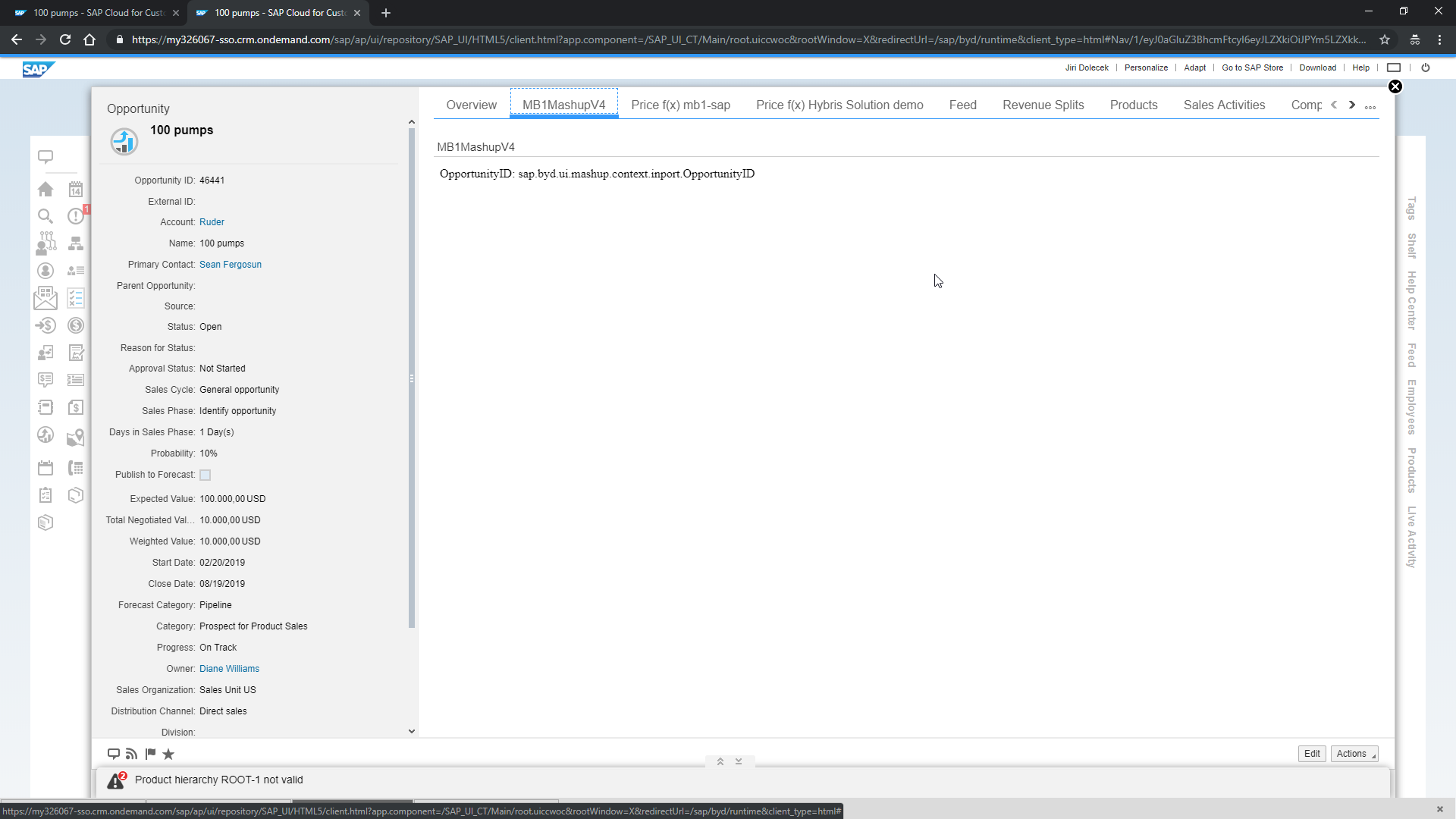
Open the browser, log in using SSO and display the opportunity detail.
-
Launch HTML5, go to the opportunity detail, adapt > Edit Master Layout and the mashup appears there. Then move the tab where needed and End Master Layout.