
This page explains how to register the Pricefx MCP Server in your Pricefx partition and add it as a Model Context Protocol tool in Copilot Studio to create a private connection to the partition.
Prerequisites
You need permission to manage Advanced Configuration Options in the target Pricefx partition.
MCP Server Registration
To use OAuth, MCP server must be registered in the target Pricefx partition. This configuration is defined through the oauthConfiguration Advanced Configuration Option.
-
Log in to your Pricefx partition.
-
Go to Administration > Configuration > System Configuration > Advanced Configuration Options.
-
Click Add.
-
In the Add Option menu:
-
Enter
oauthConfigurationinto Name. -
Enter the following JSON code into Value.
JSON{ "knownClients": { "pricefx-mcp-server": { "redirect_uri": "https://mcp.pricefx.com/<instance>/<partition>/auth/callback" } } }Example:
https://mcp.pricefx.com/mint-stable.pricefx.com/copilot-discretefx/auth/callback
-
-
Click Add.
Create Connection
-
Open Copilot Studio in your browser.
-
Click Tools.
-
Click New Tool.
-
In the New Tool menu:
-
Click Model Context Protocol.
-
-
In the Model Context Protocol menu:
-
Enter Server name.
-
Enter Server description (optional).
-
Enter
https://<mcp domain URL>/mcp/<instance base URL>/<partition>into Server URL.
https://mcp.pricefx.com)
-
-
In the Authentication section:
-
Select OAuth 2.0.
-
In the Type section:
-
Select Dynamic discovery.
-
-
-
Click Create.
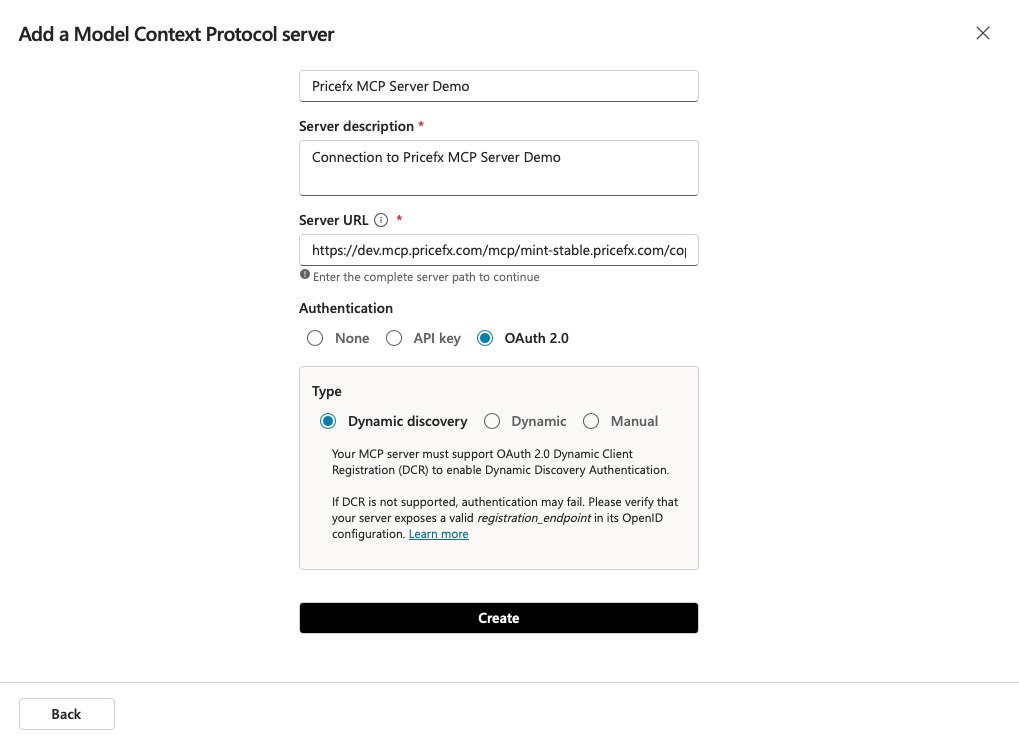
Add a Model Context Protocol server dialog with server name, description, and URL filled in, OAuth 2.0 and Dynamic discovery selected. -
In the Add tool dialog:
-
Click Create new connection.
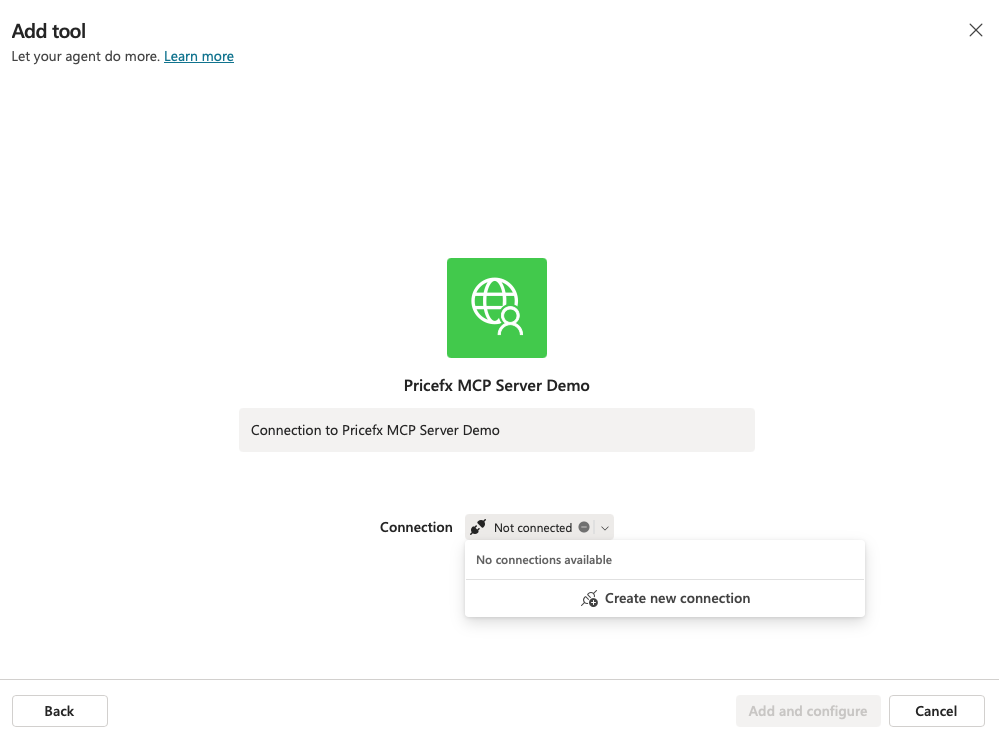
Add tool dialog showing the MCP server with Not connected status and the Create new connection option in the Connection menu.
-
-
In the Connect to dialog:
-
Enter Display name (optional).
-
Click Create.
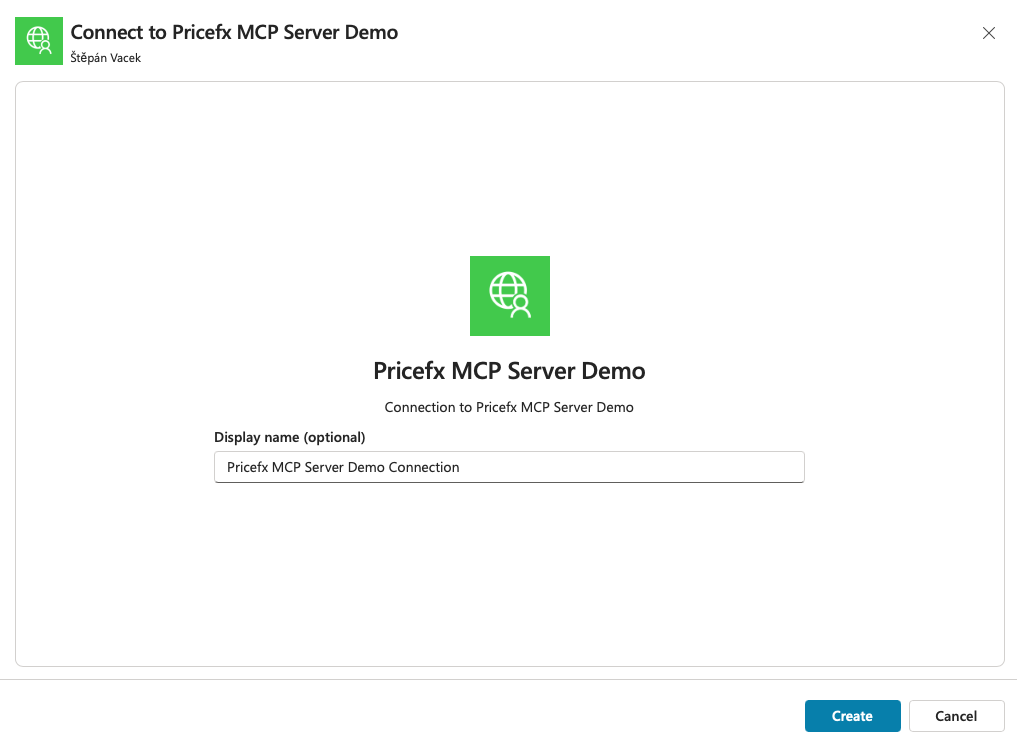
Connect to Pricefx MCP Server Demo dialog with the optional Display name field and the Create button.
-
-
Your default browser will automatically open page with the Allow Access security step.
-
Click Allow access.
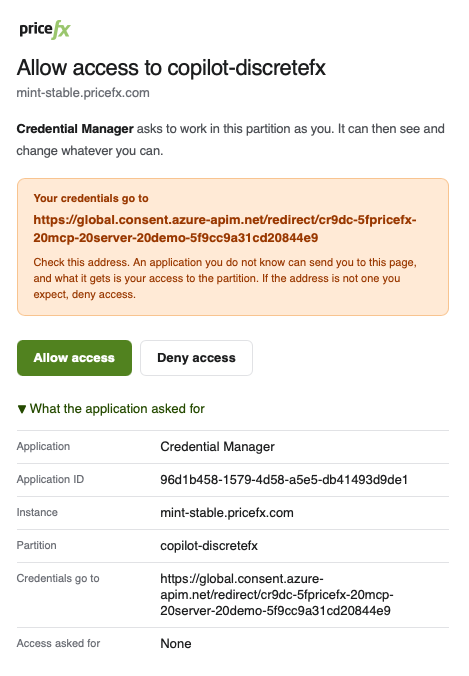
Allow access page asking to grant Credential Manager access to the partition, with the Allow access and Deny access buttons.
-
-
You are redirected to Pricefx login page:
-
Enter your Pricefx credentials for the target cluster and partition.
-
Click Log in.
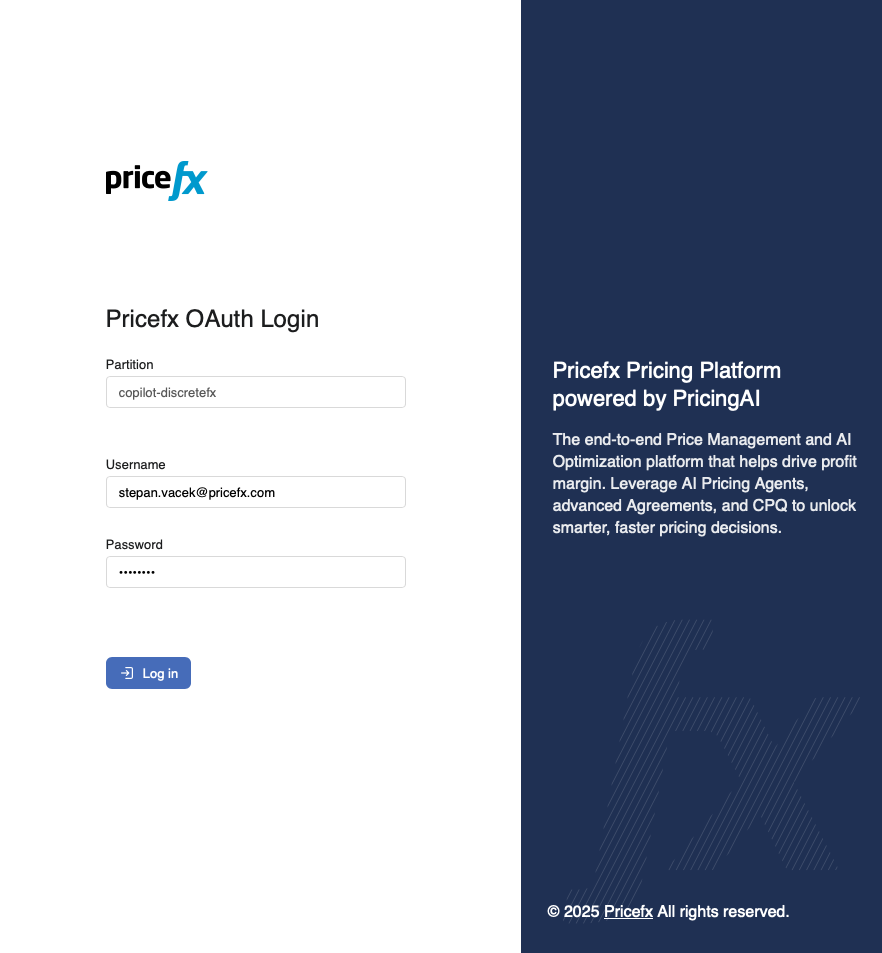
Pricefx OAuth Login page with the Partition, Username, and Password fields and the Log in button.
-
-
On the authorization page, review the requested permissions for the client application.
-
Click Grant Access.
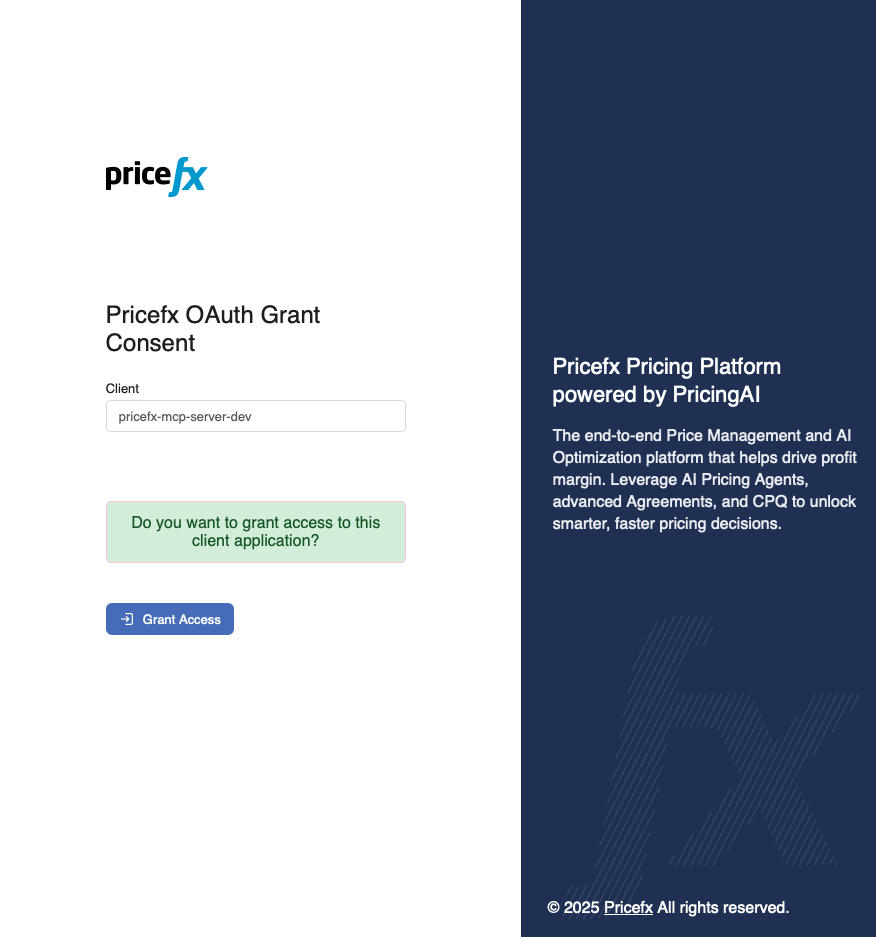
Pricefx OAuth Grant Consent page showing the client application name and the Grant Access button.
-
-
In the Add tool dialog:
-
Click Add and configure.
-
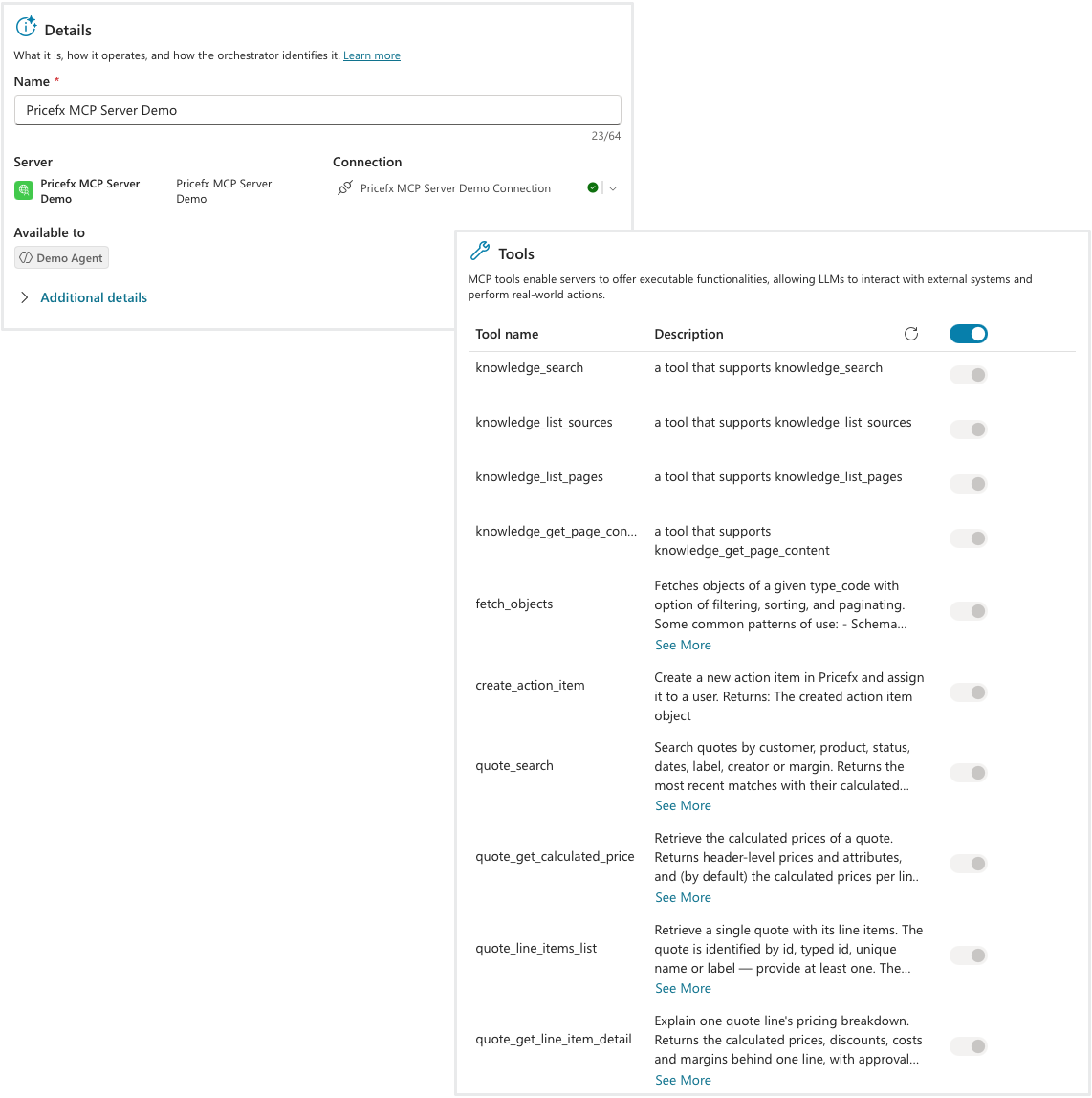
You can verify access in the tool details page with the active connection and the list of available Pricefx tools. You can turn individual tools on or off.
See Also