
In this section you learn how to create a quote in Pricefx and interpret the Waterfall Chart that helps visualize the quote’s pricing structure and profitability.
Prerequisites
-
Access to the Pricefx Quoting capability.
-
At least one product and customer record available.
-
Familiarity with basic quoting workflow in Pricefx.
Steps
1. Create a New Quote
-
Open the Quoting module.
-
Select Create Quote.
-
Choose a Customer and add at least one Product.
-
Set a Quantity (e.g., 70 units).
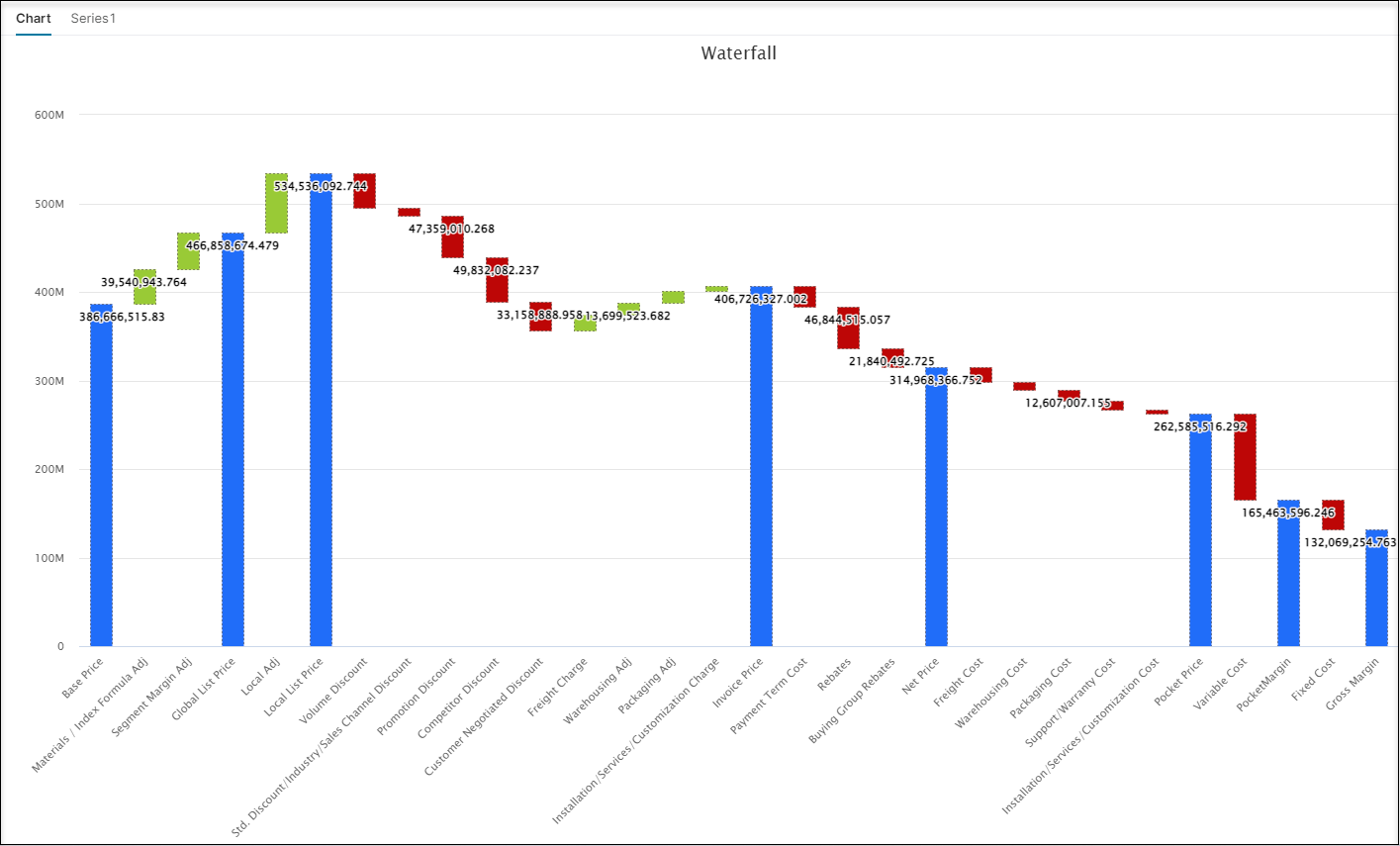
You’ll see the Waterfall Chart appear in the Header section of the quote.
-
View the Waterfall Chart
The chart shows a breakdown of price points and adjustments — from Base Price to Gross Margin — reflecting how different pricing elements affect profitability.
-
Blue bars: price points (e.g., Base, List, Net).
-
Green bars: markups or charges.
-
Red bars: discounts or deductions.
3. Modify Quote Values
Change the quantity (for example, from 70 to 200 units).
The system recalculates and refreshes the Waterfall Chart automatically.
You’ll see the updated effects on each pricing level and on the overall margin.
4. Interpret the Result
Use the chart to understand:
-
How discounts, rebates, and charges affect the quote.
-
Whether the quote remains profitable.
-
How different elements (e.g., freight or promotions) shape your margins.
5. Add Discounts and Promotions
-
In the Quote Details section, review any applied discounts.
-
Use Agreements & Promotions to apply existing promotions, volume discounts, or channel incentives.
-
Save changes — the Waterfall Chart recalculates to show new deductions.
6. Add Freight, Packaging, or Service Charges
-
Within the quote, locate the Additional Charges or Services section.
-
Add relevant costs such as:
-
Freight or warehousing
-
Packaging and handling
-
Installation or customization
-
-
The updated chart now reflects these costs as additional positive bars.
7. Review Rebate Impacts
-
Open the Rebates module to verify customer- or product-specific rebate agreements.
-
Pricefx automatically applies applicable rebates to your quote.
-
Observe how they reduce the Net Price and affect the Pocket Margin.
8. Evaluate Quote Health
After updating discounts and costs, check the final Gross Margin in the Waterfall Chart.
If the margin drops below target thresholds, consider adjusting prices or discounts.
In Pricefx, the Waterfall Chart integrates data from multiple modules — Pricing, Quoting, Rebates, and Agreements — to display a live, data-driven picture of your quote.
Every time you modify a quote (change quantity, apply promotions, add costs), the chart updates dynamically to reflect real-time pricing changes.
Why It Matters
The Pricing Waterfall helps you:
-
Identify which discounts or costs have the biggest impact on margin.
-
Ensure quote profitability before final submission.
-
Make data-driven decisions about competitive pricing.
-
Build transparency into complex pricing processes.
See Also
-
Quoting with the Waterfall Chart - video tutorial and explanation