
Creating a new Quote in the Quoting capability in Pricefx is straightforward and requires only a few steps.
A Quote in Pricefx is a detailed offer for one or more products, calculated using your company’s pricing logic.
Prerequisites
Before jumping in, make sure you have got these basics covered:
-
Products & Customers → Already set up in your Master Data.
-
Data in Analytics → So the system can reference past sales and trends.
-
Calculation Logic → Your pricing rules are in place.
-
Workflow → Approval process is set if your company requires it.
If you’re not sure, a quick check-in with your Pricefx administrator can save you time later.
Find Quoting
Navigation: Pricefx > Quoting > Quotes
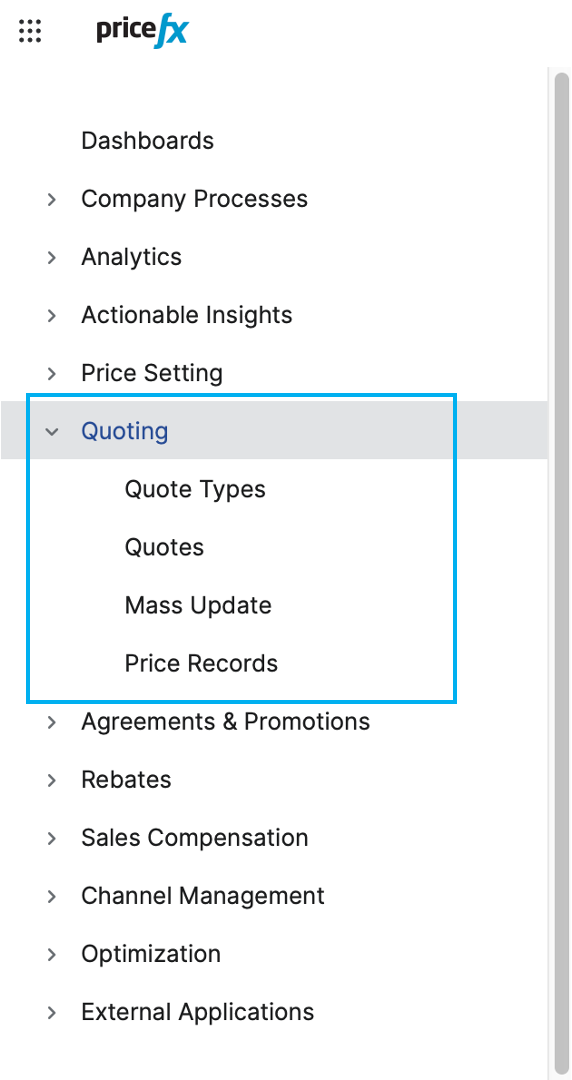
In the Quoting menu, you will see these key sections:
-
Quote Types: Pre-built templates your company made for you. They might already have rules, calculations, and permissions in place.
Using the right type from the start can save you from rework later.
-
Quotes: Your list of everything in progress or completed.
-
Mass Update: A tool (bulk edit) for multiple Quotes at once.
-
Price Records: Historical records of approved Quotes.
Start a New Quote
-
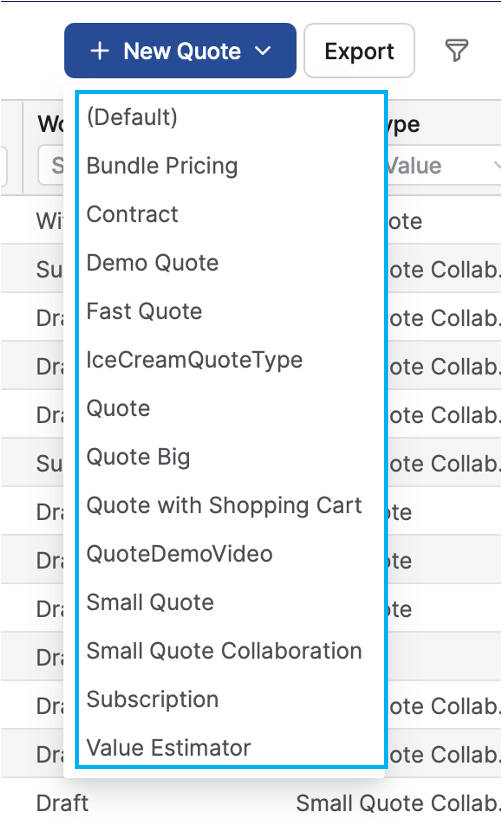
Click + New Quote (

-
Pick the Quote Type that matches your needs.
-
Your Quote will be auto-saved immediately.
If you close your Quote at this time by mistake, you would get a warning dialog asking if you really want to discard it. In this way, Quotes that are incomplete or not to be used, will not overcrowd your data.
If you are not sure which type to choose, check your team’s playbook or ask a colleague as choosing the wrong type might hide or lock some fields you need.
Fill in the Header Tab
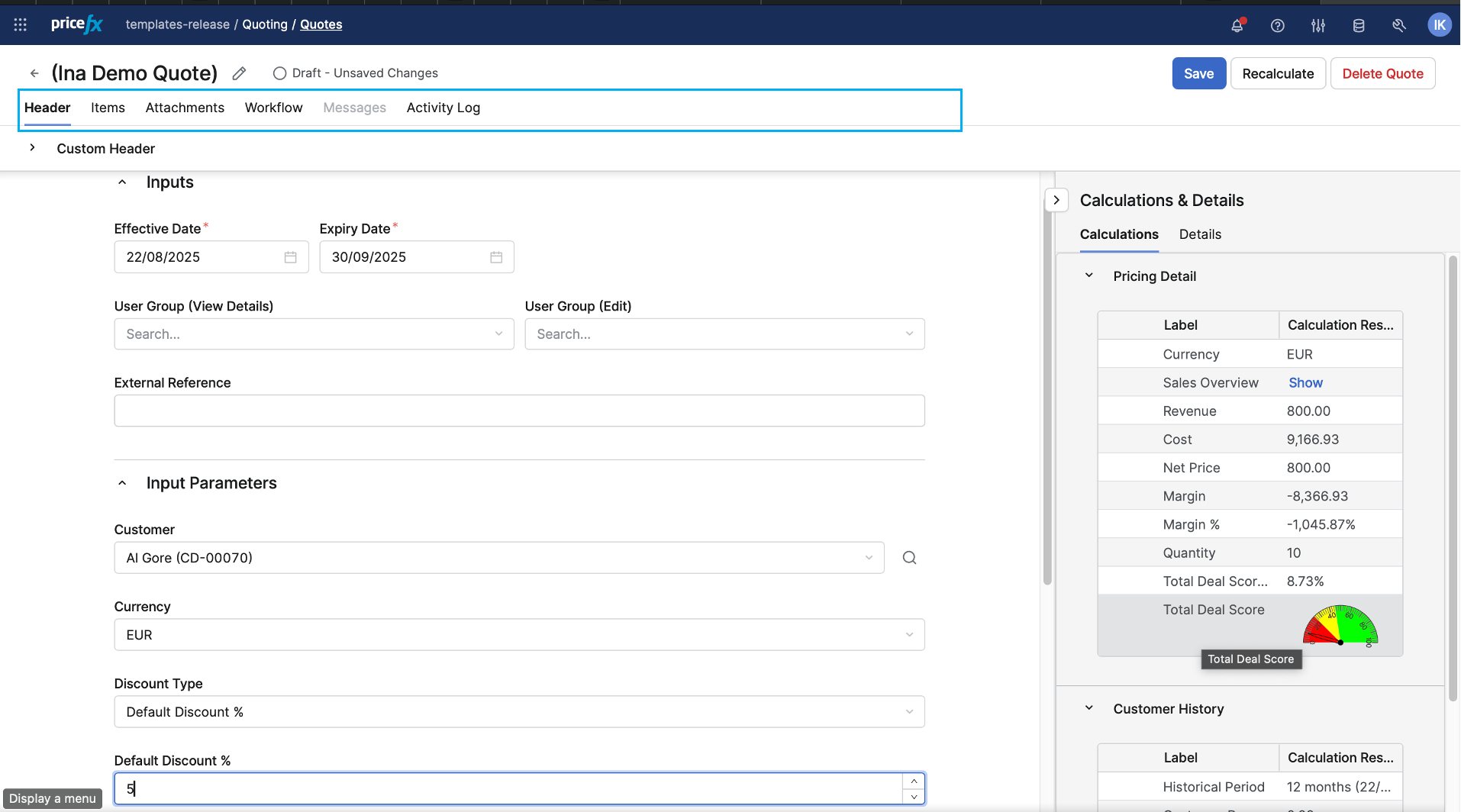
This is where you set the big picture details:
-
Effective Date & Expiry Date (required): Pick from the calendar.
The validity period for any Quote is the minimum required information to fill in.
-
External Reference: Link to related documents or another Quote.
-
User Group Access: Control who can view or edit.
-
Discounts (optional) → Select discount type and percentage.
⚠️ Adding a global discount here locks individual item pricing edits.
-
Customer: If you know their ID, type it in. You can also browse using the magnifying glass.
-
Currency: Auto-fills once you choose a customer, or you can select from the list.
-
Extra Charges: Add installation, services, or customization percentages.
On the right-hand side, expand Calculation & Details > Pricing Details to see customer history, 12-month forecasts, and sales overviews. It is your cheat sheet before finalizing your Quote.
Add Products in the Items Tab
Here is where your Quote starts to take shape:
-
Click + Add Items to search for products. For quick adds: use the search bar. For bigger lists: Click Browse Items to browse and filter.

-
In the Select Products dialog, check the Recommended tab (if enabled for your project) for upsell ideas.
-
Select the products.
-
Click Select to add them.
-
Optional: Organize products into folders. You can do this by selecting products then click on Add to New Folder in the bottom right corner.
-
-
Set quantities and prices (unless you applied a global discount).
-
Hit Recalculate to see your updated totals in the Waterfall chart.
Data deep-dive: Select a product to view analytics like competitor pricing, promotions, and margin alerts. This can help you justify your offer.
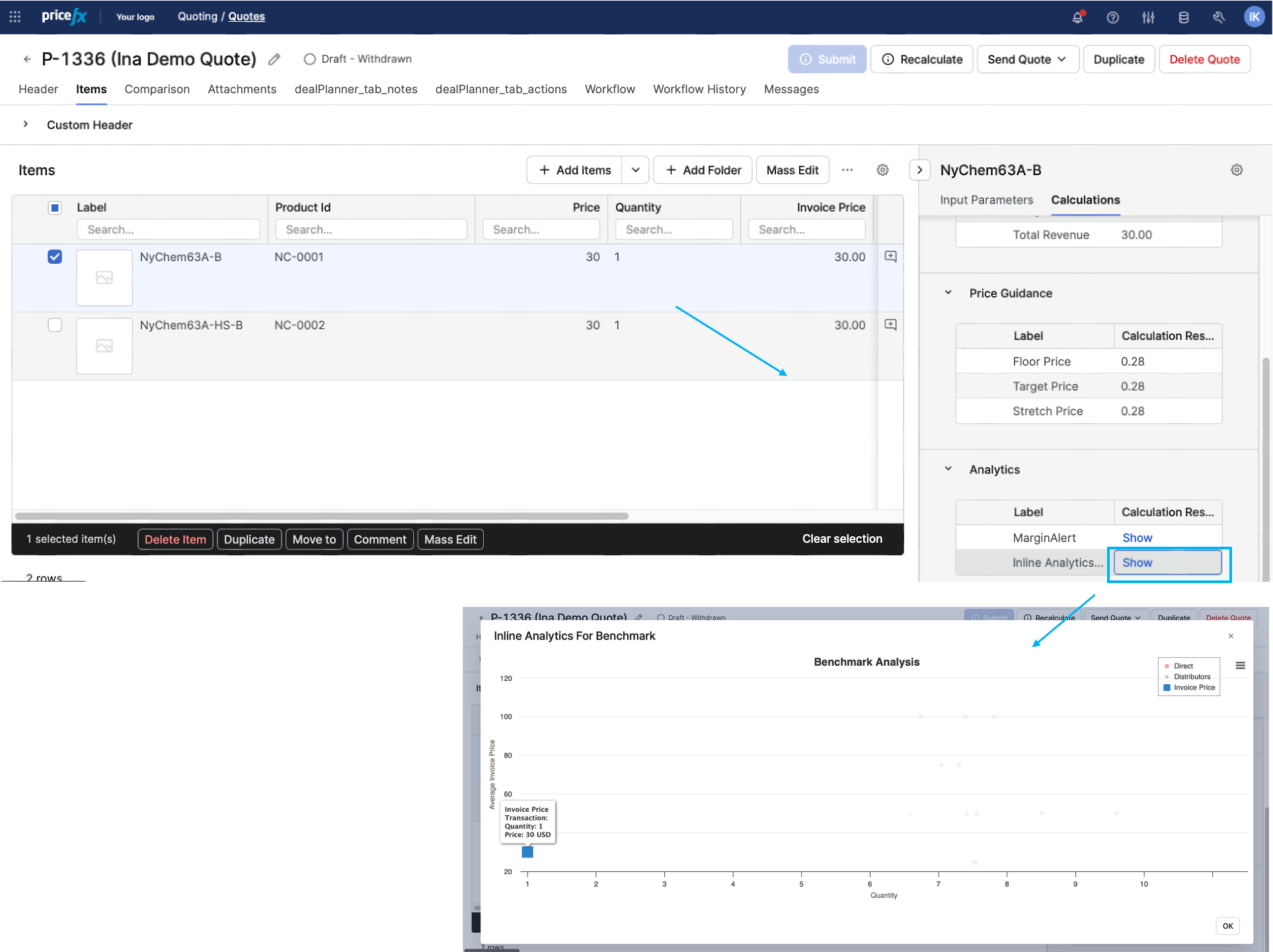
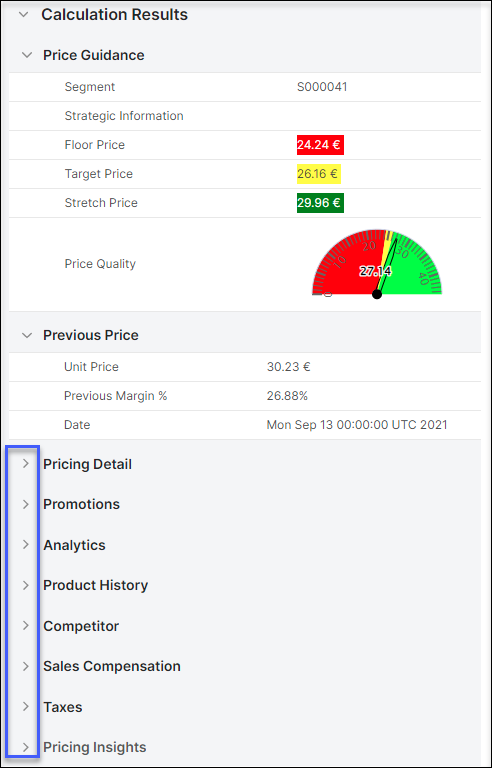
If you make changes remember to hit Recalculate from time to time as the recalculation process will show any errors as you go along and you can learn from and correct them as you move along.
Check the Other Tabs
-
Attachments: Upload contracts, T&Cs, or supporting files.
-
Workflow: See who needs to approve and if/where it is stuck.
-
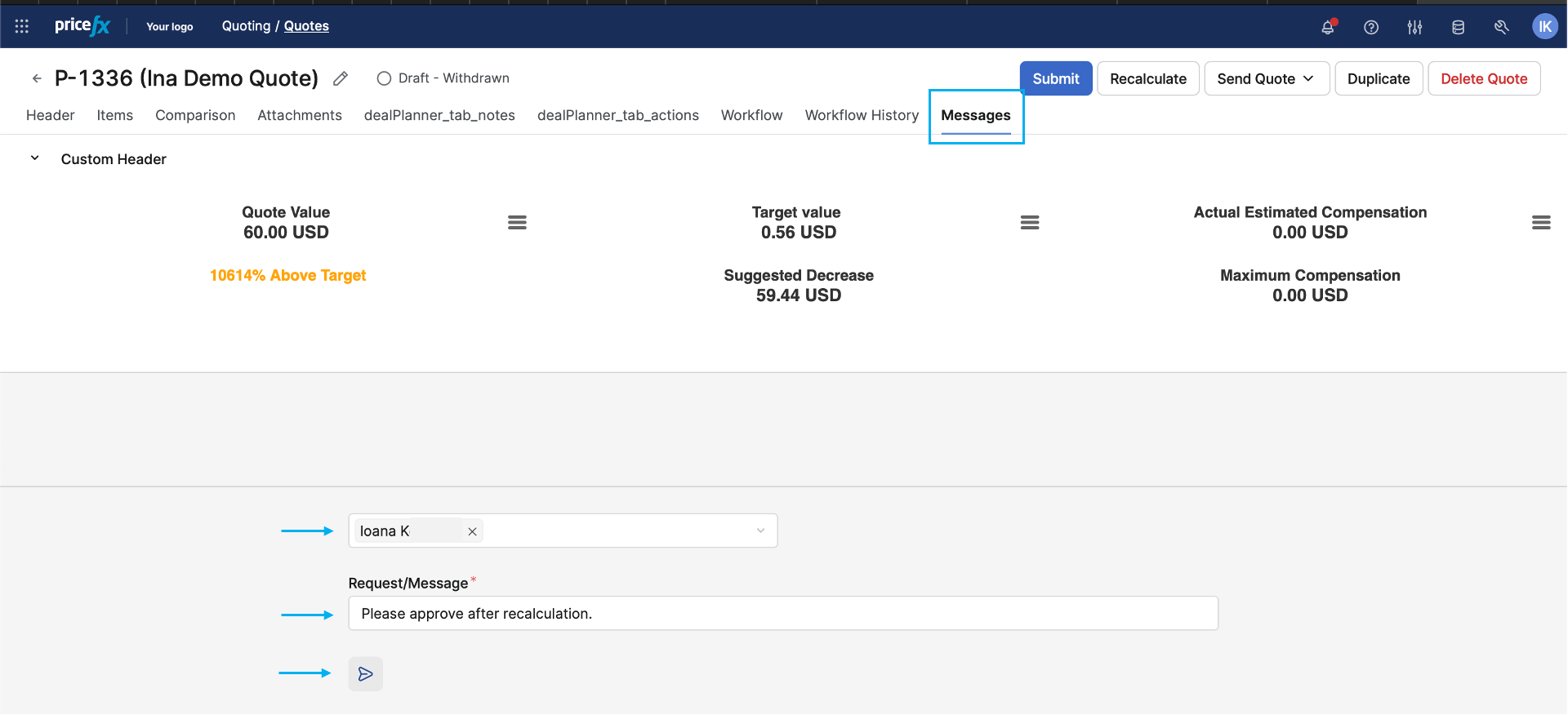
Messages: Send quick notes to colleagues linked directly to this Quote. They will get an email notification. Select a recipient from the list, type your message, then click the arrow to send.
-
Insights (if available): See customer dashboards, history, and key metrics.
To get insights you should have Customer Insights and Sales Insights accelerator packages installed.
Submit and Send
-
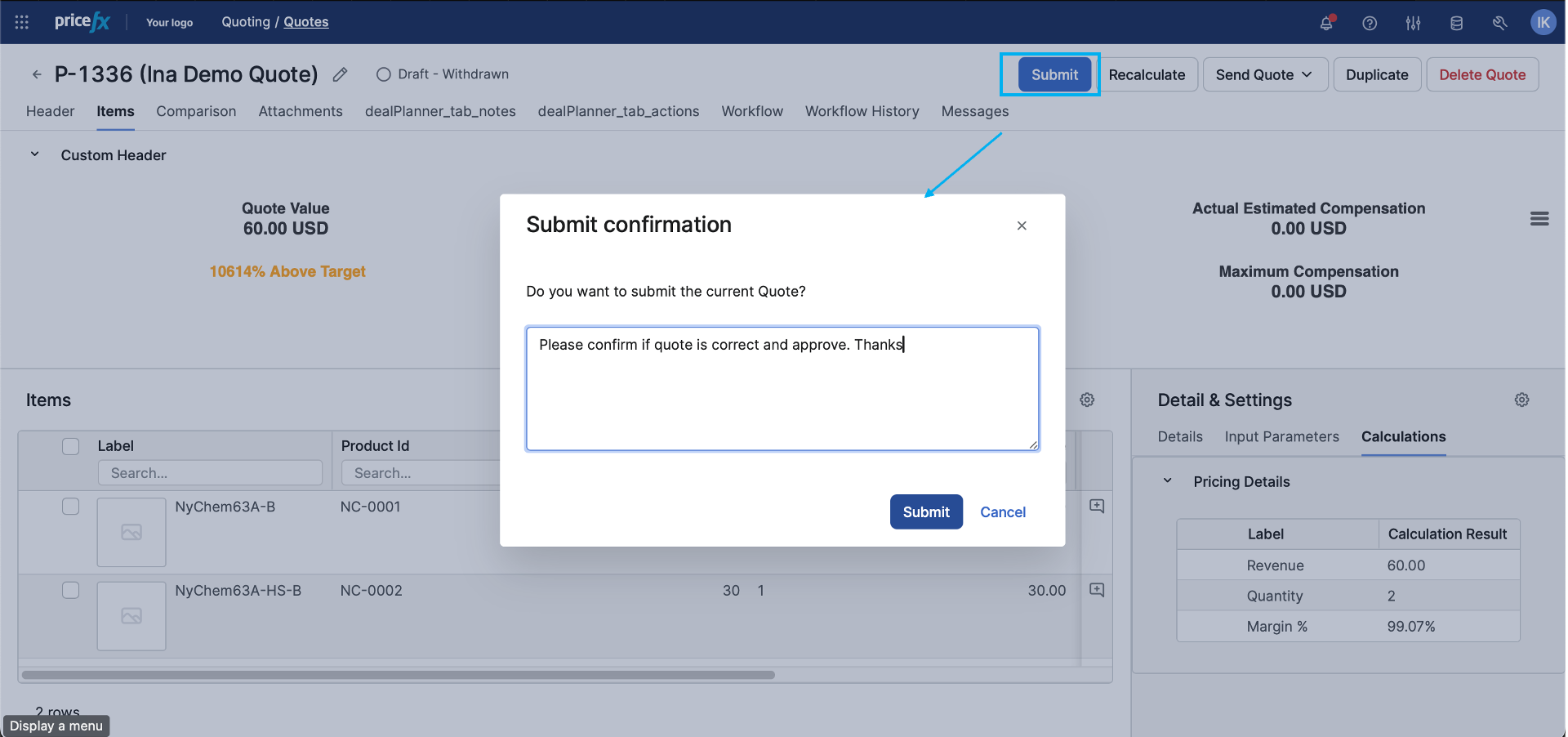
Click Submit for approval (if required).

-
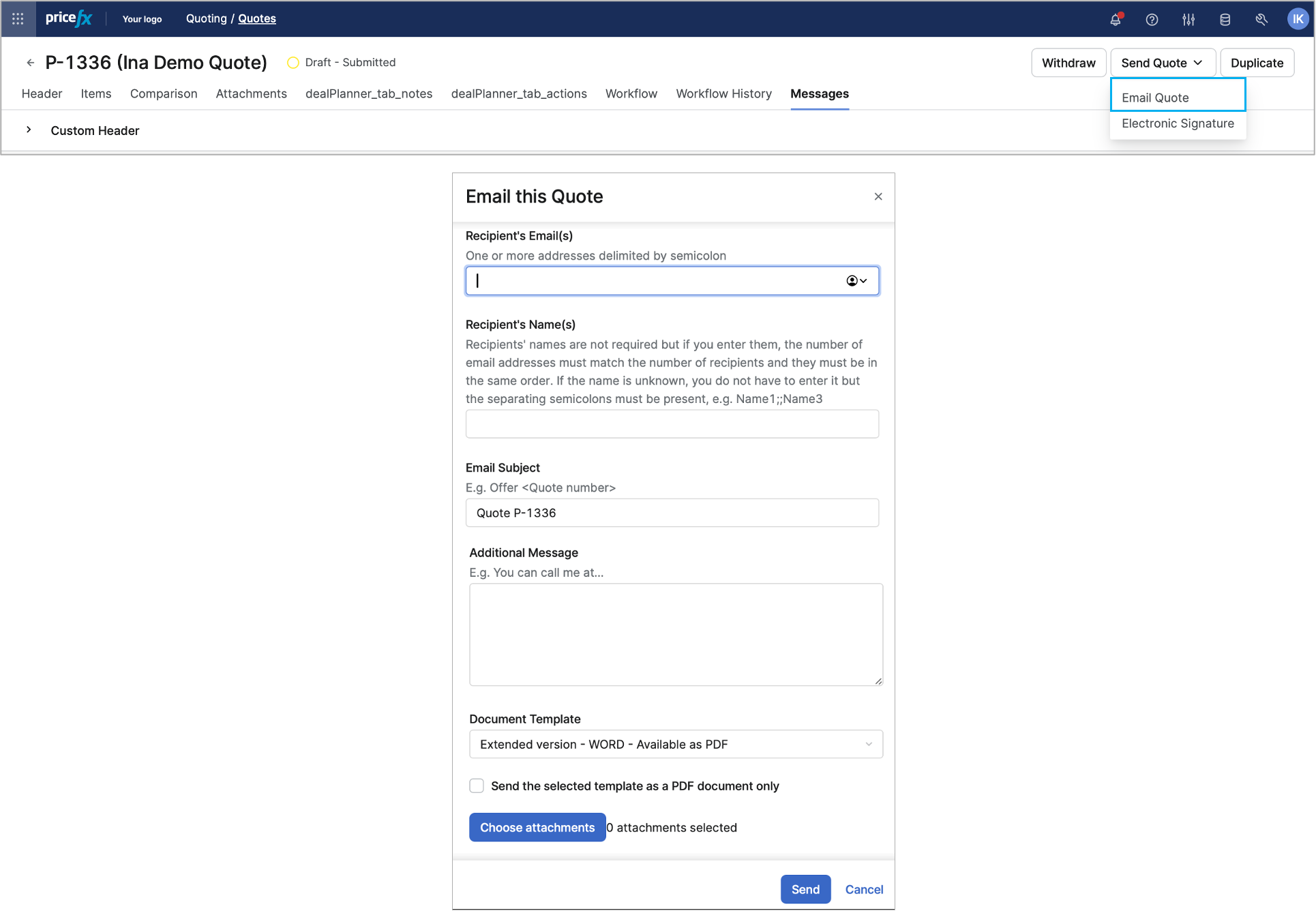
Once approved, choose Email Quote. Pick a preformatted template (with logo, legal text, etc.) Optionally send as PDF only. Add extra attachments if needed.
-
If DocuSign is integrated, your customer can approve electronically.
After Customer Acceptance
-
Pricefx creates a Price Record automatically.
Pricefx can be configured to either save the Quote automatically each time it is changed or leave it up to the users to save the Quote only when they are happy with the changes.
-
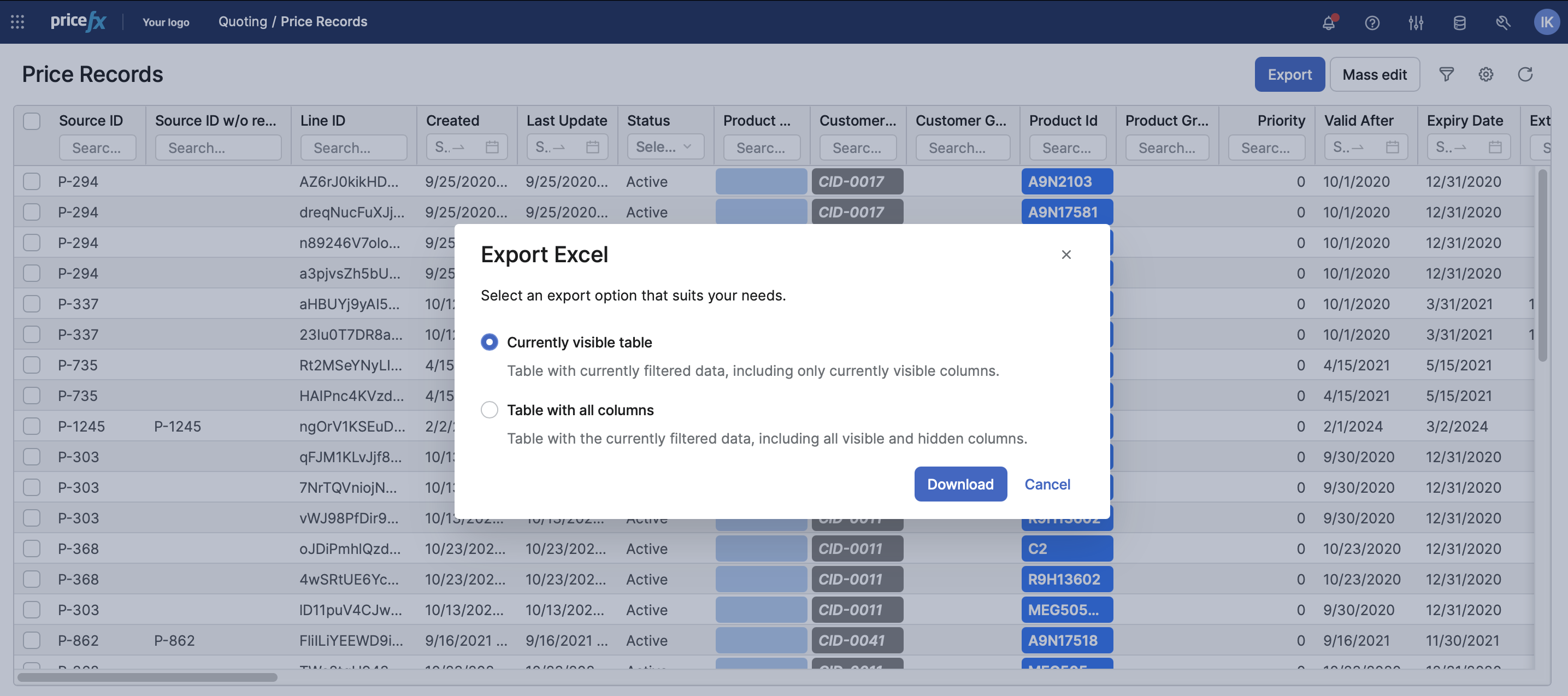
You can export the Quote to XLSX, DOCX, or PDF for archiving.
-
Move it to a folder in the Categories tree for future reference.
See Also
-
How to Create a Quote (video) - quick video tutorial on Quote creation
-
Quote Creation (video tutorial) - in depth walkthrough and explanations
-
Notification on Concurrent Editing - reference on simultaneous editing