
You can create a Live Price Grid from the existing Price Setting Type.
Define Live Price Grid
-
Go to Price Setting > Live Price Grids.
-
Click the New Price Grid button.
-
Select a Price Grid Type from the drop-down menu.
-
Enter Label. Based on the selected Price Setting Type, values in the fields will be pre-selected.
-
You can find out all details about pre-selected fields when you click From template.
-
Click Contine to Products.
Select Products
-
Select individual products or add all products in the (filtered) view.
Alternatively, enter product IDs on the Text entry tab.
Note: You can even configure an LPG with zero products (products can be added on the fly using a dynamic filter). In this case, a Default pricing logic (see below) must be specified.
Product images can be displayed in-line in the Label column. Upload the images in the Product Detail View and make sure the
showProductImagesInPriceBuilderfeature flag is enabled. -
Click Select Filter or Select.
Set Parameters
-
Based on the selected Price Setting Type, values in the fields will be pre-selected.
-
You can find out all details about pre-selected fields when you click From template.
-
Click Continue.
Custom Columns
-
The output element’s visibility is defined based on the selected Price Setting Type.
-
Select the Output Columns.
-
Click Continue.
System Columns
Optionally you can hide the system columns (default output values) in the Live Price Grid.
-
Hide in item list – If checked, the given element is not displayed.
-
Click Save.
Types of Pre-Selection Field Options
Based on a concrete setup of the Price Setting Type fields can be:
Empty and Open for Editing
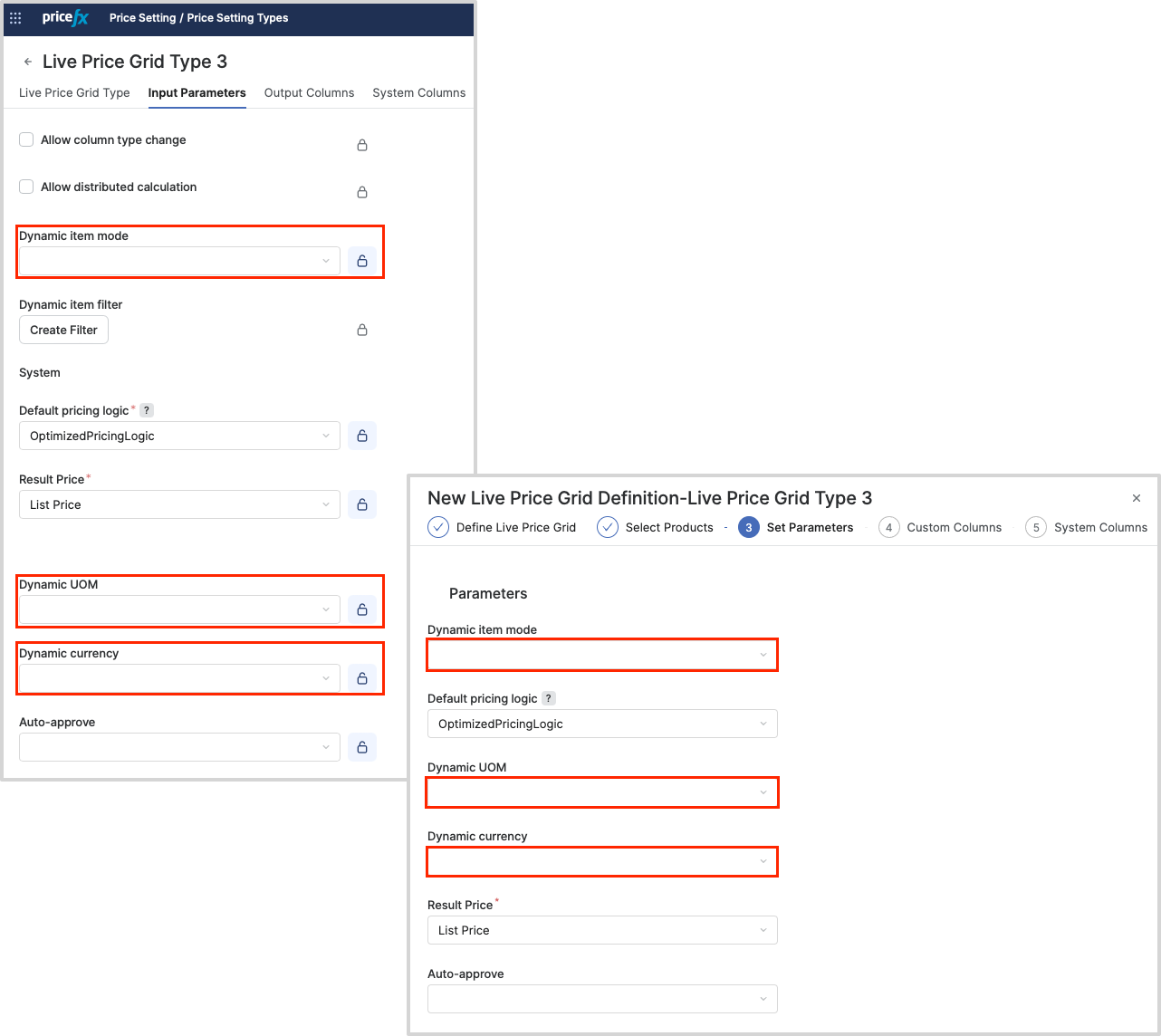
In the following example, you can see that in Live Price Grid Type 3, the Dynamic item mode, Dynamic UOM and Dynamic currency are not pre-filled and open for modifications. This means that when you create a new Live Price Grid using the Live Price Grid Type 3 price setting type, the values for these fields are left blank and open for modifications.
Pre-selected from the Price Setting Type Template
Pre-selected with an Option to Edit the Field
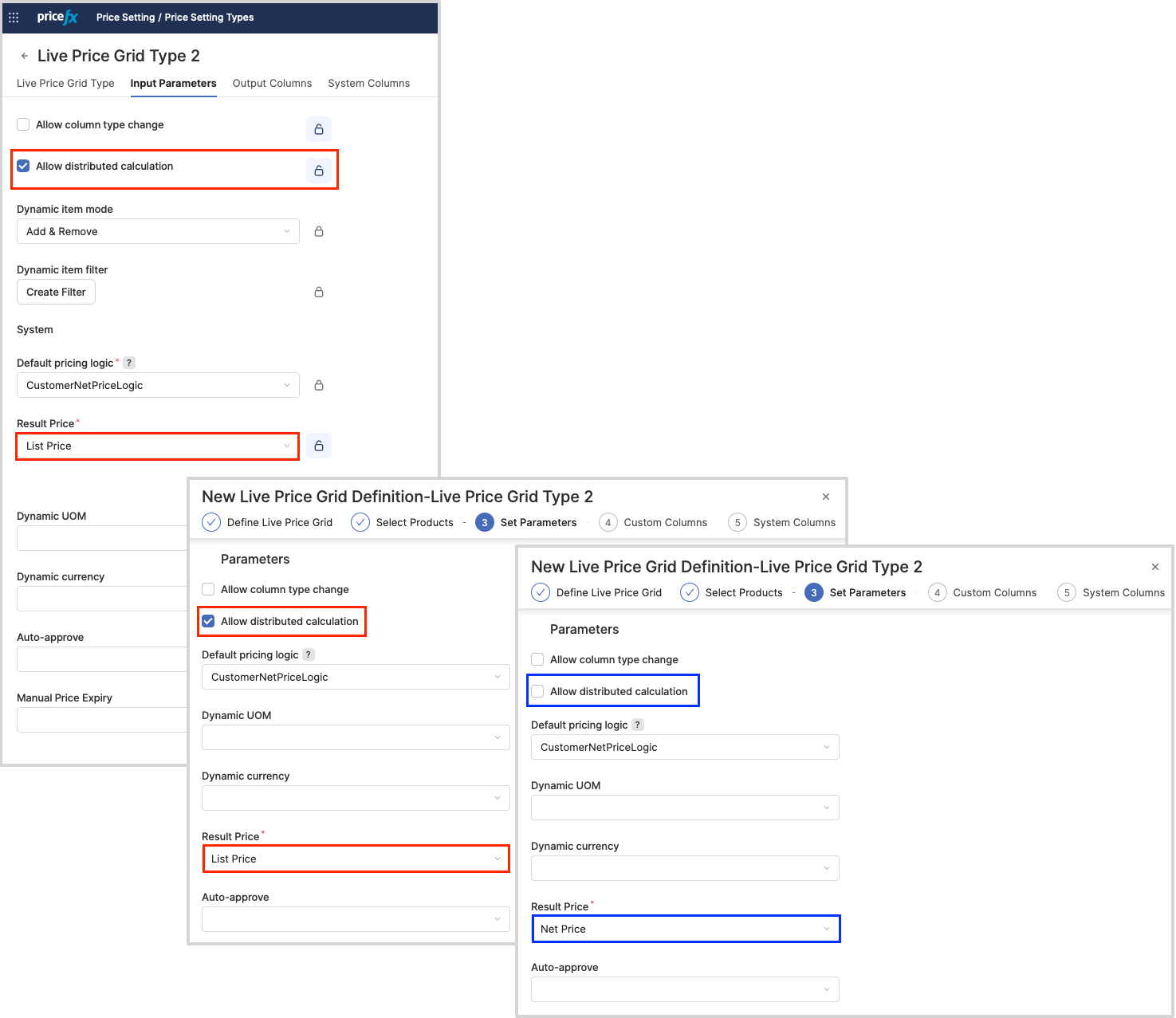
In the following example, you can see that in Live Price Grid Type 2, the Allow distributed calculation and Result Price fields are pre-filled and open for modifications. This means that when you create a new Live Price Grid using the Live Price Grid Type 2 price setting type, the values for these fields are automatically selected, but you can still make modifications.
Pre-selected and Locked
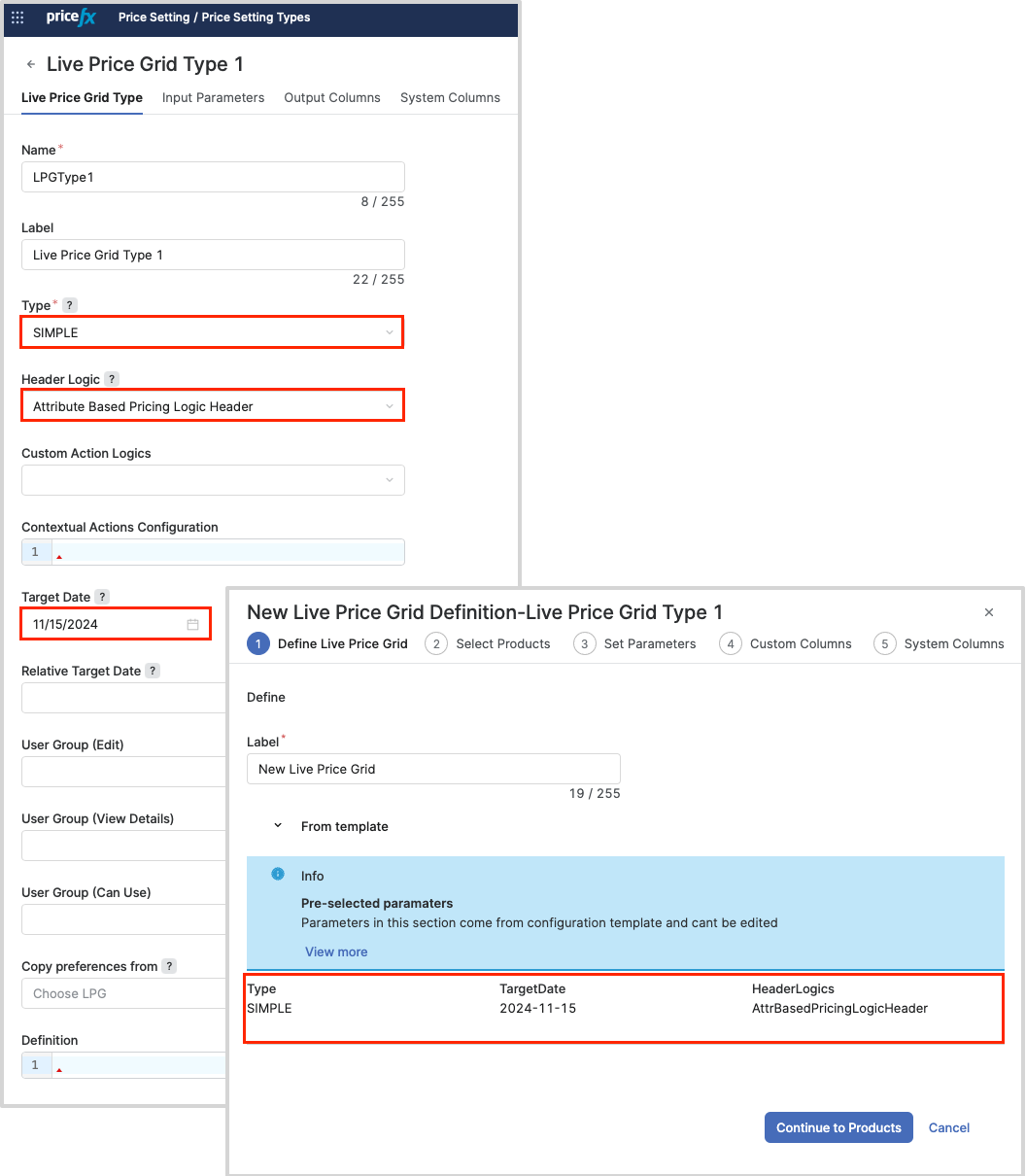
In the following example, you can see that in Live Price Grid Type 1, the Header Logic, Type, and Target Date fields are pre-filled and cannot be changed. This means that when you create a new Live Price Grid using the Live Price Grid Type 1 price setting type, the values for these fields are automatically selected and locked from modifications.
Output Columns
To hide the Output Columns step while configuring the price setting type, ensure that the User Toggle Visibility option is unchecked for all columns. This action will prevent the Output Columns step from being visible to users.
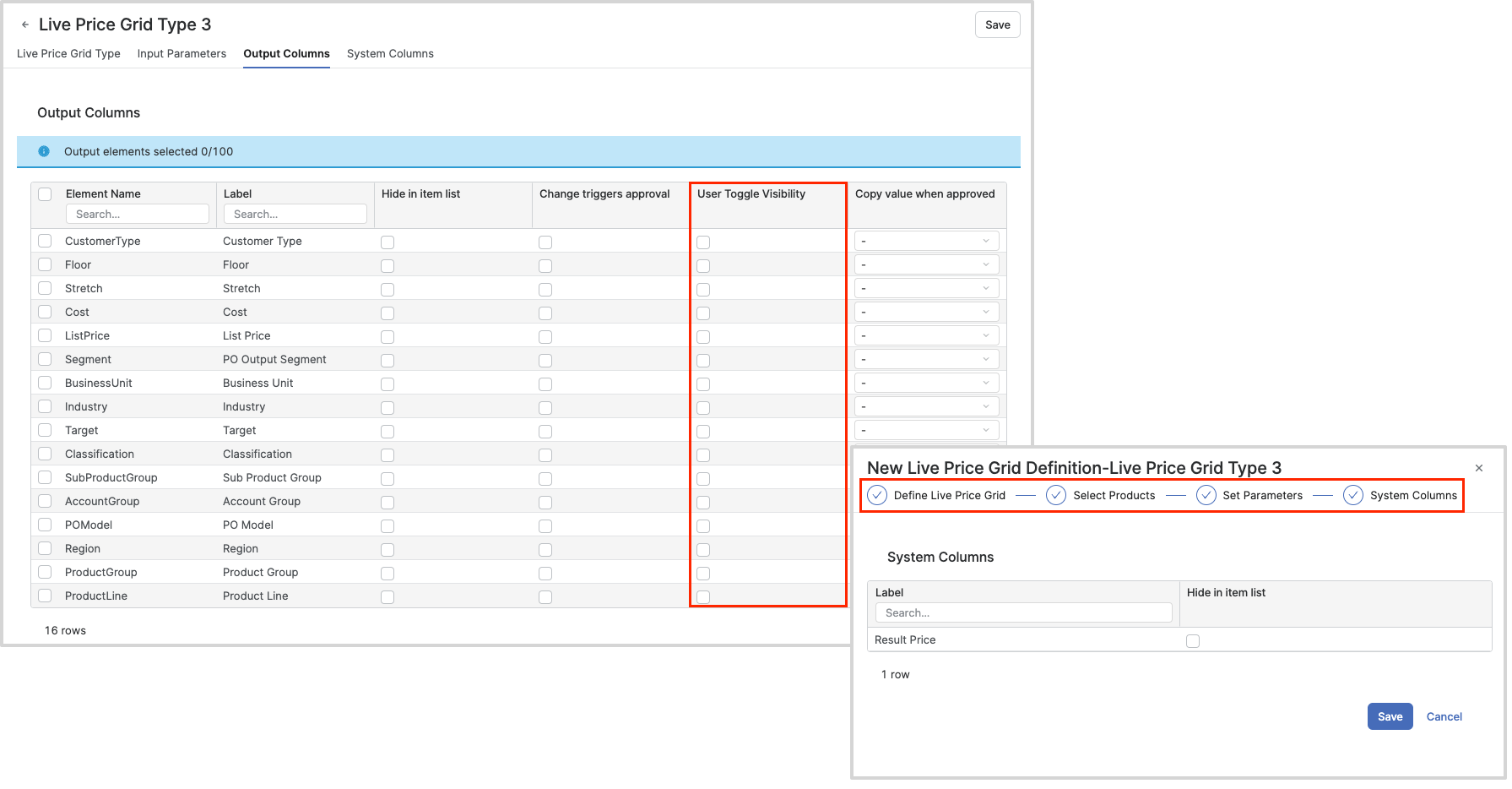
When the Default pricing logic is unlocked for modifications, the User Toggle Visibility option is automatically checked.
System Columns
To hide the System Columns step while configuring the price setting type, ensure that the User Toggle Visibility option is unchecked for all columns. This action will prevent the System Columns step from being visible to users.
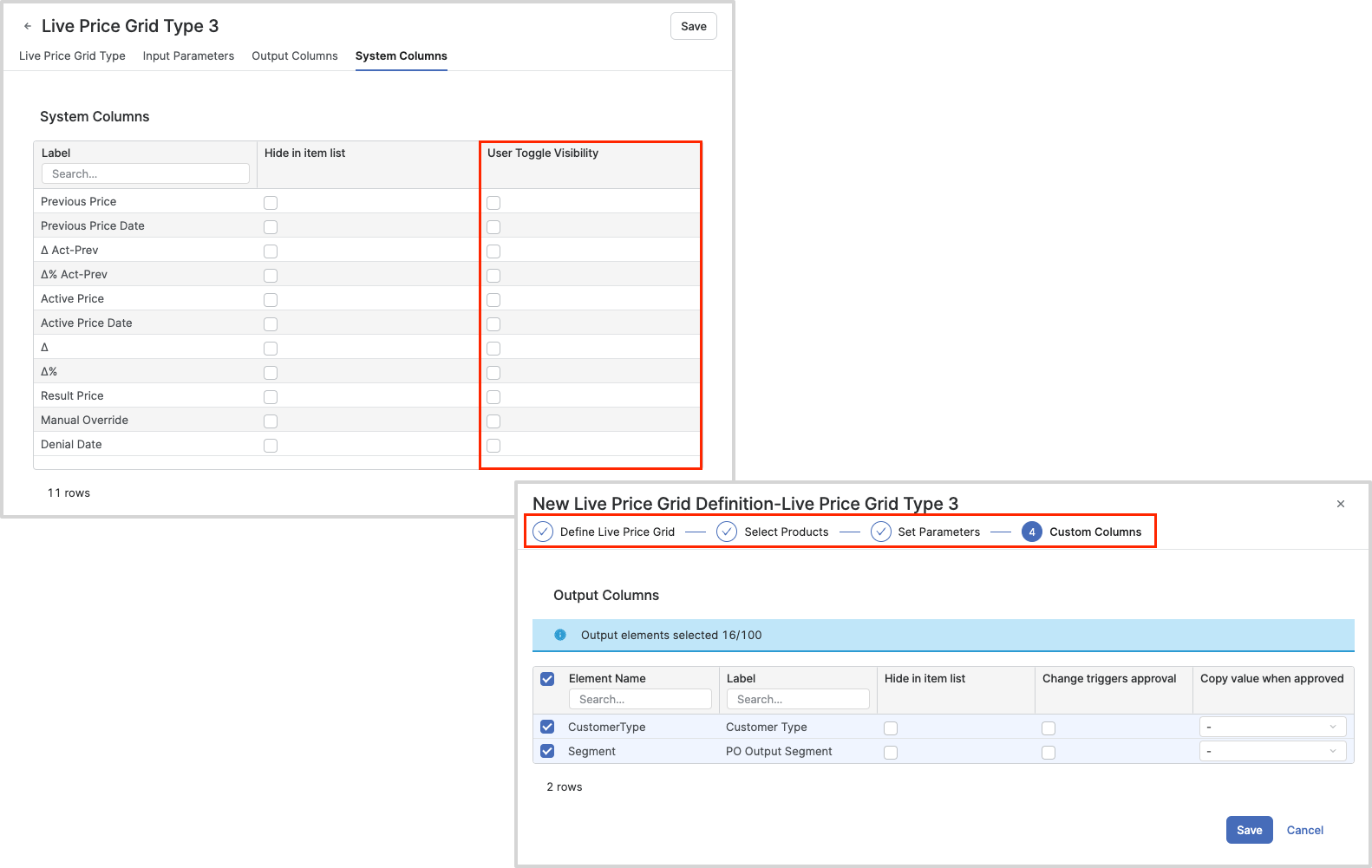
Similarly, when you uncheck the User Toggle Visibility option for both the Output Columns and System Columns steps, these steps will no longer be visible to users.