
The whole customized layout (grouping, sorting, fields display, filters, folder selection, number of table rows displayed per page) can be saved as a preference.
-
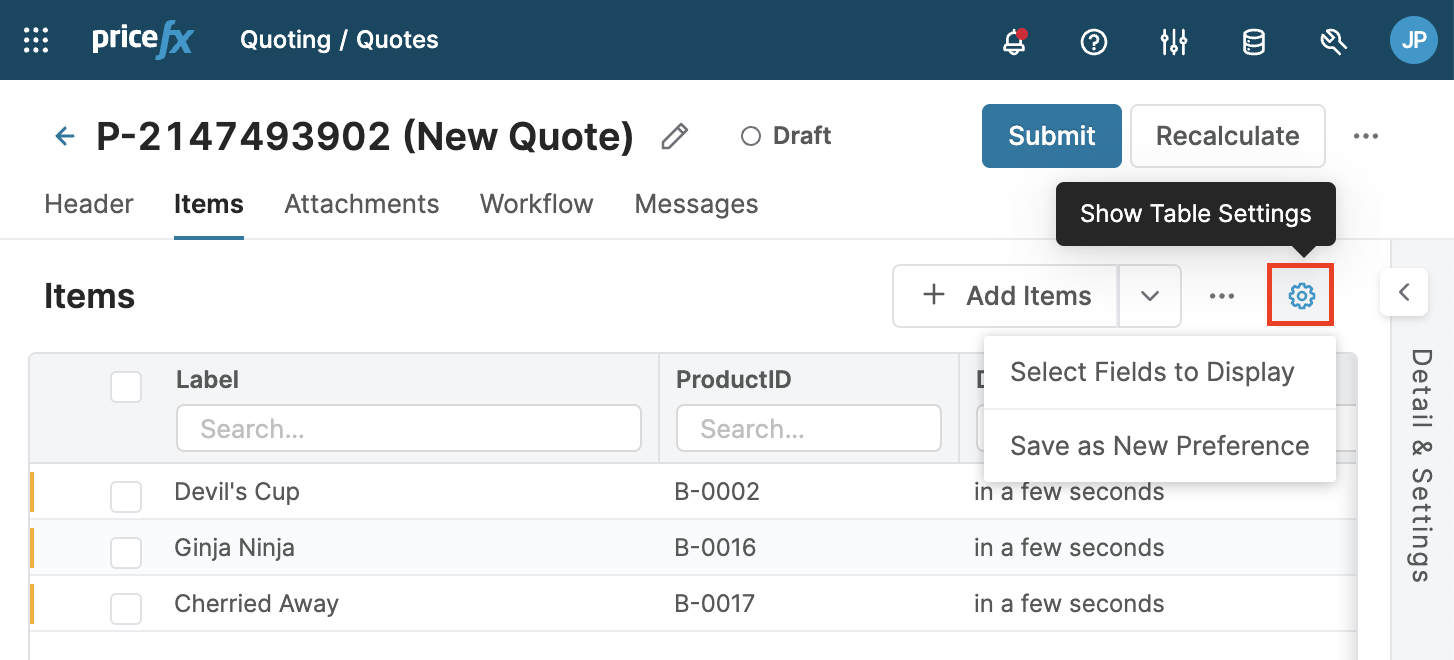
Click the Show Table Settings icon.
-
From the drop-down menu select Save as new preference.
-
In the dialog, enter a name for the new preference and decide if you want to make it default and/or visible to other users.
-
Visible to everyone – The view will be available from the Preferences drop-down list also to other users (you must have the Manage Global Preferences user role assigned).
-
Set as default preference for all – This global view preference will be selected for all users when they open the application (you must have the Manage Global Preferences user role assigned).
-
-
Set as a default preference for me – This view preference will be displayed when you open the application. This setting is not available for global preferences (visible to everyone).
-
-
Click Apply.
You can always edit or delete your preference and set a default preference. If you select the Reset to saved preference option, all changes are reverted to the saved state of the current preference.
Note: If there are new columns unknown to the saved preference (coming, for example, from imported data), they will be visible and displayed at the end of the table. You can hide them by updating the preference.
Copy a Shareable Link Current Table View
In many tables you can use the Copy Link button to quickly share exactly what you see with another user.
When you click Copy Link:
-
A short shareable link is copied to your clipboard.
-
The link captures the current page, filters, and view preference (for example, visible columns and their order), so the recipient sees the same table view as you do, provided they have access to the underlying data.
The link is constructed using Context Linking elements, for more details see Context Linking.
-
A notification message confirms that the link with the current filters has been copied.
-
The Copy Link button is available only in selected tables. Links are intended for temporary sharing and may expire after some time.