
Before you can start working in Pricefx, you must log in.
It is possible to have the login screen displayed in a different language – simply select your preferred language at the bottom of the page. See which languages are supported.
The selected language will be added as a parameter to the URL and the UI will be displayed in this language after login.
How to Log in to Pricefx
You can log in to several partitions on different tabs of the same browser window.
⚠️ The partition is information unique to your organization and potentially your business unit or region. If you are struggling to access the system using a partition that you have been provided, chances are that your organisation has multiple partitions and you should enquire with your system administrators whether the partition you are trying to access is correct and that your profile has been set up correctly.
Access the Login Page
-
Open your web browser.
-
Enter the Pricefx Unity URL provided by your administrator into the address bar.
-
Example: https://<your-company>.pricefx.com/unity
-
-
Press Enter to open the login page.
To successfully log in to the application, you need to enter:
-
The name of the partition that you are logging into. Provided to you by the admin.
When the partition is provided in the URL parameter (
?partition=...) or a last successfully used partition exists in browser local storage, the field is prefilled in read‑only mode; click the pencil to edit or switch, and note that only partitions you previously logged into appear in the history. If you switch the field to editable, the history dropdown hides until you refresh the page; the 2FA flow and configuration are unchanged. -
Your user name as provided by the administrator.
-
Your password. The initial password is provided by the admin and it is strongly recommended that you change it after the first login (go to User Profile > Change Password).
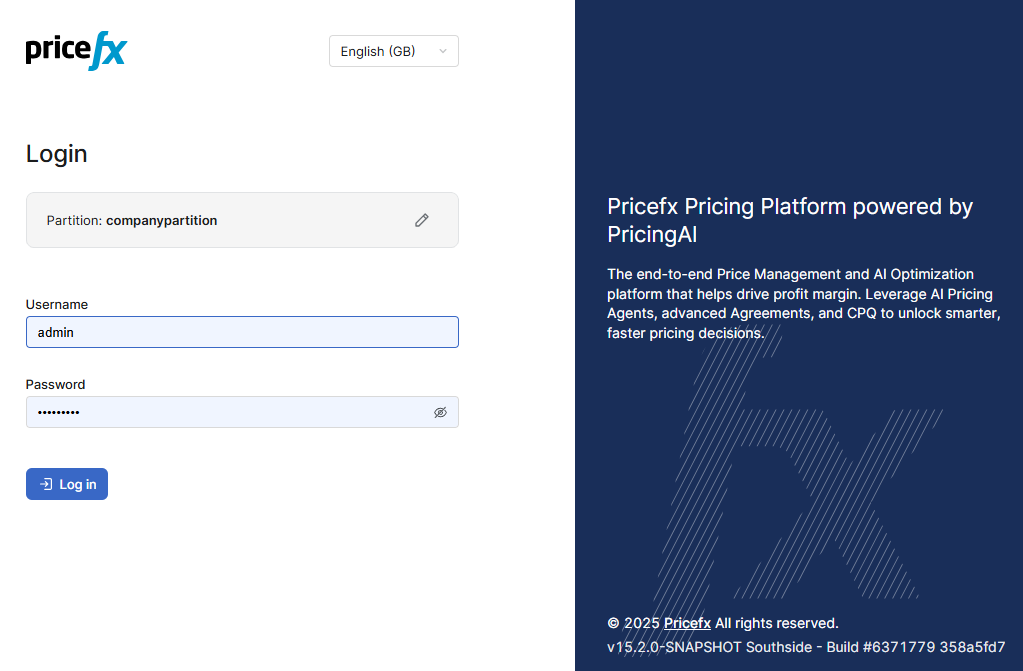
In case two-factor authentication is enabled, you are required to enter also a valid token (e.g., a code sent to your mobile phone). Your admin will provide all necessary details.
When your system administrator sets up your account with 2 Factor Authentication an email will be sent to your registered email address with a QR code and a shared secret key that needs to be stored in the authentication application.
The email should also provide details on which authentication app to use and how to access it.
2 Factor Authentication
Two-factor authentication adds an extra layer of security to the process of logging in to the application. If this has been set-up by your organization when you attempt to log in, either through Single-Sign-On or with your User Credentials you will be asked to enter a one-time pin (OTP).
The OTP is provided by an authentication tools, such as Google Authenticator, Microsoft Authenticator, FreeOTP, etc. Download the relevant app. In the app, create a new account for Pricefx and scan the QR code or enter the secret key provided in the email. This will validate your credentials and setup your account. Once the account is set up, the app will generate a one-time pin each time you log into Pricefx.
If you change devices or lose access to the authentication app, you can re-use the secret key on a new device or if it has expired, request a new QR code from your system administrators.
⚠️ You can also use single sign-on (SSO) as long as you have it configured. There is no available button out of the box.
Security Features
To ensure maximum security and prevent unauthorized access to the application, the following rules apply:
-
After five unsuccessful login attempts, you will be blocked for 30 minutes. The error message will never specify what exactly is wrong (invalid username, password or partition name) in order to make life for the attacker harder. You may contact the Support to have the user unbanned if waiting for 30 minutes is not acceptable.
-
After a specified period of inactivity (30 minutes by default), you are automatically logged out.
-
You are also logged out immediately after closing the browser (not the browser tab).
Home Page
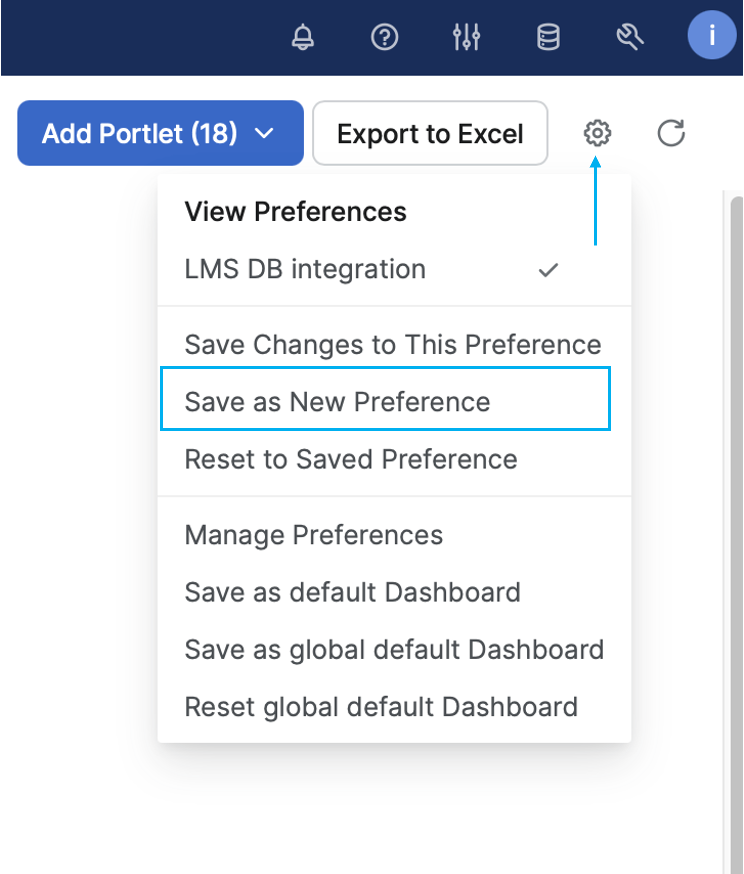
Once you are logged in, the home page will display. It will contain all available portlets by default. However, you can set up which portlets to be displayed according to your needs. To make sure you get the same display each time, you will have to save your preference.
Understand the Homepage Layout
The Pricefx Unity homepage provides quick access to main features:
-
Dashboard: Visual overview of key metrics and recent activity.
-
Navigation Bar: Find applications, reports, and settings.
-
User Menu: Access your profile, preferences, and sign-out options.
-
Notifications Area: View system or workflow notifications.
Navigate Key Homepage Areas
-
Use the Navigation Bar to move between capabilities such as Analytics, Pricing, or Configuration.
-
Click Dashboard to see actionable widgets and business summaries.
-
Open the User Menu to manage your profile or log out.
-
Check the Notifications Area to review alerts or pending actions.
The location and names of items may vary based on your permissions and administrator settings.
Set Your Own Start Page
If you want to display some other page as your landing page, go to Administration (wrench icon) > Feature Flags and change the value of the rootPage flag. For a list of possible options see the Access Routes section.
When you change the landing page, you can still access the Home page from the User menu.
See Also
-
Login Video Tutorial - step by step walkthrough the login process
-
Navigating the Home Page Video Tutorial - description and explanations of the home page
-
Home Page - reference and explanations
-
Application Menus - reference and explanations
-
Customize Your Homepage - step-by-step how to