
All configuration is located on the Appearance setting page (System Configuration > Appearance). You must click the Save Changes button for the changes to take effect.
To reload the page, hit the Refresh button ( 
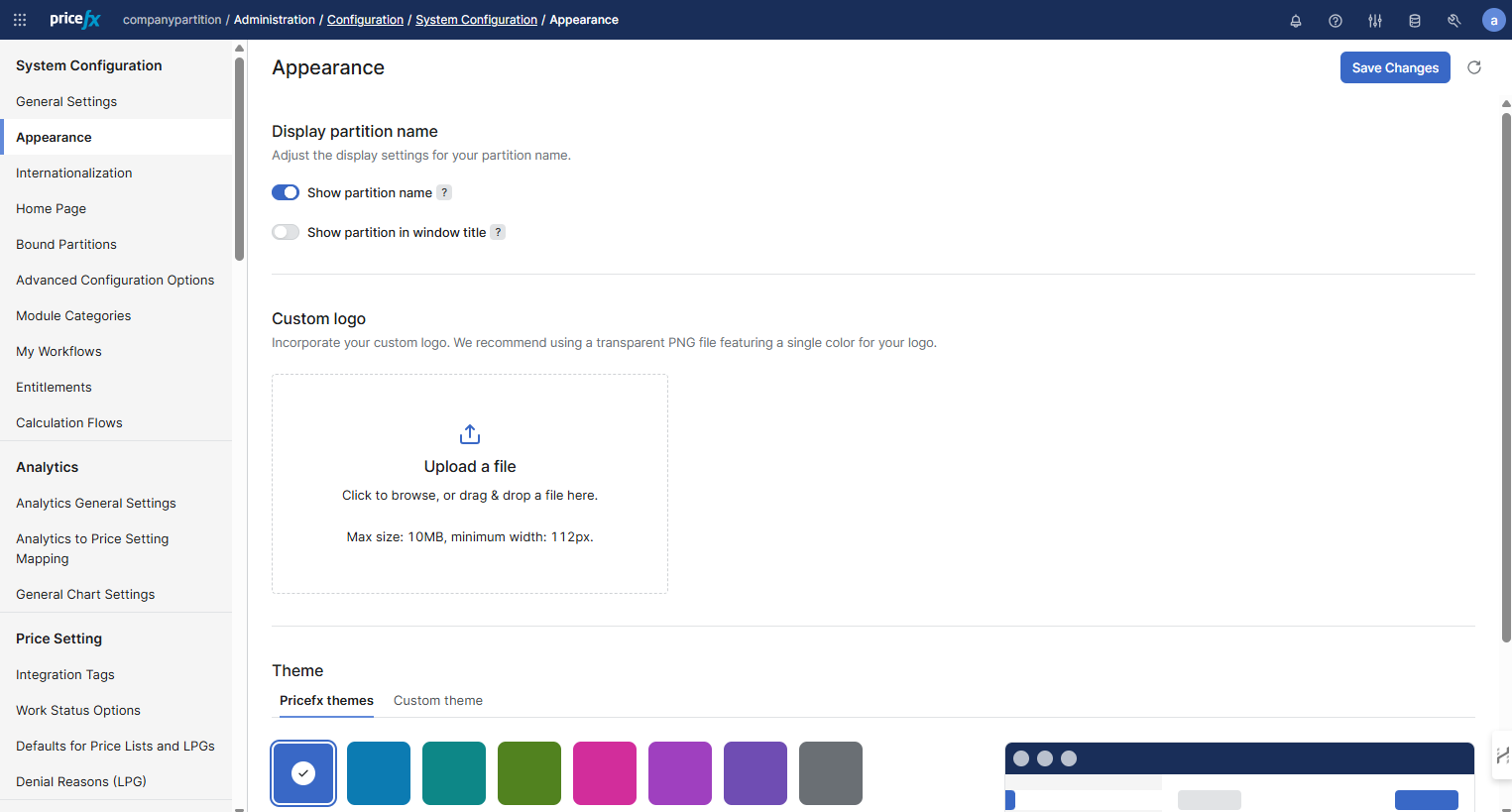
Display Partition Name
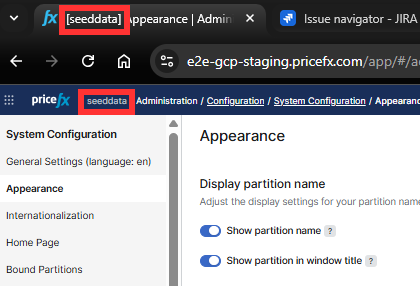
In this section it is possible to set visibility of partition information in the window title and in the application header.
Custom Logo
In this section you can upload a custom logo and set up URL link which will be opened after clicking this logo. Logo section is available after uploading the logo.
For the logo we recommend a transparent PNG file. Maximum size is 0.5 MB.
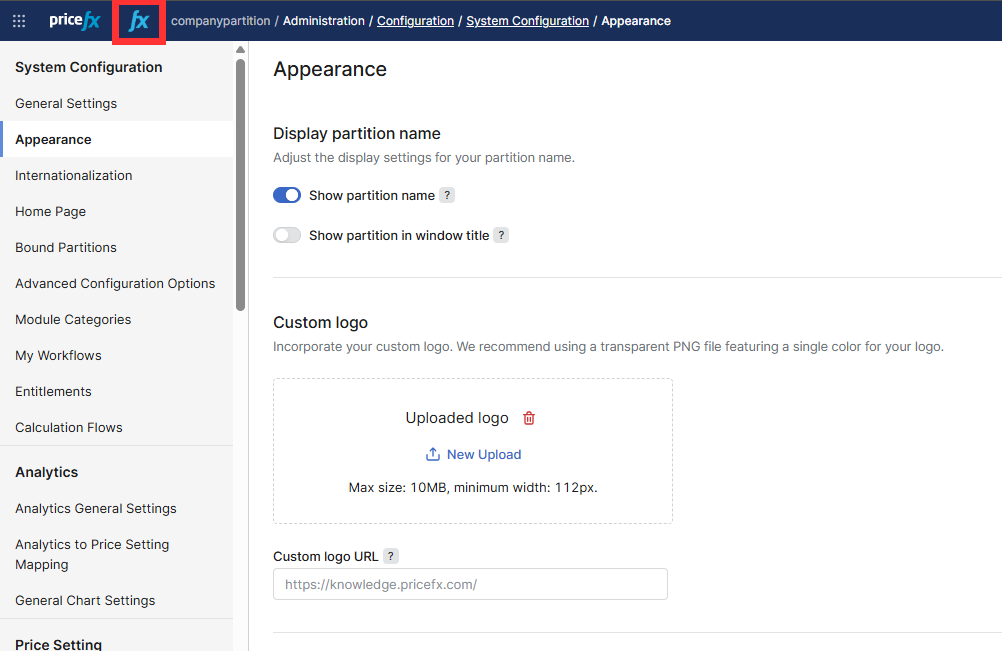
For the Custom logo URL you have to enter the whole page path including http:// or https:// to ensure correct functionality. There is a basic validation to avoid typos.
Theme
Here you can customize the visual appearance of the application interface to match your preferences or corporate branding. You can either choose from predefined Pricefx themes or define your own custom theme.
Pricefx Themes
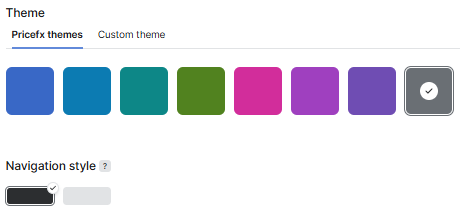
Select from a set of predefined color themes designed to offer visual consistency across the platform.
-
The default selection is the dark blue theme.
-
You can switch between two Navigation styles:
-
Dark (default)
-
Light
-
These themes apply to the navigation bar and related UI elements. You can check the preview of the color theme on the right.
Custom Theme
For advanced customization, use the Custom theme tab. This option allows you to personalize key interface elements:
Navigation Style
-
Background color: Set a custom background color for the navigation bar.
-
Text & Icons color: Define the color of the navigation bar text and icons to ensure optimal contrast with the background.
Accent
-
Accent color: Choose a highlight color used across various UI elements such as buttons or tags.
-
Link color: Specify the color used for hyperlinks to align with your brand style or visual preferences.
Use the pencil icon to open the color picker and apply your preferred color values.
Hide the Header (Headless Mode) - Experimental
In scenarios like embedding Pricefx into other apps (CRMs), you can hide the top navigation/header.
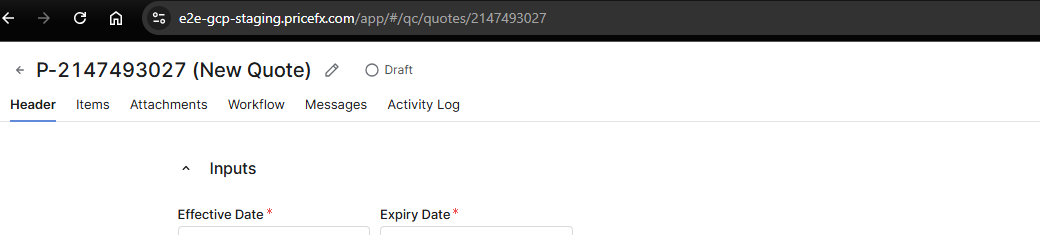
How to Enable
Append the query parameter to any app URL:
?headless=true
Example:
https://mycompany.pricefx.com/app/#/qc/quotes/2147493027?headless=true
Optional: hide the Back button: Use this option when the Pricefx screen is embedded in a CRM and you want to maximize iframe space. In such cases, returning to the list view is unnecessary or even undesirable. For details, see How to Hide Quote Buttons | Hide ‘Back To Quotes’ Button
Known Limitations (when headless=true)
-
No global navigation
-
No breadcrumbs
-
No user settings
-
No logout menu
Ensure users have a clear path to logout and navigate back when the header is hidden (handled by your host application).