
|
Aim of this article |
This article shows how to configure PlatformManager for single sign-on (SSO) used at a specific account. The setup consists of these parts:
|
|---|---|
|
Related sections |
|
|
Required permissions |
Account - edit |
Steps:
-
Go to Account > Single Sign-On.
-
Click Reveal to see the connection information which you need to provide to the Identity Provider.
If this information is not there yet, click the Generate connection information button.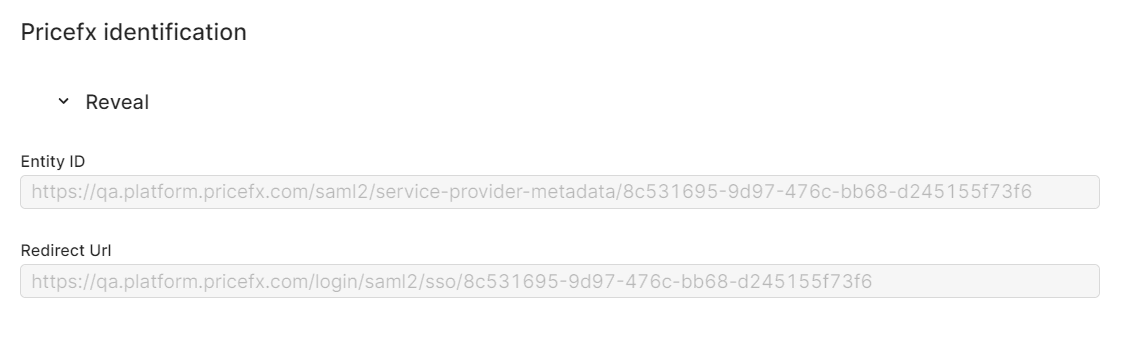
-
Have the customer configure the IdP they use. An outcome of this process are URLs which need to be entered in PlatformManager.
-
Back in PlatformManager, fill in the single sign-on form, namely these options:
-
Account Certificate
-
SAML Identity Provider URL
-
Email Domain
-
Entity ID
-
Log in using
-
Single Sign-On
For their full description see Account Single Sign-On.
-
-
Click Save.
Note: When logging in to PlatformManager, users still enter their email address to proceed with the first step of the login. In the second step, after a successful email domain check, they are verified by IdP (by their SSO username or email address, depending on the setup in IdP).