
This recipe is outdated
Business Scenario
This section presents a detailed case study for Price Setting Package. With the provided sample data you will be able to set up a complex business scenario and you will learn how to deploy, configure and tweak Price Setting Package from scratch.
In this business use case we want to generate price grids and simulate impact of an additional discount given on the level of dedicated customer and product segments.
The general Lookup Key in this scenario is:
-
Product hierarchy lvl 1
-
Product hierarchy lvl 2
-
Product hierarchy lvl 3
-
Product hierarchy lvl 4
We want to create the following pricelists:
|
Price List Level |
Calculation |
Business Use Case |
|---|---|---|
|
Tarif Global |
Calculation of a Global List Price. Calculation of 4 different Price Strategies and additional manual prices on the SKU level. |
Generate a Global List Price. |
|
Local Tarif (Tarif A, Tarif B, …) |
We want to calculate a Local List Price. For calculation we want to take Tarif Global and add region specific markup based on the granularity of the Lookup Key. |
Create a Local Price List. This price list is later distributed to the customers. |
|
Simulation on customer level |
We want to create a price list on the level of a given customer. We take Tarif Group where the customer belongs and apply an additional customer discount based on granularity of the customer and the first two levels of the product hierarchy. |
Target of this step is a “simulation” how a customer discount would affect the business. With a given customer discount we want to compare some KPIs considering the customer will buy the same quantities as last year. |
The customer price list should apply an additional customer discount. The customer discount in maintained on two levels of the generic lookup key plus the Customer ID.
Lookup Key for the customer specific discount is:
-
Customer ID
-
Product hierarchy Lvl 1
-
Product hierarchy Lvl 2
We want to have a physical price list for the Global level and for every level of the regions. We want to create (as needed) an LPG on the Customer ID level to simulate the impact of the customer specific discount. So we create an LPG with a given customer and put all products in it. After maintenance of the customer specific discount we calculate the LPG. We filter for all SKUs where the customer had sales in the last year. We assume that sales volume will be the same in the next year, and so we can compare the different KPI (Turnover, Margin) with the newly created customer discount.
We want to use the following Pricing Strategies to calculate prices on the Global level:
|
Pricing Strategy |
How to Calculate |
|---|---|
|
Manual Price |
Manual price, stored in a separate table. |
|
Price List FR |
Simple lookup in historical price list for FR. |
|
Price List DE |
Simple lookup in historical price list for DE. |
|
Max Transacted Price |
Maximum transacted price for the given SKU. |
|
Cost+ |
Take the cost and add a relative “plus” to it. The markup is maintained on the level of the Lookup Key. |
Accelerator Package as Solution
To implement this scenario, we use the Accelerate Price Setting Package. First we do a gap analysis and then we see how we can enhance the solution to cover the business scenario.
Gap Analysis “Requirements vs. Accelerator Package”
|
Requirement |
Price Setting Package |
Gap |
How to Achieve It |
|---|---|---|---|
|
Create Global Price List |
|
|
Independent Level Price List in Price Setting Package |
|
Create Local Price Lists based on a region and apply a markup on the global price |
|
|
Dependent Level Price List in Price Setting Package |
|
Price Strategies |
Lookup for DE, FR prices |
|
Lookup Engine |
|
Exception Prices on SKU level |
|
Price Exception Module |
|
|
Highest transacted price |
We need a custom engine for price lookup in transaction data. |
Create a custom engine, using the library functionality of Price Setting Package Library |
|
|
Cost+ |
|
Adjustment Engine |
|
|
Manual Price |
Exception Table |
|
Manual Override Module with Price Exception stored in a PP |
|
Create customer level price |
|
Customer level pricing has to be configured completely as it is not OOTB functionality of Price Setting Package |
Fork of DependentPriceListLogic, with tweak to support pricing on the customer level |
Setup of Price Setting Package OOTB functionality
Based on this business use case we will show you the complete deployment, configuration and customization of Accelerate Price Setting Package. This can be used as a reference guide for the Accelerator.
Deployment in Platform
Pricing Level
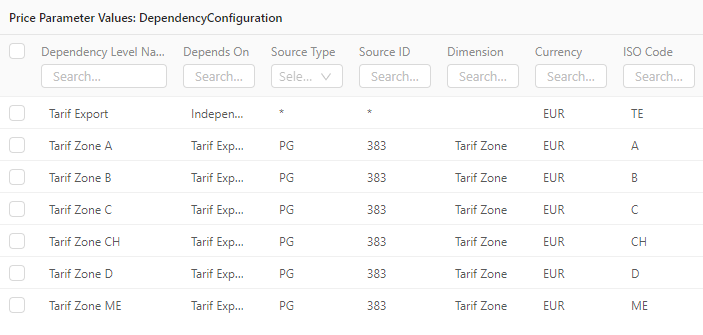
We want to have a simple 2-level pricing hierarchy. We will have one Independent Level “Tarif Export” and 6 Tarif Zones. After upload of Pricing Levels we will have the following structure in Pricefx:
Lookup Keys
Configuration of the Package
…
Set Up Cost Data
The Cost data is located in a Product Extension.
We have to configure the following behavior of the Cost data lookups:
|
Source Type |
Product Extension |
|
Name of Product Extension |
ProductCosts |
|
Source Field |
Cost |
|
|
|
|
|
The following configuration lines will be created by the configuration wizard:


As we have not configured validity periods and currency, the system expects one record per SKU (and pricing level) and currency of the cost data will be the base currency of the depending pricing level.
Set Up Cost+ Pricing Strategy
Setup of the Cost+ Pricing Strategy is done in the “Strategy Definition” PP. It should be possible to use the default entry there. It has to look like this:
|
Option |
Value |
Comment |
|---|---|---|
|
Strategy Name |
Cost+ |
|
|
Level |
Independent |
We only have the row with “Independent” Level. Cost+ Strategy is calculated on Global Level and we do not want to re-calculate Cost+ with local cost (or local plus). |
|
Calculation Engine |
Adjustment Engine |
|
|
Additional Engine Configuration |
CostPlusAdditionalConfig |
Simple additional config, selecting the Calculation Mode of Adjustment Engine: 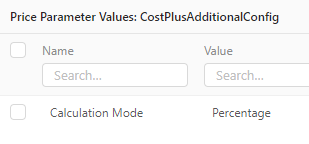
|
|
Strategy Calculation Parameters |
PRODUCT_COST, PLUS_FOR_PRODUCT_PERCENTAGE, PLUS_FOR_PRODUCT_ABSOLUTE |
The default set of parameters passed to Engine in OOTB Cost+ implementation. |

With this we can calculate Cost+ Prices. The “Plus” is taken from the “CostPlus” PP. This is the OOTB built-in table for this. You can enter data like this:

Set Up Lookup Pricing Strategy for Price List DE/FR Lookups
We want to have a simple lookup in some defined tables as a pricing rule. In this case we want to look up defined fixed price lists.
We can use Lookup Engine for this. First we need the configuration rows in “Strategy Definition” PP. In this chapter you will see the definition for “Price List DE”; the other price list is similar.
|
Option |
Value |
Comment |
|---|---|---|
|
Strategy Name |
Pricelist DE |
|
|
Level |
Independent |
We only have the row with “Independent” Level. |
|
Calculation Engine |
LookupEngine |
|
|
Additional Engine Configuration |
PL_DE_Additional |
Parameter that contains the additional configuration for Lookup Engine. |
|
Strategy Calculation Parameters |
SKU; TARGET_DATE |
|

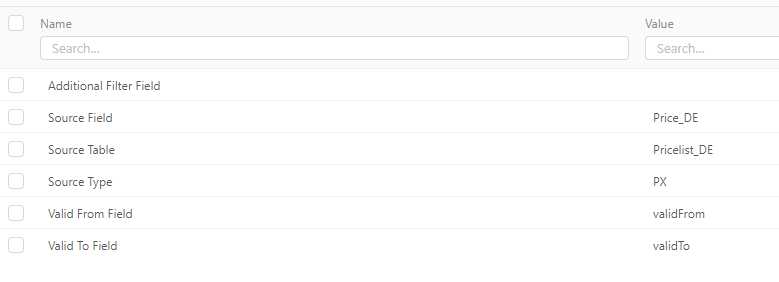
To make Lookup Engine work, we need to have proper additional engine parameters. The PP has to look like this:
Set Up Strategy Selection
In this case we want to use the strategies in the following order:
-
Pricelist DE
-
Pricelist FR
-
Max Transaction Price (will be added later as Custom Strategy)
-
Cost+
These prices will be calculated on the Independent Level (Global Price List). The Local Price List will use the global price and add a local markup factor.
We add these strategies to Base Strategy Selection PP. We use Base Strategy Selection (and not Strategy Selection) because we only want to show the result when a proper price is found. We are not interested in lines with empty prices.

Set Up Manual Override Module
For the Manual Override Module we want to have Price Exception Lookup in Independent Price List. No manual overrides in Dependent Price List because it should take the manual price from the Global Price List and apply a markup like in every other price strategy.
We want to store the Price Exceptions in the PricingExceptions PP. There we have the “PriceException” field with the manual price. We use another field “Dependency Level Name” to link the price exception to the Global Price List.
After execution of the wizard, we should have the following configuration in the PriceSettingConfig PP:
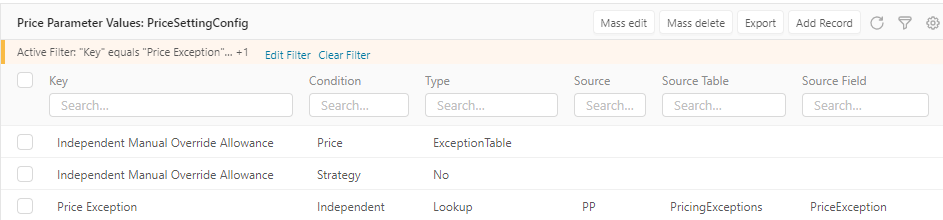
To map the value to the Pricing Level (Global Price List), we use the Dependency Level Name field from the Pricing Exceptions PP and map to the field ISO Code (Preference1) in the Dependency Configuration PP.

Set Up Transaction & Forecast Configuration
We want to take transaction data from Datamart.
Create Independent Price List (Tarif Global)
The basic setup is done now and so we can create the price grids. First we have to create the Independent Price Grid (Tarif Global). You can add all SKUs to it and calculate.
|
Option |
Value |
|---|---|
|
Default Pricing Logic |
IndependentPriceListLogic |
|
ResultPrice |
Final Price |
|
Independent Level Name |
Tarif Global |
|
Output Elements |
Select all |
|
Default Fields |
Enable the “Hide in item list” option for all elements. |
After the price grid is created, you can review it.
Create Independent Price Lists (Tarif Local)
After creation and calculation of the global level price grid we have to connect the local level price grid to the global one. Therefore we have to search the id for the global price grid and fill it into the DependencyConfiguration PP.
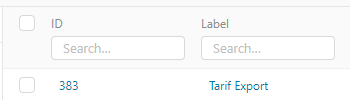
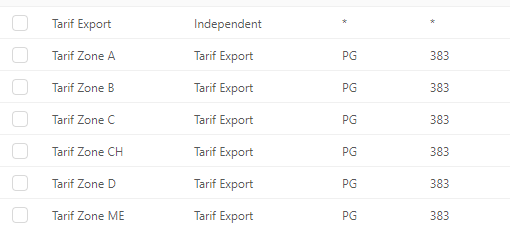
Then we have to fill in the markup factors between Global and Local prices. We can find the TarifXDependencyAdjustment PP for every pricing level. Here we have to create data rows with the markup factors.
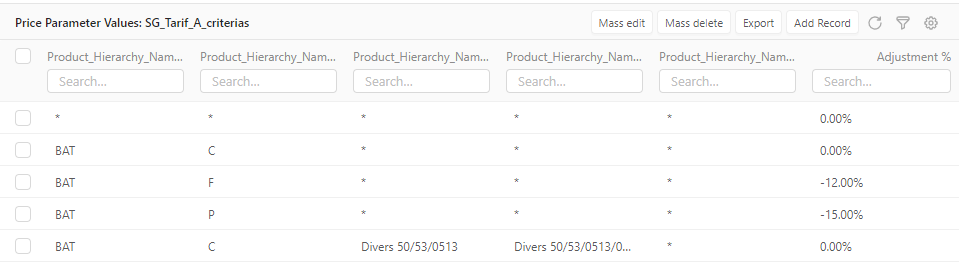
Now we can create the price grids.
|
Option |
Value |
Comment |
|---|---|---|
|
|
|
|
|
|
|
|
Custom Tweaks for Price Setting Package
We need to enhance Price Setting Package in two ways. We need to add a custom strategy and we need to tweak the logic for adding prices based on customer discount.
Add Custom Engine for “Highest transacted Price”
We want to create a custom engine that will return the maximum price from transaction data. We use one of our library functions to return it.
First we create a new Groovy Library “CustomStrategyEngines”. In this new library, we create a new element called TransactionEngine.
In this engine we add the following code:
BigDecimal calculatePrice(String sku) {
    String inputDependencyLevel = "Global" // We want to map always the the same level, so we have it hardcoded here

    def configManager = libs.PriceBuilderCommonElementUtils.ConfigManager.getInstance(inputDependencyLevel)
    def transactionConfigManager = libs.PriceBuilderCommonElementUtils.TransactionConfigManager.getInstance(configManager)

    def transactionAndForecastManager = libs.PriceBuilderCommonElementUtils.TransactionAndForecastManager.getInstance(transactionConfigManager)
    Map data = transactionAndForecastManager.getTransactionDataForDashboard(sku)

	def dataMap = data.lastYear.getAt(sku) as Map

    def maxTransactionPrice = dataMap?.Max

    if (!maxTransactionPrice) api.throwException("No Transacions")
    return maxTransactionPrice
}
To make the custom engine work, we have to add it to the “StrategyDefinition” PP.

Once this is done, we can use the new custom strategy in the same way as the OOTB built-in strategies.
Tweak Price Setting Package to Calculate Customer Level Prices
We need to add a customer dimension in the price calculation in Price Setting Package. We want to start with the “Local” Price List and apply an additional customer discount. Therefore we take the “IndependentPricelistLogic” as a starting point. As we want to keep the “Local Price List”, we create a fork of the logic. This will give you a sample idea how it can be done by tweaking the Accelerator Package. Please note that this is just PoC grade solution.
Add Customer as Input Dimenstion
Create an additional element for the customer ID input:
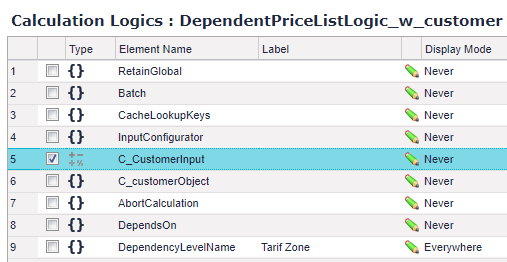
In C_CustomerInput, you can just add a customer picker for the configuration of the price list:
Customer("customerId")
In the new element “C_customerObject” you can query the customer from the customer master data:
if (api.isSyntaxCheck()) return

def customerId = api.getElement("C_CustomerInput")

def customer = api.find("C", Filter.equal("customerId", customerId))

if (customer && customer.size() > 0)
	return customer.first()
Determine “Dependency Level” from the selected customer
In the element “DependsOn”, we input a hardcoded value of the only independent level we have.
To get the dependency level name, we take it from our attribute in the customer master, so we change the element “DependencyLevelName” to the following:
if (api.isSyntaxCheck()) return

//Map inputConfigurator = api.getElement("InputConfigurator")
//Map inputConfig = libs.PriceBuilderCommonElementUtils.ConstConfigs.getInputConstConfig()

//return inputConfigurator.getAt(inputConfig.INPUT_PARAMETERS.DEPENDENT_LEVEL_NAME)
def customer = api.getElement("C_customerObject")
return customer.attribute4 ?: "Tarif Zone A"
Now it will take the dependency level name of the customer given from the customer attribute. We add one “default” as a fallback.
Add Customer Discount to Pricing Logic
We have the customer discount stored in PP table named “CustomerDiscount”.
The key in this table is:
-
Customer ID
-
First two levels of generic lookup key
So we build the hierarchical lookup key for this lookup and use the library function for hierarchical lookup.
For this we create a new element “C_CustomerDiscount” with the following code:
String parameterName = "CustomerDiscount"

List productDimensionalLookupKeys = api.getElement("DimensionalLookupKeys").Products
def customerId = api.getElement("C_customerObject").customerId

List<String> inputKeys = [customerId, productDimensionalLookupKeys[0], productDimensionalLookupKeys[1]]
api.trace("Lookup Key", inputKeys)
def lookupResult = libs.PriceBuilderCommonElementUtils.PriceParameterUtil.vLookupHierarchic(parameterName, inputKeys, true)

api.trace(lookupResult)

if (lookupResult.size() > 0) {
  return lookupResult.first().attribute1
}
Apply Customer Discount in Price Calculation
We have to pass the new customer discount to a price calculator, so we need to modify the element “CalculatedPrices”:
return api.getElement("WarningManager").tryToExecuteElement("CalculatedPrices") {

    (...)

    //Calculation of prices
    priceManager.processStrategiesToCalculate(productDimensionalLookupKeys, useCache)
    Map independentItem = api.getElement("IndependentLevelCalculatedData")
    if (independentItem) {
        BigDecimal customerDiscount = api.getElement("C_CustomerDiscount") ?: 0.0
        priceManager.addIndependentLevelAdjustedPrice(productDimensionalLookupKeys, independentItem, api.getElement("DependentLevelAdjustment"), useCache, customerDiscount)
        priceManager.addIndependentLevelPrices(independentItem, api.getElement("DependentLevelAdjustment"),true ,customerDiscount)
    }

    (...)
}
Now we have to tweak the Groovy Library “PriceBuilderCommonElementUtils”.
First we take a look at the element “PriceManager”. We have to make the customer discount an optional parameter in the price calculation method of price manager:
        addIndependentLevelPrices       : { Map independentLevelItemData, BigDecimal dependencyLevelAdjustment, Boolean showCustomerLevel = false, BigDecimal customerLevelAdjustment = 0 ->

               (...)

            },
        addIndependentLevelAdjustedPrice: { List strategyLookupKeys, Map independentLevelItemData, BigDecimal dependencyLevelAdjustment, boolean useCache, BigDecimal customerLevelAdjustment = 0 ->  // We use header level information since this strategy represents independent final price

                (...)

            },
Once the two closures “addIndependentLevelPrices” and “addIndependentLevelAdjustedPrice” have the optional customer discount parameter we have to calculate the customerLevelPrice (and the final price) according to that discount:
addIndependentLevelPrices       : { Map independentLevelItemData, BigDecimal dependencyLevelAdjustment, Boolean showCustomerLevel = false, BigDecimal customerLevelAdjustment = 0 ->

               (...)

                priceManagerImpl.getStrategiesForProduct().findAll { it.independentLevelDefinition != null }
                        .each { Map dependentLevelStrategy ->
                            boolean independentLevelFirst = dependentLevelStrategy.independentLevelDefinition.independentPrioritized == strategiesDefinitionConstConfig.INDEPENDENT_PRIORITIZED_STRING
                            Map newIndependentLevelEntry = getInternalStrategyTemplate()
                            newIndependentLevelEntry.strategyName = dependentLevelStrategy.strategyName + pricingProcessConstConfig.INDEPENDENT_STRATEGY_SUFFIX
                            newIndependentLevelEntry.isPriceNullable = true
                            newIndependentLevelEntry.dependentLevelPrice = priceManagerImpl.getDependentLevelAdjustedPrice(dependentLevelStrategy.independentLevelPrice, dependencyLevelAdjustment)

                            newIndependentLevelEntry.showCustomerLevel = showCustomerLevel
                          	newIndependentLevelEntry.customerLevelPrice = priceManagerImpl.getDependentLevelAdjustedPrice(newIndependentLevelEntry.dependentLevelPrice, customerLevelAdjustment)

                            newIndependentLevelEntry.calculatedPrice = newIndependentLevelEntry.customerLevelPrice

                            (...)
                        }

                return
            },
            addIndependentLevelAdjustedPrice: { List strategyLookupKeys, Map independentLevelItemData, BigDecimal dependencyLevelAdjustment, boolean useCache, BigDecimal customerLevelAdjustment = 0 ->  // We use header level information since this strategy represents independent final price
                String strategyName = pricingProcessConstConfig.INDEPENDENT_STRATEGY_NAME_GENERATOR(independentLevelItemData.decision)
                BigDecimal dependencyLevelAdjustedPrice = priceManagerImpl.getDependentLevelAdjustedPrice(independentLevelItemData.price, dependencyLevelAdjustment)
				BigDecimal customerLevelAdjustedPrice = priceManagerImpl.getDependentLevelAdjustedPrice(dependencyLevelAdjustedPrice, customerLevelAdjustment)

                (...)
            },
Now the Price Manager is able to calculate the customer level price when we provide the customer discount. When there is a customer level price, it is taken as the final price.
Show Customer Level Price in “Prices” Pop-Up
Now we want to add the customer level price to the “Prices” pop-up in the PL/LPG when we are in the customer level calculation.
First we have to add a new colum “Customer Level Price” to the static config of the config manager. So we add it in the element “ConstConfigs”:
DEPENDENT_PRICES_POPUP_LABELS      : [[NAME: "ORDER", LABEL: "Order"],
                                                                                       [NAME: "STRATEGY_NAME", LABEL: "Price Type"],
                                                                                       [NAME: "NO_ADJUSTED_INDEPENDENT_LEVEL_PRICE", LABEL: "Independent Level Price", TYPE: "MONEY"],

																					   [NAME: "GROSS_PRICE", LABEL: "Dependent Level Price", TYPE: "MONEY"],
																					   [NAME: "CUSTOMER_LEVEL_PRICE", LABEL: "Customer Level Price", TYPE: "MONEY"],
                                                                                       [NAME: "MESSAGE", LABEL: "Reason"],
                                                                                       [NAME: "FINAL_PRICE", LABEL: "Final Price", TYPE: "MONEY"],
                                                                                       [NAME: "MARGIN", LABEL: "Margin", TYPE: "PERCENT"],
                                                                                       [NAME: "MESSAGE_TYPE", LABEL: "Message Type"]]]]
To make sure the new colum is only shown in the Customer Level Mode and filled with Customer Level Price, we have to go back to the element “PriceManager” and add it to the “getPriceOutputManager()” function:
protected Map getPriceOutputManager(Map constConfig, boolean isIndependentCalculation) {
    Map priceOutputManager
    priceOutputManager = [

           (...)

              if (!isIndependentCalculation && !showCustomerLevel) columns.remove(4) // seems hacky, but works for now

           (...)
                    if (isIndependentCalculation) {
                        cells = [indexCell, strategyCell, grossPriceCell, messageCell, finalPriceCell, marginCell, messageTypeCell]
                    } else {
                        def independentLevelPriceCell = resultMatrix.styledCell(strategy.independentLevelPrice)
                        def dependentLevelPriceCell = resultMatrix.styledCell(strategy.dependentLevelPrice)
						api.logInfo("Matrix: " + strategy)
                      	def customerLevelPriceCell = finalPriceCell//resultMatrix.styledCell(strategy.customerLevelPrice)
                      if (showCustomerLevel) {
                          cells = [indexCell, strategyCell, independentLevelPriceCell,dependentLevelPriceCell, customerLevelPriceCell, messageCell, finalPriceCell, marginCell, messageTypeCell]

                      } else
                          cells = [indexCell, strategyCell, independentLevelPriceCell,dependentLevelPriceCell, messageCell, finalPriceCell, marginCell, messageTypeCell]
                    }


    (...)

    return priceOutputManager
}
As this function is called by the price manager, we have to tweak the following line to call with the correct (optional) parameter:
def getInstance(def exceptionsManager, def warningManager, def configManager, def moduleManager, boolean isIndependentCalculation, def roundingRulesConfigManager = null) {

    (...)

    def manager
    manager = [

            (...)

            getStrategyMatrix               : { boolean showCustomerLevel = false ->
                priceOutputManager.getStrategyMatrix(priceManagerImpl.getStrategiesForProduct(), showCustomerLevel)
            },

            (...)
Restrict Transaction/Forecast Data to Customer
One last thing we have to tweak is the transaction/forecast module. We have to make sure that when we are in a customer PL/LPG, only the transaction data for the one selected customer is queried.
-
Remove dependency mapping
-
Apply customer id filter