
The following simplified example covers the basic functionality of Rebate Templates (RAT). The presented logic creates just one Rebate Agreement with one line but that should illustrate the RAT mechanism sufficiently.
Take the following steps:
-
Create a new logic. Go to Administration > Logics > Template Logics > Rebate Template Logics.
def rebateTypeName = "RebateOnSale"  //name of an existing Condition Type
def customerId = "CD-00001"  //ID of an existing customer
def inputFieldOnRebateType = "Rebate discount %"  //for details see below
def lineItemId = api.uuid() //generated by random generator

def agreementLabel = api.stringUserEntry("Agreement Name")

//create a builder for a new agreement and set up the main header input fields
builder = ratBuilder.fromParams([
        "label"     : agreementLabel,
        "startDate" : api.parseDate("yyyy-MM-dd", "2017-01-01"),
        "endDate"   : api.parseDate("yyyy-MM-dd", "2017-12-31"),
        "payoutDate": api.parseDate("yyyy-MM-dd", "2018-02-01"),
        "targetDate": api.parseDate("yyyy-MM-dd", "2016-12-01"), //calculationDate
])

//set the value of "Customer(s)" input on the header level
builder.addOrUpdateInput("ROOT", [
        "label"    : "Customer(s)",
        "name"     : "CustomerGroup",
        "type"     : InputType.CUSTOMERGROUP,
        "value"    : [
                "customerFieldLabel": "Customer Id",
                "customerFieldName" : "customerId",
                "customerFieldValue": customerId
        ],
        "valueHint": customerId
])

//create a new line with the given Condition Type and set a value of its input field
builder.addLineItemWithId(lineItemId, rebateTypeName)
        .addOrUpdateInput(lineItemId, [
        "name" : inputFieldOnRebateType,
        "label": inputFieldOnRebateType,
        "type" : InputType.USERENTRY,
        "value": 0.14
])

builder.build()
Review the first 3 lines and change them according to your project:
-
rebateTypeName– Must be a name of an existing Condition Type, otherwise it fails (e.g., End of the year bonus, Bonus on total sales). -
customerId– Should be an existing customer Id (it may also work with a non-existing Id but this is advisable for testing purposes only). -
inputFieldOnRebateType– The name of the input parameter on the line item. It must be the name of the input (not Label) and this input must be defined in the given pricing logic (used for e.g., condition type).
-
-
In Rebates > Rebate Templates create a new template record and assign the new logic to it.
-
Go to Rebates > Rebate Agreements and click the Create from Template button. (To be able to see this button, you need to have the Manage Rebate Agreement Templates user role.)

-
Select the relevant template from the list and fill in the template inputs.
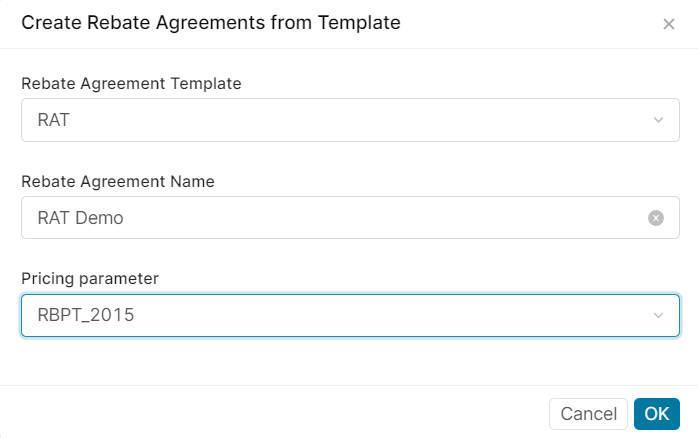
-
Click OK. This triggers a background job which takes a while to complete. You can close the progress window if you prefer.
-
After the operation finishes, close the status dialog.
-
You will find the newly created Rebate Agreement in the agreement list.
If you want to build a more advanced logic where addOrUpdateInput on the header or line item level work with more fields, it is recommended to read also How to Review Object Structures for REST API Calls.