
Steps
-
Activate the Advanced Configuration Option
-
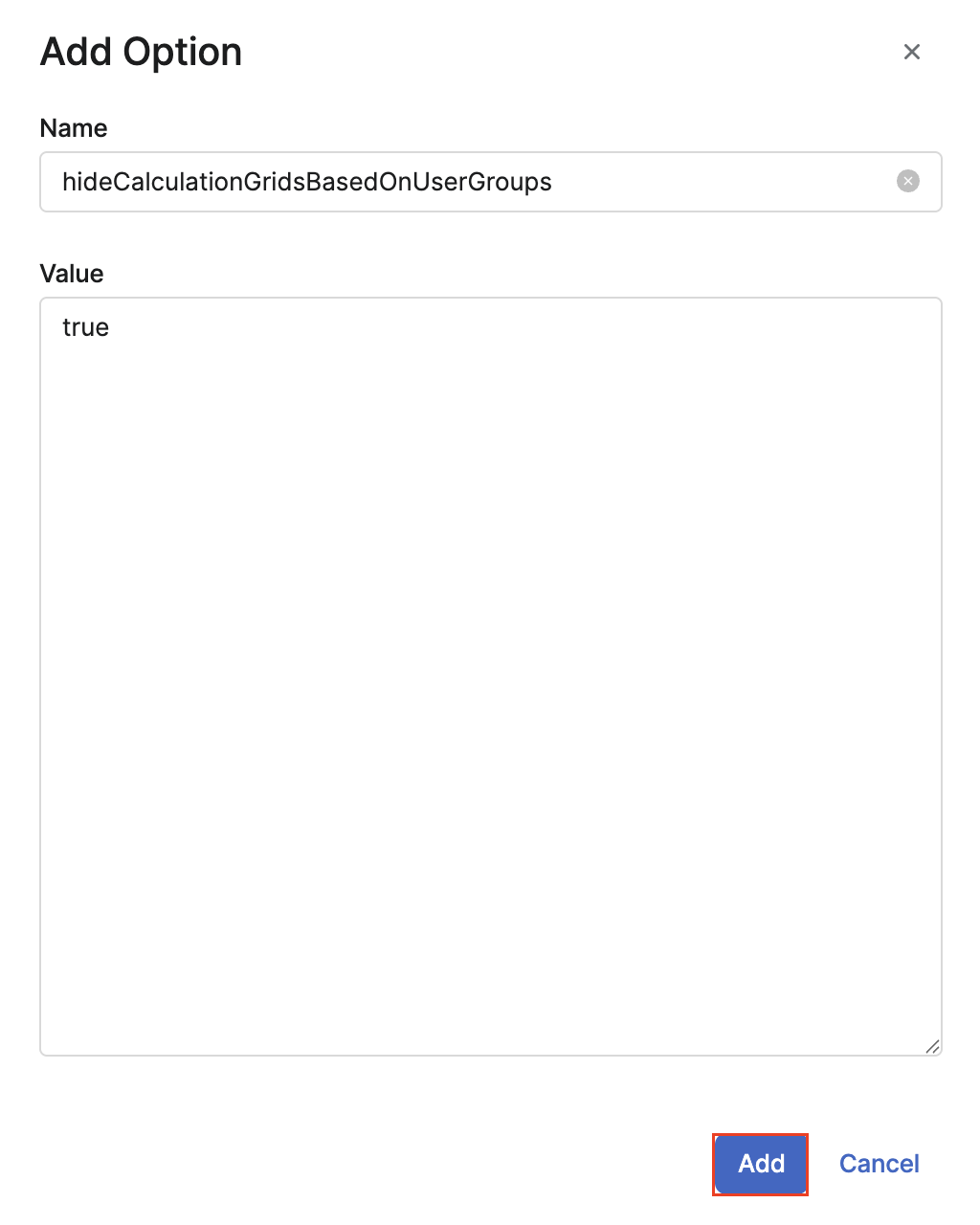
Go to Administration > Configuration > Advanced Configuration Options > Add.
-
In the Add Option section, enter the following values:
-
Name –
hideCalculationGridsBasedOnUserGroups. -
Value –
true.
-
-
Click Add.
If this option is already present in the Advanced Configuration Options, ensure the value is set to
true.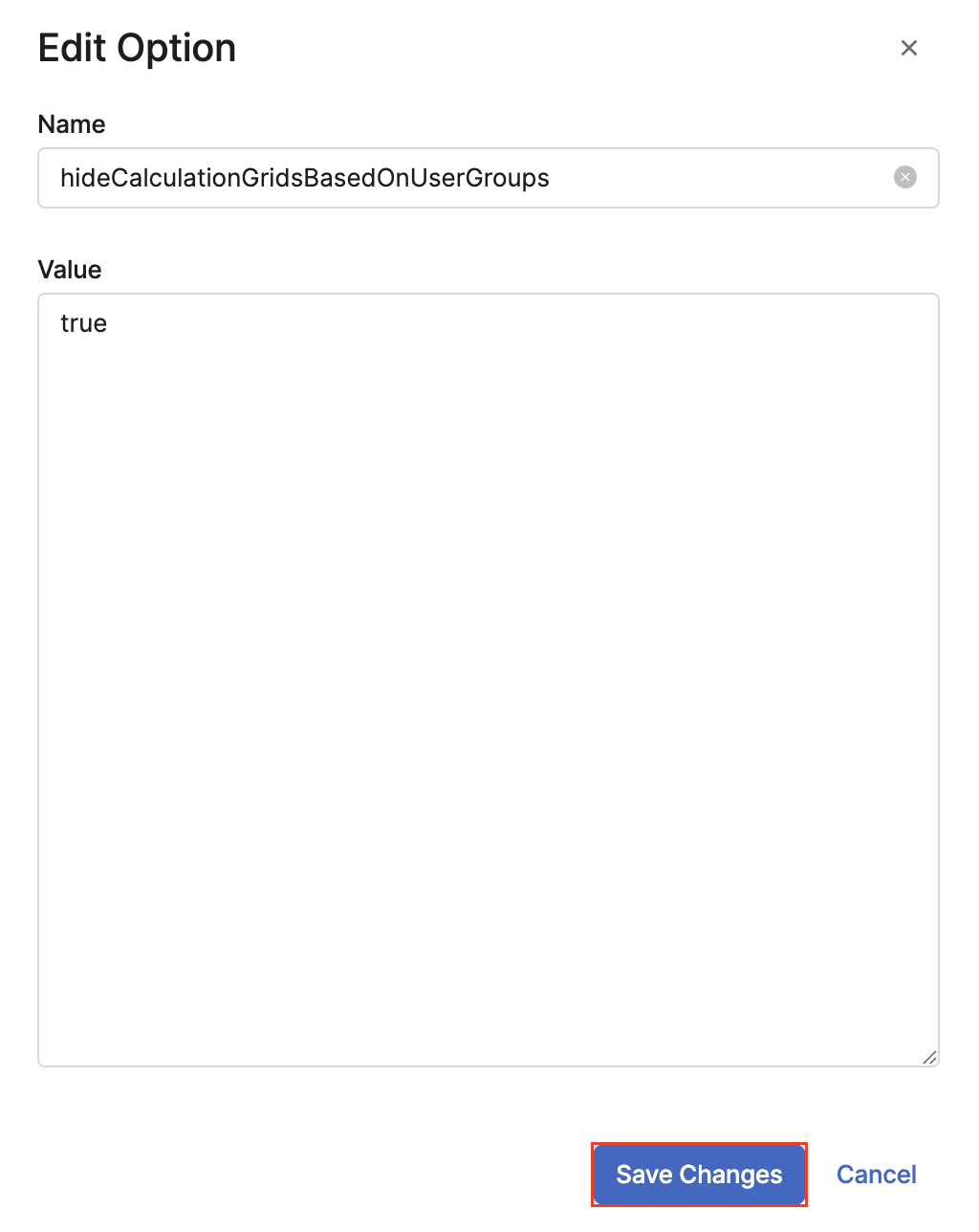
-
-
Select the Calculation Grids to be Hidden
-
Go to Price Setting > Calculation Grids.
-
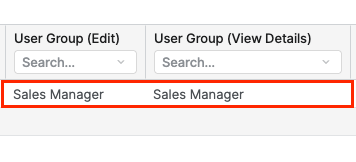
Select the specific Calculation Grids you want to restrict. Complete the User Group (Edit) and User Group (View Details) fields with the appropriate user group that should have access to these Calculation Grids. For example, Sales Manager.
-
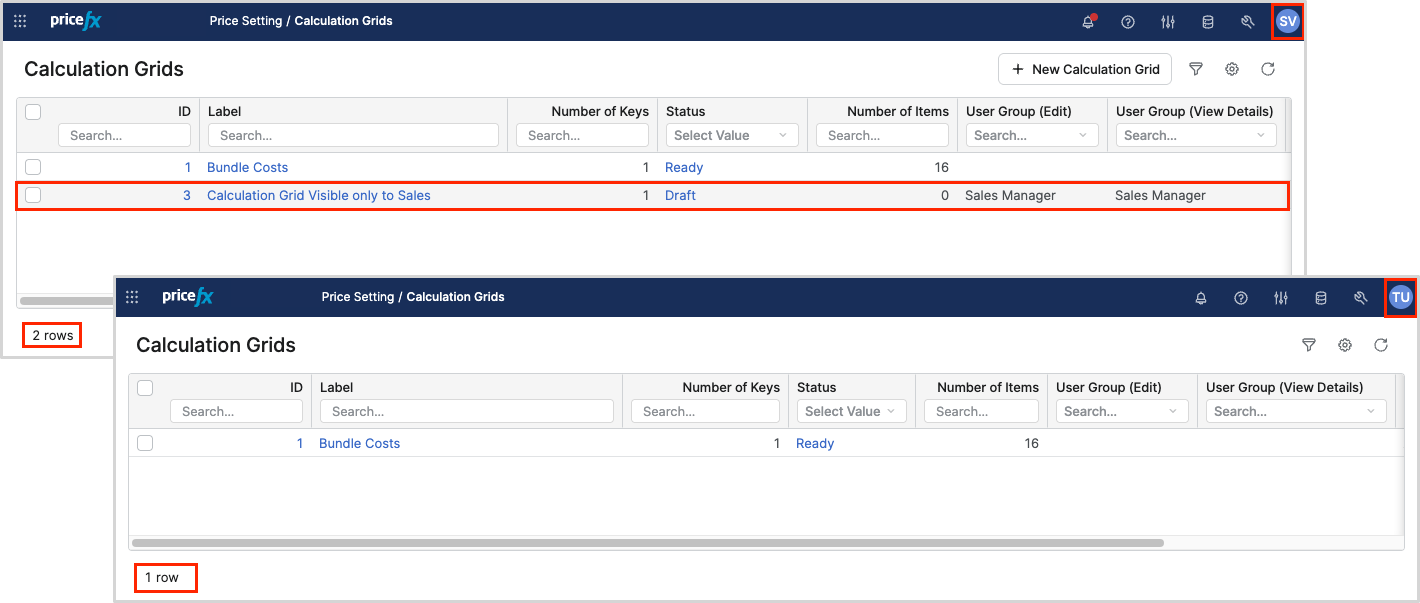
For users who do not belong to the specified User Group (e.g., Sales Manager), the Calculation Grids will be hidden.
Important Considerations
-
Admin users can always view all hidden Calculation Grids.
-
If the User Group (Edit) and User Group (View Details) fields are null or contain only empty strings, they act as wildcards, granting view access to the respective Calculation Grids.
-
The Override User Groups (USERGROUPOVERRIDE) role takes precedence over standard User Group entitlements, allowing specific users to override these permissions. Users with this role can access Calculation Grids regardless of whether their User Group matches that of the Calculation Grid.
Additional Information
When the number of User Groups becomes very large (particularly for User execution), the SQL query may experience slower performance. For a typical number of User Groups, this issue is unlikely to occur. To prevent potential slowdowns in query execution, this feature is turned off by default and must be enabled via the Advanced Configuration Option, as described above.