
Within Pricefx there are two main Data Sources that you will be using in your day to day work.
The first of these is a Datamart, the second is a Rollup.
The configuration of Datamarts is undertaken by a configuration engineer and should no be something that you are involved in. However, it is worth understanding how it works and how you can check the data to ensure that it is right for you.
Datamarts
A Datamart is a way to join two or more sets of data to allow you to run queries, set prices, create charts, and optimize your pricing across both sets of data. A Datamart is not a live, per-query dynamic join, it persists its own data in database tables. The data in a Datamart is populated and kept up to date by a Refresh Data Load, which copies data from the Data Sources configured in the Datamart's fields into the Datamart.
By default, the Refresh Data Load runs incrementally, it inserts new rows and updates existing rows found in the current Data Source, but it does not automatically detect or remove Datamart rows whose corresponding Data Source row was deleted or truncated. To remove such rows from the Datamart, you must either configure an explicit filter on the Refresh Data Load or truncate the Datamart itself before running Refresh again. As a result, if a Data Source is truncated or has rows deleted without a corresponding rebuild of the Datamart, the Datamart can continue to show rows that no longer exist in the Data Source. This is expected behavior, not a defect.
The process whereby the data moves from a Data Feed to a Data Source or Data Source to Datamart is called a Data Load and happens automatically, although it could be set on a schedule.
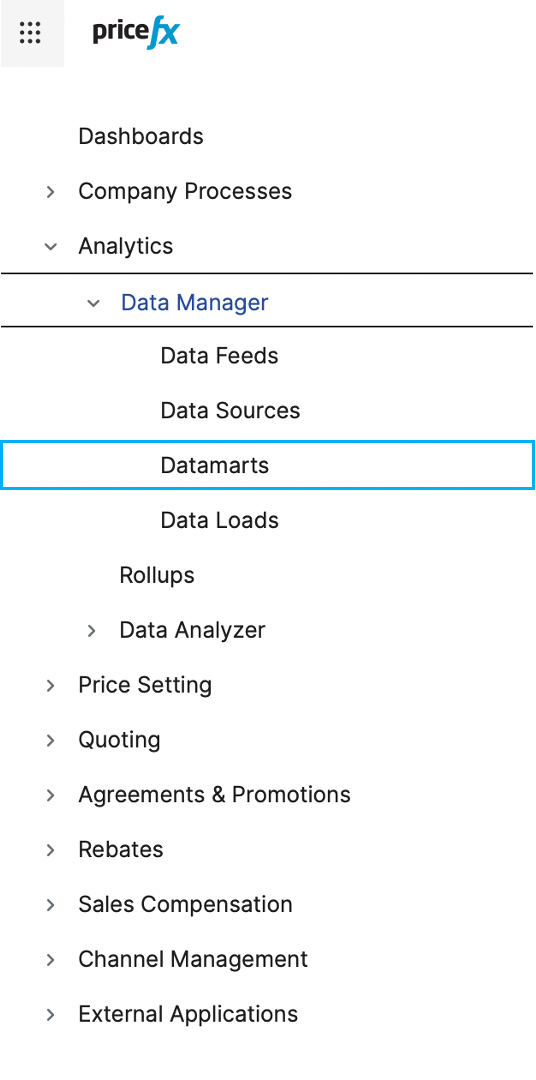
Datamart Viewer
Under Data Analyzer > Datamart Viewer is designed to give you visibility into both Datamarts and their underlying Data Sources. Its purpose is to help you understand the structure and content of data before using it in analytics, charts, or other processes.
When opened, the viewer displays a list of Datamarts to which you have access. This selection may vary depending on your role.
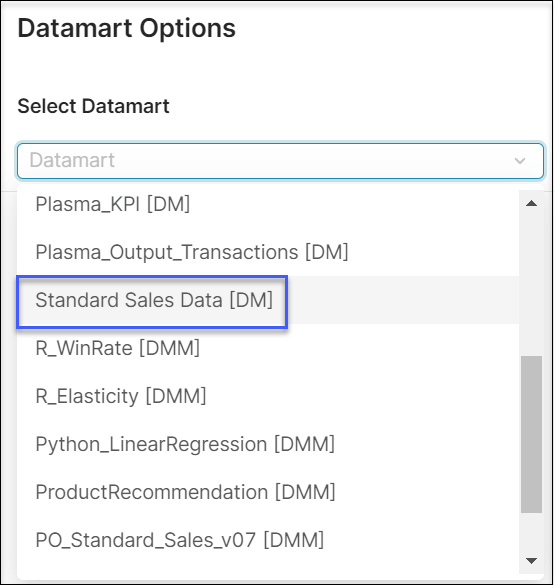
Once a Datamart is selected, its data is presented in a tabular format. This view shows available fields, the number of rows, and allows column-by-column filtering.
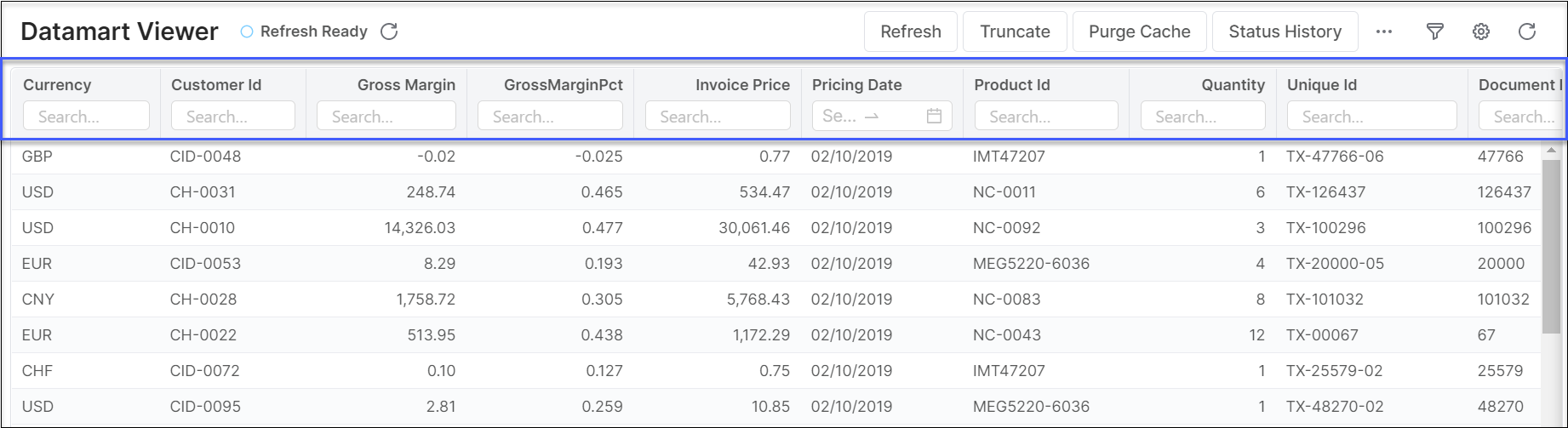
Filtering can be applied to focus on specific values, such as restricting rows by currency type. →
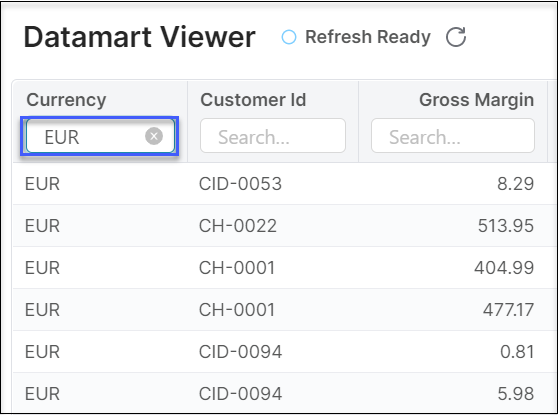
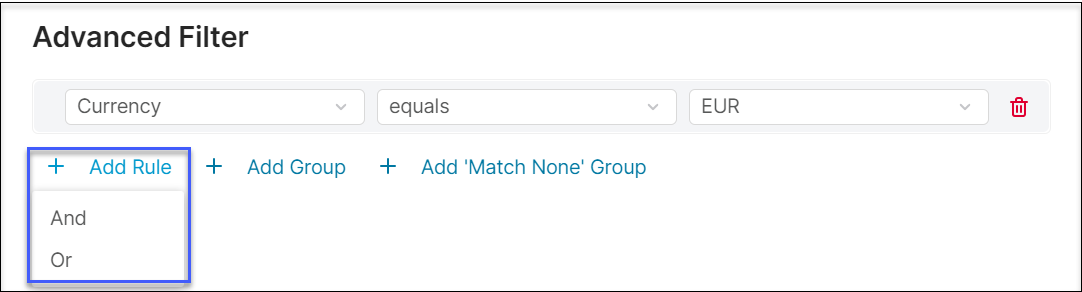
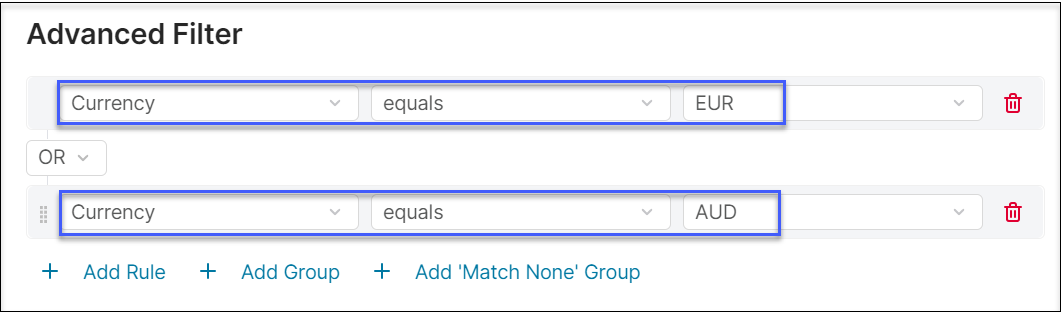
Multiple criteria can also be combined, enabling complex filtering logic. →

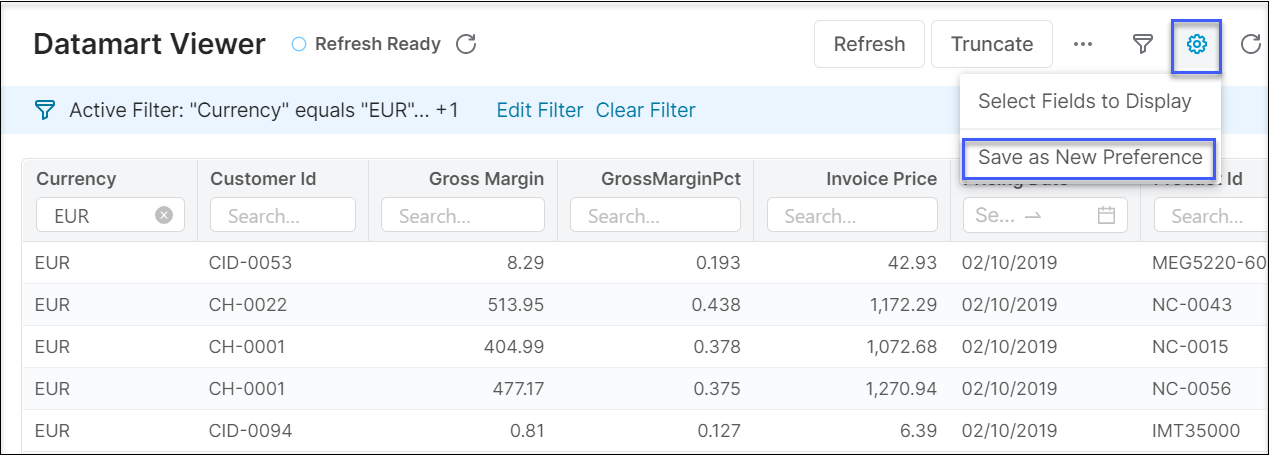
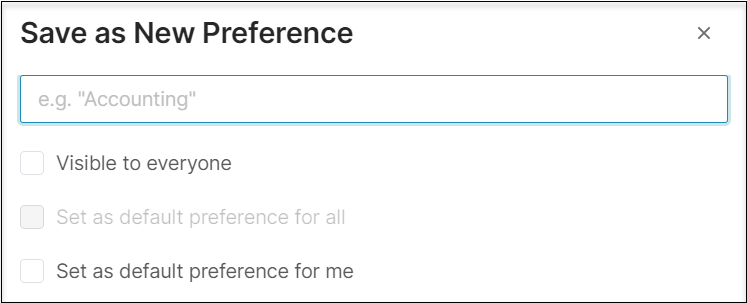
Saved view preferences ensure that frequently used configurations—such as a particular field selection or filter set—can be reused without reapplying the settings.
The viewer also provides the ability to adjust which fields are visible, allowing you to hide columns not relevant to your analysis.
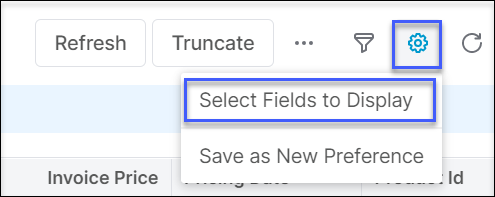
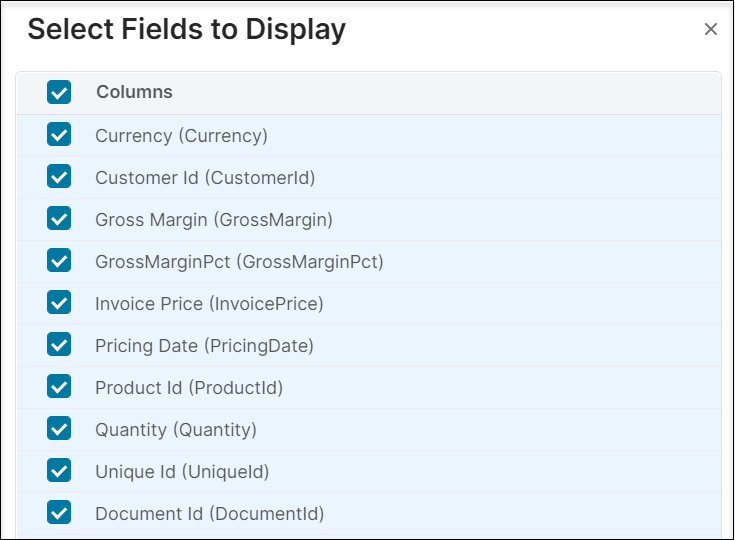
Across the top of the interface, several actions support data inspection and maintenance -> 
-
Refresh runs the Refresh Data Load, which copies data from the underlying Data Sources into the Datamart. By default (incremental mode), Refresh only inserts or updates rows that are currently present in the Data Source. It does not remove Datamart rows whose Data Source row was deleted or truncated, unless an explicit filter is configured on the Data Load or the Datamart is truncated first. Keep this in mind if you notice the Datamart showing more rows than its Data Source after a Data Source truncation.
-
Truncate removes data from the Datamart view without altering the original source tables.
-
Purge Cache clears cached data from memory; although normally unnecessary, it is available as a recovery mechanism.
-
Status History reports on recent data loads, showing their timing, completion state, and the number of records affected. This is useful to ensure that when you are using a particular data source you are sure that it is up to date or if it is updated infrequently, you can identify the date parameter that you can use when producing your analytics.
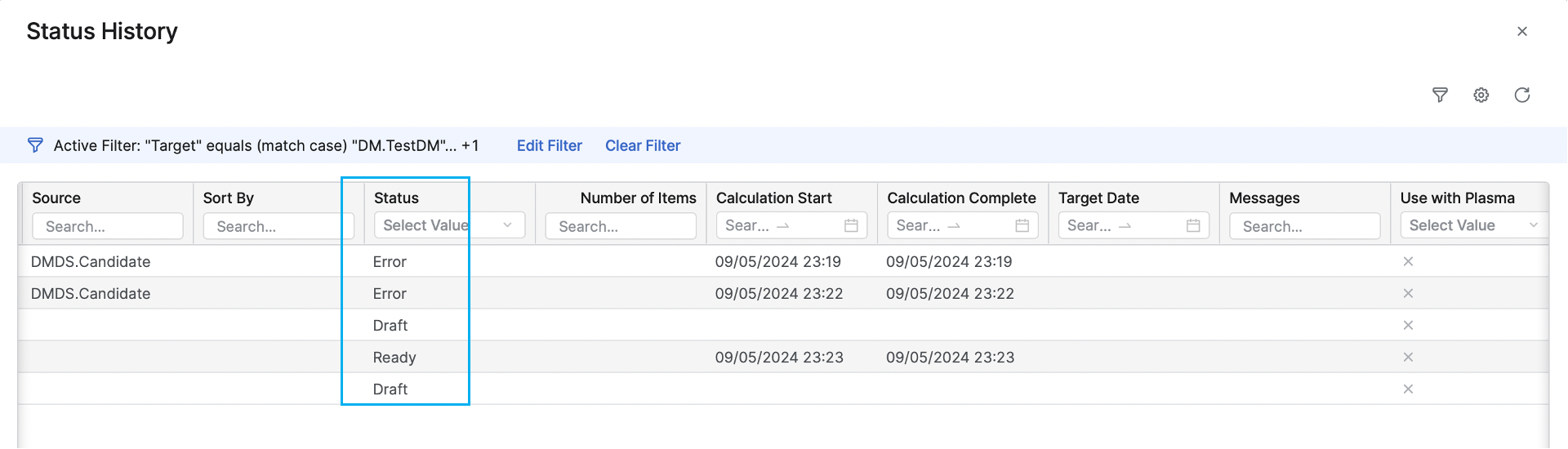
The Datamart Viewer also supports exporting the currently visible dataset to XLSX or CSV for external use.
You can toggle from the Datamart Viewer to the Data Source Viewer within the same interface. This allows direct examination of the base tables queried by the Datamart.
In addition to the inspection functions found in the Datamart view, the Data Source view supports editing operations such as mass updates, as well as its own export capability.
The viewer helps you validate the quality and relevance of data before incorporating it into analytics or sharing it across the organization. It also reinforces good data stewardship by making the state and origin of data transparent.