
This page shows how to open Pricefx Unity in the fullscreen mode.
Page should contain pricefx web resource for code to open it fullscreen.
-
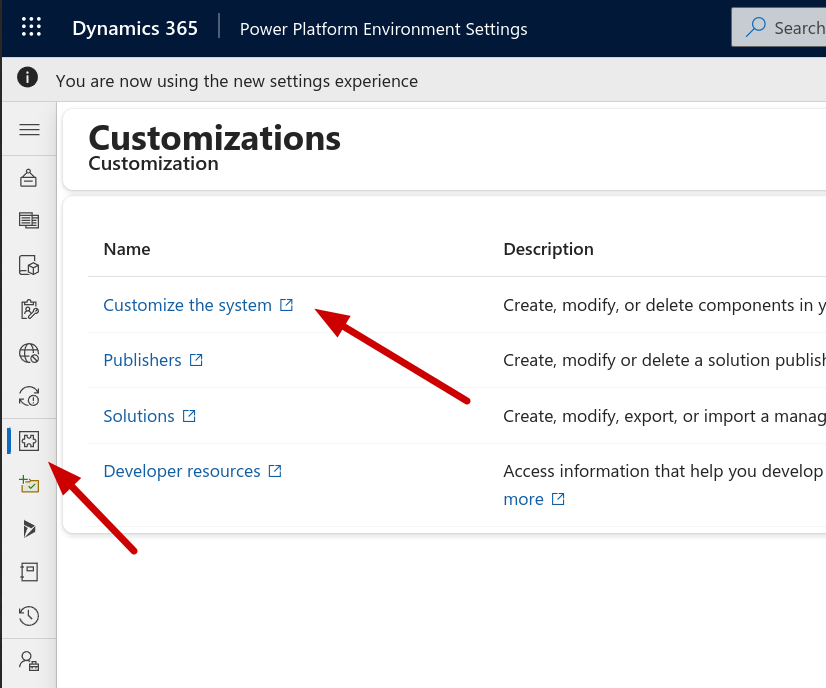
Open Customize the System.
-
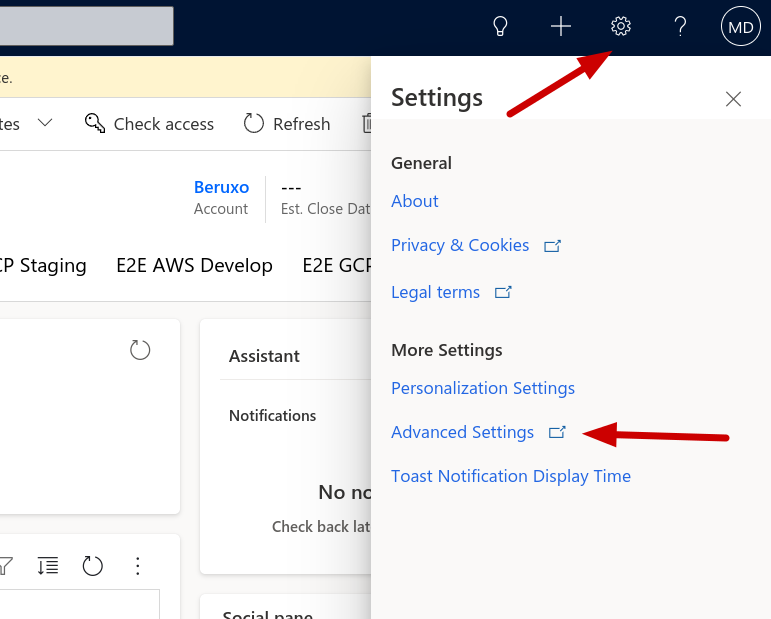
Open MS Dynamics and locate the gear icon in the top-right corner of the interface.
-
Click on the gear icon to access the Advanced Settings menu.
-
In the Sidebar find Customizations, then click on Customize the System.
-
-
Modify code for fullscreen button HTML web resource.
<!DOCTYPE html> <html lang="en"> <head> <meta charset="UTF-8"> <meta name="viewport" content="width=device-width, initial-scale=1.0"> <title>Button for opening iframe fullscreen</title> <script> function openFullscreen(iframeName) { const frame = window.top.document.getElementById(iframeName); const sandboxAttributes = frame.getAttribute('sandbox')?.split(',').map((a) => a.trim()) ?? []; if (!sandboxAttributes.includes('allow-popups')) { sandboxAttributes.push('allow-popups'); } frame.setAttribute('sandbox', sandboxAttributes.join(',')); return frame.requestFullscreen(); } </script> </head> <body> <button onclick="openFullscreen('IFRAME_gcp_Rebates')">FullScreen Iframe</button> </body> </html>-
Replace
IFRAME_gcp_Rebateswith a your iFrame name inopenFullscreen.
-
-
Create new HTML web resource for button.
-
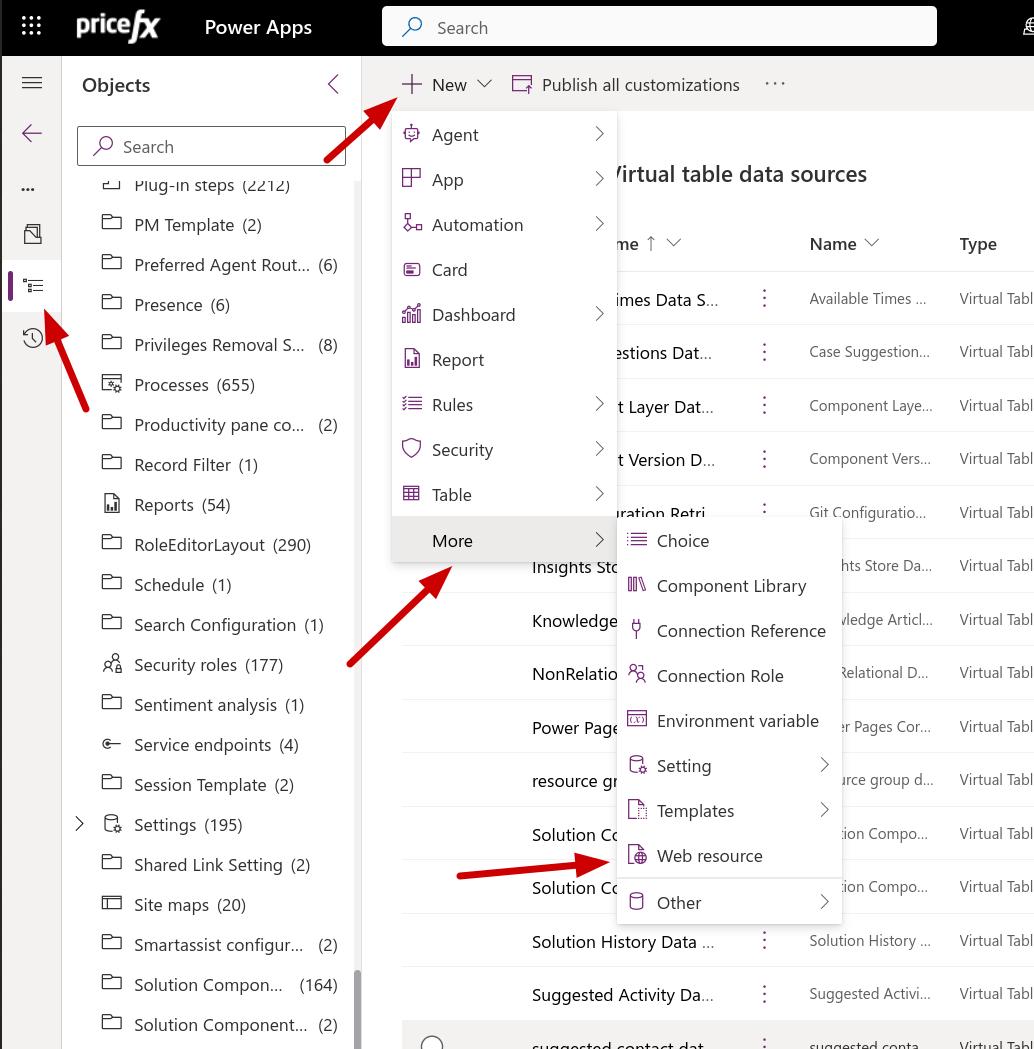
Click on Objects > New > More > Web resource.
-
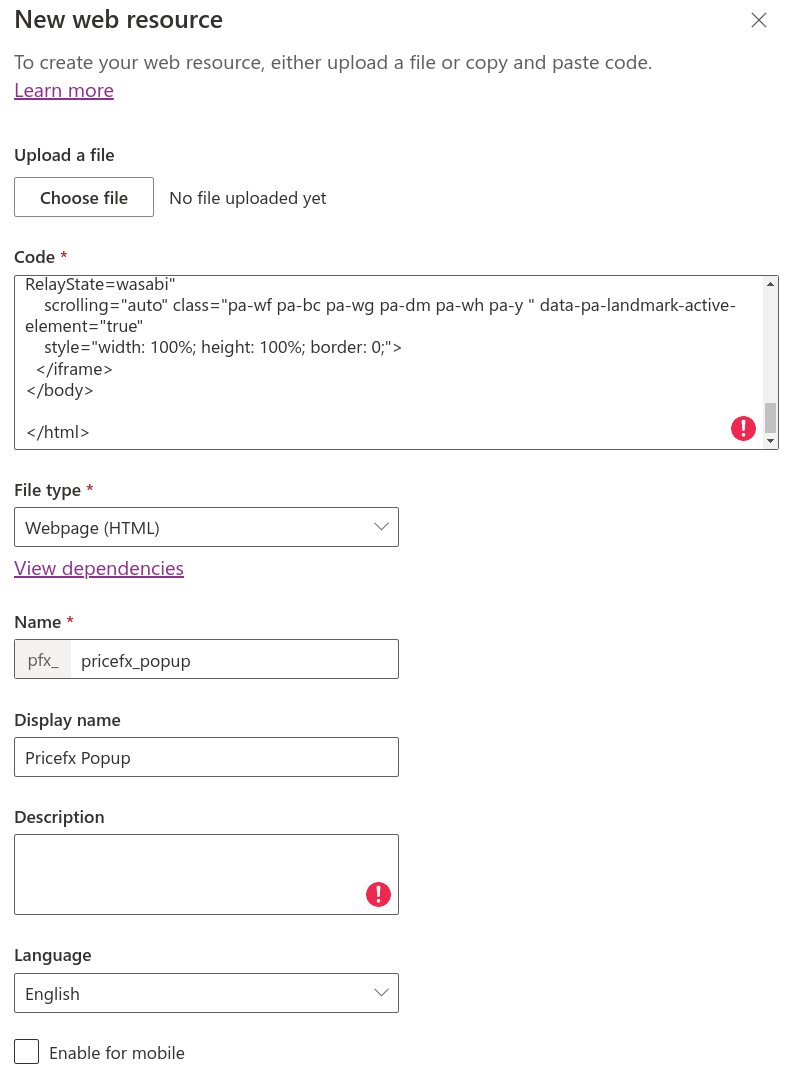
Insert code from section 2 into Code and select File Type Webpage (HTML).
-
-
Search for Form in which you want to insert a button which will open pricefx in fullscreen. In the example, we will do it in Opportunity Form.
-
Open Opportunity Form.
-
Insert HTML web resource in the page. Select web resource for buttons, in our case it would be called
pfx_pricefx_popup_buttons.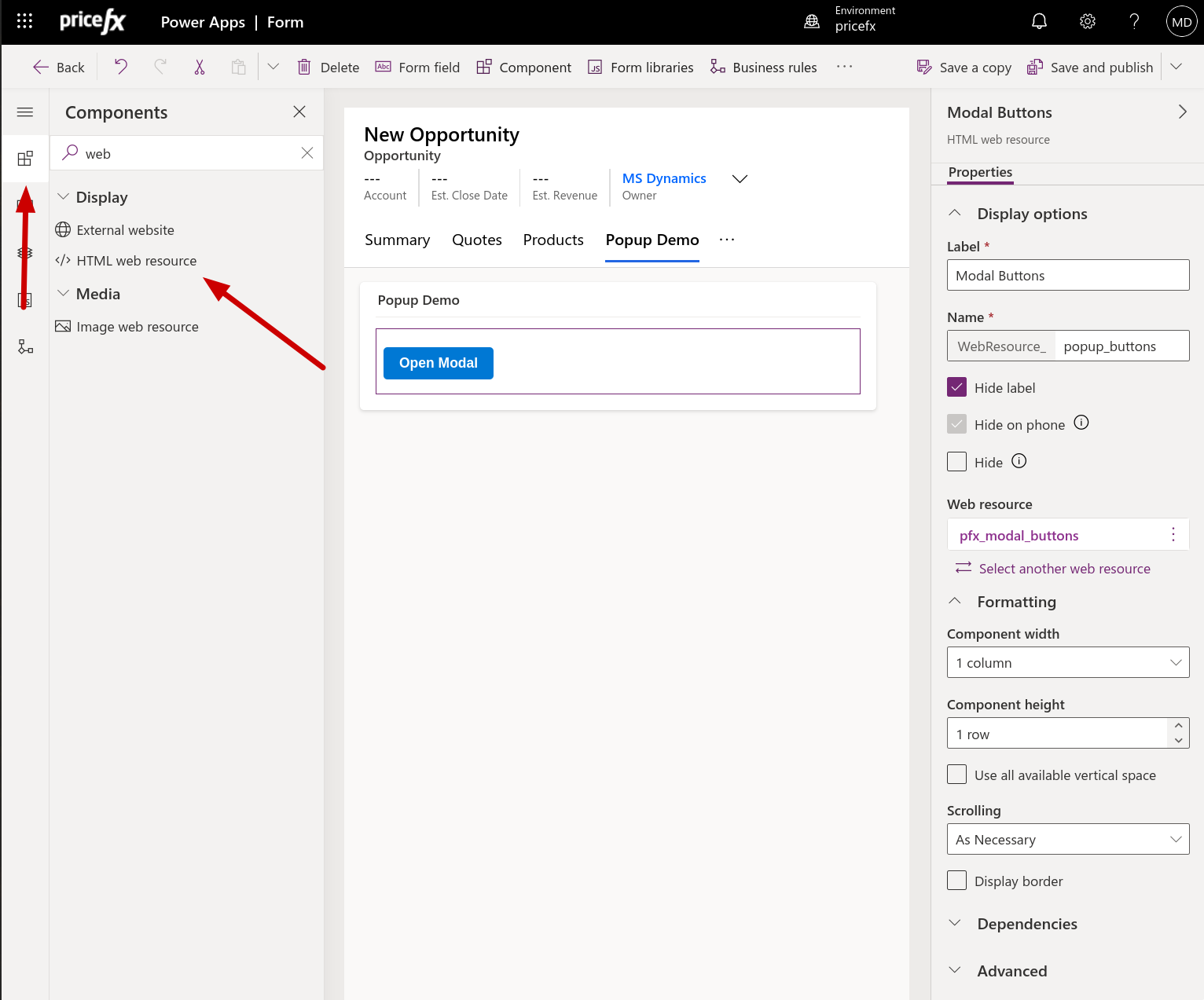
-
-
Save and Publish all changes.