
Give users access to every Pricefx MCP tool on a partition by listing them as configurators and assigning them the required role. This applies only when tool access control is turned on.
Prerequisites
-
Tool access control is turned on for the partition.
-
You need permission to manage Advanced Configuration Options in the target Pricefx partition.
-
You need permission to assign user roles in the target Pricefx partition.
Grant Access
-
Go to Administration > Configuration > Advanced Configuration Options.
-
Find the
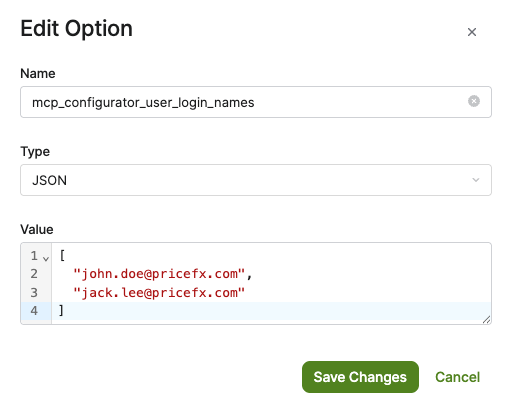
mcp_configurator_user_login_namesoption.
If this option does not exist, add it.
-
In the value, enter the login names of the configurators as a JSON array of strings.
[
  "john.doe@pricefx.com",
  "jack.lee@pricefx.com"
]
-
Click Save Changes.
-
Make sure each configurator has at least the View Audits and Users (
USERAUDIT) role.
Verify Access
-
Ask the configurator to list the available tools in their MCP client. The list now includes tools that are not on the Operator Allowlist.
-
If the list contains only allowlisted tools, check that the user has the View Audits and Users (
USERAUDIT) role and that their login name in the array exactly matches their Pricefx login name. Then ask the user to reconnect.
Remove Access
To remove configurator access, delete the user's login name from the array and save the option.
Removing the login name is enough to remove configurator access. You do not need to remove the View Audits and Users role, unless the user no longer needs it for other work.
Configurator access applies only to the partition where the user is listed.