
The aim of this step is to set the scope of the transactions. There is a single tab, composed of a configurator (left frame) and a dashboard (right frame).
Inputs
In the Definition step, you map the inputs and set the scope of the model. The user inputs are always on the left. By default the inputs are filled with values set during the deployment of the accelerator.
Transaction source
Datamart or Data Source used to calculate the segments. It must fill the requirements listed in Installation (Optimization - Negotiation Guidance). Once this value is provided, other related fields become available.
Transaction Filter
Allows you to filter the data. We recommend that you define at least these filters:
-
Positive cost, revenue, and quantity.
-
Optimization target in a realistic range, for example between -0.1 and 1.
Customer Field
Customer ID field. It is used to aggregate data by customer.
Product Field
Product ID/SKU field. It is used to aggregate data by product.
Date Field
Transaction date field. This field is also used for recency weighting, if used.
Quantity Measure
Field that indicates the quantity in a transaction.
Revenue Measure
Field that provides the transaction extended price which will be the basis of the analysis. It may be a net price, a gross price, or another, depending on the policy you want to simulate.
Margin Measure
Field providing the extended margin of the transaction. Similarly to the Revenue Measure, it is chosen according to the policy you want to simulate.
Target Type
Define the type of metric that the model will optimize and report. This choice drives all the calculations - segment statistics, elasticity, recommendations, and price gaps. It must be consistent with the measure selected in the Optimization Target field below. Available options are:
-
Margin %
-
Margin rate (i.e. a value of 10% must be represented with the value 0.1)
-
-
Discount %
-
Discount rate (i.e. a value of 10% must be represented with the value 0.1). If you intend to use alignments later in the process, discount rate is a better choice than margin rate, as alignment will then take the list prices as a reference. This is generally more consistent and less volatile than the costs.
-
-
Unit Margin: for a cost-plus approach with recommending the added value on top of a raw cost.
-
Unit Price: using directly the price per unit as the target. Only relevant when recommendations are done at the product level (product is one of the first segmentation level)
-
Price Index
-
A relative price metric comparing the actual unit price of a transaction to a reference price. A typical definition is:
Price Index = Unit Price / Reference Pricewhere Reference Price is, for example, the average historical unit price of the product. Reference Price may also be the price of a reference product, which can allow positioning for good/better/best.
-
Optimization Target
Optimization target field in the source table - this is the metric that the model will optimize. It must be consistent with the selected Target Type. No null values are allowed in the optimization target field.
Weight Measure (optional)
Field that indicates the weight of a transaction row. You may use the quantity field, for instance, if you want to weight ten times more a transaction with 10 sold products compared to a transaction with only a quantity of one. The weight is used for all the calculations throughout the model - percentiles, segment distribution parameters, elasticity, price gaps to parent segment and alignment-related calculations. For now, business alignments cannot be used if a Weight Measure is defined (they only work with default weights defined below).
If you check the Add weight based on transaction recency checkbox:
-
The Weight Measure is automatically set to Recency Weight.
-
An additional input Recency weighting, half life in days is displayed. With recency weighting enabled, Negotiation Guidance computes a recency-based weight for each transaction using an exponential decay function of the transaction date (Date Field) and the configured half life. A shorter half life makes older transactions less influential more quickly. As with any Weight Measure, when Recency Weight is used, business alignments cannot be enabled.
If Weight Measure is not set, Transaction source rows are weighted using default weighting for selected Target Type:
|
Target Type |
Default Weight |
|---|---|
|
Margin % |
Revenue Measure |
|
Discount % |
List Price (extended) |
|
Unit Margin |
Quantity Measure |
|
Unit Price |
Quantity Measure |
|
Price Index |
Revenue Measure |
List Price
Mandatory field if the metric is of type Discount %. It represents the price without any discount applied to it. It must be an extended value.
Currency
Mandatory field specifying the target currency for all monetary measures in the model. All monetary metrics shown in later steps are expressed in selected Currency.
-
When the Transaction source is a Datamart (DM), all monetary input values (Revenue, Margin, Unit Price, Unit Margin, List Price where applicable) are normalized to the selected currency. The source datamart must have a field with type Currency and a date field with function Pricing Date.
-
When the Transaction source is a Data Source (DS), the user needs to provide data already expressed in selected currency, no automatic conversion is applied.
Input Data Consistency
The revenue, margin, and list price values are used to simulate the transactions when the optimization target value changes. The mapped fields should be consistent:
-
Optimization Target, Revenue Measure, and Margin Measure are checked together in case the Target Type is set to Margin%
-
Optimization Target, Revenue Measure, and List Price are checked together in case the Target Type is set to Discount%.
-
Optimization Target, Quantity Measure and Margin Measure are checked together in case the Target Type is set to Unit Margin
-
Optimization Target, Quantity Measure and Revenue Measure are checked together in case the Target Type is set to Unit Price
If needed, create some calculated fields in the transaction source: revenue, margin, margin rate (i.e., margin/revenue).
Use the check-boxes for additional filters ensuring calculations without exceptions. These parameters are checked by default. It is highly recommended to use those filters.
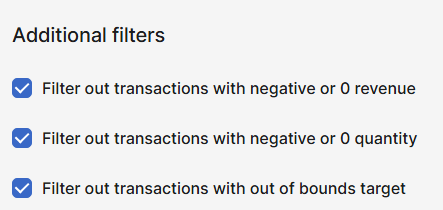
The “Replace missing dimensions” replaces the null values of each dimension with a given string (by default, it is __missing__). It is required to avoid errors later in the process.

Dashboard
Once you apply the settings, the right panel provides:
-
Transactions in Scope – Data that are in the scope of the segmentation.
-
Filtered Out Transactions – Data that are filtered out by the set transactions filter.
⚠️ Some data rows appear neither in the Transactions in Scope, nor in the Filtered Out Transactions. It is the case if a value is filtered out by the advanced filter, but its value is null and it is also filtered out with the opposite of the user filter. Please consider the Filtered Out Transactions portlet as source of information possibly missing data.
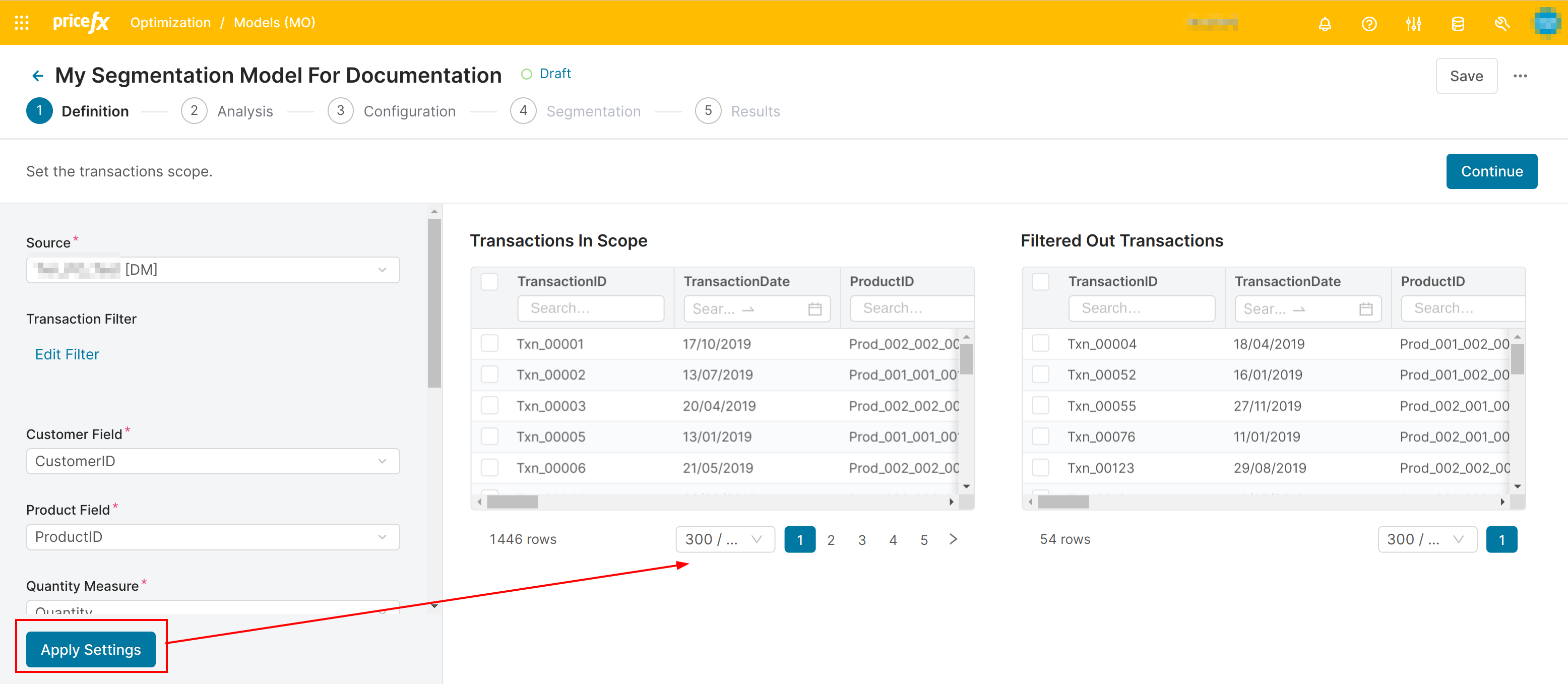
You can then click the Continue button (top right) which takes you to the Analysis step.