
The aim of this step is to analyze the data in the scope and set the price drivers parameters. It starts with a calculation whose aim is to materialize used data inside the model. Once the calculation is done, there are two tabs: Data Profile, and Price Drivers Setup.
Data Preparation
When you arrive at the Analysis step from the Definition step, the model first runs a calculation to prepare the data. It takes up to some minutes, depending on the size of the transaction source. The goal of this calculation is to format and save the data that will be used in the next steps of the model.
This step also checks the mapping of the fields set by the user. The warnings are displayed in the first portlet of the dashboard:
-
The mapped fields should be consistent. The average optimization target value must be close to the value calculated using the revenue and the margin measure (in the case of a margin % type) or the revenue and the list price (in the case of a discount % type). If they are not, an error message will be displayed.
-
The optimization target field should not contain any null value. If there is at least one null, an error message will be displayed to advise you to filter out null values.
-
The field name “segment” (not case sensitive) is reserved. In case it exists in the source Datamart or Data Source, a warning is written in the calculation tracker interface, and the field is not proposed as a price driver in the Price Drivers tab.
-
When the Transaction source is a Datamart, this step also validates that currency conversions are available for all transactions in scope. For each currency in the Datamart, the model checks that the ccy Datasource contains exchange rates from that currency to both DM base currency and model Currency, for the full transaction date range after filters are applied. If some dates are not covered for any of these conversions, a warning is displayed.
Two tables are created: Transactions and Profile.
Transactions table
The Analysis step materializes input data into an internal Transactions table. This table is a model’s copy of the transaction source defined in the Definition step, and it is used by all subsequent calculations in the accelerator. Besides the original data, the Transactions table includes a few additions:
-
Currency handling
-
If the transaction source contains a field of Currency type, this field is exposed in the Transactions table under the name Original Currency. It preserves the original transaction currency for each row. The model always adds a model currency column named Currency, which is populated with the currency selected in the Definition step.
-
-
Segment assignment
-
During the Segmentation step, each transaction is assigned to a segment and Transactions table is enriched with a segment identifier column.
-
-
Guardrails
-
During the Results step, the model computes price recommendations for each segment. The resulting guardrail metrics are added as additional columns to the Transactions table and are used for analysis.
-
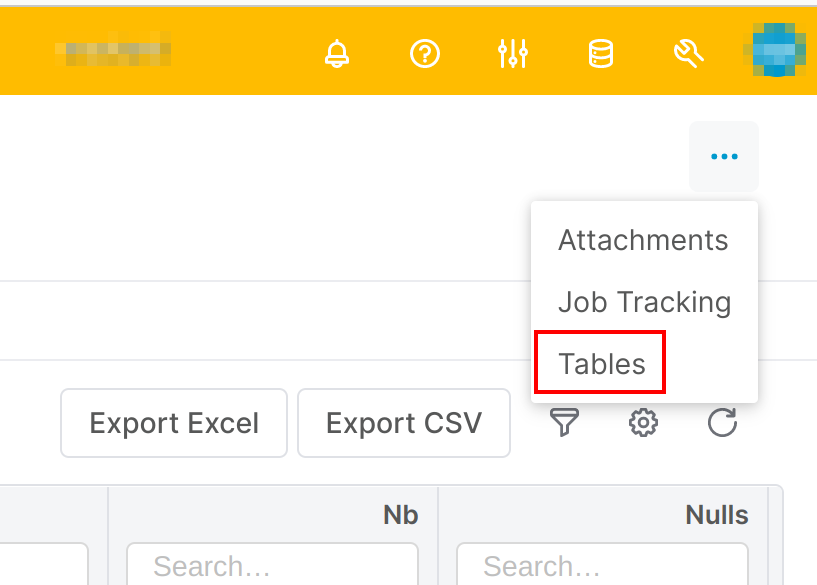
The tables of a model are always accessible through the menu in the top right corner. But usually, you would not need to access them like this; all needed information is directly provided in the sections of the model.
Once the calculation has run, two tabs appear: Data Profile and Price Drivers Setup.
Data Profile
This tab is mainly a dashboard made of three portlets:
Scope Summary
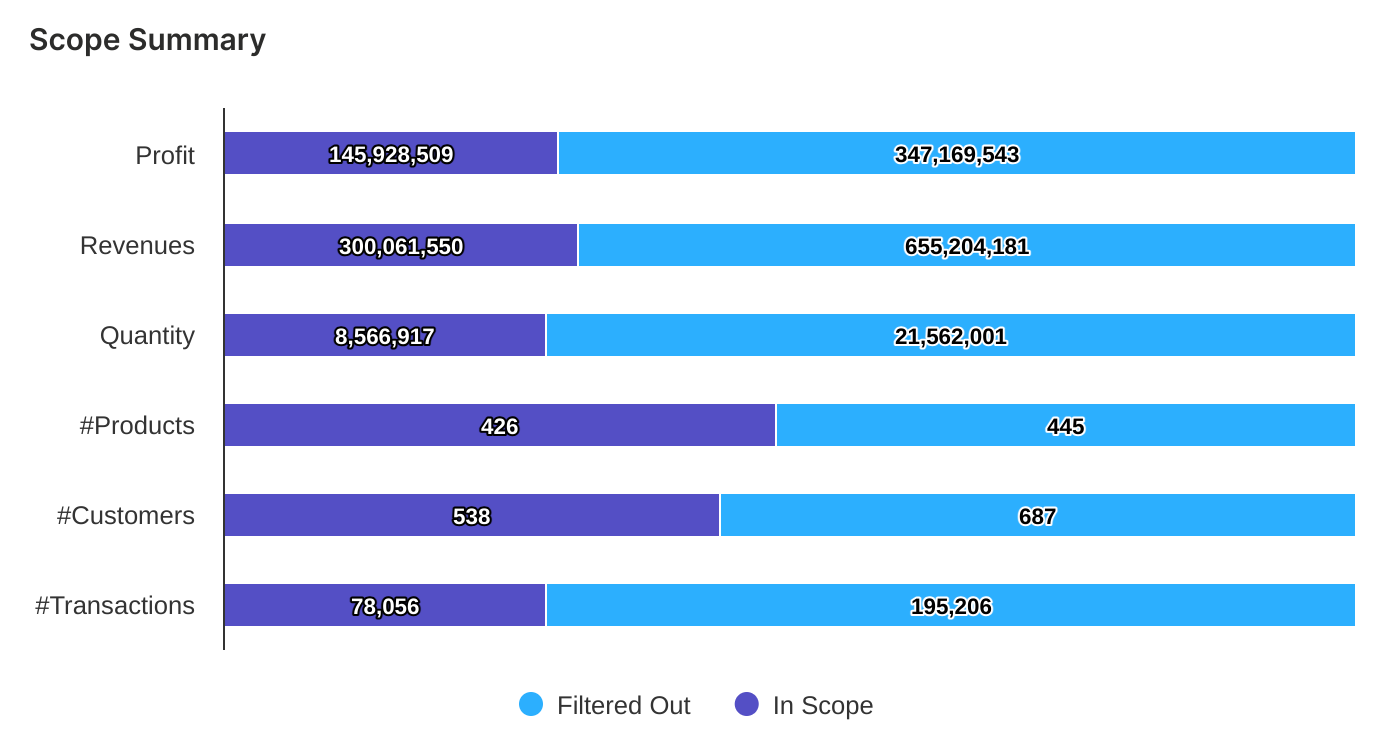
This bar chart shows how much data is in the scope of the segmentation and how much is filtered, among different dimensions, from the total profit to the number of transactions.
Details for all Fields
This table is a summary of all the mapped fields and the dimensions of the transaction source, taking into account the filtered data in the scope. For any data, you get the min and max values, the number of nulls, the number of different values (cardinality), and information about the type of the field and its owner.
It is useful to check if there are some nulls in fields that you would want to use as segmentation levels, or if some cardinalities are too high for a segmentation.
Distinct Values
This portlet is optional. It is created if you enter a value in the left user input Show distinct values for, and apply the settings. It allows you to deeper check any dimension of the data scope, to validate if you are interested in using it for the segmentation.
Price Drivers Setup
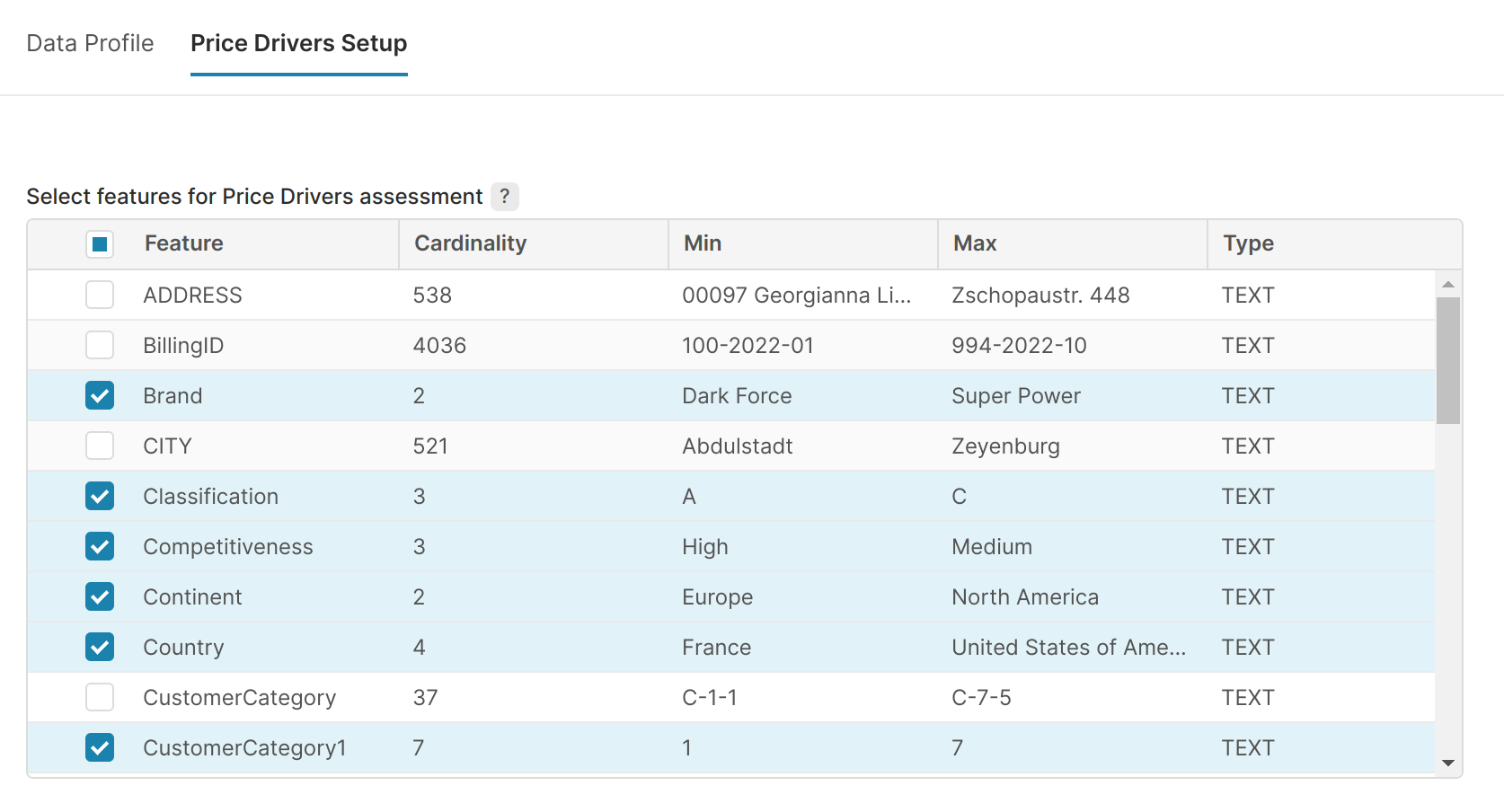
This is the place where you choose the parameters for the next calculation. In this tab, you choose the fields on which the price drivers are calculated.
⚠️ Only the fields that are selected in this price drivers selection are candidates to be the segmentation levels. Please select all the fields that you want to use in your segmentation tree.
If a source field uses a reserved name (like “Segment”), it is not proposed in the price drivers list. If you want to use it, either rename the field or create a copy of its values in another field, in your source data.
The price drivers evaluate the importance of any feature of the data to forecast the optimization target (i.e. generally the margin percentage), and the interactions among all features, detect hierarchies, and provide dimension recommendations for the segmentation. These values and recommendations will then help you define the dimensions you will take as levels of segmentation and their order. It will only provide help: you can use any dimension in the segmentation even if the related price driver has not been calculated. The more features you choose, and the more cardinality they have, the longer the calculation will take.
By default, all the dimensions of cardinality between 2 and 30 are pre-selected (excluding non-dimensional features). The product field and the customer field are also preselected to get the product hierarchy and the customer hierarchy. It helps to define the default model evaluation, but you can unselect them to run the price drivers faster.
Once the choice is made, click Continue. The next step, Configuration, will first run the calculation of price drivers and then provide the next section.